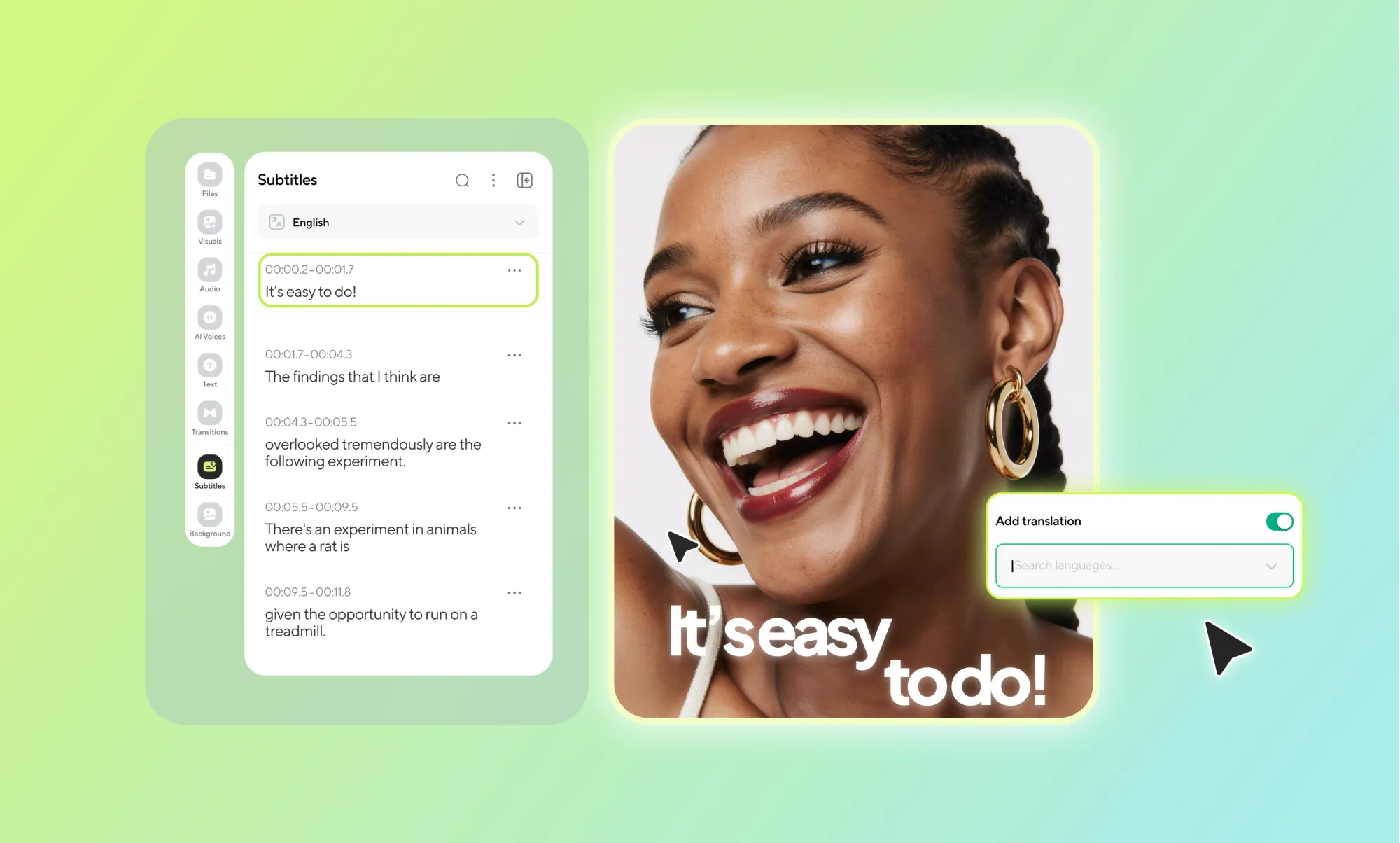
Adding subtitles to a video used to mean juggling timelines, typing captions by hand, or exporting files back and forth between tools.
It was time-consuming, repetitive, and rarely anyone’s favorite part of the editing process. The good news? That workflow has changed. Today, AI makes it possible to add subtitles to a video in minutes, without slowing down your creative flow or pulling you out of your editor.
With an AI subtitle generator, subtitles are created automatically from your video’s audio, synced to the right moments, and ready to edit in one place. That means less manual work, fewer mistakes, and more time spent refining the actual content.
Subtitles also make your videos easier to watch, easier to understand, and more flexible across platforms where sound isn’t always an option.
In this guide, we’ll walk through how to add subtitles to a video step by step, using AI subtitles with no guesswork involved.
Whether you’re editing social videos, interviews, podcasts, or long-form content, AI subtitles help you work faster, stay accurate, and publish videos that are accessible and easy to follow. Let’s get into it.
How to add subtitles to a video with AI Subtitles
Adding subtitles with AI is a lot simpler than it sounds. Here’s a clear, start-to-finish walkthrough using Async Subtitles, with no manual typing or file juggling.
Step 1: Upload your video
Start by uploading your video file to the AI Subtitles tool. This can be a finished edit or a rough cut, AI subtitles work just as well either way. Most common video formats are supported, so there’s no need to convert files beforehand.
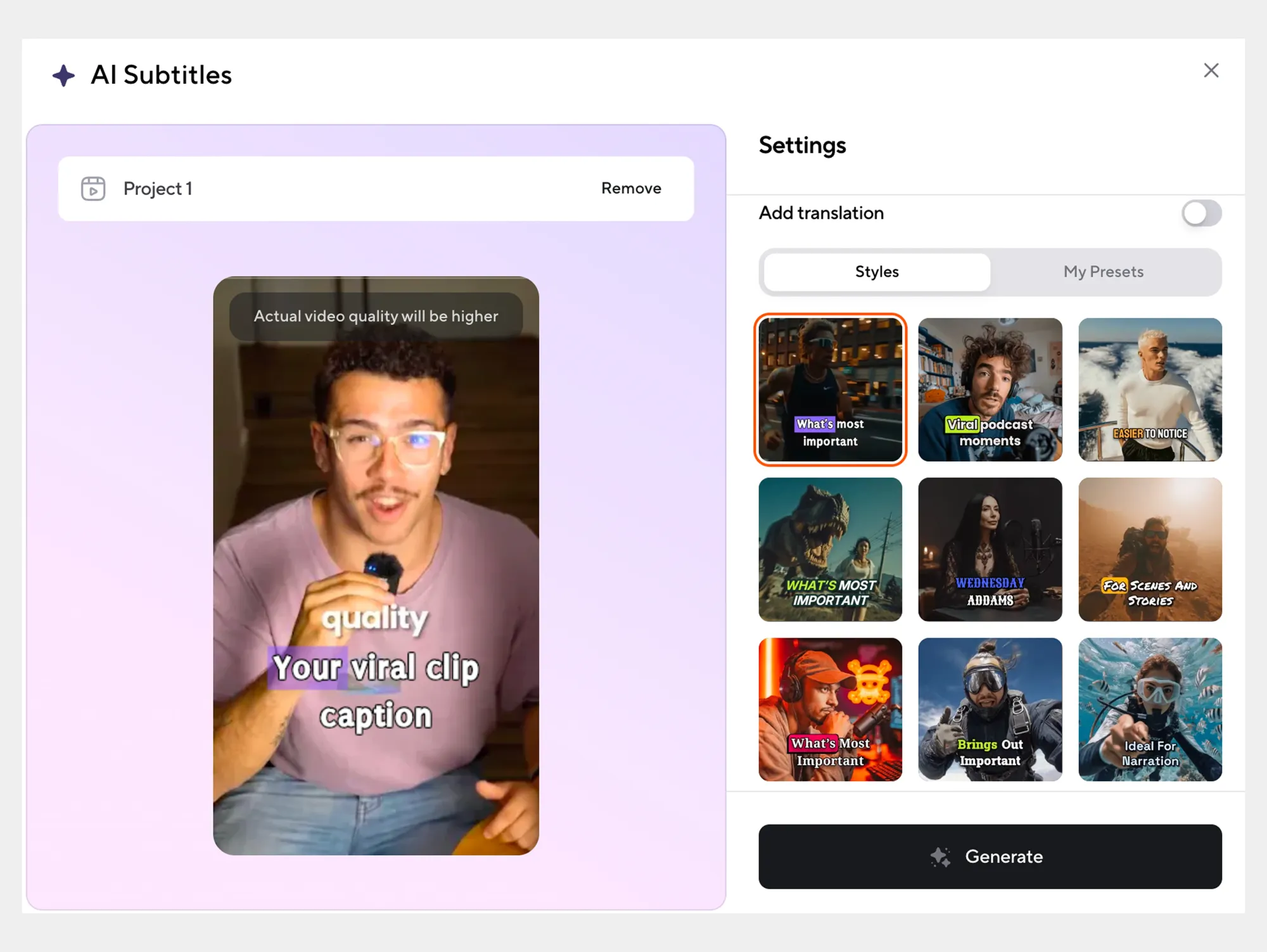
Step 2: Choose the style and generate subtitles automatically
Once your video is uploaded, the AI subtitle generator analyzes the audio and creates subtitles in seconds. The system automatically detects speech, punctuation, and timing, so captions are synced to the video without extra setup.
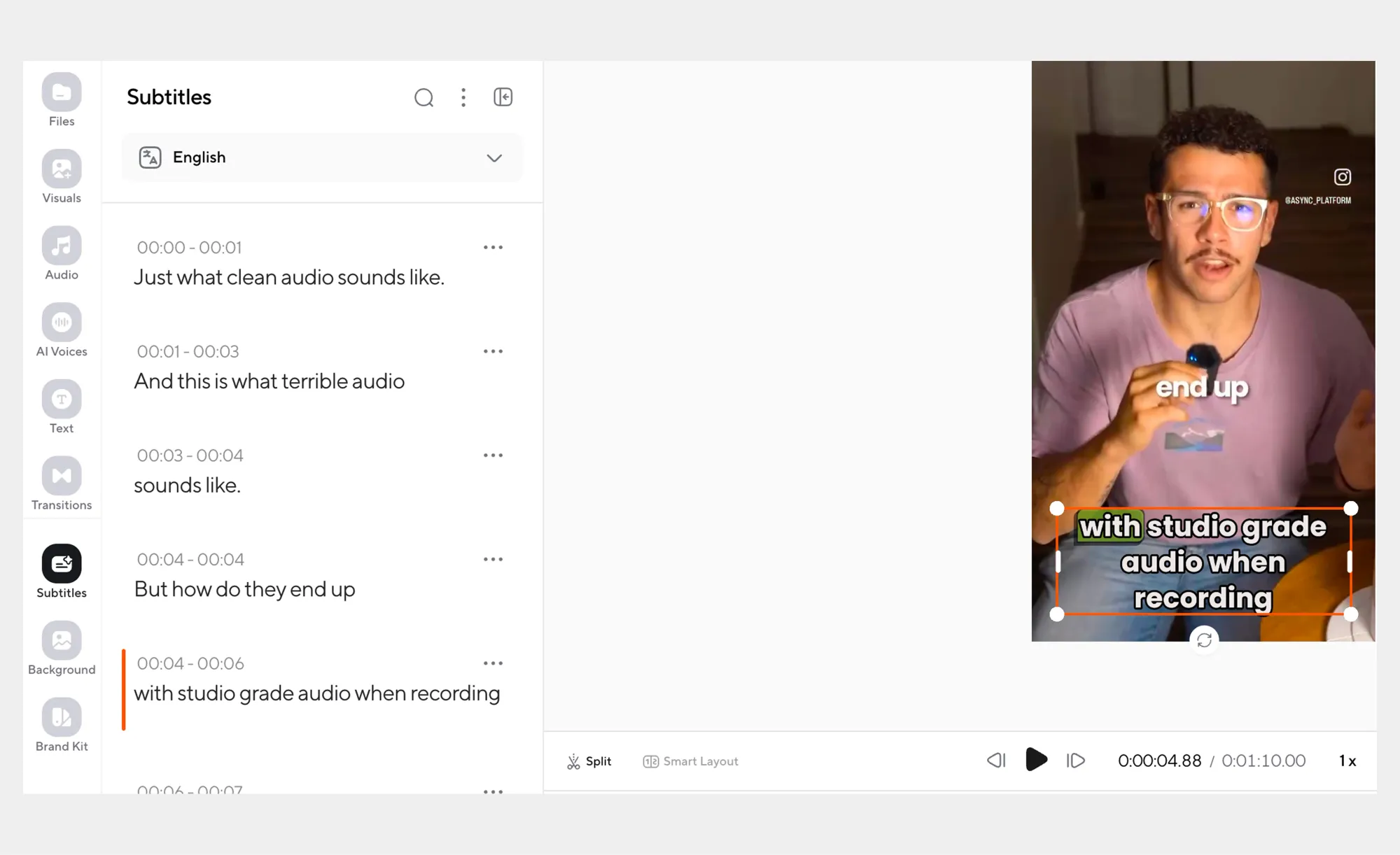
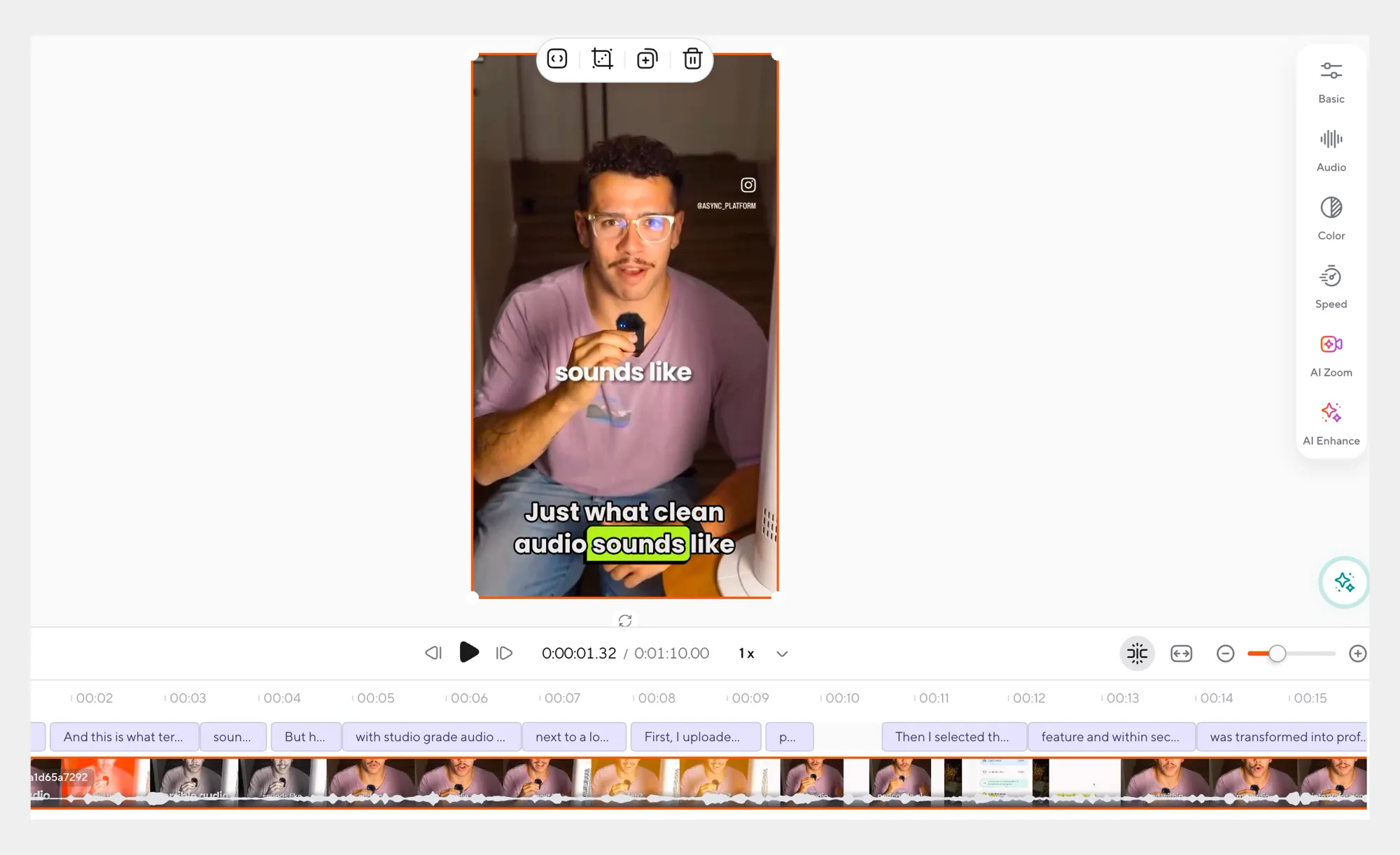
Step 3: Review and edit subtitles
After the subtitles are generated, you can review and edit them directly in the editor. Fix names, adjust phrasing, or fine-tune timing if needed. This step is especially useful for branded terms, technical language, or speaker names.
Step 4: Edit video and audio (optional but powerful)
Before exporting, you can make quick edits to your video and audio in the same workspace. Trim clips, adjust timing, or clean up audio levels without switching tools. This is helpful if you notice small issues while reviewing subtitles.
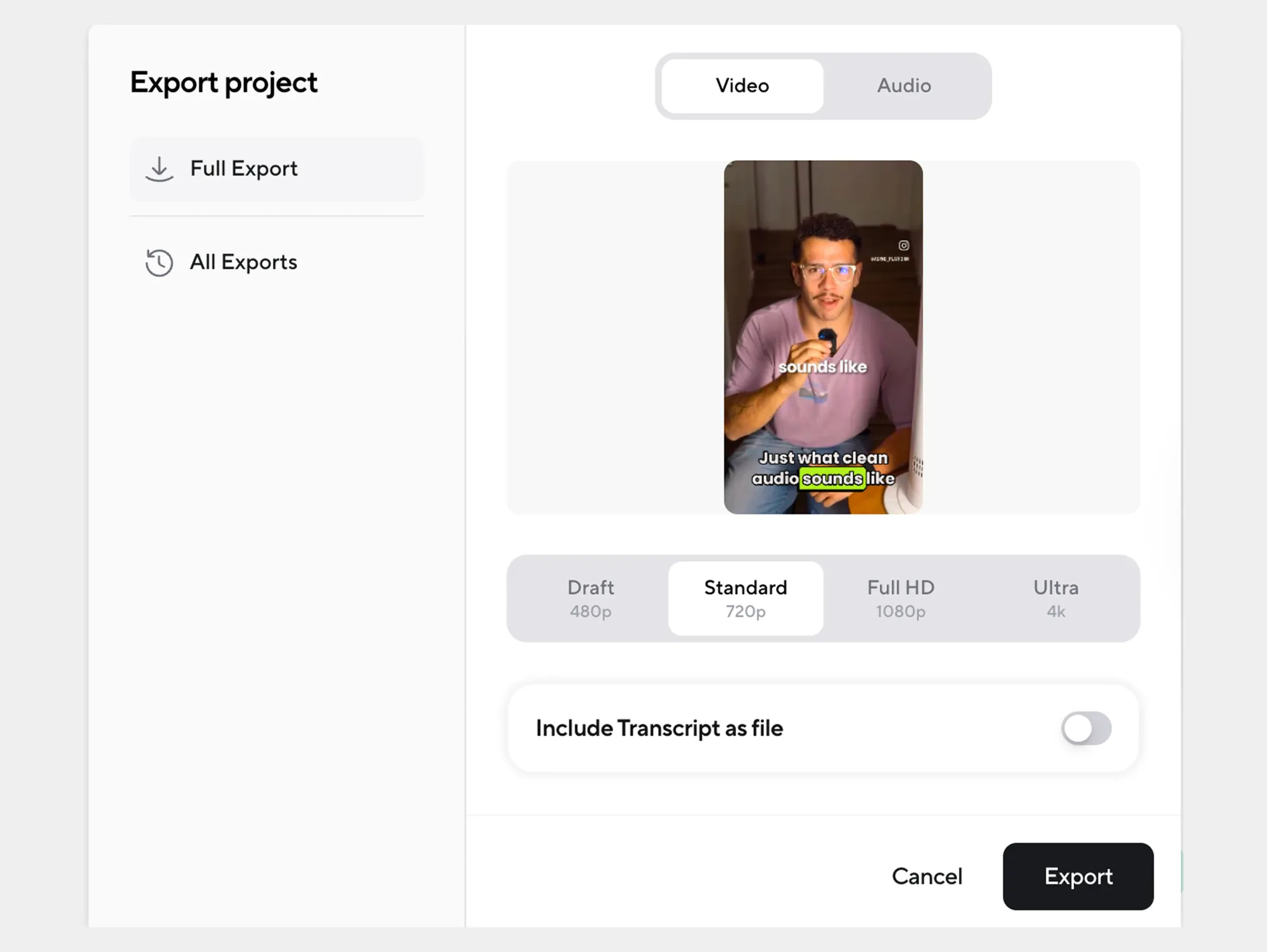
Step 5: Export your subtitled video
When everything looks right, export the video with burned-in subtitles or download subtitle files if you need them separately. Your video is now ready to publish, accessible, and easier to watch across platforms.
This entire flow lets you add subtitles to a video quickly while keeping everything, from subtitles to video and audio edits, in one place. Next, let’s look at why subtitles are worth adding in the first place.
Why add subtitles to your video?
Subtitles aren’t just an accessibility add-on anymore, they quietly influence how people watch, understand, and engage with video content across platforms.
Because “sound-off” is the default now, and captions keep people watching
A lot of video is consumed in places where audio isn’t practical, such as public transport, offices, late-night scrolling, you name it. That’s why captions consistently lift performance: Facebook has reported +12% higher view time on captioned video ads. And in a Verizon Media/Publicis study, viewers were more likely to watch a video to completion when captions were present.
Subtitles reduce “cognitive friction”, so your message lands faster
Even when people can hear you, subtitles make content easier to process, especially with fast speech, accents, multiple speakers, or technical terms. Ofcom’s research notes that subtitles can help viewers distinguish similar-sounding words and voices, support comprehension, and reduce cognitive load.
They improve comprehension and memory, not just accessibility
This one surprises people: captions aren’t only for silent viewing or hearing loss. A large body of research shows that captions improve attention, comprehension, and memory for a video across different ages and contexts. That’s a fancy way of saying: if your video has a point, subtitles help it stick.
They make your content more searchable and easier to repurpose
When your video has accurate text (captions/subtitles), you suddenly have a usable “transcript layer” you can pull quotes from, turn into clips, build blog embeds around, or translate for new audiences. This is one reason captions are often tied to higher engagement and share behavior in platform studies and industry reporting.
They’re a practical accessibility baseline and can support compliance goals
Captions are a core accessibility requirement in WCAG (the web accessibility standard many orgs follow), and they’re specifically called out in WCAG’s guidance for prerecorded video. Even if you’re not thinking “compliance,” subtitles are one of the simplest ways to make your videos usable for more people, immediately.
Subtitles help you “catch” editing problems earlier
This is a creator workflow win: when you read your video back as text, you spot filler words, awkward phrasing, missing context, and jumpy cuts much faster. It’s like proofreading your video, especially useful if you’re polishing interviews, tutorials, or talking-head content before you export.
Get AI Subtitles free
If you want to see how simple subtitles can be, you can try AI subtitles free with Async and generate captions in just a few clicks. It’s an easy way to add subtitles to a video without committing to complex software or manual workflows.
Beyond subtitles, the same workspace lets you clean up audio, make quick video edits, and repurpose content without jumping between tools. Whether you’re working on social clips, long-form videos, or recorded conversations, AI subtitles are a practical starting point and often the fastest way to improve how your videos perform and feel.
Frequently asked questions
Is there an AI that can generate subtitles?
Yes, there are AI tools designed specifically to generate subtitles automatically from video or audio. An AI subtitle generator works by transcribing speech, detecting timing, and syncing text to the video without manual input. This makes it much faster than traditional captioning, especially for longer videos or frequent content production. Tools like Async AI combine transcription and subtitle creation in one flow, so you can generate, review, and export subtitles without switching software or handling separate caption files.
Are VLC AI subtitles out yet?
As of now, VLC does not offer built-in AI subtitle generation. VLC can display existing subtitle files and sync them manually, but it still relies on you to create or download those subtitles elsewhere. For creators who want subtitles generated automatically from their own video, this means using a dedicated AI tool first and then importing captions into VLC if needed. AI-based subtitle tools are generally more efficient for end-to-end workflows than media players alone.
What is the free alternative to subtitles AI?
Free alternatives usually involve a mix of manual work and basic tools. Some platforms offer limited free transcription, while others rely on auto-captions that require heavy editing. These options can work for short videos but often come with restrictions on accuracy, exports, or usage limits. Using AI subtitles for free through a purpose-built tool is typically faster and more reliable, especially if you want subtitles that are properly timed, editable, and ready for publishing.
What is the best AI tool for captions?
The best AI tool for captions depends on how you work. If you need speed, accuracy, and the ability to edit subtitles alongside your video, an all-in-one platform usually works best. Tools that combine subtitle generation with video and audio editing save time and reduce errors caused by moving files between apps. For creators producing regular video content, an integrated workflow is often more practical than standalone caption generators.
Can I use ChatGPT to translate subtitles?
ChatGPT can help translate subtitle text once you already have a transcript, but it doesn’t generate or sync subtitles to video on its own. You would still need to create subtitles using another tool, then copy the text for translation. AI subtitle tools streamline this by handling transcription, timing, and often multilingual subtitles in one place, which reduces manual steps and keeps everything aligned with the video.
Is free AI transcription truly free?
Free AI transcription usually comes with limits. These can include caps on minutes, watermarks, fewer export options, or lower accuracy. For casual or one-off use, free plans can be useful. But for ongoing video production, those limits add friction quickly. Trying AI subtitles for free is a good way to test accuracy and workflow, but many creators eventually upgrade for longer videos, better editing control, and consistent output quality.