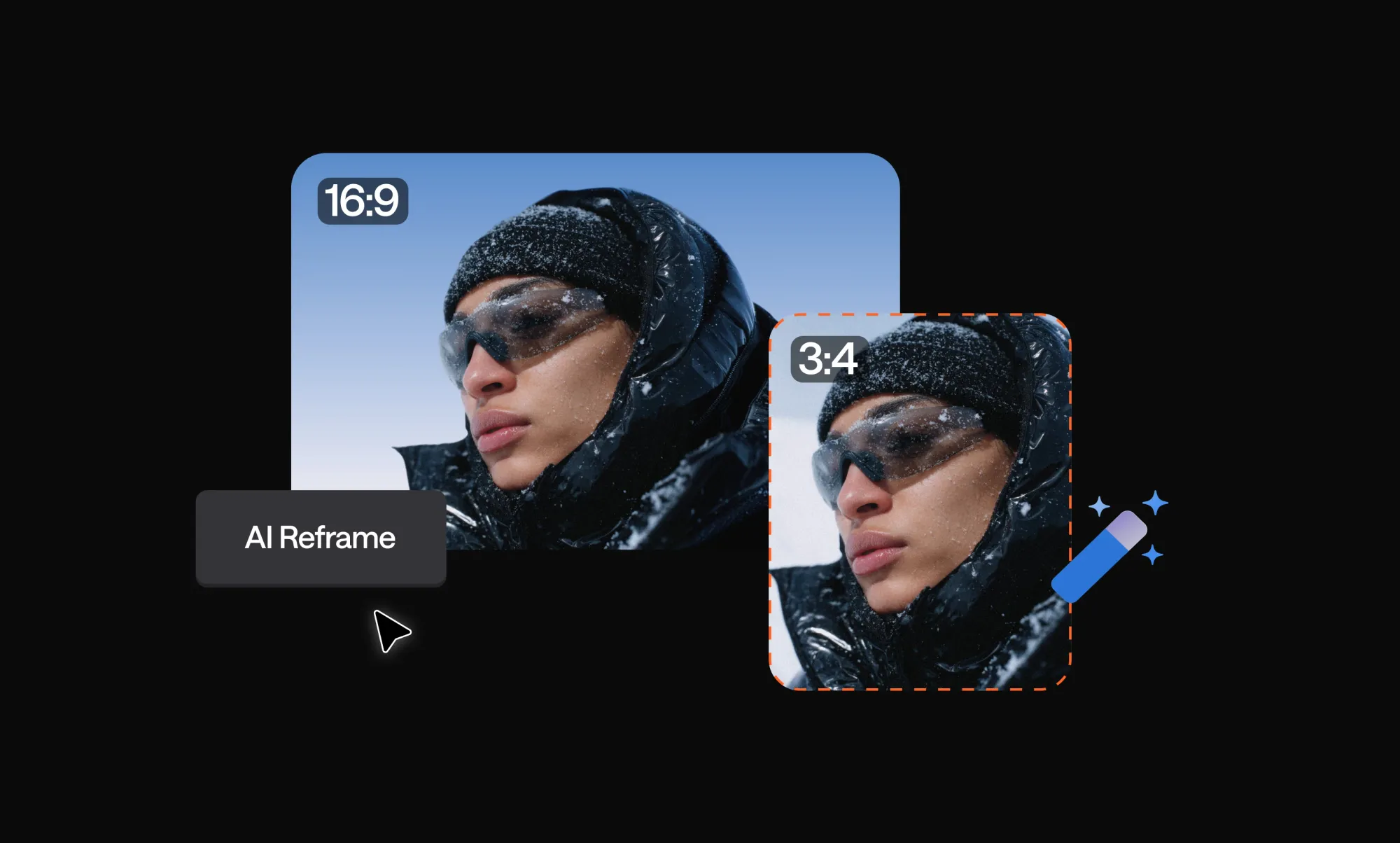
If you’re wondering how to reframe a video, the quickest way is to use an AI-powered tool that automatically resizes and adjusts your footage for different formats, without manual editing. Instead of cropping clips frame by frame, AI reframe tools detect the most important elements (like faces or movement) and keep them centered as the aspect ratio changes.
This is especially useful if you’re repurposing content across platforms. A horizontal YouTube video won’t perform well as-is on TikTok or Instagram Reels, where vertical formats dominate. Reframing helps you instantly adapt your content to fit 9:16, 1:1, or other aspect ratios while keeping everything visually balanced and engaging.
The best part? You don’t need any advanced editing skills. With tools like Async, you can reframe your videos in seconds, maintain high quality, and create platform-ready content without starting from scratch. In this guide, we’ll break down exactly how to do it step by step and explore the best AI tools that make reframing fast and effortless.
How to reframe a video in seconds with Async
If you want the fastest and simplest answer to how to reframe a video, using Async’s AI reframe feature is one of the easiest ways to do it. It takes care of resizing, subject tracking, and composition automatically, so your video stays focused and ready for any platform.
Here’s exactly how to do it step by step:
1. Upload your video
Start by opening Async and uploading your video file. You can either paste a YouTube link or import an existing video you want to repurpose. This works great for podcasts, interviews, or long-form content you want to turn into short clips.

2. Choose your aspect ratio
Pick the format you need depending on your platform:
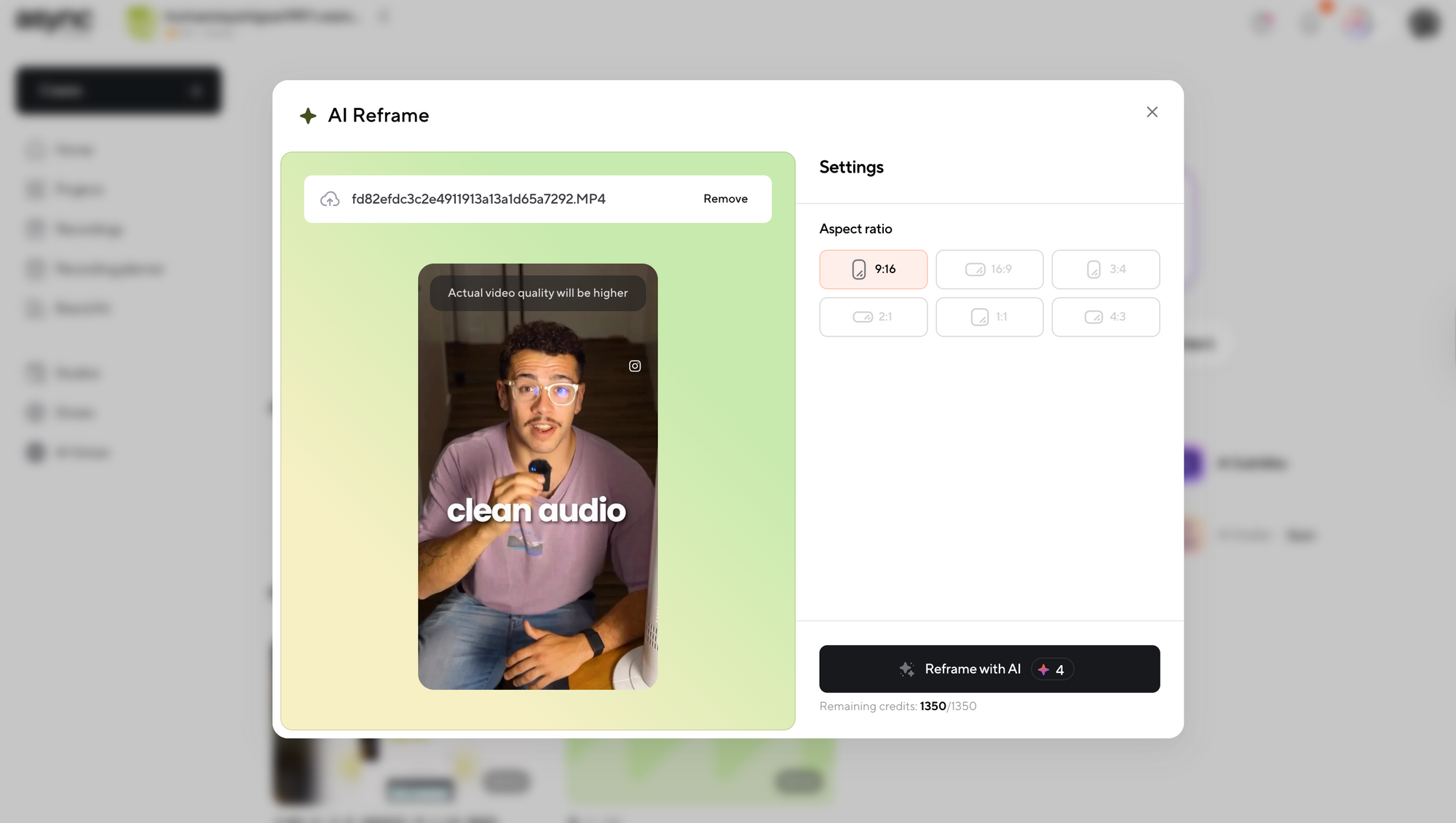
• 9:16 for TikTok, Instagram Reels, and YouTube Shorts
• 1:1 for Instagram feed
• 16:9 for YouTube or horizontal viewing
Async instantly adjusts your frame to match the selected ratio.
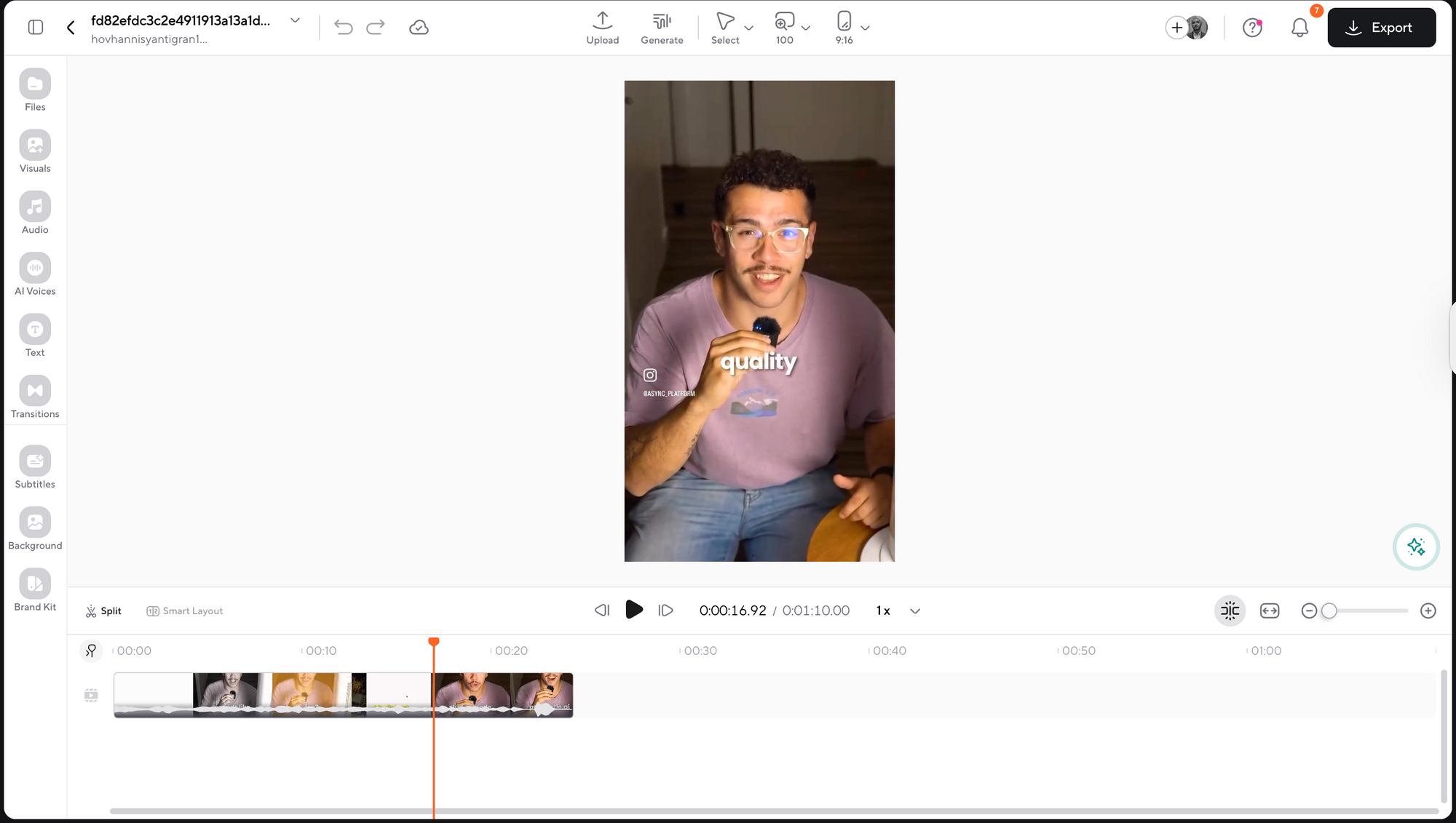
3. Let AI handle the framing
This is where the magic happens. Async automatically detects faces, movement, and key subjects in your video. Instead of static cropping, it dynamically keeps the most important parts in view as the video plays. This is what makes AI reframe tools so powerful compared to manual editing.
4. Fine-tune if needed
You can make small adjustments if you want more control. For example, you can shift the frame slightly or adjust positioning in certain scenes. In most cases, the automatic result is already optimized.
5. Export your video
Once you’re happy with the result, export your video in the desired format. Your content is now ready to post on any platform without losing important visual details.
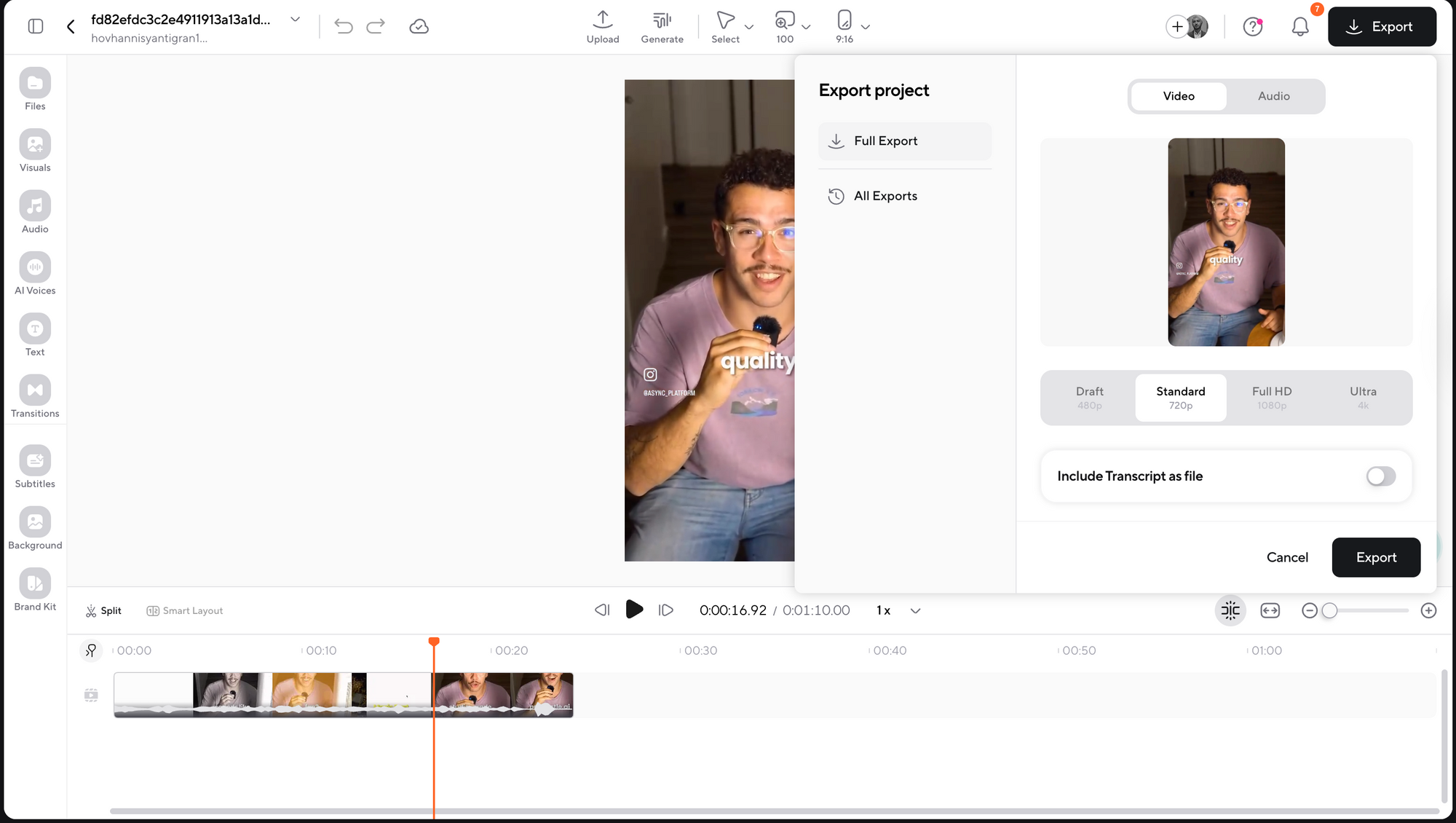
Using this method, reframing a video becomes a quick, repeatable workflow instead of a time-consuming editing task. It is especially useful if you create content regularly and need to adapt it for multiple platforms without starting from scratch each time.
Best AI reframe tools for quick reframing
If you're exploring how to reframe a video: AI reframe and other tools, the good news is that there are several options available. However, not all tools offer the same level of automation, accuracy, or ease of use. Below is a curated list of the best AI reframe tools, starting with Async as the top choice.
1. Async AI Reframe
Async stands out as one of the most efficient tools for anyone learning how to reframe a video without getting into complex editing workflows. Its AI Reframe feature is built specifically for creators who want to repurpose content quickly while keeping it visually engaging.
What makes Async different is how intelligently it handles framing. Instead of applying a basic crop, it analyzes your video in real time, detects faces and movement, and keeps the subject centered throughout the clip. This is especially useful for interviews, podcasts, and talking-head videos where the focus shifts naturally.
It also fits seamlessly into a larger content workflow. You can record, edit, reframe, add subtitles, and export all in one place. This means you are not jumping between tools just to prepare one video for multiple platforms.
Key highlights:
• Automatic subject tracking that keeps important elements in frame
• One-click resizing for vertical, square, and horizontal formats
• Smooth workflow from recording to editing to exporting
• Ideal for turning long-form content into short-form clips
If your goal is to simplify how to reframe a video, Async gives you both speed and quality without requiring advanced editing skills.
2. Adobe Premiere Pro (Auto Reframe)
Adobe Premiere Pro includes an Auto Reframe feature that uses AI to adjust aspect ratios. It is powerful and customizable, making it a good option for professional editors.
However, it comes with a steeper learning curve and requires more manual input compared to Async. It is best suited for users who are already familiar with video editing software.
3. CapCut
CapCut is a beginner-friendly mobile and desktop editor with built-in AI tools, including auto reframing. It is widely used for TikTok content and quick edits.
While it is accessible and free, its reframing accuracy can vary depending on the complexity of your video.
4. Descript
Descript offers AI-powered editing with features like screen recording, transcription, and basic reframing. It is particularly useful for creators working with podcasts and voice-based content.
Its reframing capabilities are helpful, but not as advanced or automated as dedicated AI reframe tools.
5. VEED.io
VEED.io is an online video editor that includes resizing and basic AI tools. It is easy to use and works directly in your browser.
It is a solid option for quick edits, but it may lack the precision and automation needed for more dynamic videos.
Overall, if you are serious about mastering how to reframe a video, choosing the right tool makes all the difference. Async is the most streamlined option for fast, high-quality results, while the other tools can work depending on your experience level and editing needs.
How do I resize the frame size of the video?
To resize the frame size of a video, you need to change its aspect ratio so it matches where the video will be watched. In practice, that usually means turning a horizontal video into 9:16 for TikTok, Reels, or Shorts, keeping it 16:9 for YouTube, or switching to 1:1 for feeds where a square format still works well. YouTube officially supports horizontal, vertical, and square uploads, while TikTok and Shorts both favor vertical formats for their mobile-first viewing experience.
The important part is that resizing is not just about making the canvas bigger or smaller. A good resize also changes what stays visible inside the frame. If you simply crop a 16:9 video to 9:16 without adjusting the composition, faces, products, captions, or gestures, they can end up cut off. That is why AI reframing tools matter so much: they do not just resize the video, they reposition the visible area so the important subject stays in view. This is the real answer behind how to reframe a video effectively.
Here’s the simplest way to think about it:
• 16:9 works best for YouTube and traditional landscape video.
• 9:16 is the go-to format for TikTok, Instagram Reels, and YouTube Shorts.
• 1:1 can still be useful for certain feed placements and cross-platform posts.
What makes this more important than it seems is that frame size affects more than appearance. It changes how the video is experienced on-screen, especially on mobile, where most short-form video is consumed. DataReportal reports that people now spend an average of 19 hours and 46 minutes per week on social media and short video feeds, which is about 3.5 hours more than the time they say they spend watching television. Among women aged 16 to 24, that gap is even bigger: 19 hours and 46 minutes on social and short video feeds versus 9 hours per week watching TV.
That matters because resizing the frame properly helps with a few less obvious things:
1. It helps your video feel native to the platform
A lot of creators think resizing is just a formatting step, but platforms are built around certain viewing behaviors. Google says vertical video assets are best suited to Shorts and that landscape assets may appear with blurred top and bottom areas in the vertical Shorts experience. In other words, if your video is not resized properly, it can literally look less natural in the feed.
2. It protects important details from being hidden by the interface
This is one of the most overlooked reasons to resize correctly. On Reels and Stories, Meta recommends keeping key creative elements, logos, and text inside the safe zone because interface elements can cover the edges of the frame. So even if your video technically fits 9:16, poor framing can still hide the actual message.
3. It can improve performance, not just aesthetics
Google says early testing showed that adding a vertical video asset delivered 10% to 20% more conversions per dollar on YouTube Shorts compared with using landscape videos alone. Meta also reports 34.5% lower cost per result for campaigns that included 9:16 video ads compared with image ads in one of its Reels examples. Those are advertising stats, not a promise for every organic post, but they do show that matching the format to the viewing environment can have a real impact.
4. It reduces the need for awkward manual cropping
If you manually resize a frame, you often end up constantly adjusting the crop from scene to scene. That is manageable for one clip, but not for a full content workflow. AI tools speed this up by analyzing movement and keeping the main subject centered as the frame changes. That is one of the biggest practical advantages of using AI reframe tools instead of basic crop tools.
5. It keeps your content reusable across platforms
One video may need multiple versions: a vertical cut for Shorts, a square version for social feeds, and a horizontal version for YouTube or a website embed. Google Ads documentation even notes that videos may be automatically scaled into square or vertical formats for certain YouTube placements, which shows just how common multi-format delivery has become. Creating those versions intentionally gives you more control over how the final video looks.
So, how do you actually resize the frame size of a video? The workflow is usually simple:
1. Upload your video to an editor or the Reframe AI tool.
2. Choose the new aspect ratio, such as 9:16, 1:1, or 16:9.
3. Reposition the visible frame so the subject stays centered.
4. Check that text and important visuals sit inside safe zones.
5. Export a version tailored to each platform.
If you want the fastest route, this is exactly where Async’s AI reframe feature helps. Instead of manually dragging crop windows around, you can let the tool resize the video for the target format and keep the important subject in frame automatically. That makes reframing a video much less technical and much more repeatable, especially if you publish across several platforms.
Can I resize on my phone?
Yes, you can absolutely resize a video on your phone. If you need a quick fix for social media, most modern mobile editing apps make it easy to switch your video from horizontal to vertical, square, or other common formats without needing a desktop editor.
In most cases, the process looks like this:
1. Upload your video to a mobile editing app
2. Choose the aspect ratio you want, such as 9:16 for Reels or TikTok
3. Adjust the frame manually or use an auto-reframe feature if the app offers one
4. Preview the video to make sure the subject stays centered
5. Export and post
This is a practical option if you are editing on the go, posting quickly, or repurposing a clip right from your camera roll. It is especially useful for creators who film and publish most of their content on mobile.
That said, resizing on your phone is usually best for simple edits, not always for polished multi-platform repurposing. The smaller screen can make it harder to spot awkward crops, cut-off captions, or framing issues. If your video has more movement, multiple people, or important on-screen text, manual mobile resizing can take more time than expected.
Here’s where mobile resizing works best:
Quick TikTok or Reel uploads
• Simple talking-head videos
• Single-subject clips with minimal movement
• Fast edits when you are away from your computer
And here’s where it can get tricky:
• Interviews or podcast clips with two speakers
• Videos with text near the edges
• Product shots where details need to stay visible
• Longer videos that need several resized versions
If your goal is just to post something quickly, phone editing is totally fine. But if you are trying to learn how to reframe a video in a way that looks professional across multiple platforms, desktop tools or AI-based editors are often more efficient. That is because they give you more control and make it easier to create several versions from one original clip.
So yes, resizing on your phone works, and for many creators, it is part of the workflow. But for faster, cleaner results at scale, an AI reframe tool can save a lot more time.
Why reframing matters for engagement
Reframing matters because it helps your video match the way people actually watch content today. On Shorts, Reels, and TikTok, vertical video feels more natural in the feed, takes up more of the screen, and fits the mobile-first viewing experience people expect. Google specifically notes that 9:16 vertical videos are best suited for Shorts and that horizontal videos may appear with blurred top and bottom areas in the vertical Shorts experience.
It can also affect performance in a measurable way. Think with Google reports that adding a vertical video asset delivered 10% to 20% more conversions per dollar on YouTube Shorts compared with using landscape videos alone. That does not mean every reframed clip will automatically perform better, but it does show that format fit is more than a visual preference. It can influence how effectively content works in a short-form environment.
Another reason reframing matters is that it protects what the viewer actually needs to see. When you simply crop a horizontal video into a vertical format, faces, products, captions, or calls to action can end up cut off. Instagram’s guidance for Reels recommends creating in 9:16 and keeping important elements within safe zones so they remain visible and clear on screen. That makes reframing less about resizing alone and more about preserving the message.
Here’s what good reframing helps you do in practice:
• make the video feel native to the platform
• keep the main subject easy to follow
• avoid text or visuals getting pushed into awkward positions
• turn one video into multiple platform-ready versions
There is also a broader engagement reason behind all of this. HubSpot’s 2026 marketing statistics roundup says 73% of consumers prefer short-form video to learn about a product or service, and it also cites data showing YouTube Shorts had a 5.91% engagement rate in Q1 2024, with TikTok close behind. Those numbers reinforce the same point: when short-form video already holds so much attention, adapting your content to the right frame becomes part of making it more watchable and effective.
So when people ask how to reframe a video, the answer is not just “to make it fit.” Reframing helps your content look more natural on mobile, keeps important visuals visible, and improves your chances of holding attention in spaces where vertical video already dominates. That is exactly why AI-powered reframing tools have become such a useful part of modern video editing workflows
Common mistakes when reframing videos
Learning how to reframe a video is fairly simple once you know the basics, but there are a few common mistakes that can make the final result feel awkward, distracting, or unfinished. The good news is that most of them are easy to avoid once you know what to look for.
1. Cropping without thinking about the subject
One of the biggest mistakes is treating reframing like a simple resize. If you just switch from horizontal to vertical without adjusting the composition, your subject can end up off-center, partially cut off, or too small in the frame. A good reframe should keep attention on the most important visual element, whether that is a face, a product, or movement in the scene.
2. Letting text or captions get cut off
A video might technically fit a new aspect ratio and still look wrong if on-screen text ends up too close to the edges. Titles, subtitles, and calls to action can easily become hard to read after reframing. This is especially important for short-form content, where text often plays a big role in keeping viewers engaged.
3. Using the same framing for every platform
Not every platform needs the exact same version of your video. A vertical clip might work well for TikTok and Reels, while a square version may look better in certain feed placements. One common mistake is exporting one resized version and using it everywhere without checking how it actually appears on each platform.
4. Ignoring movement in the frame
Some videos are easy to reframe because the subject stays in one place. Others are more dynamic, with people moving, turning, or shifting positions. If you only set the frame once and do not account for movement, the video can quickly feel messy. This is where reframe AI tools are especially useful, since they can track the subject through the clip instead of relying on a static crop.
5. Focusing only on faces
Faces matter, but they are not always the only important thing in the shot. Sometimes the key visual is a product demo, a hand movement, a screen recording, or a reaction happening in the background. A weak reframe can over-prioritize one part of the video and miss the full context.
6. Forgetting about visual balance
A reframed video should still feel natural to watch. If the subject is squeezed too tightly, placed too high, or surrounded by awkward empty space, the composition can feel off even if nothing important is cut out. Good reframing is not just about keeping things visible. It is also about making the frame feel intentional.
7. Not previewing the final version before exporting
It is easy to assume the resized version looks fine, especially when you are trying to move quickly. But small issues often show up only when you watch the full clip back. A caption may jump too close to the edge, a speaker may drift out of frame, or a key moment may feel cramped. A quick preview can save you from posting a version that looks rushed.
8. Doing everything manually every time
Manual reframing works for occasional edits, but it becomes inefficient fast if you are repurposing content regularly. If you are constantly adjusting crops scene by scene, the process can take much longer than it needs to. Using a tool built for reframing a video at scale can make the workflow much faster and more consistent.
The main thing to remember is this: reframing is not just about changing the size of the video. It is about making sure the video still works visually after the format changes. When done well, it feels seamless. When done poorly, it distracts from the content. That is why avoiding these mistakes can make such a big difference in how polished and platform-ready your video looks.
Reframing your videos does not have to be complicated
At the end of the day, learning how to reframe a video is really about making your content work smarter, not harder. You already put time into filming, editing, and shaping the original video, so it makes sense to get more out of it by adapting it for every platform where your audience is watching.
The good news is that reframing does not have to be a complicated, time-consuming process anymore. With the right tool, you can turn one video into multiple platform-ready versions without manually cropping every scene or worrying that the most important part of the shot will get cut off.
That is exactly why AI-powered tools have become such a helpful part of modern editing workflows. If you want a faster way to resize content for Shorts, Reels, TikTok, and more, Async makes the process feel much more straightforward. Instead of wrestling with the frame, you can focus on the content itself and let the tool handle the heavy lifting.
FAQs
How to auto reframe a video?
To auto reframe a video, upload it into a video editor that includes AI reframing, choose your target aspect ratio, and let the tool automatically adjust the frame around your subject. Instead of manually cropping scene by scene, the AI detects faces, movement, or key objects and keeps them in view as the format changes. This is the fastest option if you want to resize content for Shorts, Reels, TikTok, or other platforms without doing everything by hand.
How to change the frame of a video?
To change the frame of a video, you need to adjust its aspect ratio and reposition the visible area so the important content stays centered. For example, you might turn a horizontal 16:9 video into a vertical 9:16 clip for short-form platforms. You can do this manually in a video editor, but AI tools make the process much easier by automatically keeping the main subject inside the new frame.
What tools edit video frames?
Many video editors can edit video frames, including dedicated AI tools and traditional editing software. Some of the most common options include Async, Adobe Premiere Pro, CapCut, Descript, and VEED. The main difference is that AI tools are designed to speed up the reframing process by tracking the subject and resizing the video automatically, while traditional editors usually require more manual work.
What aspect ratio should I use for each platform?
The best aspect ratio depends on where your video will be published. Vertical 9:16 works best for TikTok, Instagram Reels, and YouTube Shorts. Horizontal 16:9 is ideal for YouTube and standard video playback, while 1:1 can still work well for some social feed placements. If you are posting in multiple places, it is often worth creating more than one version so the video feels native everywhere.
Can I reframe a video without losing quality?
Yes, you can reframe a video without noticeably losing quality if you start with a high-resolution source file and use the right editing tool. The key is to resize the video carefully rather than applying an aggressive crop that makes the frame feel too tight or blurry. AI reframing tools can help by preserving the most important parts of the shot while adapting the video for different formats.