
Work doesn’t always start as a team effort. Sometimes you open a workspace just to test an idea, record a quick draft, or experiment on your own. Then, suddenly, you need feedback. Or a second opinion. Or someone to jump in and help you finish strong.
Until now, that moment came with friction.
Previously, Podcastle workspaces were split into two types: personal workspaces, where collaboration wasn’t available, and team workspaces, where inviting others was possible. If you started solo and later needed help, that often meant switching workspaces, moving projects, or re-thinking how your setup was organized.
That’s no longer the case.
Collaboration is now available in every Podcastle workspace, no extra decisions, no switching, no project juggling. If you want to invite someone, you can. Simple as that.
What changed (and why)
We removed the distinction between personal and team workspaces entirely.
Why? Because real workflows aren’t static. A project that starts alone doesn’t always stay that way, and collaboration shouldn’t require restructuring your workspace just to keep things moving.
By making collaboration available everywhere, we’re letting work evolve naturally. You can start solo, stay solo, or bring people in whenever it makes sense, without changing where your files live or how your workspace is set up.
In short: the workspace adapts to you, not the other way around.
What this means for you
This update is all about removing unnecessary steps from your workflow. Here’s what you’ll notice right away:
• No more moving projects just to collaborate. Invite teammates directly into the workspace where your project already lives.
• No more early decisions about “personal” vs “team”. Start working without overthinking it. Collaboration is always there if you need it.
• Smoother transitions from solo work to shared work. Whether you’re looping someone in for feedback or working together long-term, it’s seamless.
• Cleaner organization. One workspace, one project history, no duplicates or workarounds.
The result is a more flexible, more forgiving way to work, especially for creators and teams whose needs change over time.
How to invite collaborators
Inviting someone to your workspace is straightforward and takes just a few seconds:
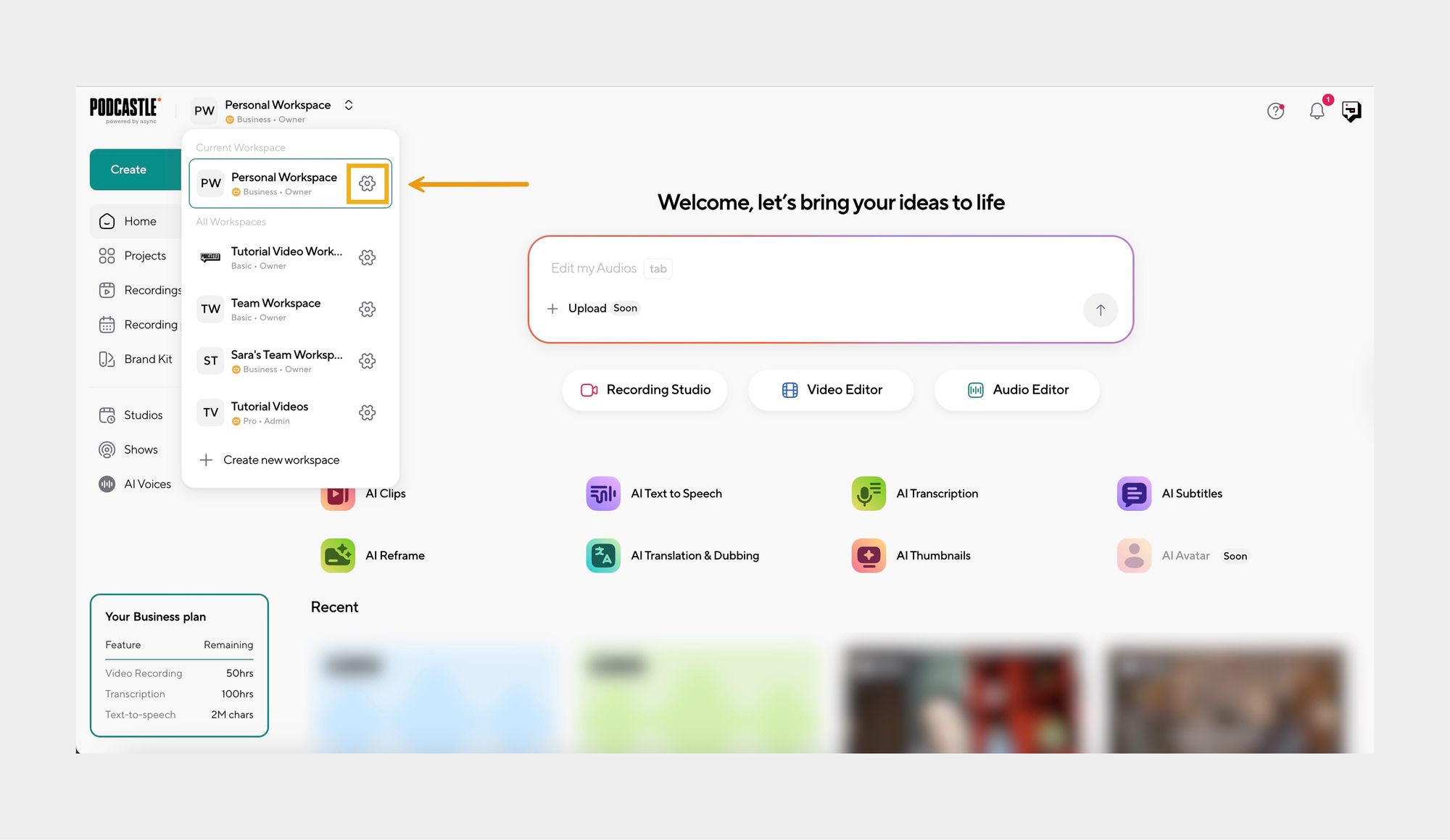
1. Log in to your account and navigate to the right workspace.
2. Navigate to the Workspace settings and select Team members from the dropdown menu.
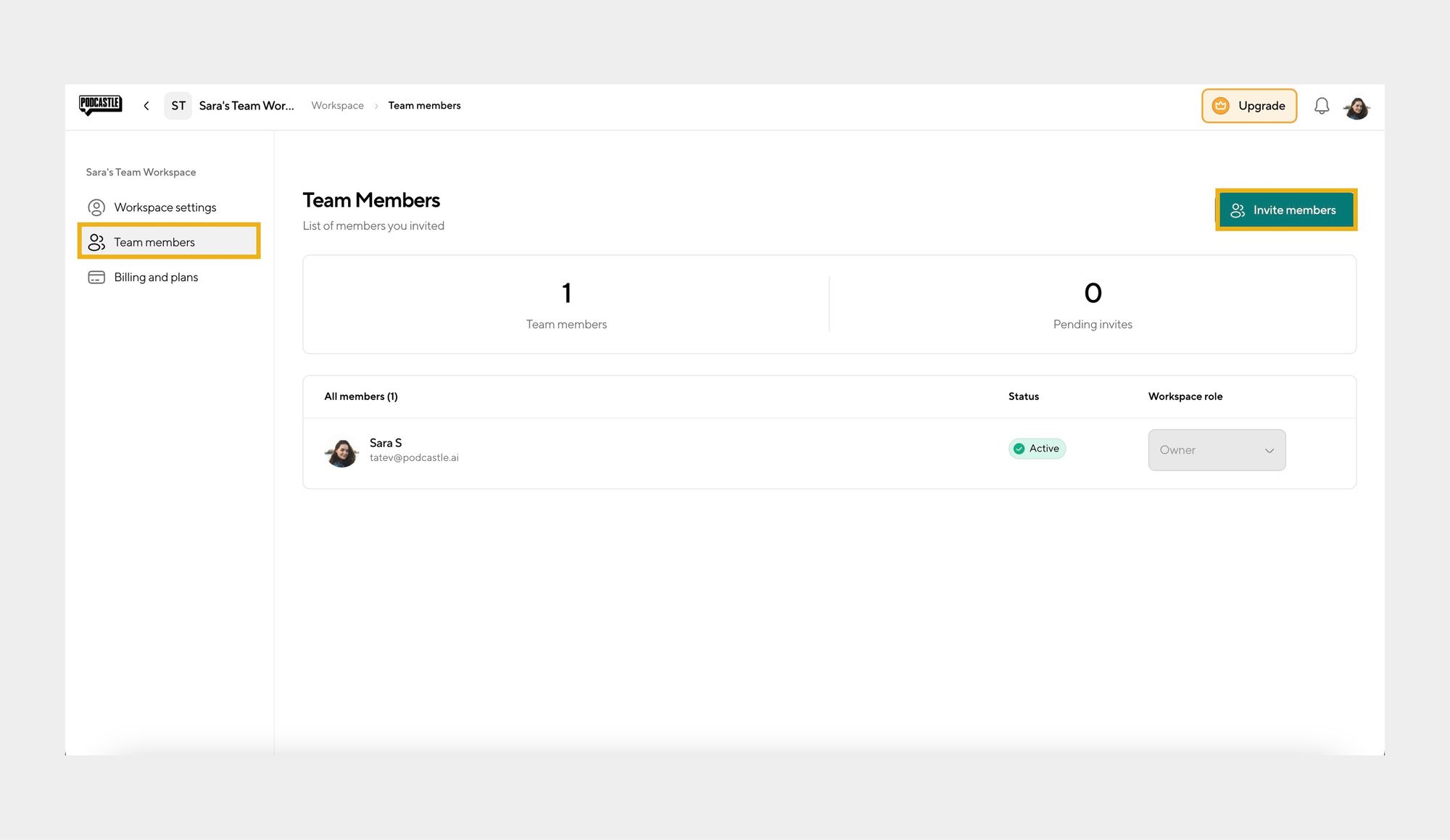
3. Click the Invite members button, enter the email address, and select the Role. To send an email notification, check Notify recipients via email.
4. Click Send Invite. Your team member now has access to your workspace and all shared projects within!
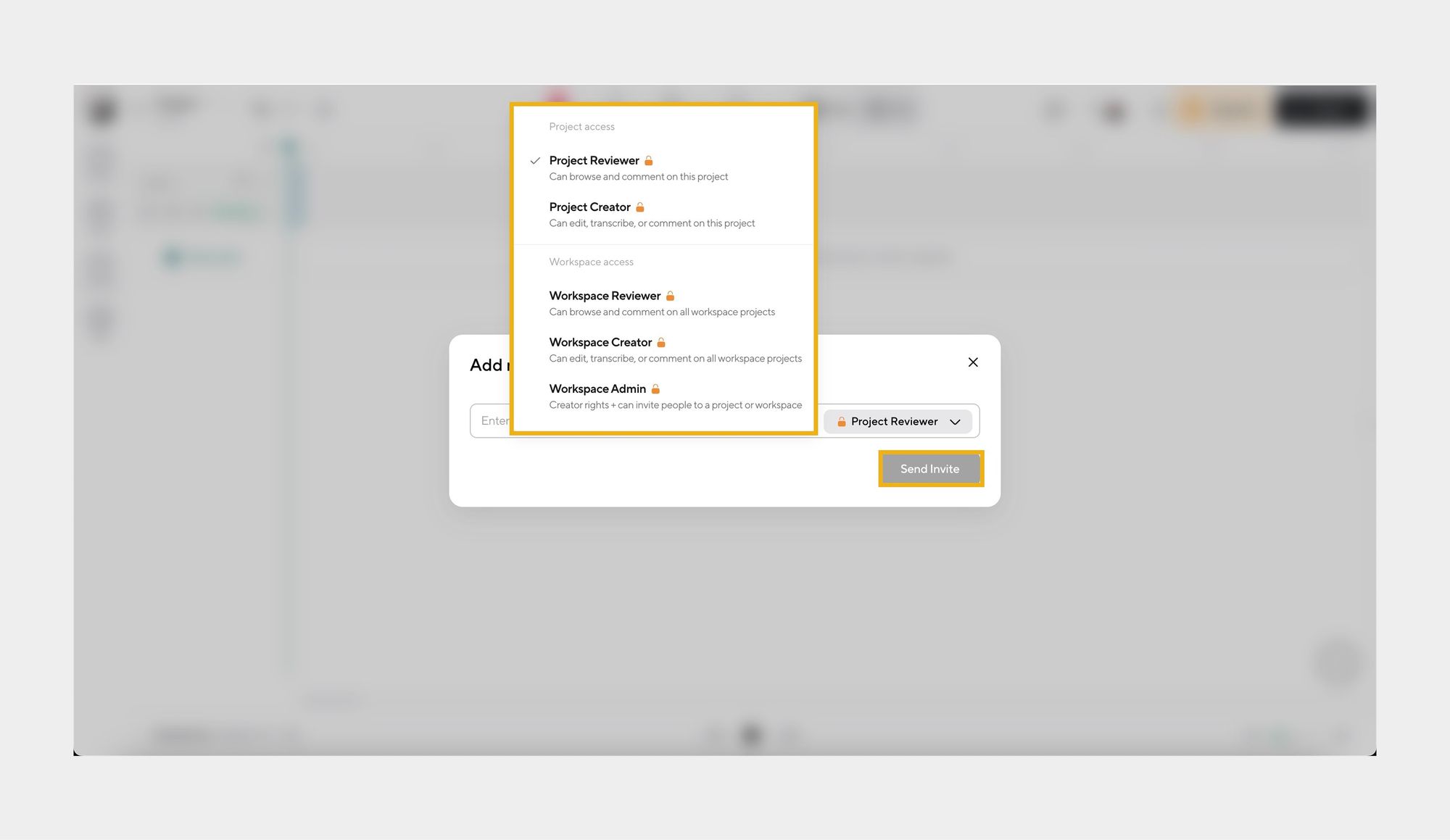
That’s it. Once they accept, they’ll have access based on the permissions you’ve set.
You don’t need to create a new workspace, upgrade mid-project, or move anything around. Everything stays exactly where it is.
Collaboration, on your terms
Even though collaboration is now available everywhere, control and privacy still matter.
You decide:
• Who gets invited
• When collaboration happens
• What level of access each person has
If you prefer to work alone, nothing changes, you don’t have to invite anyone. And if you’re ready to collaborate, the option is there whenever you need it.
This update doesn’t force collaboration. It simply removes the barriers when collaboration makes sense.
FAQs
What happens to my existing personal and team workspaces?
Nothing changes about your existing setup. All of your current workspaces remain exactly as they are, with the same projects, files, and settings. The only difference is that collaboration is now available in all of them, so you can invite others without needing to switch or recreate anything.
Do I need to move or duplicate my projects to collaborate?
No. You can invite collaborators directly into the workspace where your project already lives. There’s no need to move files, copy projects, or reorganize your workspace just to work with someone else.
Can I still keep a workspace private if I want to work solo?
Absolutely. Workspaces are private by default. If you don’t invite anyone, nothing changes, and your work stays fully private. Collaboration is optional and only happens when you choose to invite someone.
How do roles and permissions work?
When you invite someone to a workspace, you can assign them a role that defines what they can access or edit. This helps you stay in control of your projects while making collaboration smooth and organized.
Is collaboration now available to everyone?
Yes. Collaboration is now a standard part of every workspace, so all users can invite teammates when needed, without upgrading, switching workspaces, or changing how they work.