Choosing the best video editing software for YouTube used to feel simple. You picked a serious-looking desktop editor, opened a timeline with 400 tiny buttons, and slowly convinced yourself this was “part of the creator journey.”
That’s no longer how YouTube works.
Today, YouTube editing is not just about cutting a video from start to finish. Creators need captions, Shorts, thumbnails, clean audio, quick exports, social clips, brand assets, and sometimes five different versions of the same video before lunch.
So the real question is not just “Which editor is the most powerful?”
It’s “Which editor actually fits the way you make YouTube videos?”
Some creators still need professional tools like Premiere Pro, Final Cut Pro, or DaVinci Resolve. Others need an online video editor for YouTube that helps them move faster, add captions, repurpose clips, and publish polished content without living inside a heavy editing workflow.
In this guide, we’ll compare the best video editing software for YouTube by creator type, workflow, features, and budget, including traditional desktop editors, beginner-friendly apps, free tools, Shorts editors, and AI-powered options like Async.
Best video editing software for YouTube
Before diving deeper into workflows and features, here’s a quick comparison of the best YouTube video editing software right now based on creator needs, editing style, and experience level.
The best YouTube video editor ultimately depends on what kind of creator you are.
If you’re producing cinematic long-form content with advanced color grading and effects, professional desktop software like Premiere Pro or DaVinci Resolve may still be the best fit. But if your workflow revolves around YouTube Shorts, podcasts, tutorials, reaction videos, social clips, or fast publishing schedules, newer AI-powered tools are starting to make editing dramatically faster and less technical.
That’s where platforms like Async stand out. Instead of focusing purely on traditional timeline editing, Async leans into modern creator workflows with AI-assisted editing, automatic captions, online collaboration, clip repurposing, and fast exports designed for creators publishing across YouTube and social media simultaneously.
Below, we’ll break down each editor in more detail, including where each one shines, where it struggles, and which type of YouTuber it works best for.
1. Async: Best AI-powered online video editor for YouTube creators
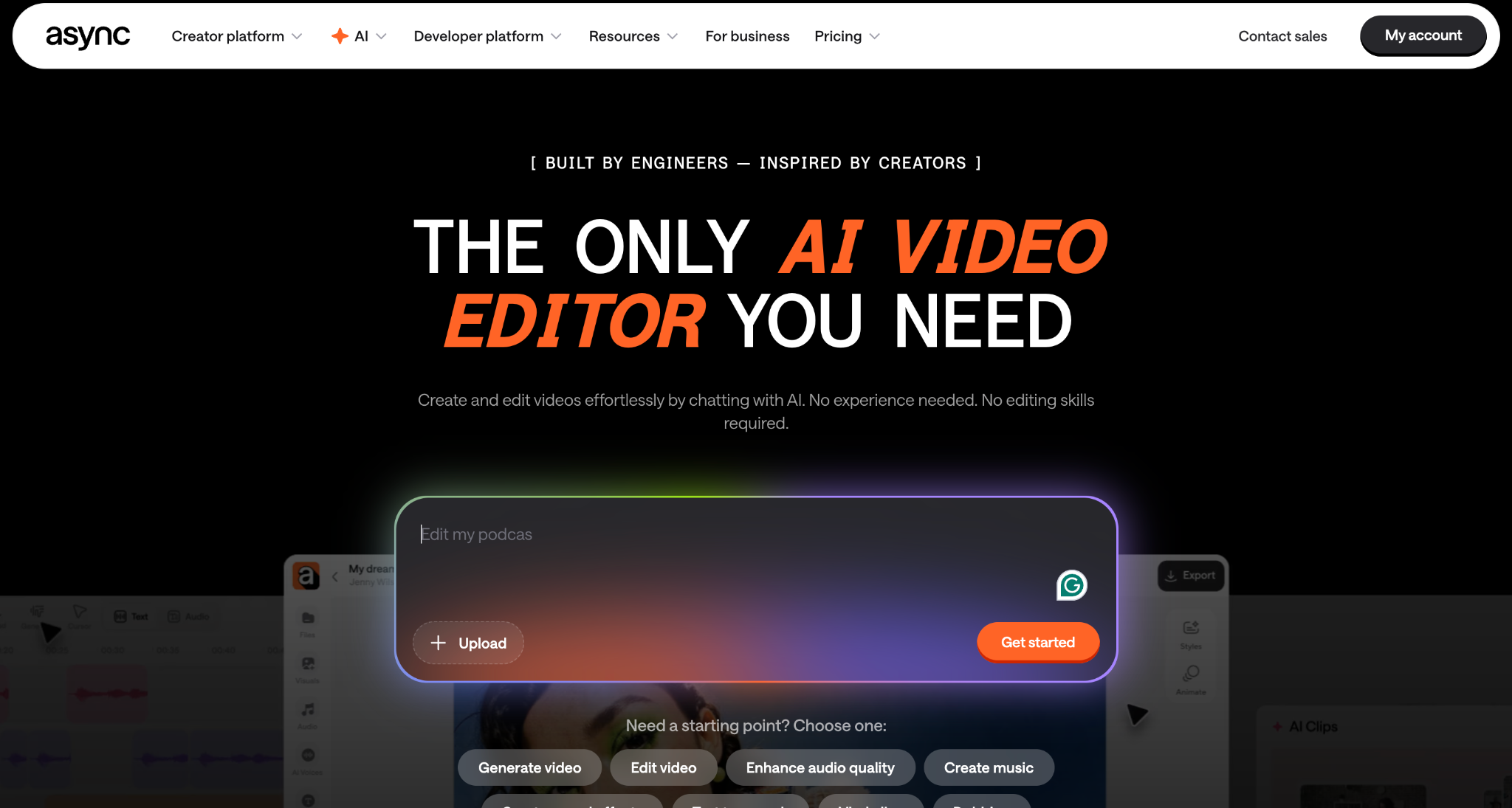
Async is designed for creators who want to edit YouTube videos faster without getting stuck inside complicated traditional editing workflows. Instead of focusing purely on manual timeline editing, it leans into AI-assisted workflows like captions, clip generation, repurposing, resizing, and social-ready exports.
That makes it especially useful for YouTubers creating Shorts, tutorials, podcasts, interviews, educational content, and multi-platform videos.
Because it’s browser-based, creators can edit, collaborate, and publish without needing powerful hardware or advanced editing experience. Async also works particularly well for turning long-form YouTube videos into Shorts and social clips quickly.
Key features:
- AI-powered editing workflows
- Automatic captions and subtitles
- YouTube Shorts repurposing
- Online collaborative editing
- Fast social exports
- AI audio and voice tools
Async also fits naturally into modern YouTube growth workflows, especially when combined with strategies like using the right YouTube Shorts hashtags, improving thumbnails with an AI thumbnail generator, and understanding how YouTube monetization works as channels scale.
Best for:
- Shorts creators
- Podcasters
- Tutorial channels
- Beginner YouTubers
- Teams and fast workflows
Limitations:
- Less suited for advanced VFX-heavy editing
2. Adobe Premiere Pro: Best professional YouTube video editor
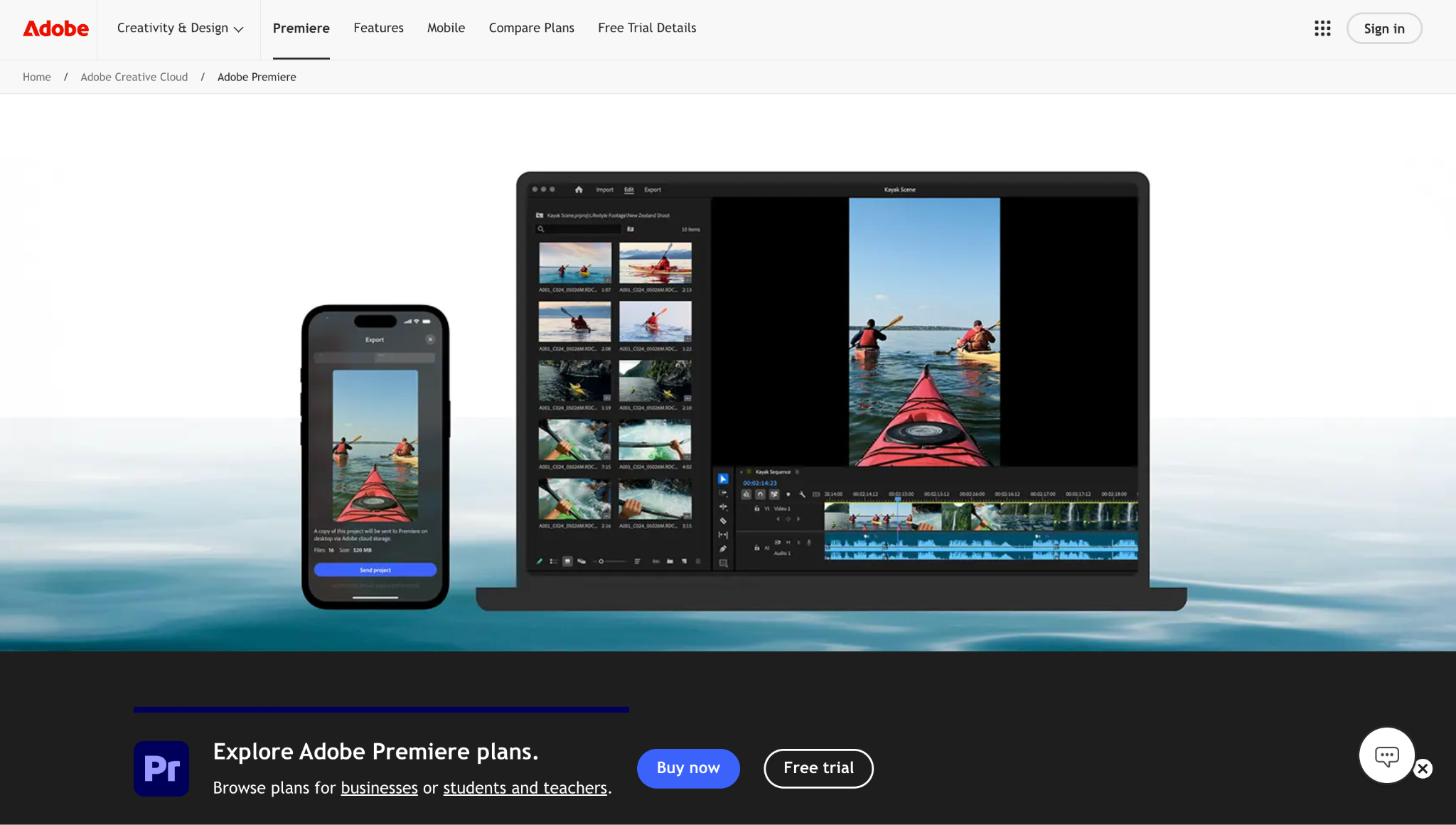
Premiere Pro is still one of the most widely used YouTube video editors for professional creators, agencies, and production teams. It offers advanced timeline editing, color grading, motion graphics integration, audio controls, and deep customization.
The tradeoff is complexity. Premiere is powerful, but it also comes with a steeper learning curve and heavier system requirements than newer online editors.
Best for:
- Professional YouTubers
- Documentary creators
- Advanced editing workflows
- Multi-camera projects
Limitations:
- Expensive subscription
- Can feel overwhelming for beginners
3. Final Cut Pro: Best YouTube editor for Mac users
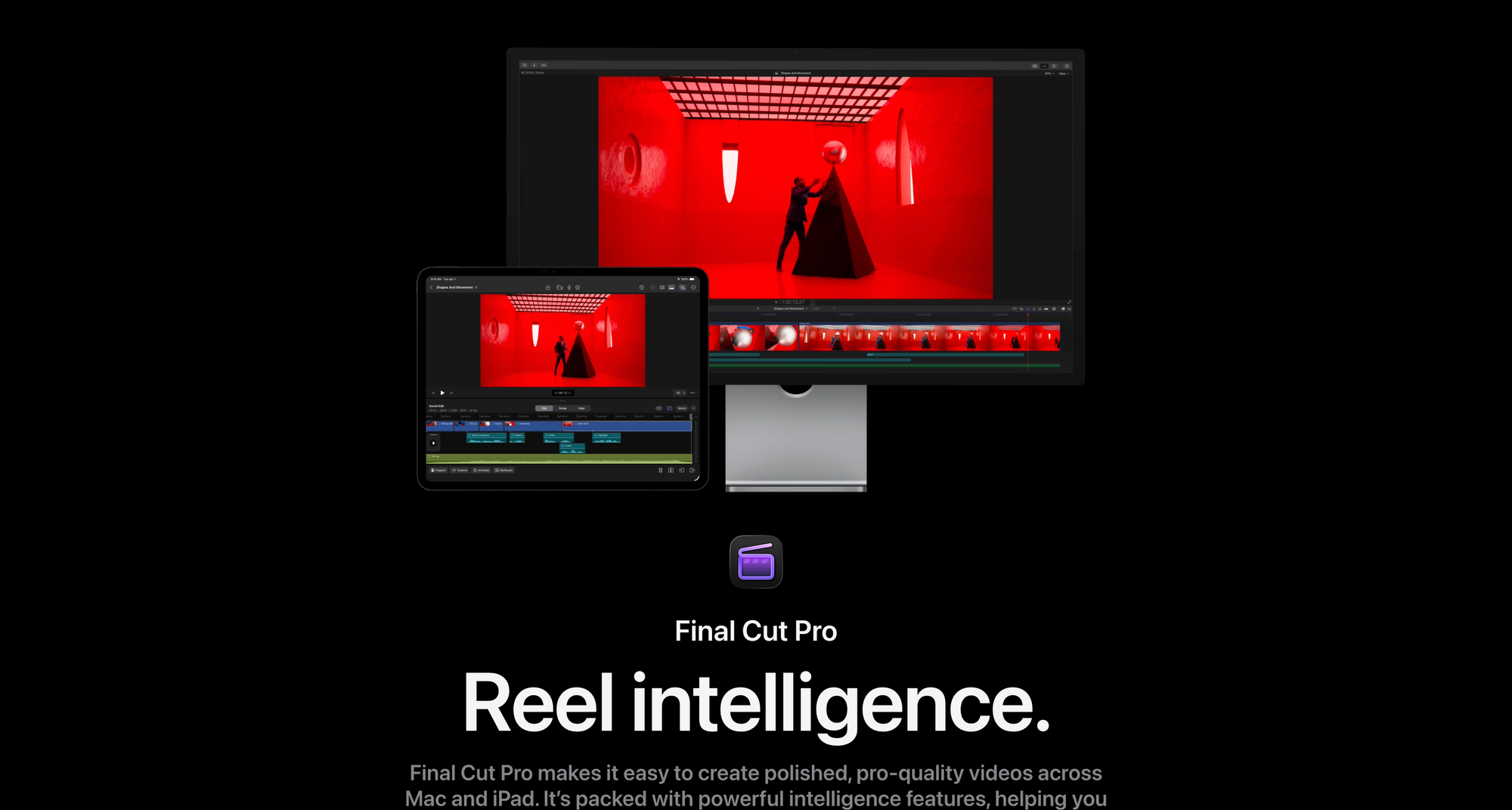
Final Cut Pro remains a favorite among many Mac-based YouTubers because of its performance optimization and smoother editing experience on Apple hardware.
It’s faster and often more stable than Premiere for many creators, especially when editing large 4K projects.
Best for:
- Mac creators
- YouTubers editing long-form videos
- Fast desktop editing workflows
Limitations:
- Mac only
- Smaller plugin ecosystem than Adobe
4. DaVinci Resolve: Best for cinematic YouTube editing
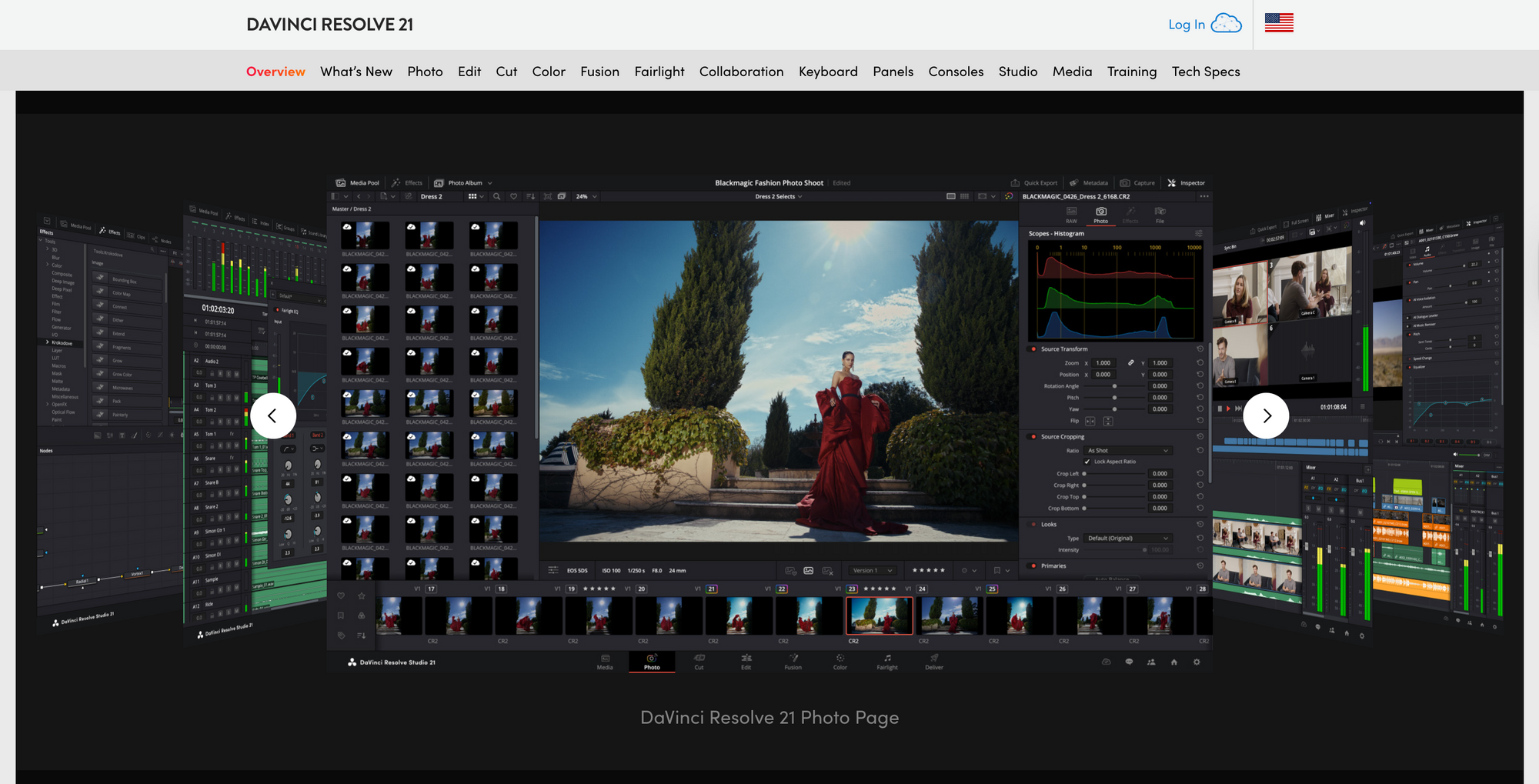
DaVinci Resolve is known for industry-leading color grading and professional-level post-production tools. It’s incredibly powerful and also offers one of the best free plans available.
That said, it has one of the steepest learning curves on this list.
Best for:
- Cinematic creators
- Filmmaking channels
- Advanced color grading
Limitations:
- Complex for beginners
- Requires stronger hardware
5. CapCut: Best video editor for YouTube Shorts
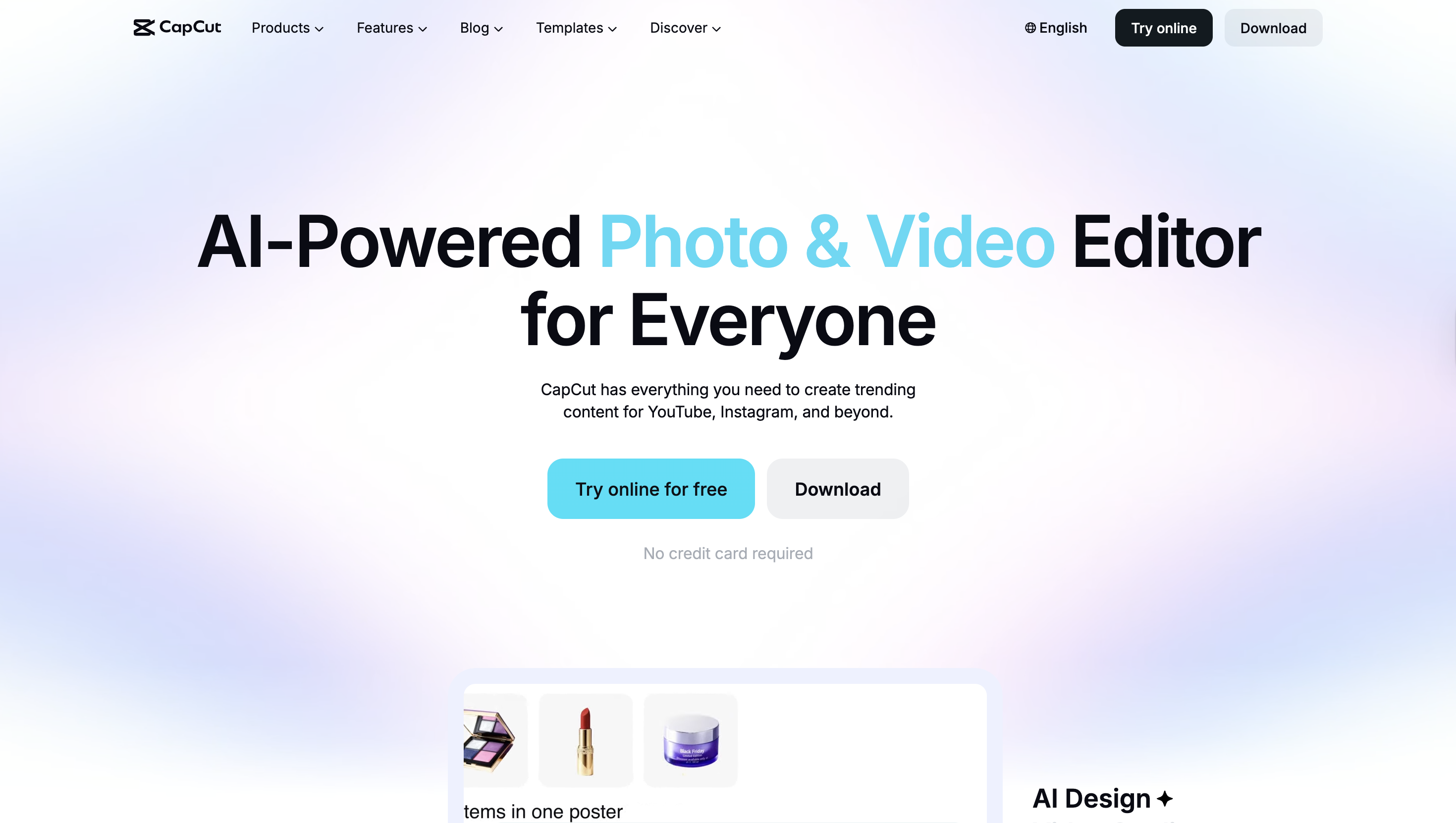
CapCut became popular because it makes short-form editing incredibly fast. It’s packed with templates, captions, transitions, effects, and vertical editing tools designed for TikTok, Reels, and Shorts.
Best for:
- Shorts creators
- Social-first YouTubers
- Quick mobile editing
Limitations:
- Less suited for advanced long-form editing
6. Descript: Best for podcast and talking-head videos
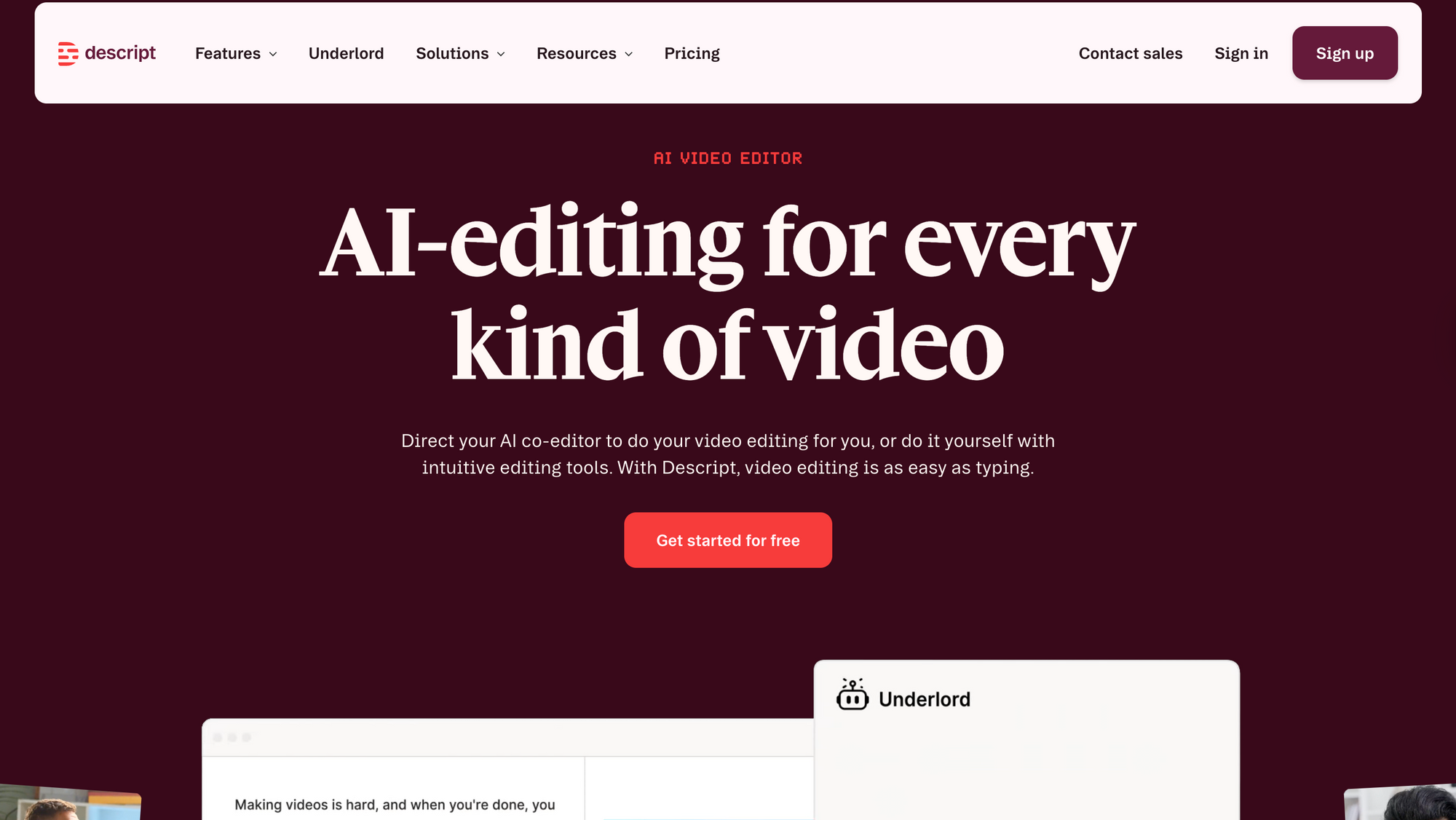
Descript approaches editing differently by letting creators edit video through transcripts. Delete a sentence in the transcript, and it disappears from the video automatically.
It’s especially useful for podcasts, interviews, tutorials, and educational channels.
Best for:
- Podcast creators
- Interviews
- Educational content
Limitations:
- Less ideal for visual-heavy editing
7. iMovie: Best free YouTube editing software for Mac beginners
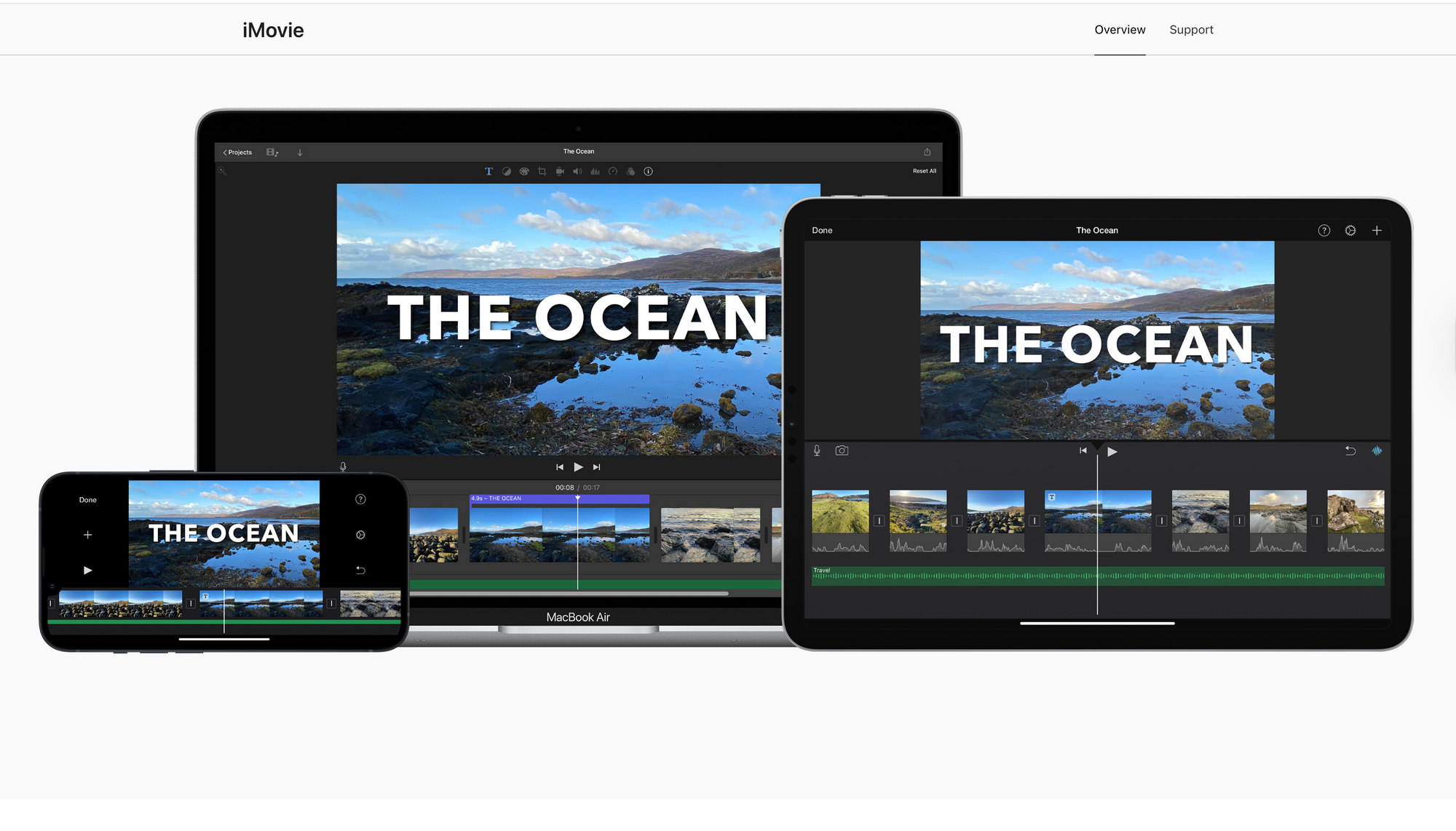
iMovie is simple, clean, and beginner-friendly. While it lacks advanced professional tools, it’s still one of the easiest ways for new creators to start editing YouTube videos on Mac.
Best for:
- Beginner YouTubers
- Basic editing workflows
Limitations:
- Limited advanced features
8. Filmora: Best beginner-friendly desktop editor
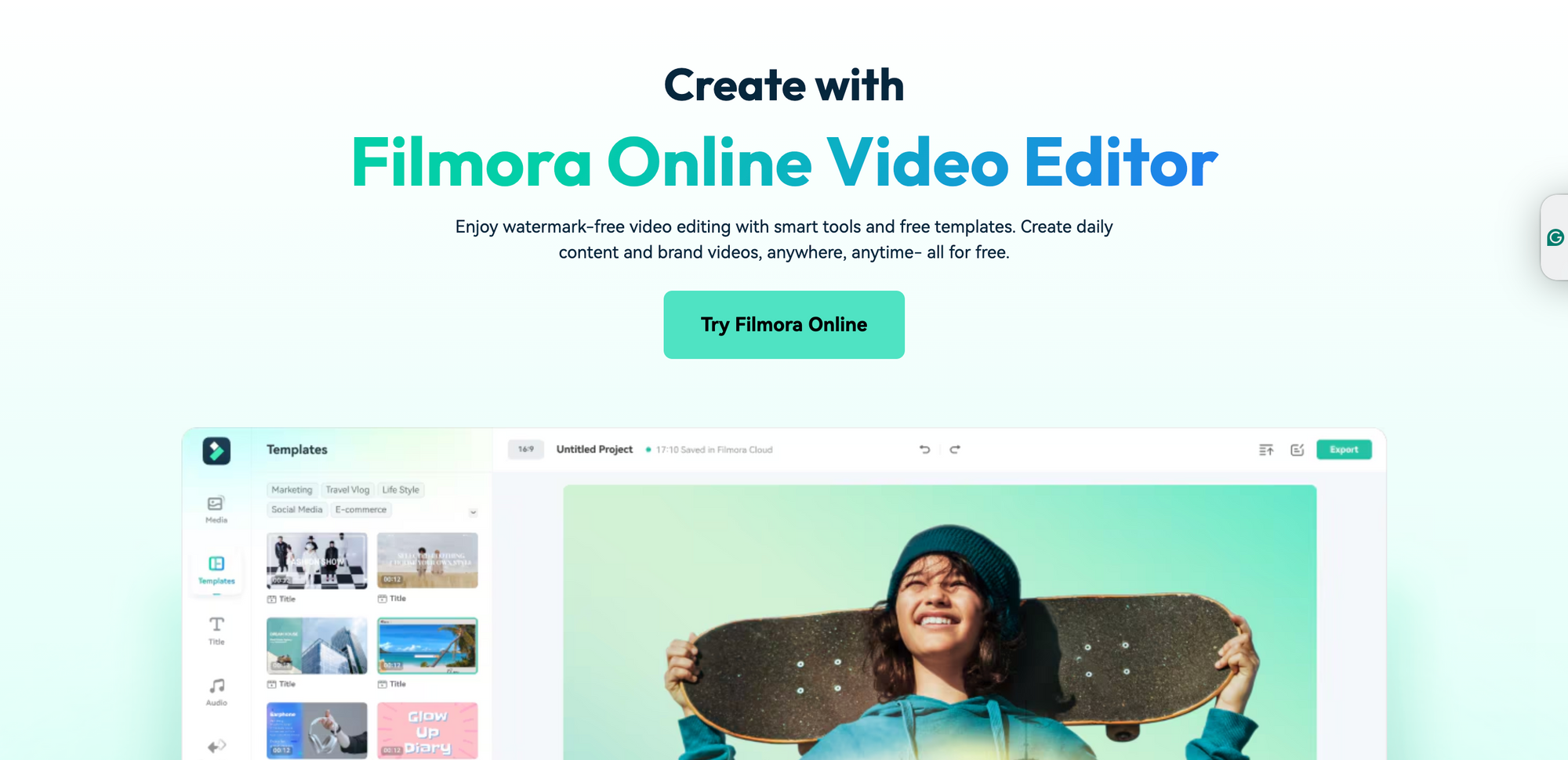
Filmora sits somewhere between beginner software and professional editors. It offers a cleaner learning curve while still including effects, transitions, templates, and AI tools.
Best for:
- Growing creators
- Beginner-to-intermediate editing
Limitations:
- Less powerful than pro editors
9. VEED: Best browser-based editor for fast content
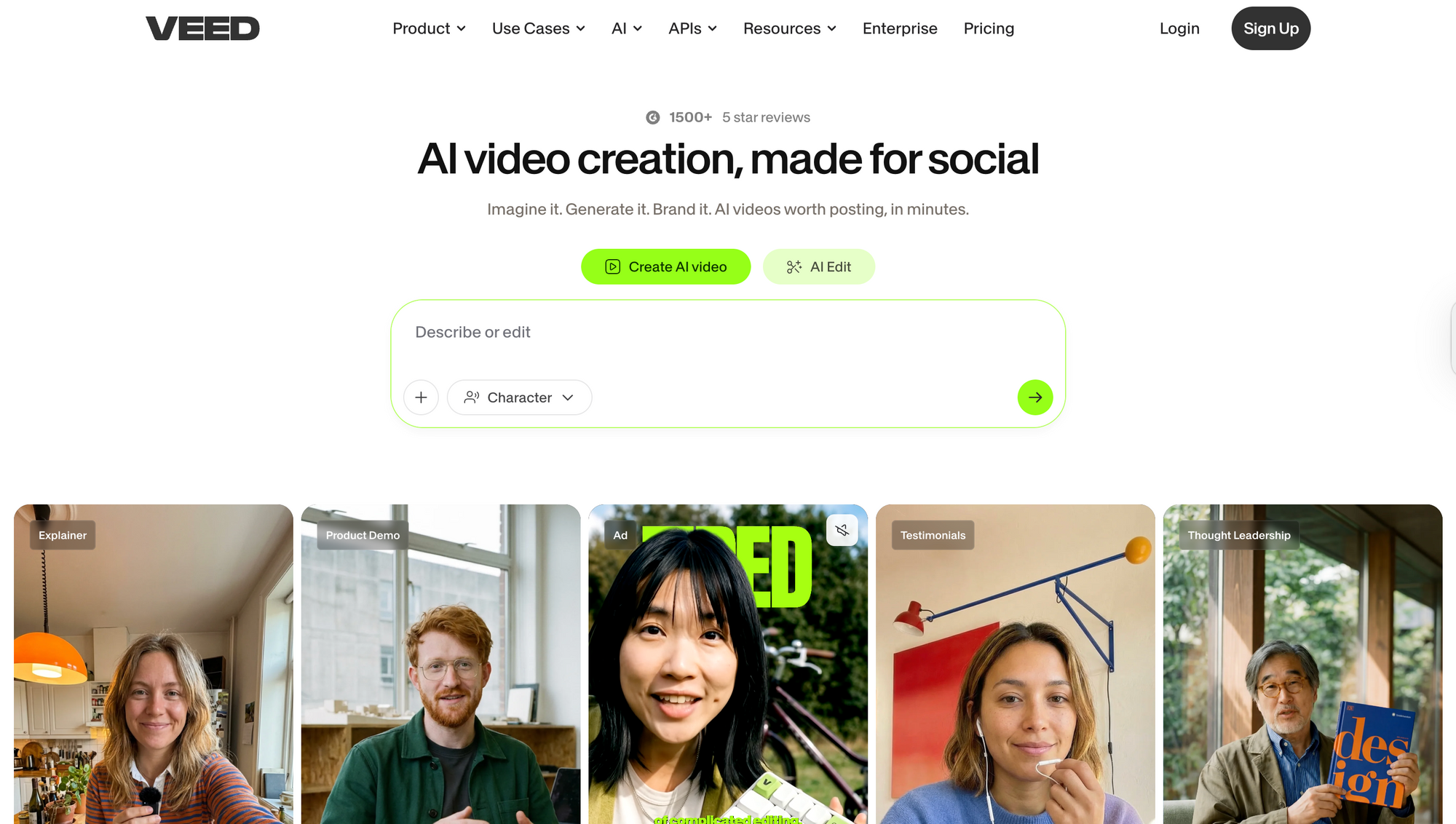
VEED focuses heavily on online editing, captions, templates, and social media workflows. It’s easy to use and works well for quick YouTube and social content production.
Best for:
- Fast online editing
- Social video creators
Limitations:
- Not ideal for complex editing
10. Canva Video: Best for branded YouTube content
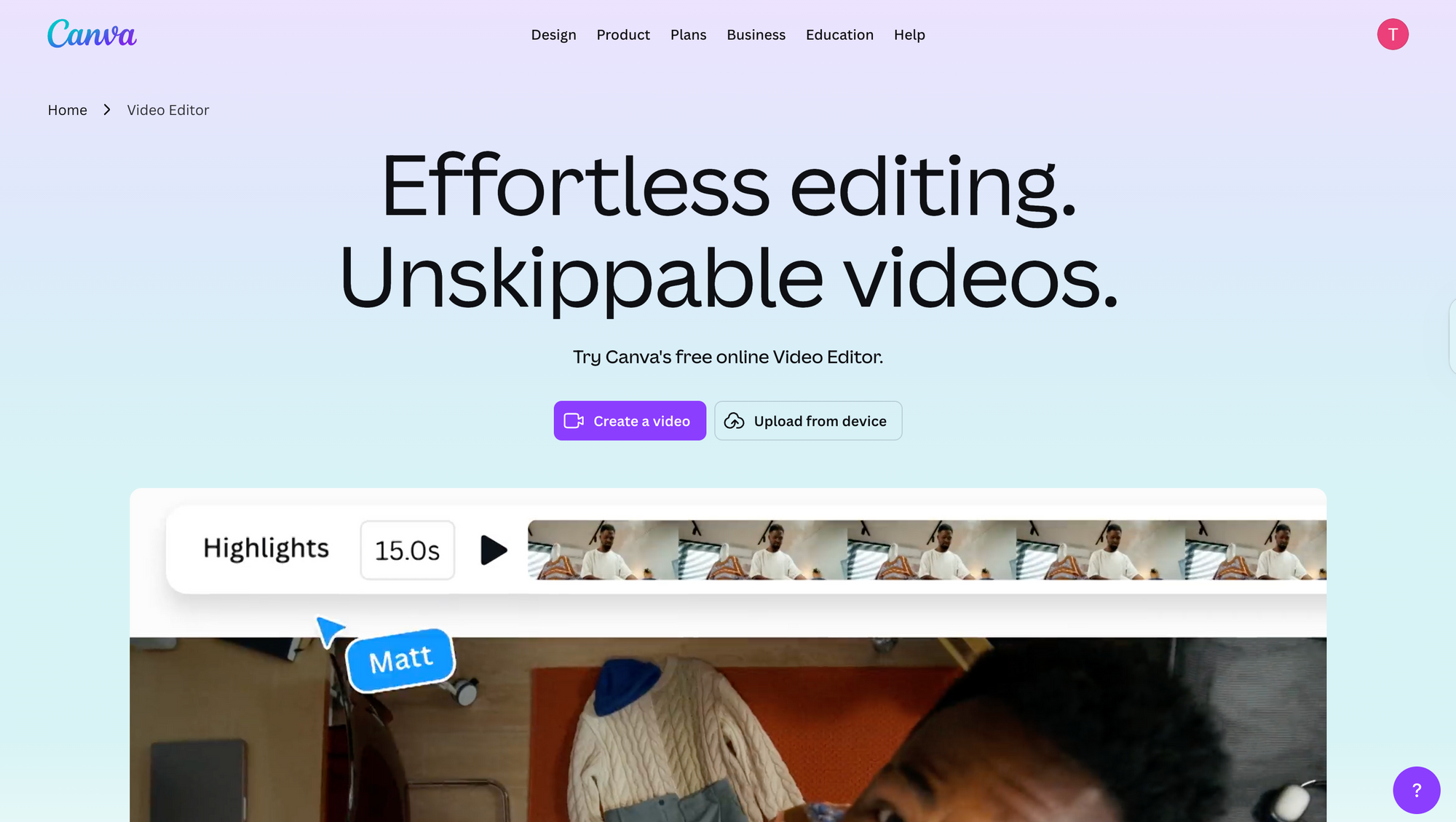
Canva Video is less of a traditional editor and more of a visual content creation platform. It’s useful for presentations, educational videos, marketing content, and simple YouTube projects.
Best for:
- Marketing teams
- Educational creators
- Branded content
Limitations:
- Limited advanced editing controls
How to choose the right YouTube video editor
The best YouTube video editor is not necessarily the one with the most features. It’s the one that matches the way you actually create content.
A cinematic filmmaker editing multi-camera projects has very different needs from a Shorts creator posting daily clips. The same goes for educators, podcasters, gaming creators, marketers, and beginner YouTubers.
Before choosing a video editor for YouTube, it helps to think about four things first:
Your content style
Long-form storytelling, gaming videos, tutorials, reaction content, podcasts, interviews, and Shorts all require different editing workflows.
If your videos rely heavily on cinematic editing, advanced effects, and color grading, tools like Premiere Pro or DaVinci Resolve may make more sense.
But if your workflow revolves around publishing quickly, repurposing clips, adding captions, and creating social content, faster AI-powered platforms like Async or CapCut may be more practical.
Your editing experience
Some editors are designed for professionals. Others are built for speed and simplicity.
Premiere Pro and DaVinci Resolve offer enormous creative control, but they also take time to learn. Beginners often feel overwhelmed by complex timelines, layered menus, and advanced workflows.
If you’re just starting a YouTube channel, simpler tools like Async, Filmora, iMovie, or VEED can help you publish faster without spending months learning professional editing software.
Your workflow speed
Modern YouTube creation is increasingly multi-platform. Many creators now turn one long-form video into:
- YouTube Shorts
- TikTok clips
- Instagram Reels
- teaser videos
- subtitled social posts
That’s why workflow speed matters more than ever.
Online editors and AI-assisted tools can dramatically reduce repetitive editing tasks like subtitles, resizing, clip generation, and exports.
Your device and setup
Desktop editors like Premiere Pro, Final Cut Pro, and DaVinci Resolve usually require stronger hardware, especially for 4K editing.
Online editors are often easier for creators working across multiple devices or collaborating remotely with teams.
If you want flexibility and cloud-based editing without relying on a high-end computer, browser-based platforms may fit your workflow better.
At the end of the day, the “best” YouTube editing software depends less on raw editing power and more on how efficiently it helps you consistently publish quality videos.
Online vs desktop video editors for YouTube
One of the biggest shifts in YouTube editing over the past few years is the move from traditional desktop software toward faster online and AI-assisted workflows.
Desktop editors still dominate high-end production. But for many creators, especially Shorts creators, educators, podcasters, and social-first channels, online editing is becoming more than good enough.
The right choice depends on how you create content.
Desktop video editors
Desktop software like Premiere Pro, Final Cut Pro, and DaVinci Resolve gives creators the highest level of editing control. These tools are designed for professional post-production, advanced effects, color grading, motion graphics, and complex timelines.
That power comes with tradeoffs, though:
- steeper learning curves
- larger file management
- heavier hardware requirements
- longer editing workflows
For creators producing cinematic videos, documentaries, commercial work, or advanced YouTube productions, desktop editing is still often the best option.
Online video editors
Online editors focus more on speed, accessibility, and simplified workflows.
Instead of building complex post-production pipelines, web-based platforms help creators:
- edit directly in the browser
- collaborate with teams
- add captions automatically
- repurpose clips faster
- resize content for Shorts and social media
- publish quickly without powerful hardware
This is especially useful for creators publishing high volumes of content across YouTube and social platforms simultaneously.
Where AI editing changes the workflow
AI is also changing what creators expect from editing software.
Instead of manually handling every repetitive task, many modern editors now automate:
- subtitles and captions
- silence removal
- clip generation
- reframing for vertical video
- transcript-based editing
- audio cleanup
For many YouTubers, especially beginners and growing creators, this dramatically lowers the barrier to creating polished videos consistently.
The reality is that most creators no longer need Hollywood-level editing software for every upload. In many cases, speed, consistency, and publishing frequency matter more than mastering advanced post-production tools.
That’s why many modern YouTube workflows now combine both approaches:
- desktop editors for large flagship videos
- AI-powered online editors for Shorts, captions, clips, repurposing, and fast publishing
What features matter most in YouTube editing software
A lot of creators make the mistake of choosing editing software based on features they’ll probably never use.
Yes, advanced VFX tools sound impressive. So do cinematic color pipelines and professional compositing workflows. But most YouTubers care about something much simpler:
Can this editor help me make good videos consistently without slowing me down?
That’s usually what matters most.
Fast editing workflows
The faster you can move from recording to publishing, the easier it becomes to stay consistent on YouTube.
That doesn’t mean rushing content. It means reducing unnecessary friction.
Good YouTube editing software should make it easy to:
- organize footage
- trim clips quickly
- edit audio
- add B-roll
- create captions
- export in the right format
- publish without technical headaches
For many creators, this is where simpler online editors and AI-assisted tools start becoming more practical than traditional heavyweight software.
Automatic captions and subtitles
Captions are no longer optional on YouTube, especially for Shorts.
A huge percentage of viewers watch content muted at first, and captions also improve accessibility, retention, and engagement.
Manually adding subtitles is painful, though. That’s why automatic caption generation has become one of the most valuable features in modern YouTube editors.
Shorts and vertical video support
YouTube Shorts changed editing workflows completely.
Many creators now treat Shorts as a discovery engine for growing their channels, which means editing software needs to handle:
- vertical reframing
- fast clipping
- social exports
- mobile-friendly formatting
- caption positioning
This is especially important if you’re repurposing long-form videos into shorter content.
Audio cleanup tools
People will forgive average video quality faster than bad audio.
A good YouTube editor should help you:
- remove background noise
- clean vocals
- balance volume
- improve speech clarity
This matters even more for podcasts, commentary videos, interviews, tutorials, and educational content.
Collaboration and cloud access
Editing is becoming increasingly collaborative.
Teams often need to review drafts, leave comments, approve cuts, or share assets remotely. Browser-based editing and cloud workflows make this much easier compared to constantly sending large project files back and forth.
AI-assisted editing
AI is probably the biggest shift happening in YouTube production right now.
Not because AI replaces creators, but because it removes repetitive editing work that used to eat up hours every week.
Modern AI workflows can help creators:
- generate captions automatically
- detect highlights
- create clips faster
- resize videos for Shorts
- remove silences
- speed up repetitive edits
For growing YouTubers, this can make a massive difference in publishing consistency.
Best YouTube video editing software by creator type
Not every creator needs the same editing software. The best option usually depends on the type of content you make and how often you publish.
If you’re a beginner YouTuber
You probably do not need the most advanced editor on the market.
What matters more is learning how to edit comfortably, publish consistently, and avoid getting overwhelmed.
Good beginner-friendly options:
- Async
- Filmora
- iMovie
- Canva Video
- VEED
If you make YouTube Shorts
Speed matters a lot more for Shorts creators.
You’ll likely spend more time clipping videos, resizing formats, adding captions, and testing hooks than building complex cinematic edits.
Best options for Shorts:
- Async
- CapCut
- VEED
If you run a podcast or interview channel
Podcast workflows are heavily focused on speech clarity, captions, trimming pauses, and creating clips for social media.
Transcript-based editing and AI-assisted tools become incredibly useful here.
Best options:
- Descript
- Async
- Premiere Pro
If you create cinematic YouTube videos
If your content relies heavily on color grading, storytelling, advanced transitions, and detailed post-production, desktop software still dominates.
Best options:
- DaVinci Resolve
- Premiere Pro
- Final Cut Pro
These tools offer significantly more control for professional filmmaking-style content.
If you create educational or tutorial videos
Tutorial creators often need fast workflows, captions, screen recordings, clean audio, and easy exports.
Best options:
- Async
- Descript
- Filmora
If you work with a team
Collaboration becomes a huge factor once multiple people are involved in production.
Cloud-based workflows, shared assets, browser editing, and review systems help teams move much faster.
Best options:
- Async
- Premiere Pro
- Canva Video
At the end of the day, the best YouTube video editor is the one that helps you publish more consistently without making the creative process exhausting.
A faster YouTube editing workflow with AI
A lot of creators still think editing has to be this huge, time-consuming process where every caption, cut, resize, and social clip is done manually.
It really doesn’t anymore.
Modern AI-assisted workflows are changing how creators handle YouTube production, especially when one video now often turns into:
- a long-form upload
- multiple Shorts
- teaser clips
- Instagram Reels
- TikToks
- subtitled social posts
Instead of rebuilding everything from scratch, creators can now move through production much faster.
A simple workflow inside Async might look something like this:
- Upload your long-form YouTube video
- Generate captions automatically
- Identify useful moments for Shorts and clips
- Resize content vertically for Shorts
- Export social-ready versions for multiple platforms
- Create thumbnails
- Publish consistently across platforms
This kind of workflow is especially useful for creators trying to scale output without dramatically increasing editing time.
And honestly, that’s becoming one of the biggest advantages on YouTube right now.
Not necessarily having the most cinematic edits.
Not necessarily using the most expensive software.
Just being able to consistently publish polished videos without burning out halfway through the process.
Your future self will thank you for choosing the right editor
The best video editing software for YouTube is the one that helps you keep creating.
Some creators need advanced desktop editing. Others just want a faster workflow that makes captions, Shorts, repurposing, and publishing less exhausting.
The good news is that YouTube editing has become far more flexible than it used to be. You no longer need a massive production setup to create polished content consistently.
And honestly, that’s probably the biggest creator advantage right now:
making videos you’re actually able to keep publishing.
FAQ
What is the best video editing software for YouTube?
The best video editing software for YouTube depends on your workflow and experience level. Premiere Pro and DaVinci Resolve are popular for professional editing, while tools like Async, CapCut, and Filmora focus more on speed, captions, Shorts, and beginner-friendly workflows. Most creators benefit more from consistency and workflow speed than from advanced editing complexity.
What video editor do most YouTubers use?
Many professional YouTubers use Premiere Pro, Final Cut Pro, or DaVinci Resolve for long-form editing. At the same time, more creators are now using AI-assisted editors like Async, CapCut, and Descript for Shorts, captions, podcasts, and faster social content workflows.
What is the best free video editing software for YouTube?
DaVinci Resolve is often considered the most powerful free video editing software for YouTube. For beginners, though, free tools like iMovie, CapCut, VEED, and Async can feel much easier to use while still offering solid editing, captions, and export features.
What is the easiest YouTube video editor for beginners?
For beginners, the easiest YouTube video editors are usually the ones with simpler interfaces and faster workflows. Async, Filmora, iMovie, and Canva Video are all beginner-friendly options that help creators edit, caption, and export videos without a steep learning curve.
Can I use an AI video editor for YouTube?
Yes, and many creators already do. AI video editors can automate repetitive tasks like captions, silence removal, clip generation, resizing for Shorts, and transcript-based editing. This helps creators publish more consistently without spending hours on manual editing work.
What is the best video editor for YouTube Shorts?
CapCut is one of the most popular YouTube Shorts editors because it’s fast and mobile-friendly. Async and VEED are also strong options for creators who want automatic captions, vertical resizing, social exports, and faster repurposing workflows for Shorts content.
Is online video editing good enough for YouTube?
For many creators, absolutely. Online video editors are now powerful enough for tutorials, podcasts, Shorts, interviews, educational videos, and marketing content. Desktop editors still offer more advanced controls, but browser-based workflows are often faster and easier for everyday YouTube production.
Is Premiere Pro or Final Cut Pro better for YouTube?
It depends on your setup and workflow. Premiere Pro offers more flexibility, integrations, and industry-standard tools, while Final Cut Pro is often faster and smoother on Mac devices. Many Mac-based YouTubers prefer Final Cut because of its performance optimization.
Can I edit YouTube videos for free?
Yes. There are several free video editing tools for YouTube, including DaVinci Resolve, iMovie, CapCut, VEED, and free online editors. Many creators start with free software before upgrading to more advanced or collaborative workflows later.
What features should a YouTube video editor have?
A good YouTube video editor should make it easy to edit quickly, export cleanly, add captions, improve audio, create Shorts, and resize content for multiple platforms. AI-assisted features like automatic subtitles and clip generation are also becoming increasingly valuable for creators.