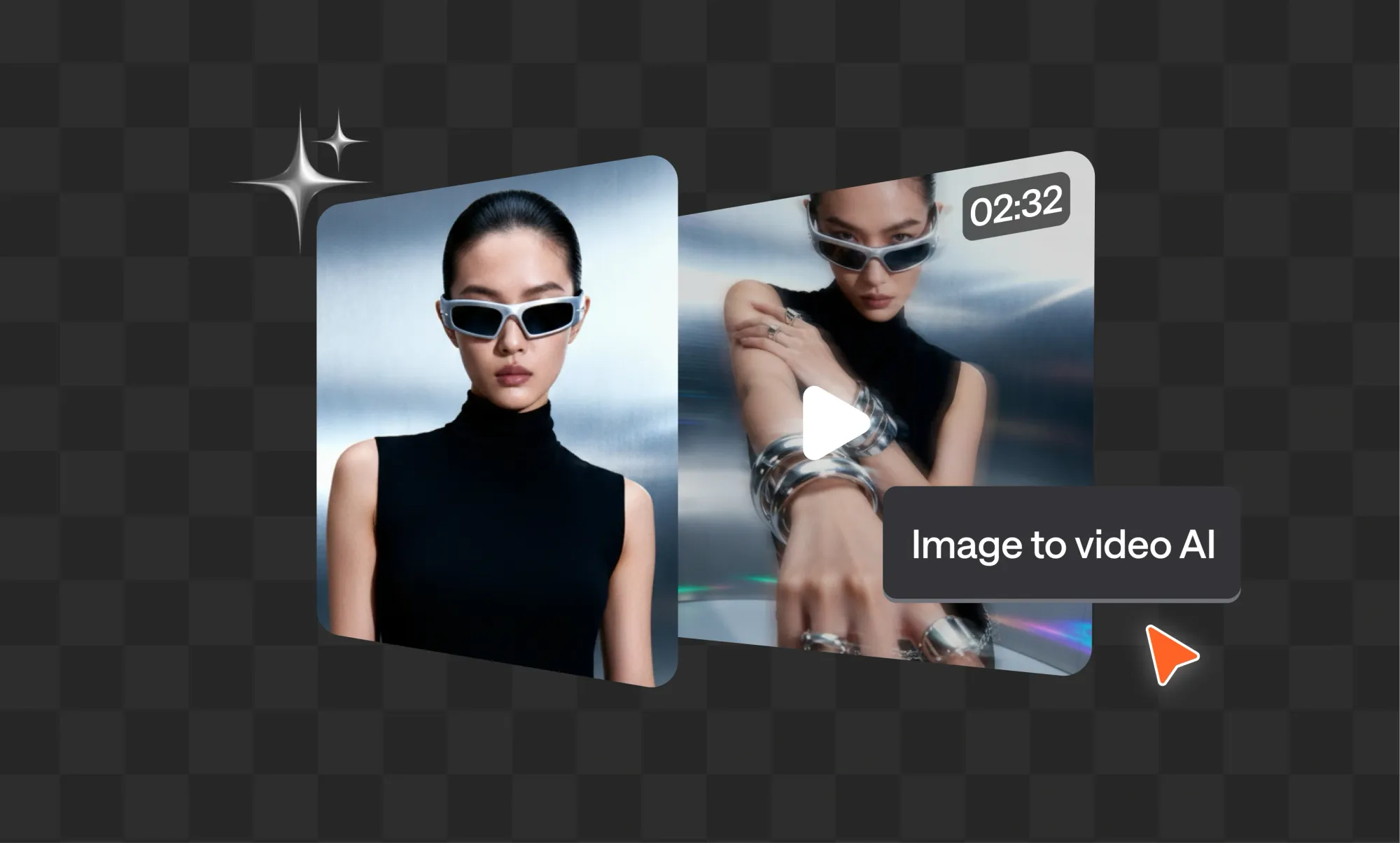
We’re not in the age where you need to learn motion graphics to turn your image to video. We’re in the age where you can use image to video AI tools to have your video ready in seconds.
Now these aren’t empty promises. We tested the most talked-about tools ourselves and put together a list of the best image to video AI tools that actually help you get the job done fast, without sacrificing quality.
Here’s the quick summary of the tools you HAVE to try:
- Async
- Canva
- Adobe Firefly
- MagicHour
- Pollo AI
- VEED
- Leonardo AI
- Luma
- Kling AI
- Viggle
- Pixlr
- Higgsfield
What image to video AI does
Image to video AI takes a still image and adds motion to it, turning it into a video that matches your style or creative goal.
In this case, we think it’s better to follow the “show, don’t tell” approach and give you a quick example right away.
In our previous blog post, we talked about the best CapCut alternatives to try and created a cute little blog cover for it.
Now let’s say we want to promote that post on social media. Instead of sharing a static image, we want to add a bit of motion to make it more fun to look at.
1. We ask: “Can you turn this image into a video?”
Ask and you shall receive. First, just upload the image to Async and ask it to turn it into a video. It’s as simple as that.
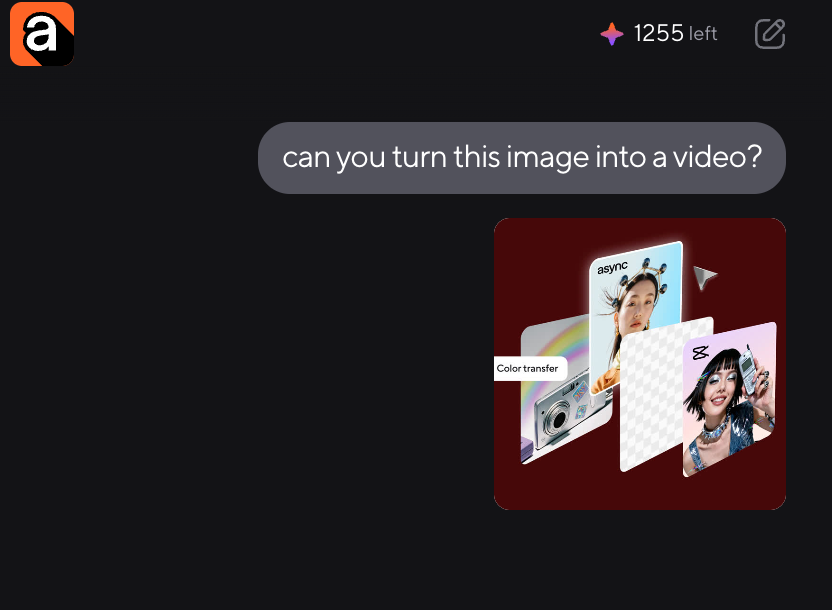
2. Async prepares the flow
Async looks at your request and generates the best possible image to video AI workflow for it. It chooses the AI model, creates the prompt, figures out the aspect ratio, and basically does all the heavy lifting for you. In the end, all you need to do is confirm it and click “Generate.”
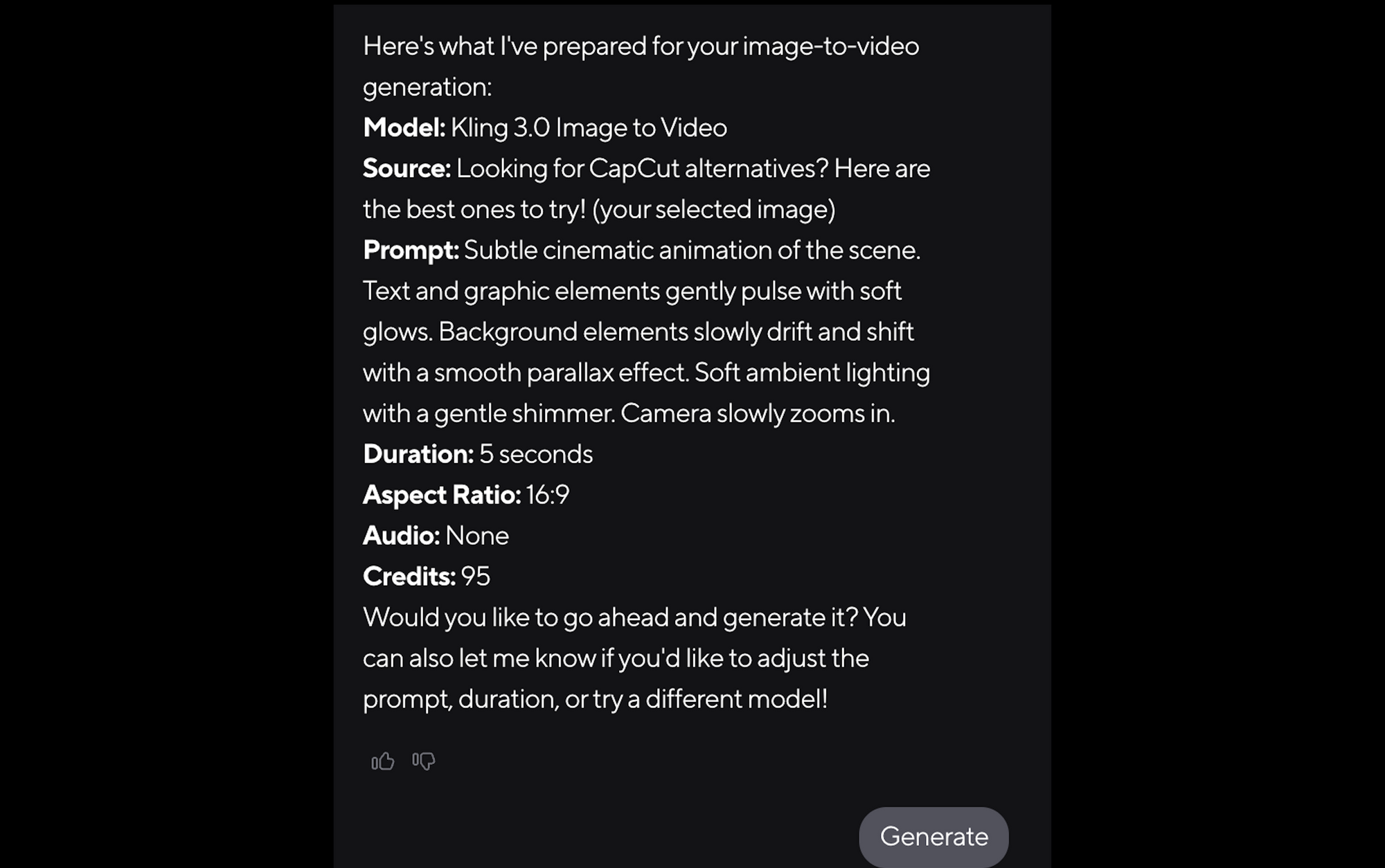
3. Download the final video
It only takes a few seconds to do the job, and then Async comes back with the final video. Here’s what the final response looks like:
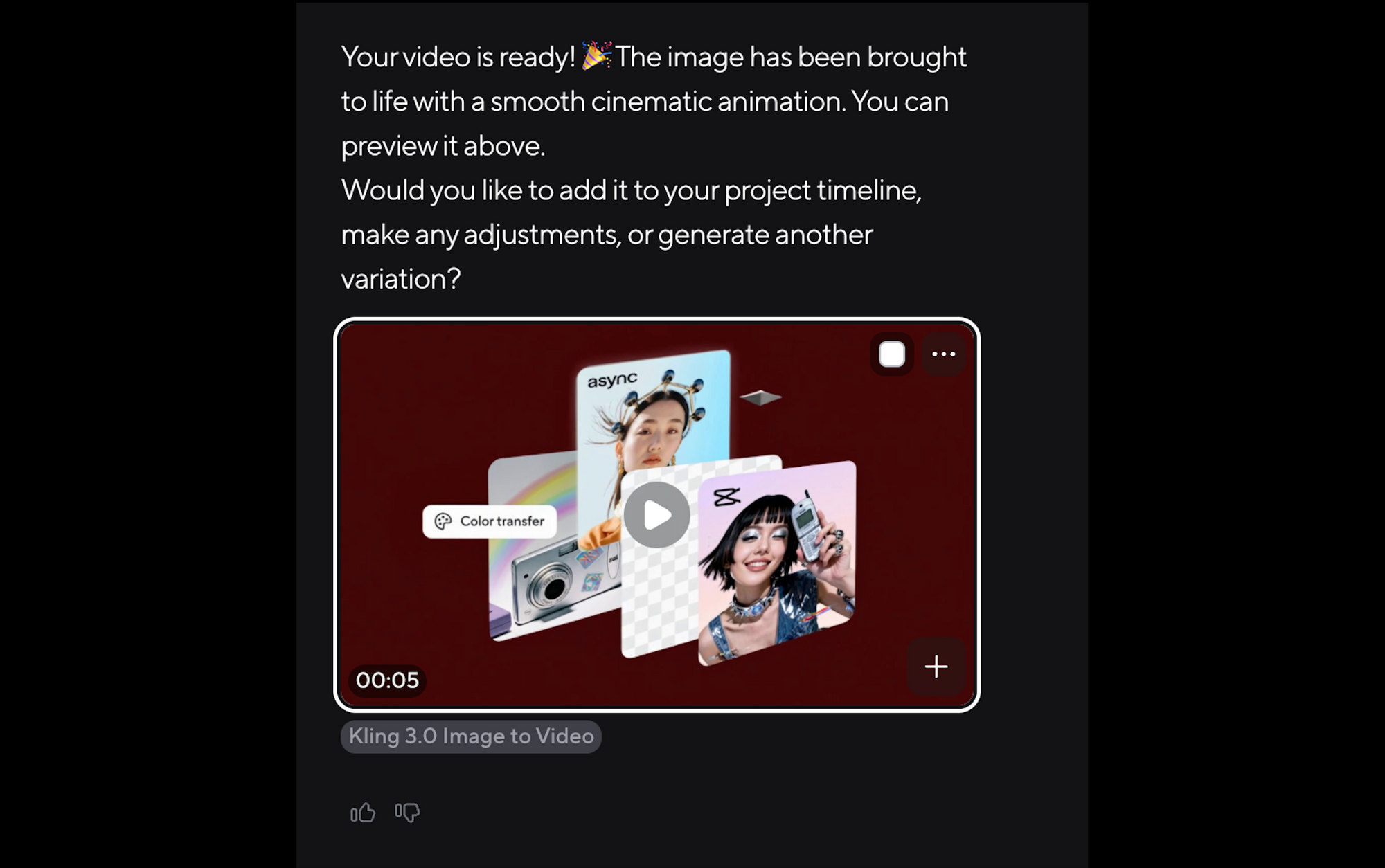
You can always make adjustments or generate another variation, but honestly, for us, it was already perfect for our Instagram Story.
Here’s how the final video looked, by the way:
And that’s exactly what a good image to video AI tool should do: take the hard parts out of the process and help you get from idea to finished video without needing to touch complicated editing tools. Async does that beautifully, which is why it takes the #1 spot on our list.
But different tools are built for different kinds of creators, projects, and workflows. So let’s look at the full list and see which image to video AI tools are actually worth trying.
12 Best image to video AI tools to try
1. Async: Best for end-to-end image-to-video creation
Async takes the first AI image to video spot because it does something most image to video AI tools still don’t do well: it doesn’t leave you alone with a generated clip and call it a day.
With Async, you can upload an image, ask the AI to turn it into a video, and let the editor build the workflow for you. It chooses the right model, prepares the prompt, sets the aspect ratio, and gives you a generation flow you can approve before creating the final result. So instead of jumping between a generator, an editing tool, a captioning tool, and a resizing tool, you can keep the whole process in one place.
That’s the main reason we liked it so much in our own test. The experience felt less like “use this tool and figure it out” and more like “tell Async what you want, then refine it from there.” And that makes a huge difference when you’re trying to move fast.
Async is especially useful if you want to create videos for social media, blog promotion, product visuals, campaign ideas, or quick creative experiments. You can start with one static image, add motion to it, and then continue editing the result with Async’s AI video editor. Add subtitles, resize it for different platforms, clean it up, create another version, or turn it into something more polished before you publish.
It’s also a strong choice for teams because Async gives you access to many AI models inside one workspace, including video, image, avatar, music, and sound generation models. So if your image-to-video idea needs more than just motion, maybe a voiceover, music, captions, or a new visual asset, you don’t have to restart the project somewhere else.
Best for: Creators, marketers, and teams who want to go from image to finished video in one workflow.
Why we picked it: Async makes the process feel simple without making the result feel basic. You can prompt, generate, edit, and polish your video without needing video editing experience.
Where it stands out:
- Chat-based video creation and editing
- Strong workflow from prompt to final video
- Access to multiple AI models in one place
- Useful for social videos, product visuals, campaign assets, and creative experiments
- Lets you keep editing after the video is generated
What to keep in mind: If you only want to generate one quick experimental clip and never touch it again, a very simple free generator might be enough. But if you want to actually use the video, edit it, resize it, brand it, or publish it, Async gives you a much smoother path.
Bottom line: Async is the best image to video AI tool for people who want more than a moving image. It helps you turn a static visual into a usable video, then gives you the tools to make that video ready for wherever it needs to go next.
2. Canva: Best for quick, beginner-friendly image-to-video creation
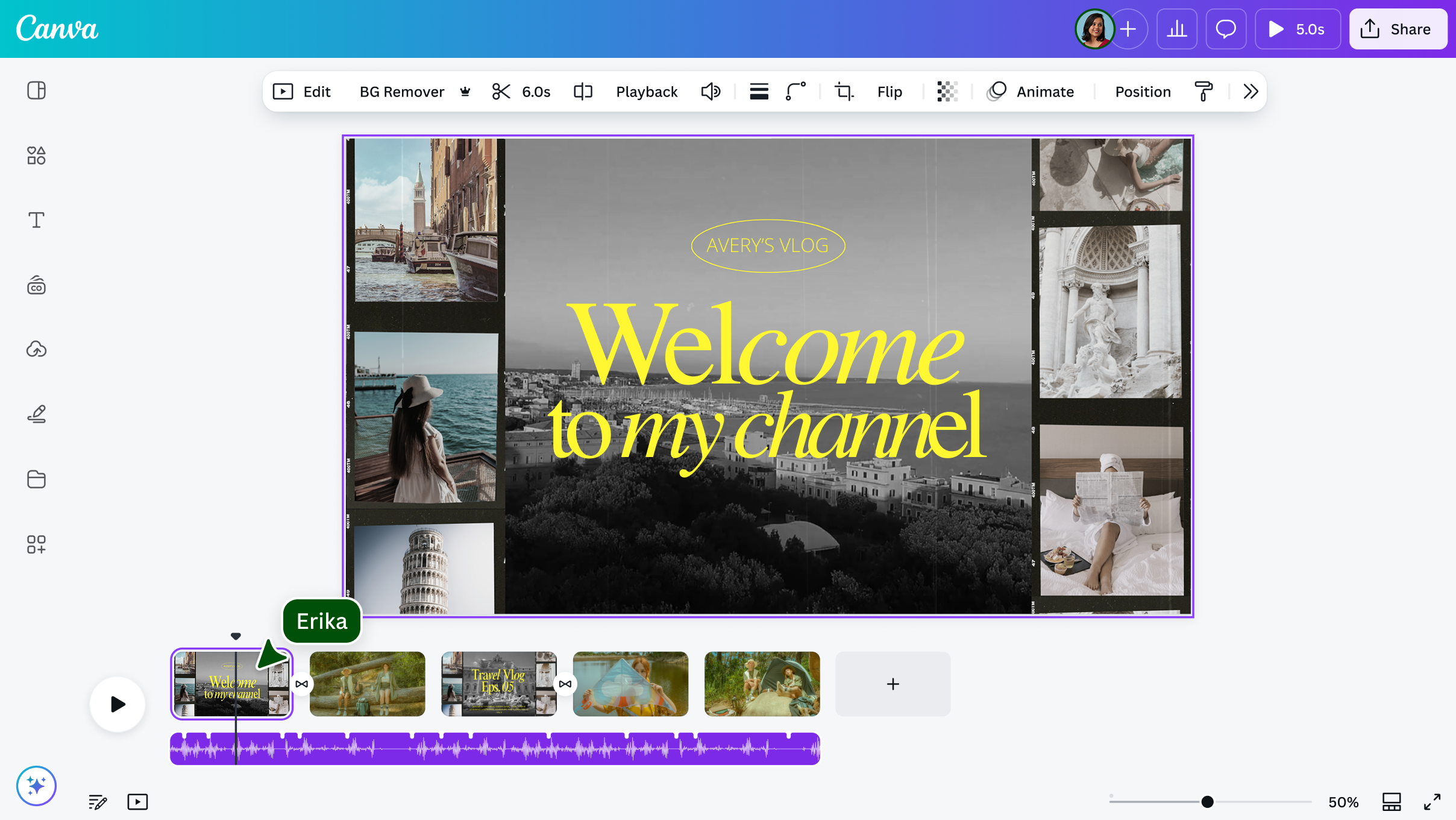
You know Canva for sure. But what you probably didn't know is that Canva also has an AI image to video generator that is fairly quick and easy to use.
If you’ve ever used Canva to make a social post, presentation, or quick design, the video workflow feels like a natural next step instead of a completely new tool you have to learn.
It also gives you access to Canva’s broader video editor, so you can make the final video feel more complete before sharing it.
However, keep in mind that Canva’s video editor doesn’t really feel like a video editor: it’s more like a presentation deck turned into a video, so a lot of times it feels less intuitive if you need an actual video editing tool.
That said, although it’s not the tool you open when you want the deepest AI control or the most cinematic motion, it’s still a great option when you need a quick visual for Instagram, presentation, or a simple brand asset. For beginners, that simplicity is a big win.
Best for: Beginners, social media creators, small teams, and anyone who already uses Canva for design.
Why we picked it: Canva makes the image-to-video process feel approachable. You can start with a still image, add motion, music, transitions ,and resize the result without needing to learn a complex editing workflow.
Where it stands out:
- Beginner-friendly interface
- Good for quick social media videos
- Built-in templates, stock assets, music, and transitions
- Works across desktop and mobile
- Lets you export videos as MP4
- Useful free-friendly option for simple projects
What to keep in mind: Canva is great for speed and simplicity, but it may not give you as much control over the AI motion, prompt flow, or post-generation editing as more advanced AI video tools. If you want a more guided AI workflow that helps you generate and refine the video from start to finish, Async is the better fit.
Bottom line: Canva is one of the best image to video AI tools for quick, simple, beginner-friendly videos. It’s especially useful if you already create your visuals in Canva and want to turn them into short videos without switching tools.
3. Adobe Firefly: Best for commercially safe creative work
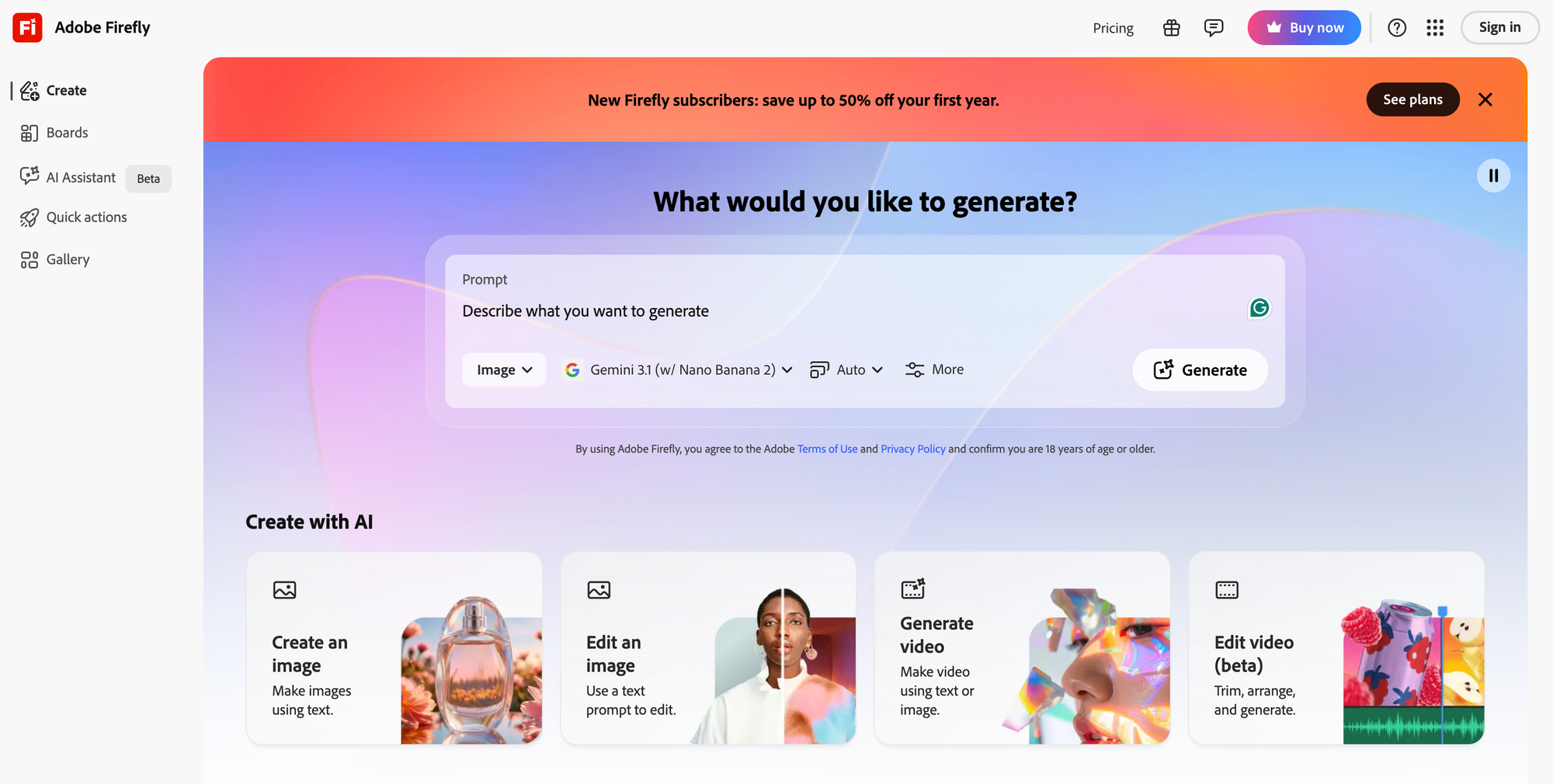
Adobe Firefly is a strong choice if you want your image to video AI workflow to feel more professional and controlled.
It’s especially useful if you're already using Adobe tools and want to bring still visuals to life within the ecosystem you're familiar with.
What makes Adobe stand out is the level of creative control it gives you. You can guide the result with prompts, choose camera motion like zoom, pan, or tilt, adjust framing, and create videos up to 1080p.
Best for: designers, marketers, creative teams, and Adobe users who want more control over AI-generated video.
Why we picked it: Adobe Firefly gives you more control over the look and movement of the final video than many simple image-to-video tools. It’s especially strong if you care about camera motion, visual polish, and commercial use.
Where it stands out:
- Strong image-to-video controls
- Camera movement options like zoom, pan, and tilt
- Output up to 1080p
- Commercially safe positioning
- Good for b-roll, campaign visuals, concept clips, and branded assets
- Works naturally with the broader Adobe creative ecosystem
What to keep in mind: Adobe Firefly is powerful, but it can feel more like a professional creative tool than a quick “just make this move” generator. If you’re not already in the Adobe ecosystem, it may feel heavier than some faster, simpler tools on this list.
Bottom line: Adobe Firefly is one of the best image to video AI tools for professional creators and teams who want quality results, stronger creative control, and more confidence around commercial use.
4. MagicHour: Best for fast creative experiments
MagicHour is a great image to video AI generator if you want something quick.
It’s built around a simple image-to-video workflow: upload your image, describe the motion you want, and let the AI generate the video for you.
Overall, MagicHour is a beginner-friendly tool, with a simple three-step flow: upload an image, type a prompt, and generate the video.
Best for: Creators who want to test image-to-video ideas quickly.
Why we picked it: MagicHour makes the process feel fast and low-friction. It’s a good tool when you want to experiment with motion, style, or transformation without spending too much time setting things up.
Where it stands out:
- Simple upload-and-prompt workflow
- Good for quick creative tests
- Useful for social media visuals
- Works well when you want to explore motion ideas fast
- Can help turn static photos or designs into more engaging video clips
What to keep in mind: MagicHour is strong for generation and experimentation, but you may still need another editing workflow if you want to heavily refine, caption, resize, brand, or repurpose the final clip.
Bottom line: MagicHour is one of the best image to video AI tools for fast creative experiments. It’s a solid choice when you want to bring an image to life quickly and see what kind of motion the idea can handle.
5. Pollo AI: Best for trying multiple AI video models in one place
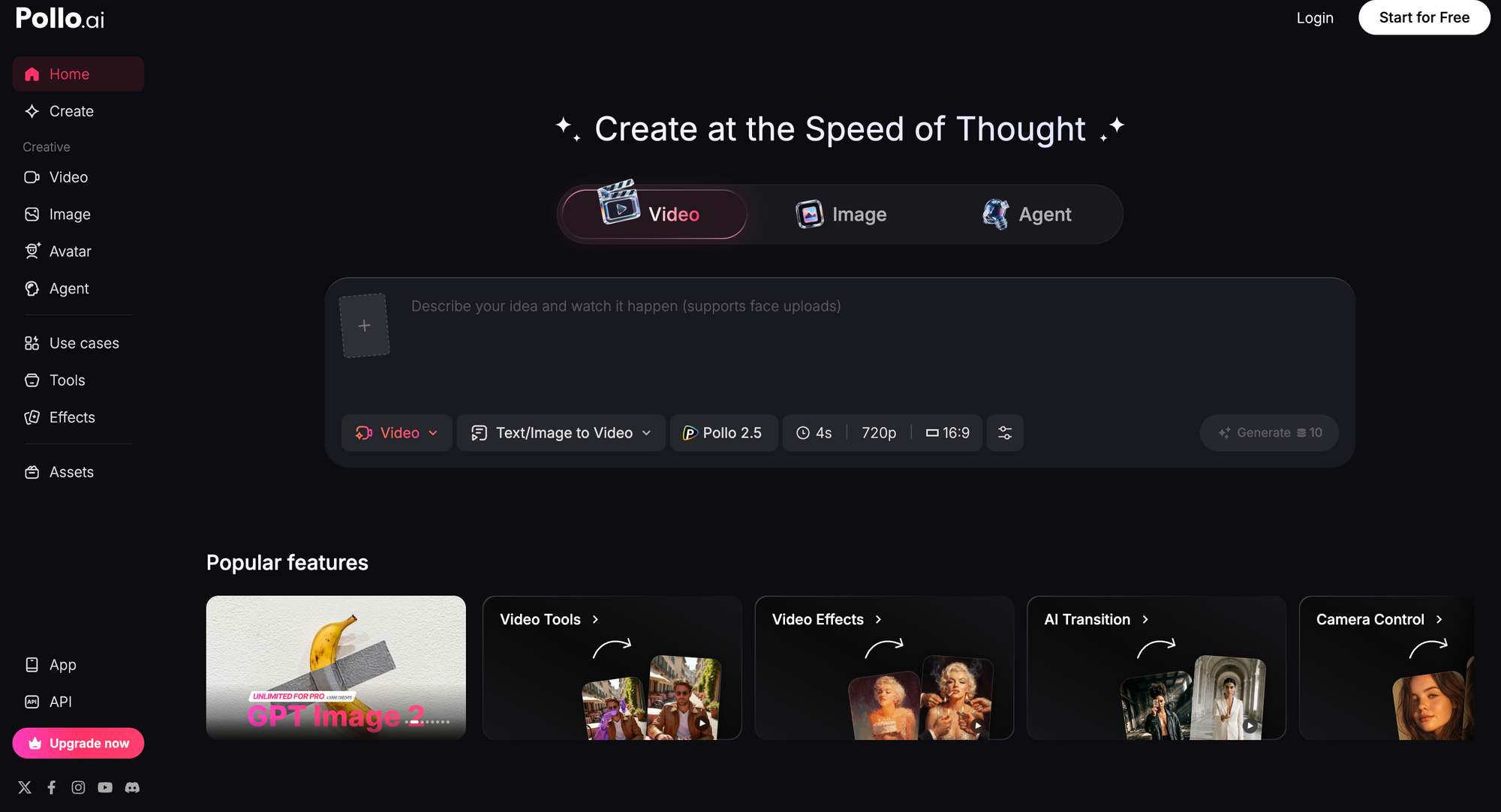
Pollo AI is a good option if you want to experiment with different styles without jumping between a dozen separate tools.
Instead of offering only one model or one type of generation, Pollo AI gives you access to multiple AI video and image models in one place, including models like Pollo 2.5, Seedance 2.0, Veo 3, Sora 2, and Kling AI.
It also supports text-to-video, image-to-video, avatar video, video-to-video, and animation workflows.
That makes it useful if you’re still testing what kind of result you want. It basically gives you room to play around and see which direction works best before committing to one final style.
It’s also a strong pick if you want to test out different trends, as it gives you a variety of viral effects and features, including short video generation, face swap, motion mimic, video enhancement, and AI avatar generation.
Best for: Creators who want to test different AI video styles, models, and effects in one place.
Why we picked it: Pollo AI gives you more room to experiment. You can try image-to-video, text-to-video, avatar videos, animations, and different model styles without starting from scratch every time.
Where it stands out:
- Access to multiple AI video models
- Image-to-video and text-to-video generation
- Strong social and viral-content angle
- AI avatar and animation tools
- Useful if you want to compare different generation styles
What to keep in mind: Because Pollo AI offers many tools and models, it can feel more experimental than focused. If you already know exactly what you want and need to polish the result into a final branded video, you may still want a stronger editing workflow after generation.
Bottom line: Pollo AI is one of the best image to video AI tools for experimentation. It’s a great place to test different creative directions, especially if you want to compare models, styles, effects, and social-first formats before choosing your final output.
6. VEED: Best for image-to-video plus online editing
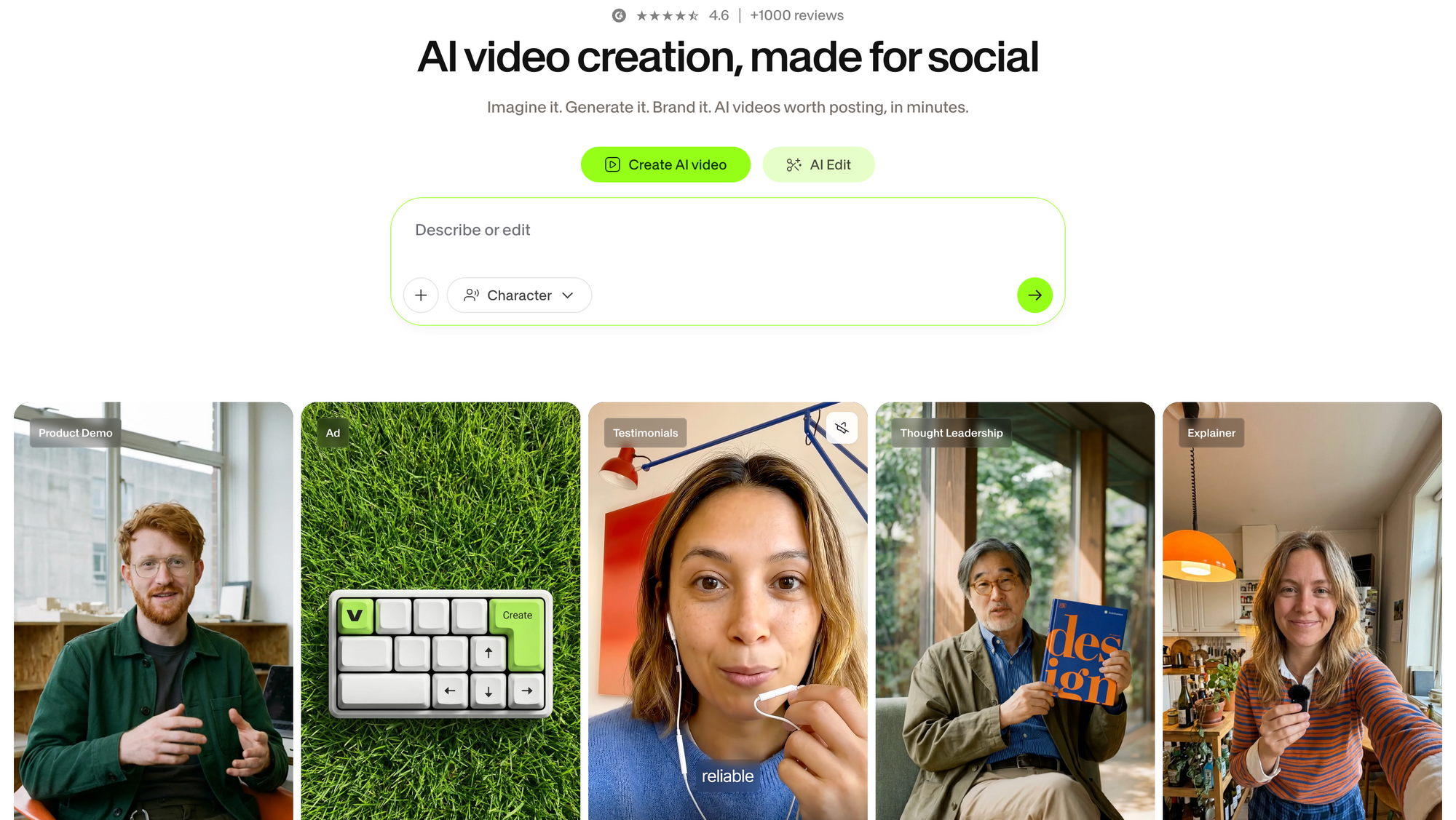
VEED is a strong choice if you want to generate an image-to-video clip and then keep editing it in the same platform. It helps you get started with ready-made prompts like camera pan, zoom, walking, and other motion instructions, which makes the platform feel more approachable, especially if you’re not used to writing AI video prompts.
What makes VEED useful is that generation is not the only thing it offers. Once the clip is created, it appears as a scene in the editor, where you can continue working on it. You can add text, captions, graphics, brand assets, and other edits before exporting.
VEED also has an AI playground where users can test and compare different image-to-video models, including options like Veo, Kling, Hailuo, Sora, Luma Ray, PixVerse, Seedance, and more.
Best for: Creators and marketing specialists who want image-to-video generation with a familiar online editor.
Why we picked it: VEED gives you both generation and editing. You can turn an image into a video, then continue polishing the clip with captions, text, graphics, and brand elements.
Where it stands out:
- Simple image upload + prompt workflow
- Useful motion prompts like pan, zoom, and walking
- Built-in online video editor
- Captions, text, graphics, and branding tools
- AI playground for testing multiple video models
- Free account option, though free exports may include a watermark
What to keep in mind: VEED is strong, but it can feel more editor-first than AI-workflow-first. If you want the AI to prepare the whole generation flow, choose the model, write the prompt, and guide the process through chat, Async feels smoother.
Bottom line: VEED is one of the best image to video AI tools if you want generation and editing in one place. It’s especially useful for social videos, product visuals, ads, and branded clips that need a bit of editing after the AI creates the first version.
7. Leonardo AI: Best for high-quality creative visuals
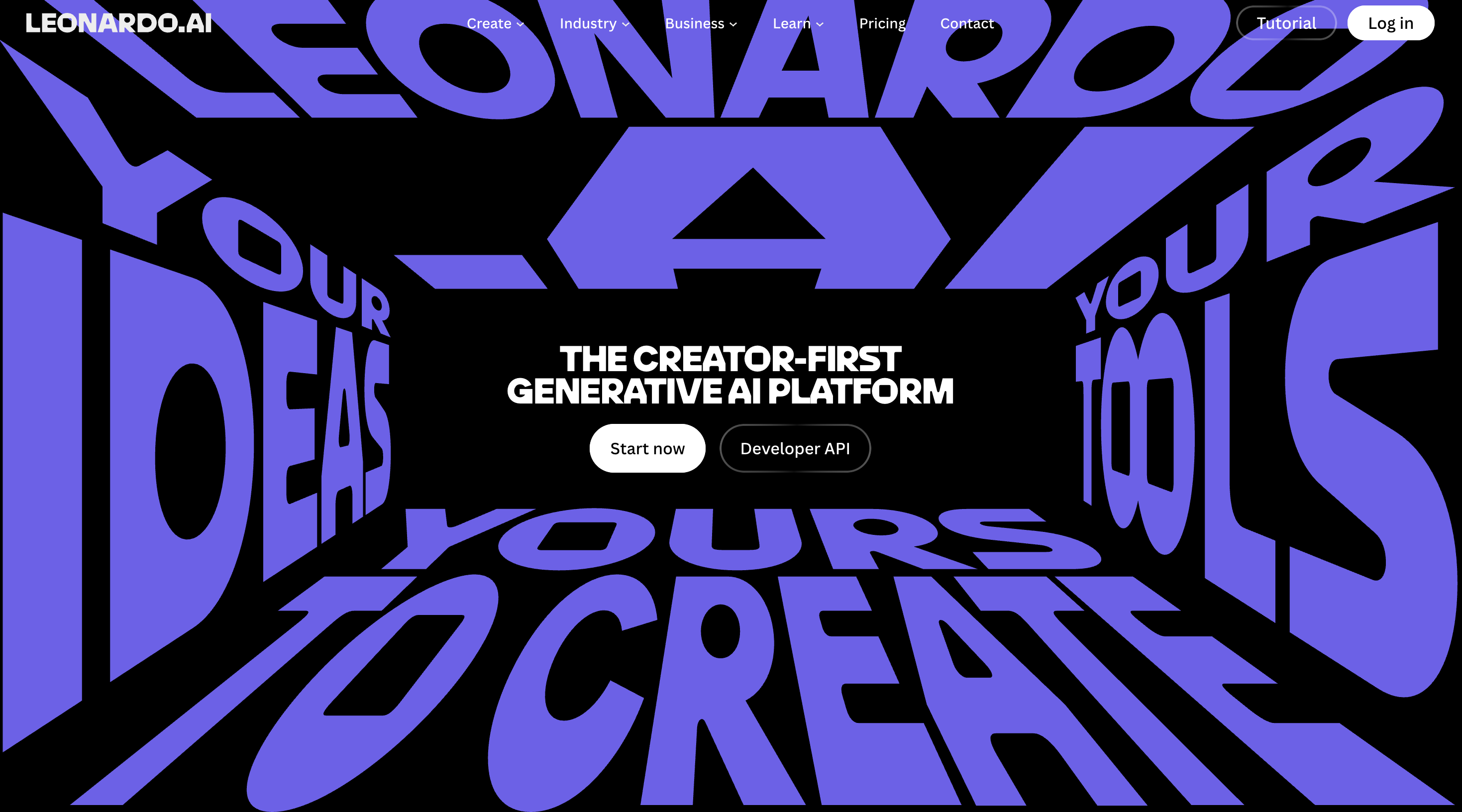
Leonardo AI is a strong pick if you care about how good your starting image looks, not just how the final video moves.
It’s best known as an AI image generation tool, but it also has video tools that let you turn images into short clips.
You can start with a still image, use it as a reference or start frame, and then guide the motion with a prompt.
It feels like it's made for people who actually care about the visual style, and are not just looking for a quick image to video conversion.
Think about it like this: Some image-to-video tools are fine if you just want to make something move. Leonardo feels better when you want the result to look polished, consistent, and a little more intentional.
This is a perfect choice if you're going for concept art, campaign visuals, storyboards, product ideas, social clips, and creative experiments where the source image really matters.
It’s also a good option if you’re looking for image to video AI free tools to test, although some of the more advanced video models may depend on your plan or available credits.
Best for: Creators, designers, and marketers who want polished visuals and more creative control.
Why we picked it: Leonardo AI is great when you want the video to feel visually intentional, not like a random animation was added on top of your image.
Where it stands out:
- Strong AI image and video generation ecosystem
- Image-to-video and text-to-video support
- Good visual consistency
- Useful start-frame and reference-image controls
- Helpful for concept art, storyboards, campaign visuals, and social clips
- Multiple model options
- Blueprints for faster creative workflows
What to keep in mind: Leonardo is great for visual quality, but it may not be the fastest option if you just want a very simple, guided path from image to finished social video. Also, some advanced video options may be limited depending on your plan.
Bottom line: Leonardo AI is one of the best image to video AI tools for creators who care about style, composition, and polish. If your image needs to stay beautiful while it moves, Leonardo is definitely worth trying.
8. Luma: Best for cinematic motion and realistic movement
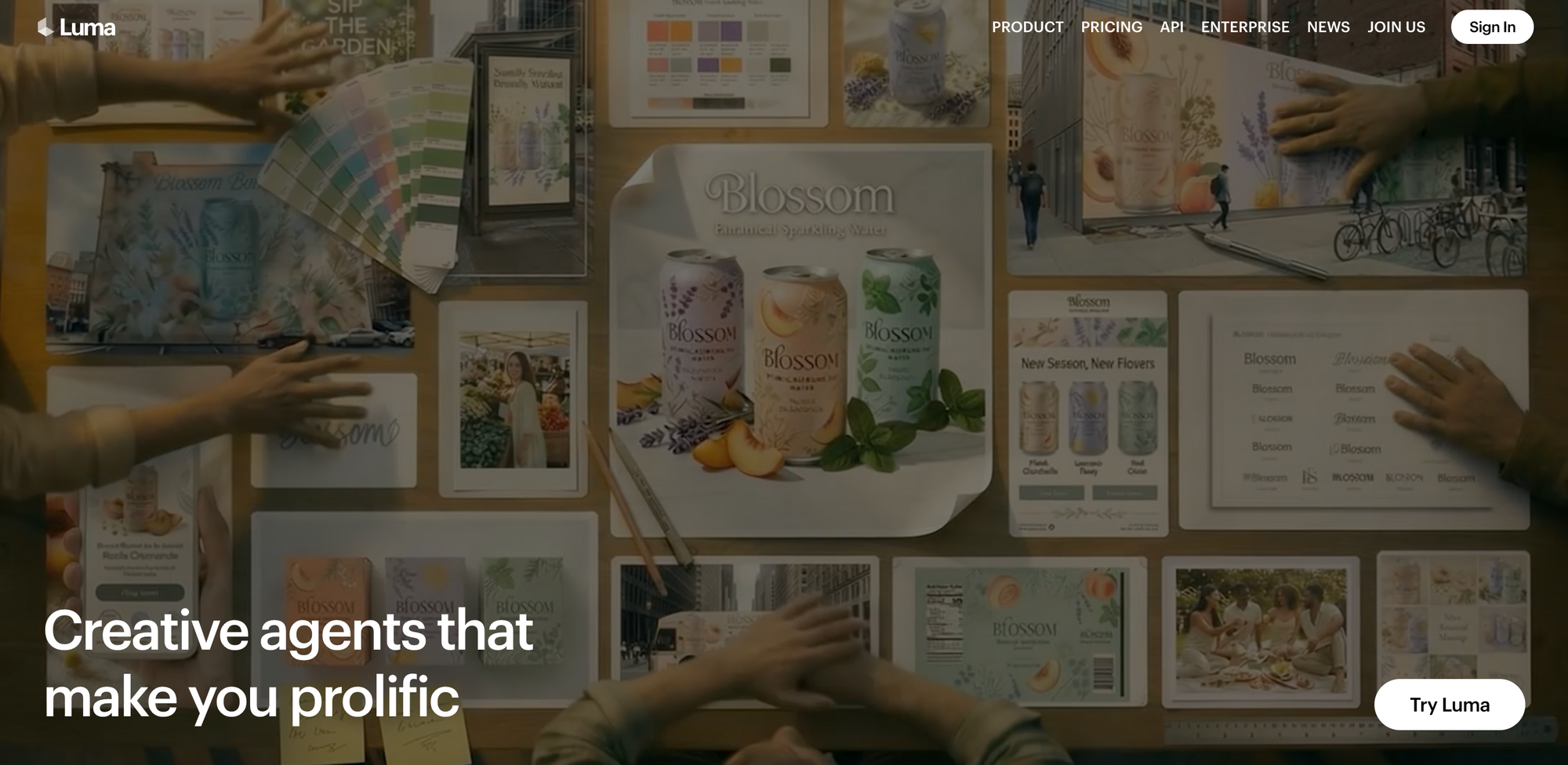
Luma is a strong choice if you want your image-to-video result to feel more cinematic and natural.
Some tools can make an image move, but the movement doesn’t always feel believable. Luma is better when you want the clip to feel smooth, coherent, and closer to something you might actually use in a visual story.
Its Dream Machine product is known for realistic motion, and Luma’s Ray2 image-to-video release focuses on turning images into videos with more natural movement and better physics.
That makes Luma especially useful for cinematic concepts, character moments, visual storytelling, product shots, and creative social clips where the movement needs to feel polished instead of random.
Best for: Creators who want cinematic, realistic image-to-video results.
Why we picked it: Luma stands out when motion quality matters. It is not just about making a still image move, but making the movement feel natural and visually believable.
Where it stands out:
- Cinematic motion
- Realistic movement and physics
- Strong visual coherence
- Good for storytelling and concept visuals
- Useful for artwork, photos, product shots, and custom visuals
- Strong option for short polished clips
What to keep in mind: Luma is strong for generation, but you may still need another editor if you want to add captions, resize for every platform, clean up the clip, or turn it into a complete branded video.
Bottom line: Luma is one of the best image to video AI tools when the motion itself matters most. It’s a great option if you want your still image to become something cinematic, smooth, and more believable.
9. Kling AI: Best for high-quality motion and character consistency
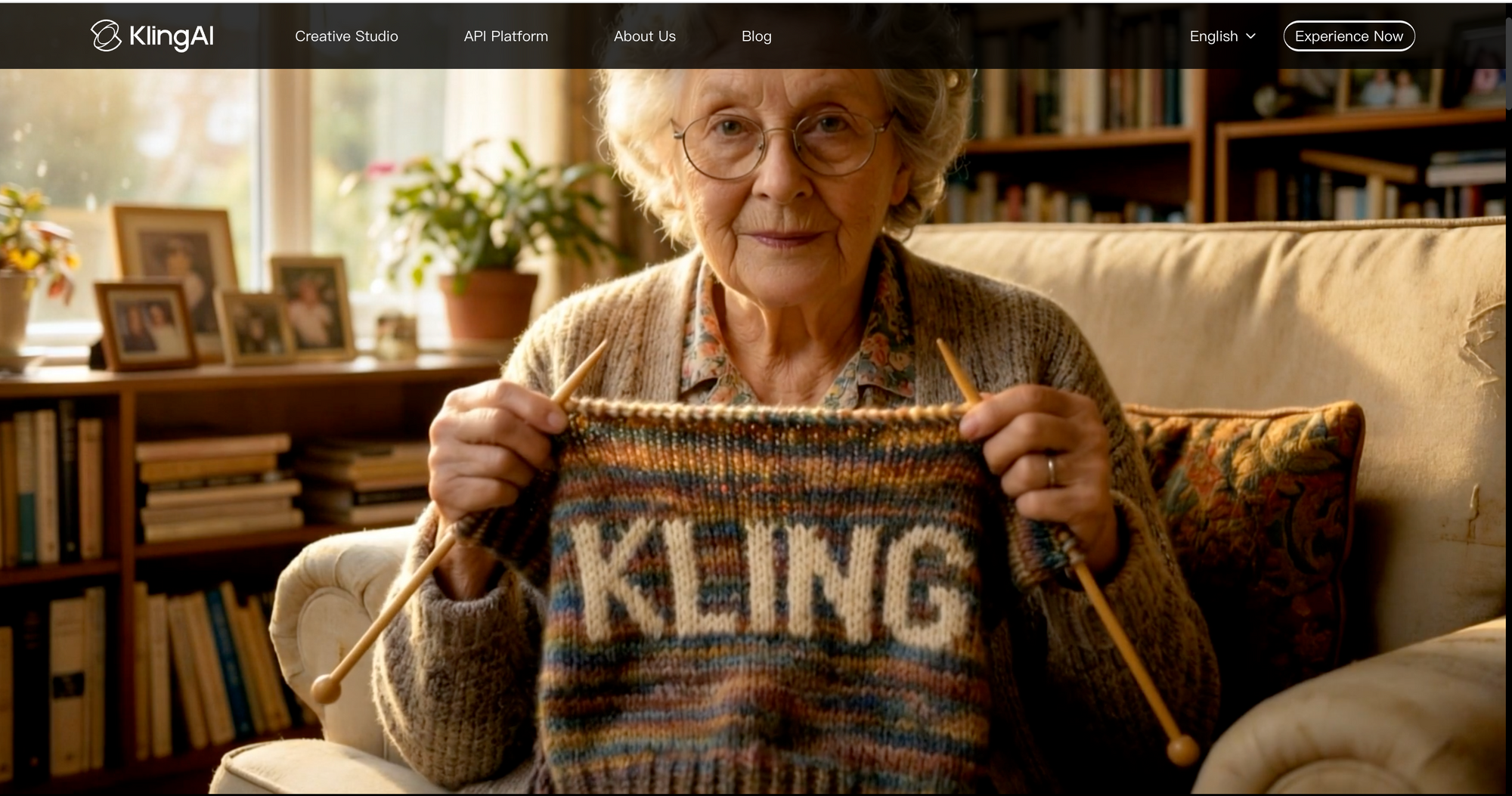
Kling AI is a strong option if you want more advanced motion from your image-to-video tool.
It’s especially useful when your image includes a person, character, product, or cinematic scene and you want the movement to feel more controlled.
You can upload an image, describe the motion you want, and generate a video from it. Kling also supports start and end frames, which is helpful if you want the video to move from one specific visual state to another.
That makes Kling feel a bit more serious than a simple “upload image, make it move” generator. It gives you more room to guide the result, especially when you care about character consistency and camera movement.
Kling is also worth checking out if you’re comparing free image to video AI options, since it offers free generation access, though higher-quality outputs and advanced features may depend on your plan.
Best for: Creators who want stronger motion, cinematic visuals, and better character consistency.
Why we picked it: Kling AI gives you more control over how an image comes to life, especially when the scene involves people, characters, or more complex movement.
Where it stands out:
- Strong motion generation
- Character consistency
- Start and end frame control
- High-resolution output options
- Good for portraits, product visuals, and cinematic clips
- Useful when you want more control than a basic generator gives you
What to keep in mind: Kling can be powerful, but it may be more than you need for a quick social post. And like most AI video tools, the final result depends a lot on the quality of your source image and how clearly you prompt the motion.
Bottom line: Kling AI is one of the best image to video AI tools for creators who want polished motion and more control. If your image includes a person, product, or cinematic scene, Kling gives you more room to shape the final result.
10. Viggle: Best for character animation and motion control
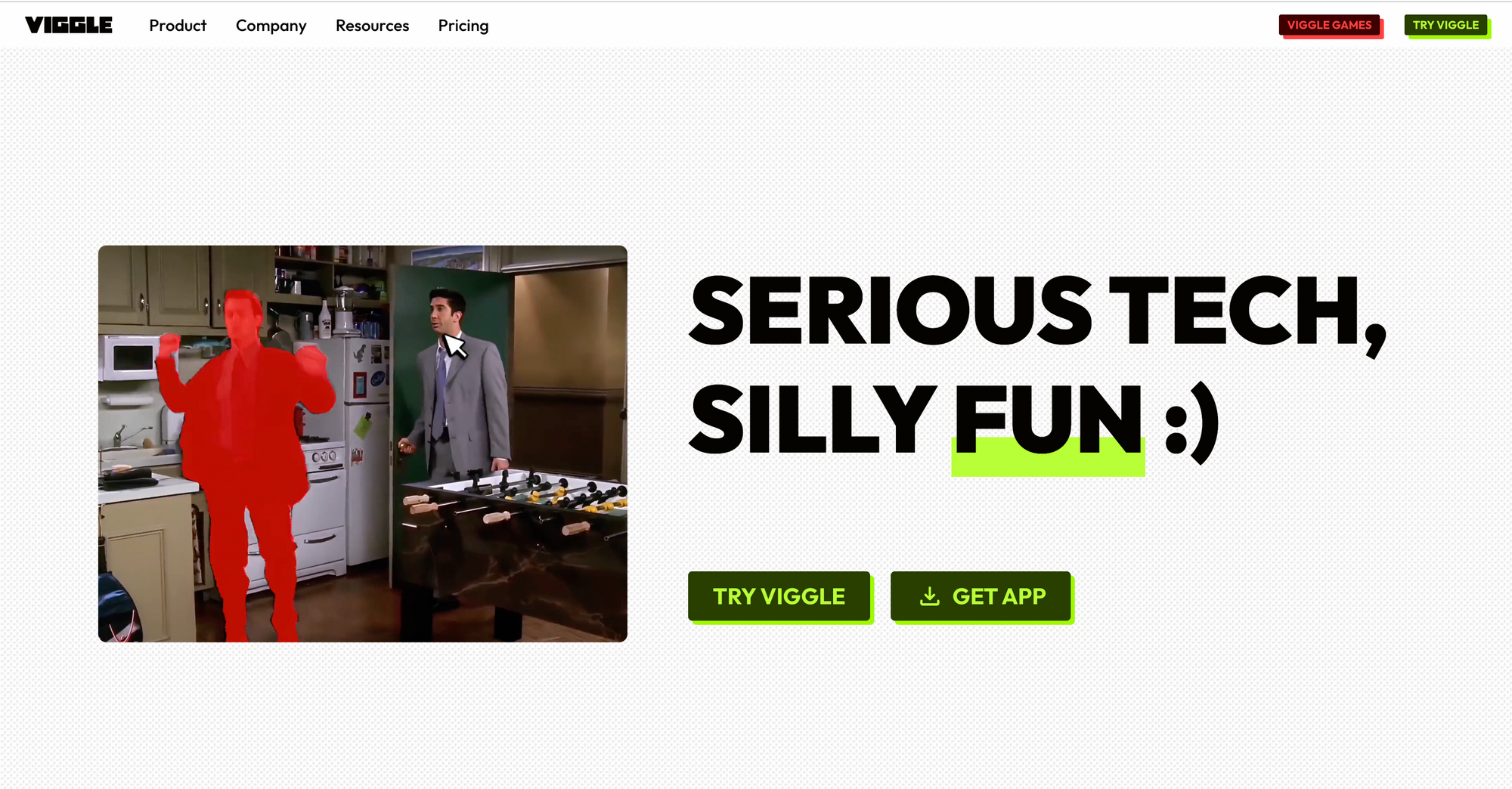
Viggle is a fun one to try if your focus is to play with characters.
It’s made for character animation, so instead of just turning a still image into a random moving clip, it helps you make people, mascots, portraits, or illustrations move in a more specific way. You can upload an image, choose a motion template, or use a motion reference, and Viggle will apply that movement to the character.
That makes it especially useful for social clips, memes, dance videos, animated portraits, and any visual where the main idea is “make this character move like that.”
Best for: Creators who want to animate people, characters, portraits, mascots, or illustrations.
Why we picked it: Viggle is focused on character movement, which makes it easier to create videos where a person or illustrated character follows a specific action, pose, or motion style.
Where it stands out:
- Character animation
- Motion templates
- Motion reference uploads
- Good for memes, dance clips, and social content
- Useful for portraits, mascots, and illustrations
- Easy way to test character-based video ideas
What to keep in mind: Viggle works best when the character is the main focus of the video. If your image is more about a product, landscape, abstract visual, or cinematic scene, another image-to-video tool may make more sense.
Bottom line: Viggle is one of the best image to video AI tools for character-based content. So if your main focus is that, this si one of the most fun tools to try!
11. Pixlr: Best for simple image-to-video experiments
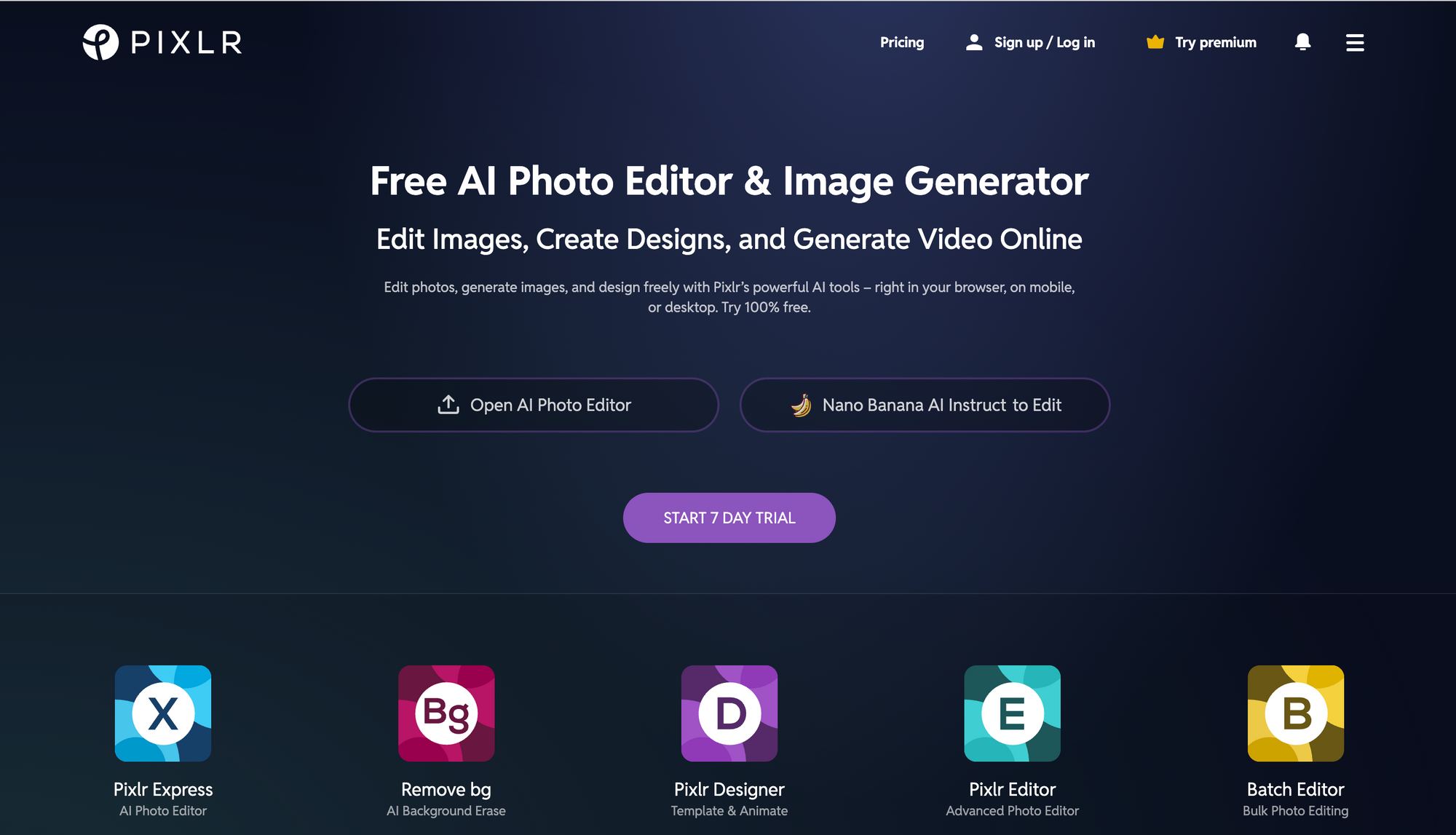
Pixlr is a good option if you want something simple and free.
Its AI Video Generator supports both image-to-video and text-to-video, so you can either upload an image or start from a prompt. The workflow is pretty easy to understand: choose what you want to create, add your image or prompt, pick the generation mode, and create the video.
It’s not necessarily the most advanced image-to-video tool on this list, but that’s also part of the appeal. If you already use Pixlr for image editing or design, this gives you a familiar place to experiment with motion too.
Pixlr is also a good option to look at if you want a free AI image to video generator for quick tests, though different generation modes may use different credit amounts.
Best for: Beginners and creators who want a simple image-to-video tool.
Why we picked it: Pixlr makes the workflow easy to understand. It is a solid choice when you want to test an idea quickly without getting buried in too many controls.
Where it stands out:
- Simple image-to-video workflow
- Text-to-video support too
- Multiple generation modes
- Familiar creative-tool interface
- Good for quick social visuals and experiments
- Useful if you already edit images in Pixlr
What to keep in mind: Pixlr is good for simple generation, but it may not give you the same cinematic control, motion precision, or end-to-end editing workflow as more advanced AI video tools.
Bottom line: Pixlr is one of the best image to video AI tools for quick, low-pressure experiments. It’s a good option when you want to test an idea fast and see whether your image works as a video.
12. Higgsfield: Best for social-first and marketing-focused AI videos
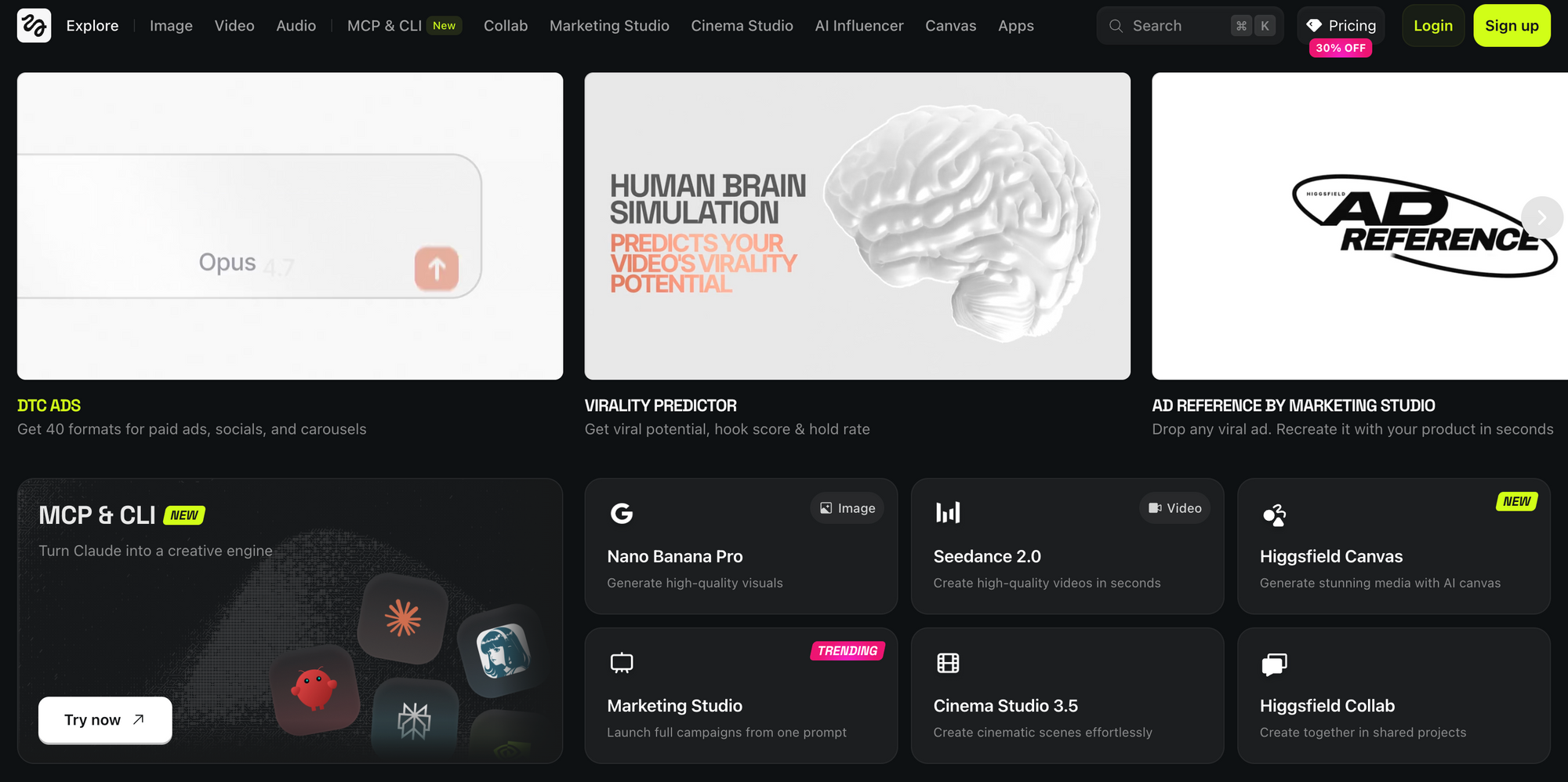
Higgsfield is a strong pick if your goal is not just to generate a nice-looking clip, but to make something that feels built for social media, ads, or campaign content.
It brings multiple AI video models into one workspace and gives you tools for prompts, image references, motion control, and editing. So instead of only thinking, “Can this image move?”, Higgsfield feels more focused on, “Can this become a scroll-stopping video?”
It is clearly built for creators who want mainly product videos or UGC-style clips, as it offers workflows that are more marketing-focused than many basic image-to-video tools.
It may be more than you need if you just want one simple moving image. But if you are creating social content at scale, Higgsfield becomes much more interesting.
Best for: Marketing specialists, social media teams, and creators making AI videos for ads, products, and short-form platforms.
Why we picked it: Higgsfield is built around social-first video creation. It’s useful when you want your image-to-video workflow to feel more like a campaign tool than a one-off AI experiment.
Where it stands out:
- Access to multiple AI video models
- Strong marketing and social-content focus
- Motion control and image references
- Product ad and UGC-style workflows
- Built-in editing and creative workflow tools
- Good for short-form content, campaigns, and e-commerce visuals
What to keep in mind: Higgsfield may feel more advanced than what a beginner needs for a quick image animation. If you just want to turn one image into a simple moving clip, there are easier tools. But if you want to create social-first AI videos at scale, it is one of the more interesting options.
Bottom line: Higgsfield is one of the best image to video AI tools for creators and teams who care about social performance, marketing angles, and high-volume creative testing. It’s especially useful when your image-to-video workflow needs to become a real campaign, not just a one-off clip.
Best image to video AI tools compared
Now that we’ve gone through the full list, here’s a quick side-by-side summary of the best image to video AI tools. Use this table to compare what each tool is best for, how much editing support it gives you, and where it stands out most.
So, which image to video AI tool should you actually use?
The honest answer is: it depends on what you want to do after the image starts moving.
Because that’s where the real difference is.
Most image to video AI tools can now take a still image and add motion to it. But not every tool helps you turn that moving clip into something you can actually post, reuse, or build a campaign around.
Overall, if your goal is to go from one static image to a finished video without jumping between five different tools, Async is the strongest place to start.
Our advice? Don’t choose an image to video AI tool only based on how cool the first generation looks. Choose it based on what happens next.
That’s usually where a fun AI experiment becomes a useful video.
And honestly, that’s also where image to video AI gets exciting. We’re no longer just asking, “Can this image move?” We’re starting to ask, “What else can this become?”
FAQ
What is image to video AI?
Image to video AI is technology that turns a still image into a moving video. You upload an image, add a prompt or choose a motion style, and the AI generates movement, camera motion, scene animation, or visual effects based on your input.
How does image to video AI work?
Image to video AI works by analyzing the image, identifying objects, people, backgrounds, and visual style, then predicting how those elements could move in a short video. Most tools also use your prompt to guide the motion, such as zooming in, adding camera movement, animating a person, or making the scene feel cinematic.
What is the best image to video AI tool?
The best image to video AI tool depends on what you need. Async is best for an end-to-end workflow because you can generate the video, edit it, resize it, add subtitles, and prepare it for publishing in one place. Canva is good for simple beginner-friendly videos, while tools like Luma, Kling, and Higgsfield are better for cinematic or social-first AI video generation.
Which AI is best for image to video?
For most creators and teams, the best AI for image to video is the one that gives you both strong generation and editing control. If you only need a quick animated clip, tools like Canva or Pixlr may be enough. If you want to create a more finished video, Async is a stronger option because it helps you continue editing after the image becomes a video.
Can I turn an image into a video for free?
Yes, many image to video AI tools offer free plans, free credits, or limited free generations. However, free plans often come with limits such as watermarks, lower resolution, fewer exports, slower generation, or fewer model options. Always check the tool’s current free plan before starting a larger project.
What is the best free image to video AI generator?
The best free image to video AI generator depends on the type of video you want to make. We suggest going with Async, as it is one of the best tools when you want to generate, edit, and polish the video instead of stopping at the first AI output.
How do I make an AI video from an image?
To make an AI video from an image, upload your image to an image to video AI tool, describe the motion you want, choose the aspect ratio or style, and generate the video. After that, you can edit the result, add captions, resize it for social platforms, and export the final version.
How do I write a good image to video AI prompt?
A good image to video AI prompt should describe the motion, camera movement, mood, and final style you want. For example, instead of writing “make this image move,” write something like: “Add a slow cinematic zoom, soft background motion, natural lighting, and a smooth camera pan to make this image feel like a premium social video.”
Can I use image to video AI for social media?
Yes, image to video AI is great for social media. You can use it to animate blog covers, product images, portraits, brand visuals, thumbnails, campaign assets, and creative posts for TikTok, Instagram Reels, YouTube Shorts, LinkedIn, and other platforms.
Can I use image to video AI for ads?
Yes, you can use image to video AI for ads, especially if you want to turn product photos, campaign visuals, or static creative into short moving clips. Before publishing, check the tool’s commercial-use rules and make sure the final video matches your brand, platform requirements, and ad policy guidelines.
Is image to video AI safe for commercial use?
It depends on the tool. Some image to video AI tools are designed with commercial use in mind, while others may have restrictions based on the plan, model, or source material. Always check the platform’s licensing terms, especially if you are creating ads, client work, or branded content.
Does Canva have image to video AI?
Yes, Canva has image-to-video and photo-to-video features that let users turn still visuals into simple videos. It is a good beginner-friendly option, especially if you already use Canva for designs, social posts, or presentations. However, it may feel more limited if you need deeper video editing or advanced AI motion control.