Text-based video editing is great, but chat editing might be even better. In this project, I’ve compared two different workflows: text-based video editing and chat editing to understand which of these AI editing methods saves more time and is overall more efficient.
My quick verdict is that text-based video editing is great, but probably better suited to YouTube projects, interviews, or similar footage. Chat-based editing is overall easier and quicker, as it just feels like a personal assistant.
Now, how did I come to this conclusion? Here’s my thought process deciphered for you!
Transcript editing vs AI editing with chat
First, as usual, let’s have a quick recap of what each of these terms means:
- Text-based video editing
Text-based video editing is like editing your video the same way you’d edit a text document. For example, if you don’t have time to go through 30 minutes of footage, you can turn it into a transcript and easily find the parts you like and want to keep and the parts you want to remove. Everything that you want to get rid of can be simply deleted from the video project by just deleting the sentence from your transcript.
- Chat-based video editing
Now, if text-based editing was about first getting your transcript and then removing parts from your video by editing your text, a conversational video editor is when you literally chat with your editor. In other words, you tell your video editor exactly what you want to edit, how you want to enhance it, what specific tasks you want it to perform, and so on. It’s basically your personal assistant and video editor who does everything for you.
While both workflows are great for beginners, each has its own strengths and weaknesses and works better for certain types of projects. So, to find out which one actually comes out on top, we tested both on the same footage and brought you the receipts!
How I tested both AI video editing workflows
For this comparison, I used Async to test both text-based video editing and chat-based editing. I wanted to keep things fair, so here's how I approached the experiment:
- Same footage: I used the exact same video for both tests.
- Same video editor: Both workflows were tested in Async, so I could focus on the editing experience itself.
- Different editing tasks: I started with transcript editing and then moved on to a few more creative changes through chat.
- What I looked at: How easy each workflow was to use, how much control I had over the edits, and of course, how good the results were.
I didn't time either workflow, so this comparison is based on my actual editing experience rather than a speed test.
I've also included the prompts I used and screenshots of the results, so you can follow the whole experiment and decide which workflow you'd prefer for your own projects.
Testing Async’s text-based video editing
Both of these workflows are available at Async, so I’ve started by simply uploading the footage into our video editor. From your main dashboard, click on Edit video with AI or upload your footage directly in the chat editor.
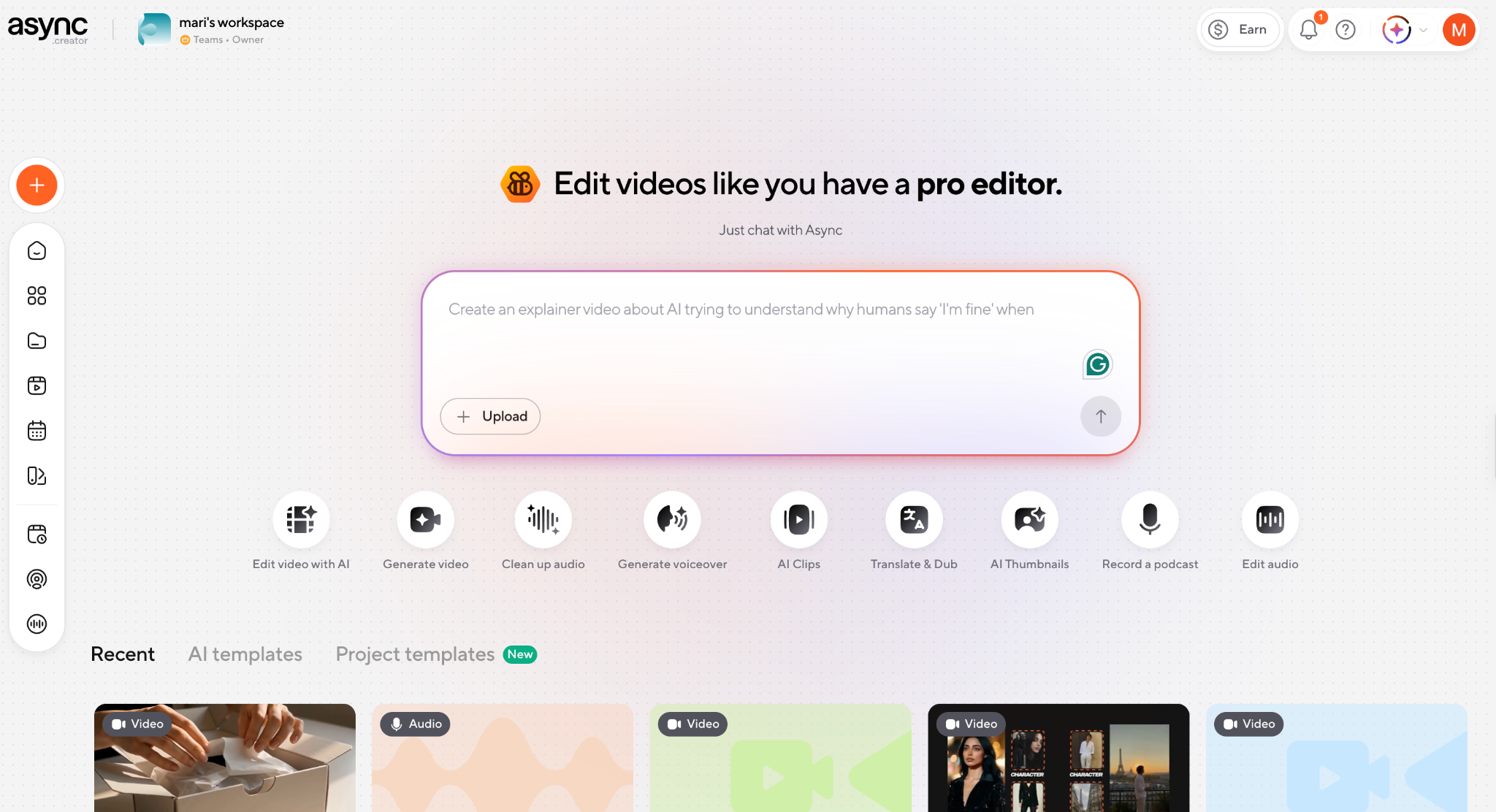
Now, once your video is uploaded, tell Async, “I want you to help me edit my video by editing the transcript.” Now, in theory, we’re already working with a chat editor, since prompting your video editor counts as conversational editing.
But for now, let’s ask it to help us edit our video by editing the transcript.
First, it will ask you why exactly you want this functionality. For me, it’s more about finding specific lines in the video and removing those, so I’ll go with that one, but you could also pick removing silence fillers, repeated bad takes, and so on.
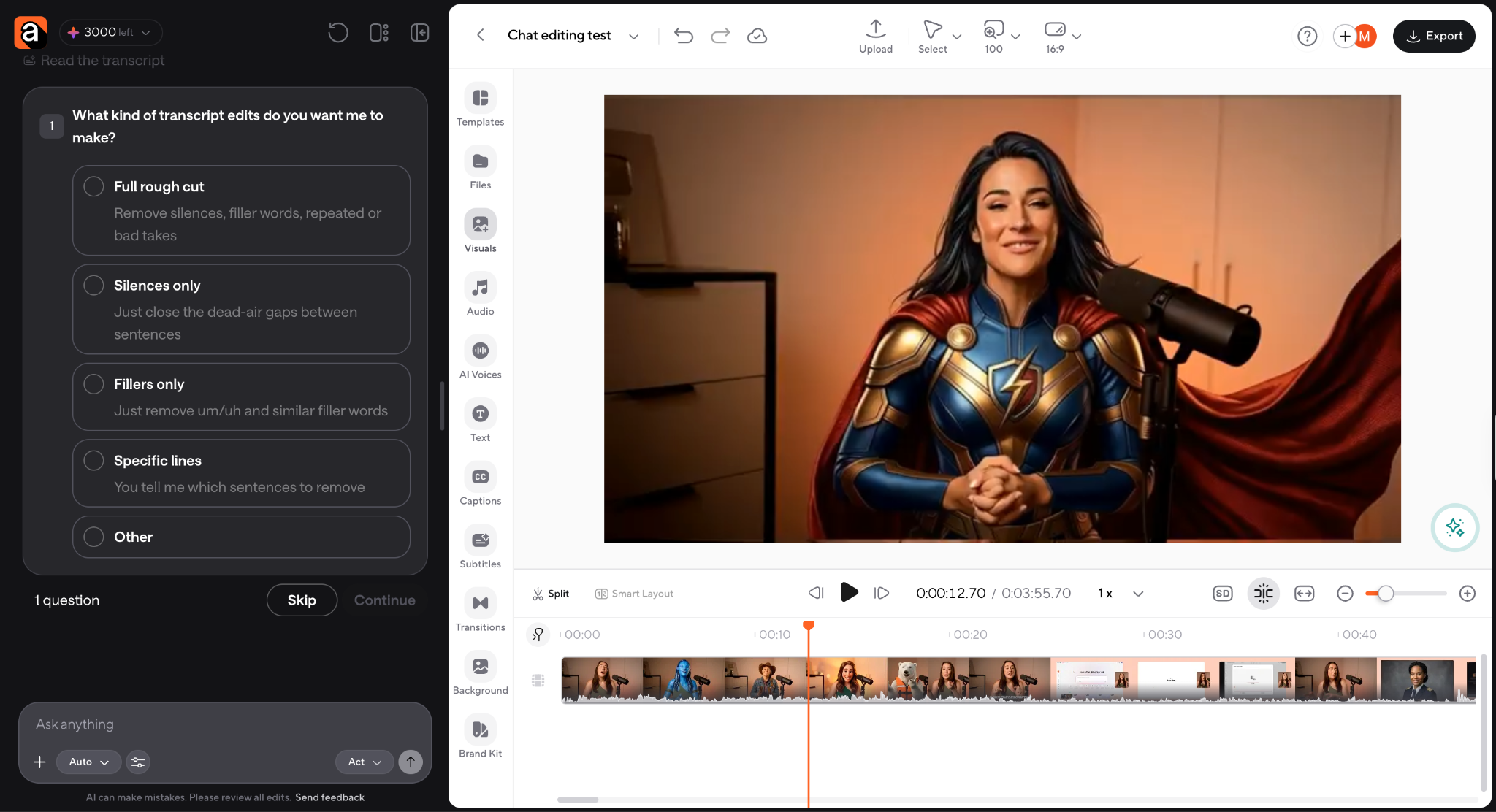
Once you pick your options, for the best results, also prompt the editor with something like "Give me the transcript of the video and like a text-based video editor where I can edit my video by editing the transcript."
After your prompt, Async will give you the full transcript of your video and ask you how you want to edit your transcript.
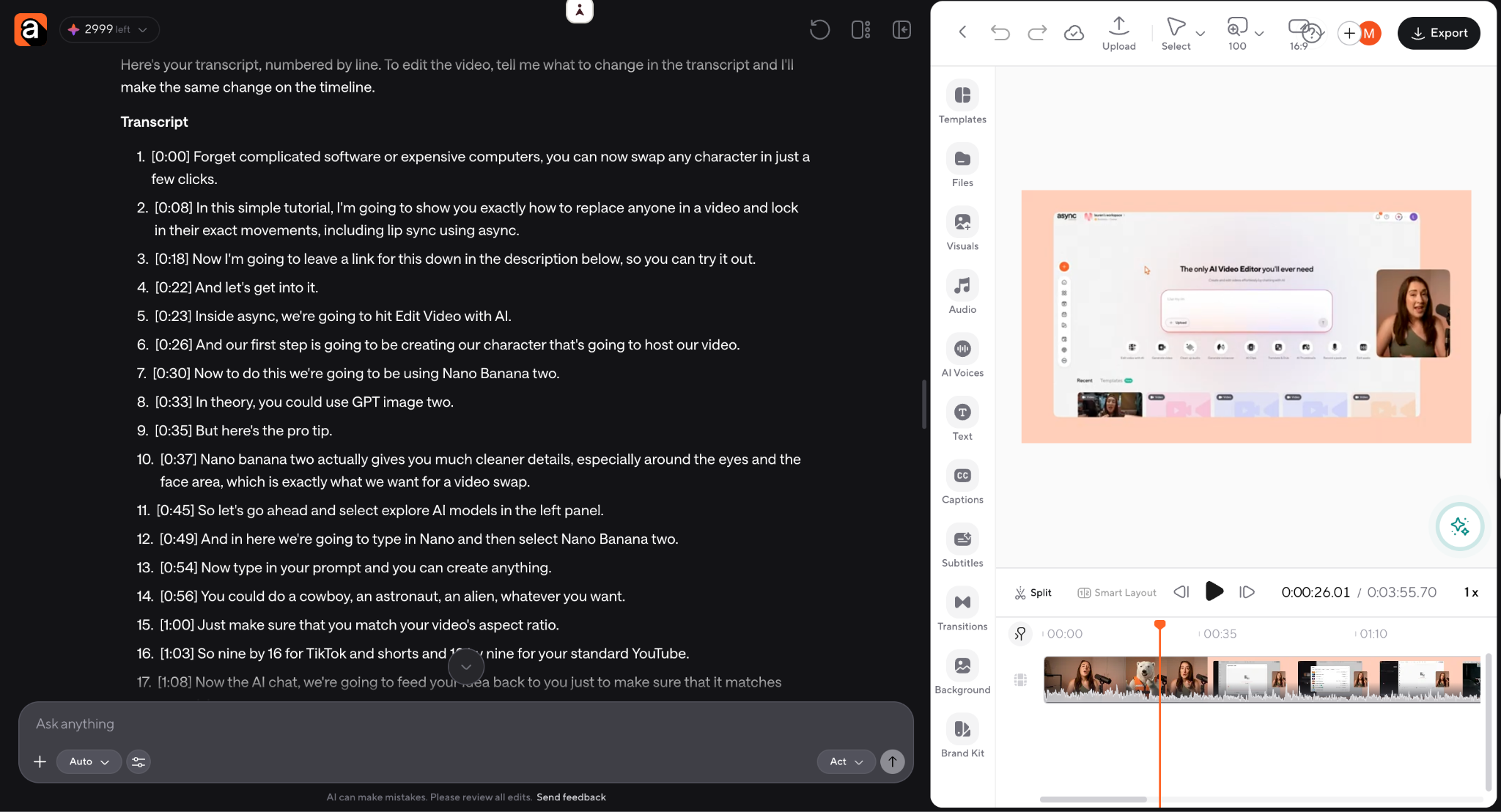
Here is what the AI editor suggested to me:
How to edit
• Delete: "delete lines 23–25," or "remove the sentence about GPT image two".
• Remove words: "cut the word 'actually' in line 10".
• Reorder: "move line 51 before line 49".
• Trim: "keep only the first half of line 39".
Now, these are only examples of how you could work with the AI editor, just to guide you on what the text-editing workflow looks like.
For me, for example, I just wanted to remove the part about Nano Banana because we want to swap it with something else later on.
This is the exact case where the text editor comes in handy, as all I have to do is press Command + F on a Mac (or Ctrl + F on Windows/PC) to find the term “Nano Banana”, and it shows me all the places in the script where we talked about it.
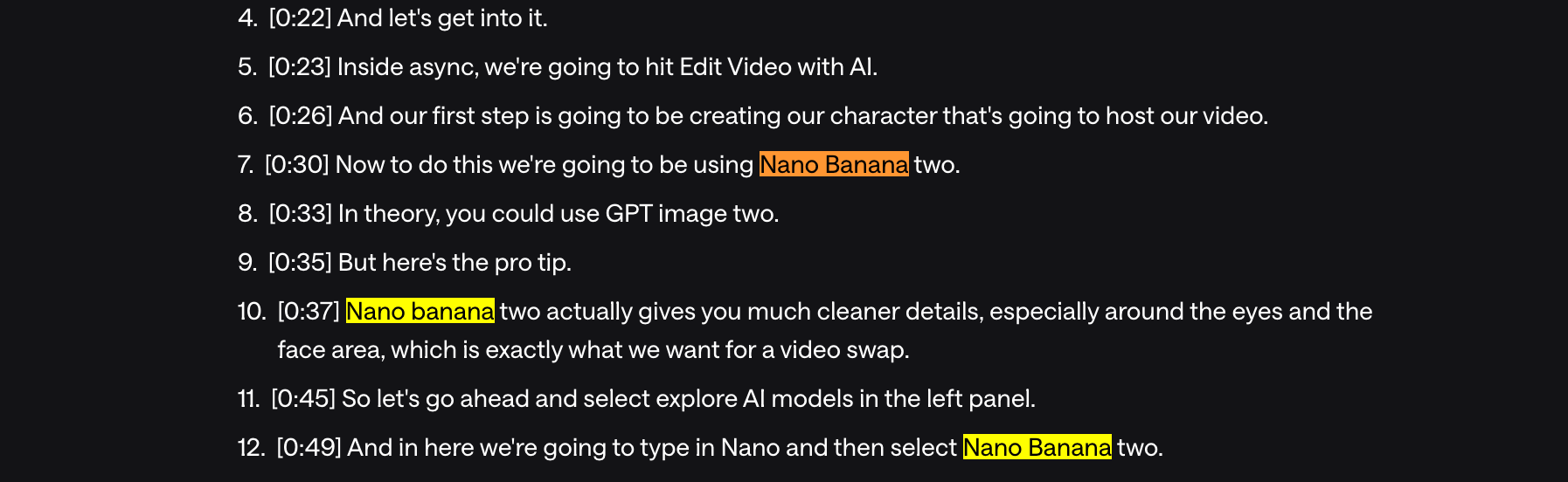
Once I locate where in my transcript I mentioned Nano Banana, it makes it much easier for me to decide what to keep or remove.
From here, all I have to do is tell Async which lines you want to be cut out from my transcript, and it will remove those from your final video too.
Now, this is my favourite part because it's crazy how simple it is and how good the AI text editor is at its job.
I wanted to remove lines 7 and 10, so once I prompted the video editor, it made the cuts so smoothly that you'd never even guess Nano Banana had been mentioned in the first place.
Here's the prompt:
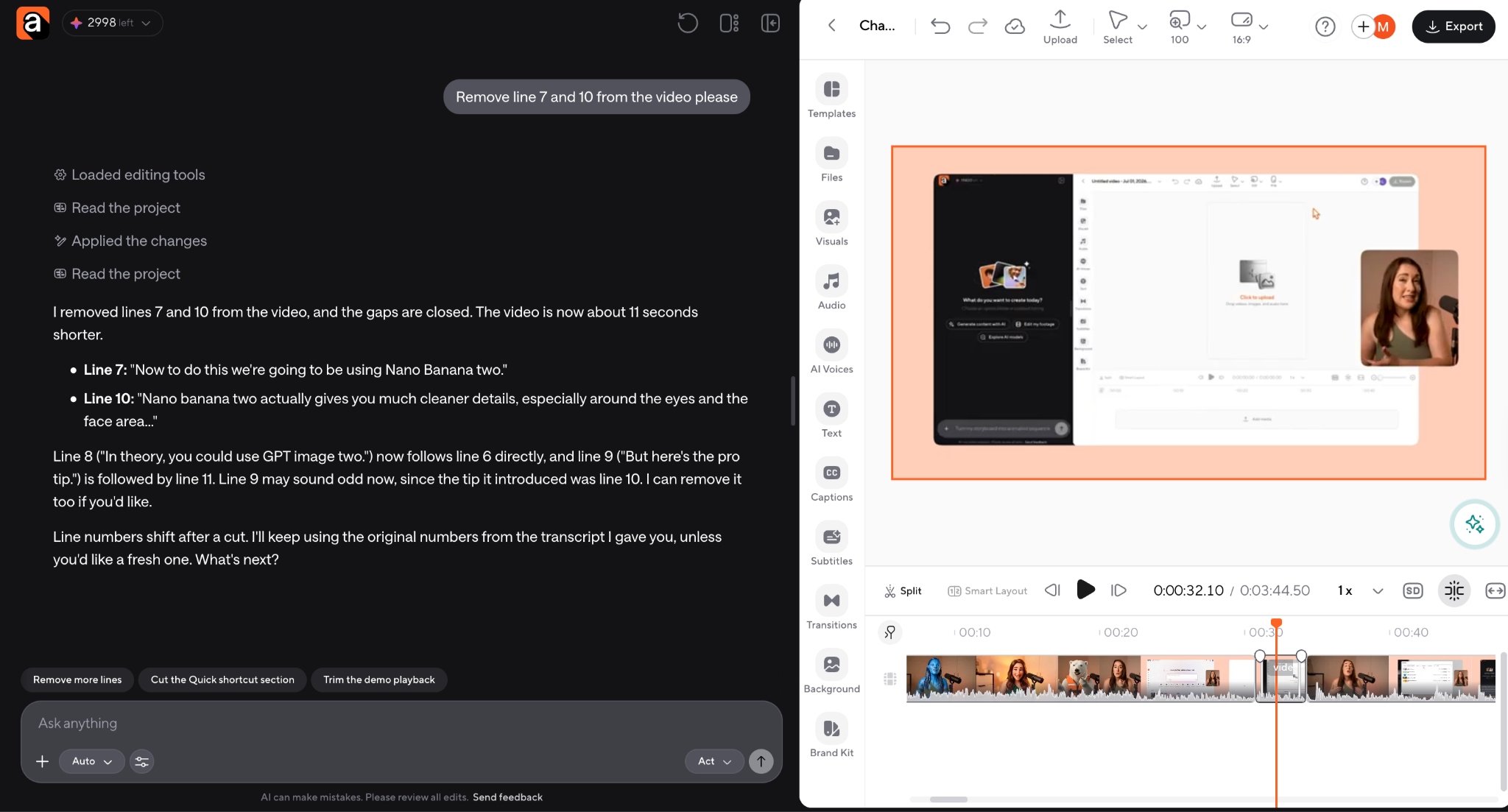
And here's a close-up of our timeline so you can see the cut in 4K:
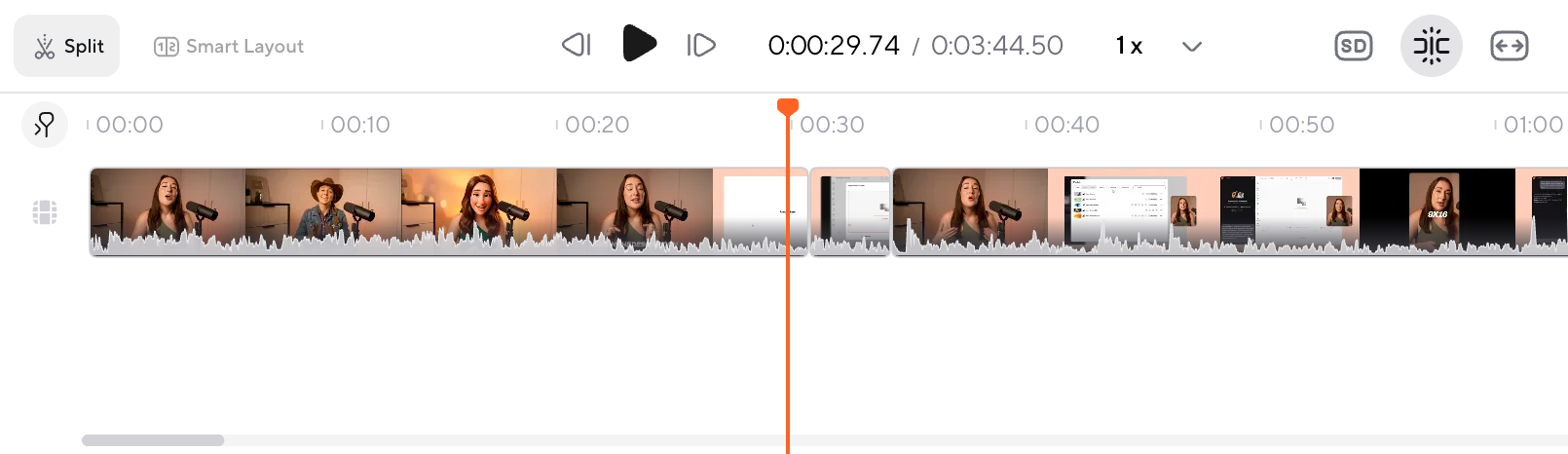
See the little cut there in the middle? It's Async's AI video editor at its best.
So, my verdict here is that text-based editing works best if your main editing task is to remove or replace certain parts of your video. This could also mean getting rid of silences or filler words without having to manually locate every single one and then figure out how to make the perfect cut.
The text editor finds what you want to remove, cuts it out, and makes sure the video still looks good afterwards. Which, as you can see from our Nano Banana example, it does pretty well!
If this is usually the type of editing you need for your projects, I think a text-based editor might just become your best friend.
Now, for those of you who want a little more from your AI editor than just removing parts and tidying things up, the next section is all about chat-based editing.
Testing Async’s chat-based video editing
I personally find chat-based editing a lot more interesting because there’s so much more you can do with your video here.
I'm still working with the same footage, but this time I won’t be looking for specific lines in the transcript.
Instead, I’ll just tell Async what I want to change in the video and let it figure out how to make those edits. I wanted to start with removing the background, which is something that would normally require a bit more work if you’re editing manually.
So, I went straight to the chat and prompted Async with “Remove the background from my video from second 10-12.”And that’s pretty much all you need to do.
After removing the background, I wanted to try something a bit more fun and see how far I could push the editor, so I asked Async to add a castle behind her.
For this, my prompt was "Add a castle background behind her."
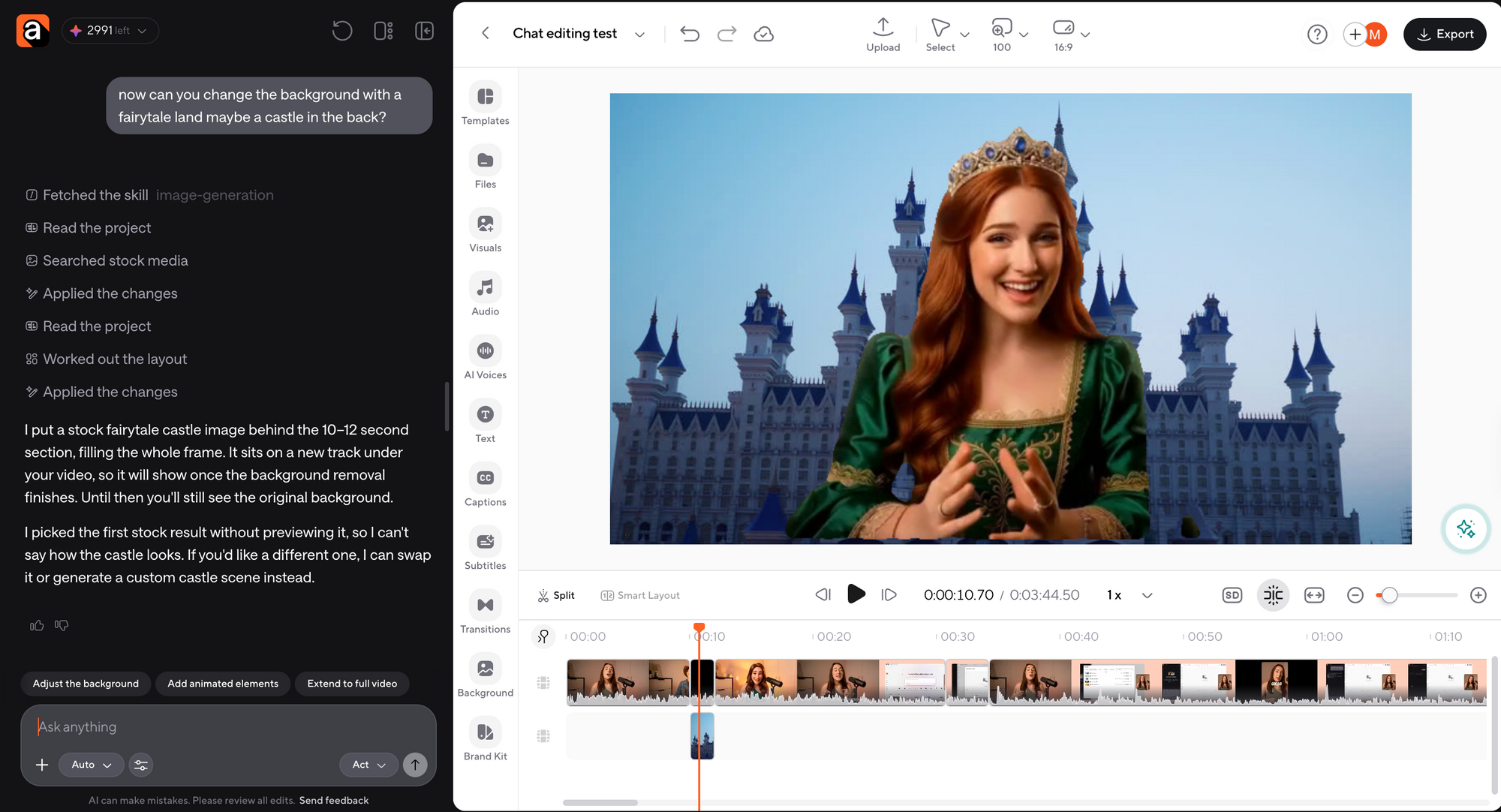
I liked this test because we're actually changing the whole setting and giving the scene a completely different look.
Next, I tried asking the editor to remove an actual object from the footage while keeping the rest of the scene. For this, my prompt was just “Remove the microphone from my video in 0:05 sec."
Here's what it gave me:
And finally, I wanted to add subtitles. This is probably one of the more common editing tasks, especially if you’re making videos for social media, and something I really wouldn’t want to spend time doing manually.
So I asked Async to add subtitles to the video, without having to type out everything that was said or try to match each line with the audio myself.
And voila!
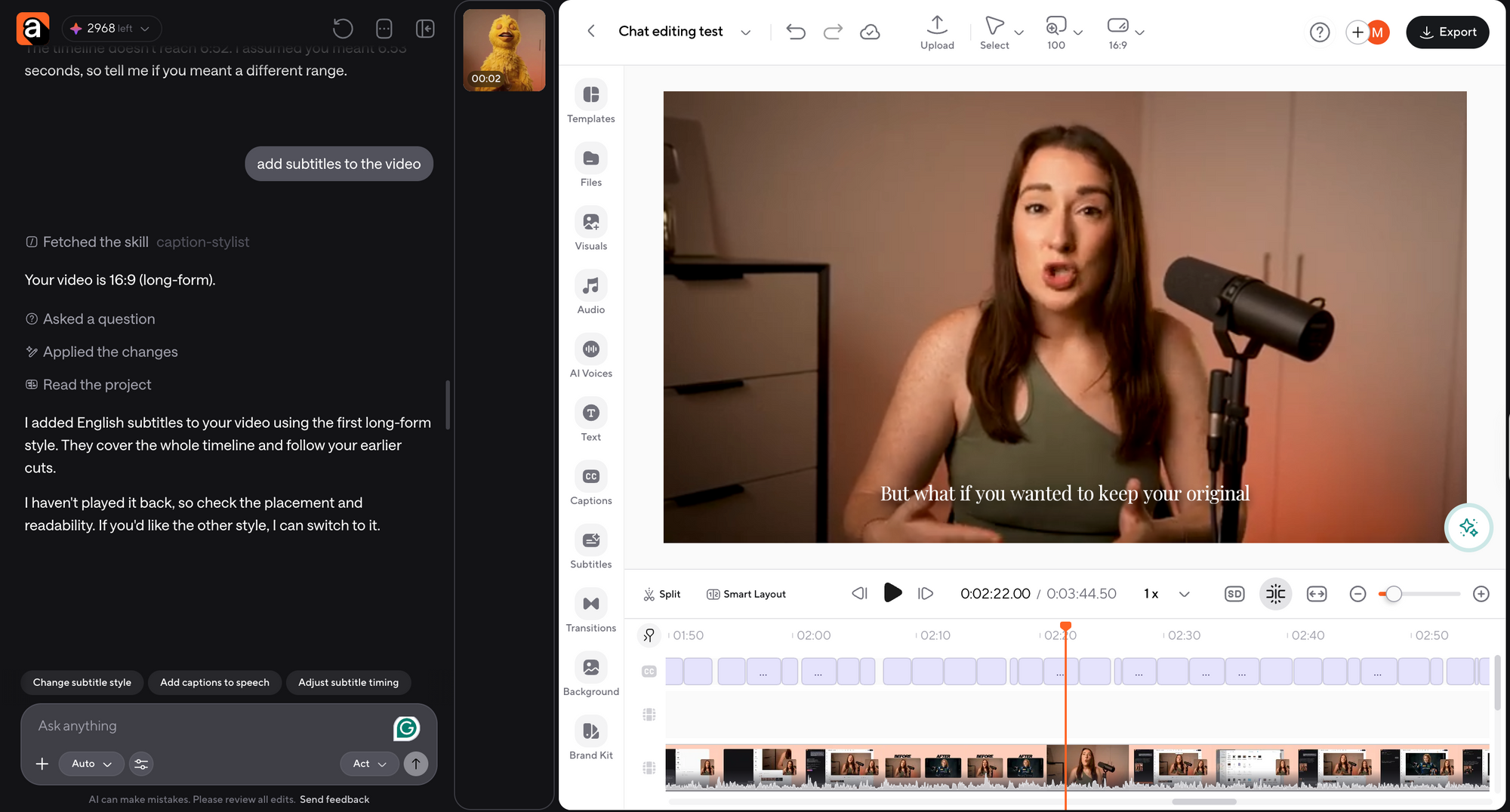
Pure magic. Again, remember that everything in this workflow can be customised even more later on. You can easily change the subtitles' font, colour, and sizing, but this gives you a good start.
Now, I could go on and on about what you can do with the chat-based editor, because there's honestly so much more to try. But I think we've tested enough to come to a conclusion.
For me personally, conversational editing was the better workflow for two reasons: a) it already has transcript editing built into it, so I can still use that whenever I need to, and b) it gives me way more freedom to experiment with my video, without making the editing process complicated.
Overall, I still think text-based editing is great for cleaning up longer recordings, but I prefer having more control over the whole video and being able to make changes as I go.
Final Take
So, after trying both workflows on the same footage, chat-based editing is my personal winner. I think text-based editing did a great job, especially when I wanted to remove specific lines from my recording. The cuts were smooth, and the whole process was surprisingly simple.
I can definitely see myself using it again for longer YouTube videos or interviews, where most of the editing involves cleaning up what you've recorded.
But for my own projects, I'd probably go straight to chat-based editing. I had a lot more freedom to experiment with the footage, and I really liked being able to ask Async for different changes whenever I had a new idea. Plus, transcript editing is already available within the chat editor, so I can still use it whenever I need to.
Here's a quick comparison of both workflows based on my test:
Now, one thing worth mentioning is that I didn't time the two workflows, and I also gave them different editing tasks. So this comparison is more about my actual editing experience and which approach I found more useful.
For me, chat-based editing wins because I like being able to direct the editor throughout the whole project. And knowing that I can also work with my transcript whenever I need to makes it an even easier choice.
That said, if most of your editing involves cutting out unwanted parts from a long recording, I'd still happily recommend text-based editing. It did exactly what I needed it to do in our test, and I think that's a pretty good reason to keep using it!
FAQ
What is the difference between text-based and chat-based video editing?
Text-based video editing allows users to edit video footage by modifying its transcript. Deleting or rearranging text automatically updates the corresponding video segments. Chat-based video editing uses natural-language prompts to perform editing tasks, such as removing unwanted footage, changing backgrounds, or adding subtitles.
Is text-based video editing good for YouTube videos?
Yes, text-based video editing is particularly useful for YouTube videos, interviews, podcasts, and other long-form content. It allows creators to locate specific dialogue, remove unnecessary sections, and clean up recordings directly through the transcript. This makes it a practical option for editing videos with large amounts of spoken content.
Can AI edit videos using text prompts?
Yes, AI video editors with conversational editing capabilities can perform supported editing tasks through text prompts. For example, users can ask an AI editor like Async to remove a video background, add subtitles, or remove unwanted objects from footage. The available editing capabilities depend on the platform.
Can chat-based video editors also perform transcript editing?
Yes, some chat-based video editors, including Async, support transcript-based editing within the conversational workflow. Users can request a video transcript, identify specific sentences, and instruct the editor to remove or modify corresponding sections of the footage. This allows both editing methods to be used within the same project.
Which is faster: text-based video editing or chat-based editing?
The faster workflow depends on the editing task. Text-based video editing is particularly efficient for locating and removing dialogue from long recordings. Chat-based editing offers greater flexibility for projects requiring different types of edits, including visual changes. The comparison in this article is based on hands-on experience rather than measured editing times.