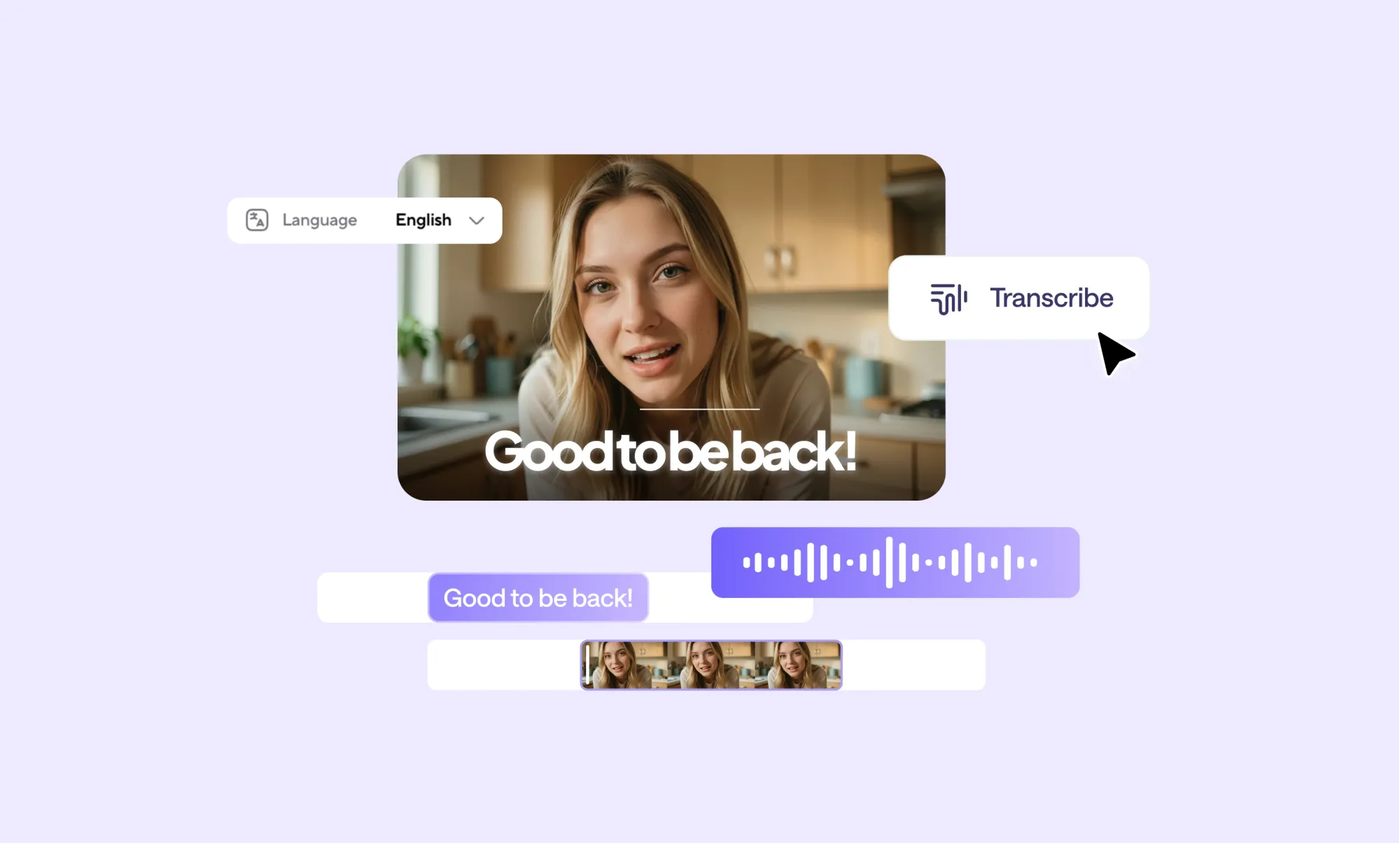
Adding subtitles to audio hasn’t always been straightforward. For a long time, the process meant exporting transcripts, cleaning up text line by line, fixing timing manually, and often moving between multiple tools just to get something usable.
Today, that workflow looks very different. AI has made it possible to generate accurate, well-timed subtitles directly from an audio file, no video required, no copy-pasting between platforms. Instead of treating subtitles as an afterthought, you can create them as part of the same editing flow, which makes everything from reviewing content to repurposing it significantly easier.
Whether you’re preparing a podcast transcript, adding captions before turning audio into a video, or simply need clean subtitle files for distribution, having a reliable system matters.
In this guide, we’ll show you how to add subtitles to audio step by step using AI. You’ll see exactly how the process works, where you can review and refine your subtitles, and how to export them in the formats you need, all without overcomplicating your workflow.
How to add subtitles to audio with AI Subtitles (step by step)
Adding subtitles to audio doesn’t require multiple tools or manual cleanup. With the right setup, you can go from audio file to polished subtitles in just a few steps.
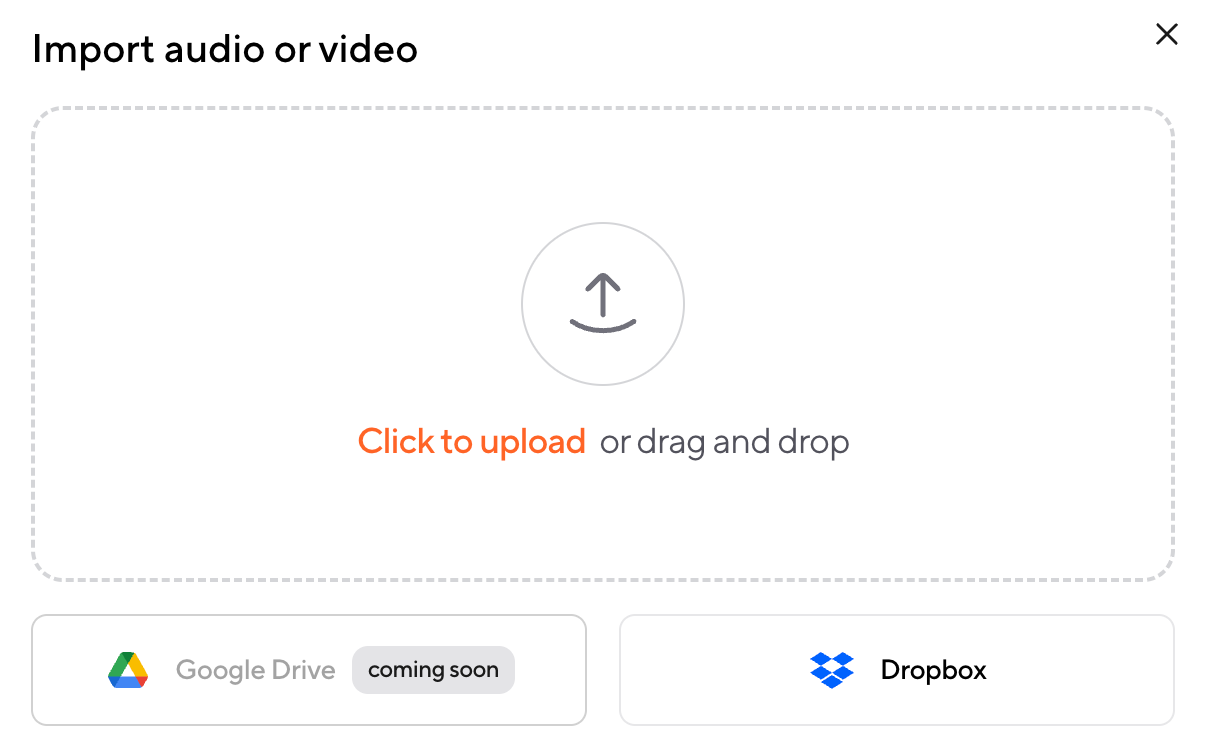
Step 1: Upload your audio file
Start by uploading your audio file to the AI subtitle tool. This can be a podcast episode, an interview recording, a voiceover, or any other audio-only content. Most tools support common formats like MP3 or WAV, so there’s no need to convert files beforehand.
Step 2: Choose clips to transcribe, select the language, and click Transcribe
After uploading, you should see your audio appear in the project with the uploaded clip(s) visible. If the tool creates multiple clips (or lets you segment content), choose the specific clip(s) you want to transcribe. This is especially helpful if you only need subtitles for a certain section, not the whole recording.
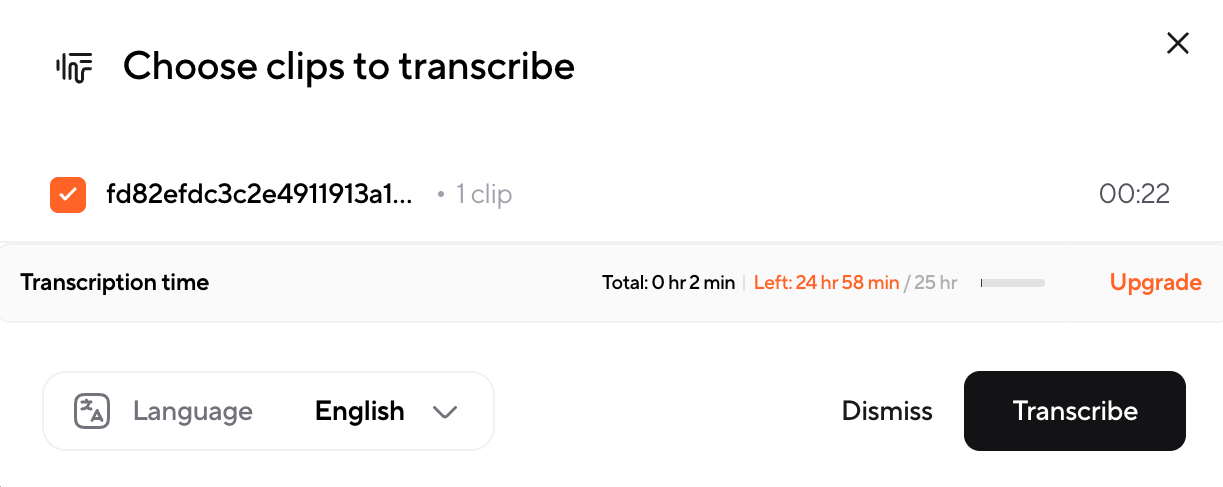
Next, select the spoken language in the audio. This step matters for accuracy, especially with accents, mixed-language audio, or proper nouns. Once you’ve chosen the clip(s) and the language, click Transcribe to generate time-synced subtitles automatically.
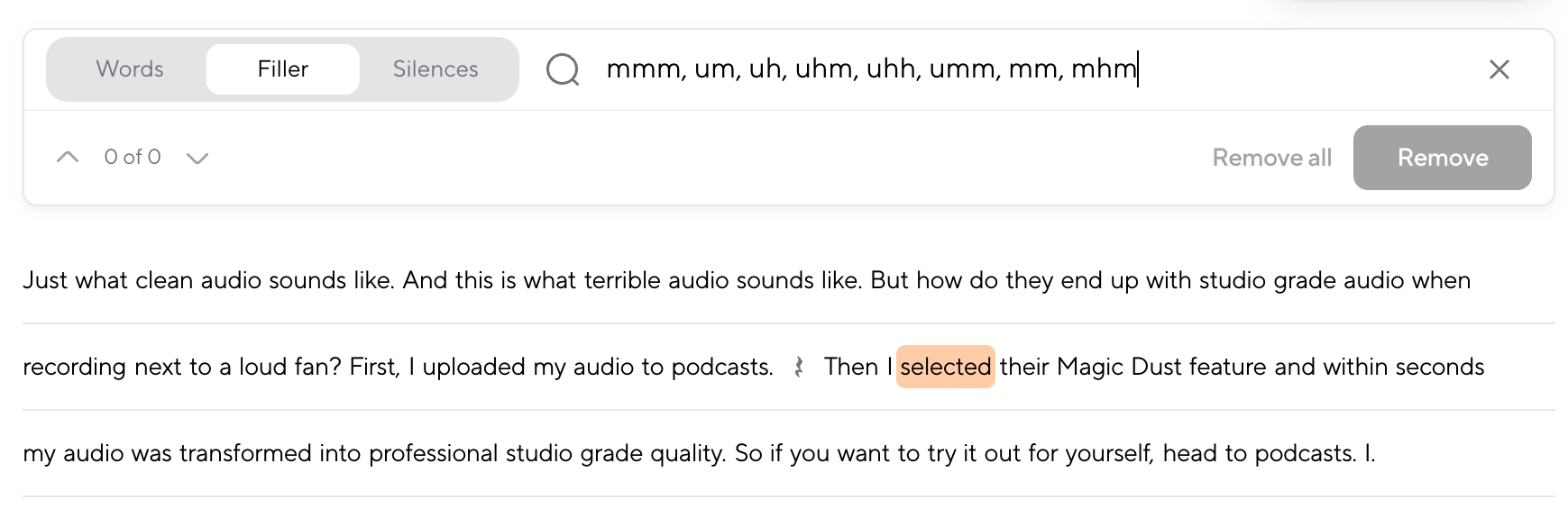
Step 3: Review and edit your subtitles
Once the subtitles are generated, take a moment to review them. This is where you can correct names, adjust phrasing, remove filler words, or fine-tune timing for better readability.
Editing subtitles at this stage is much faster than starting from scratch. You’re working with an AI-generated base that’s already accurate, so small tweaks are usually all that’s needed to get polished, professional results.
Step 4: Export your subtitles
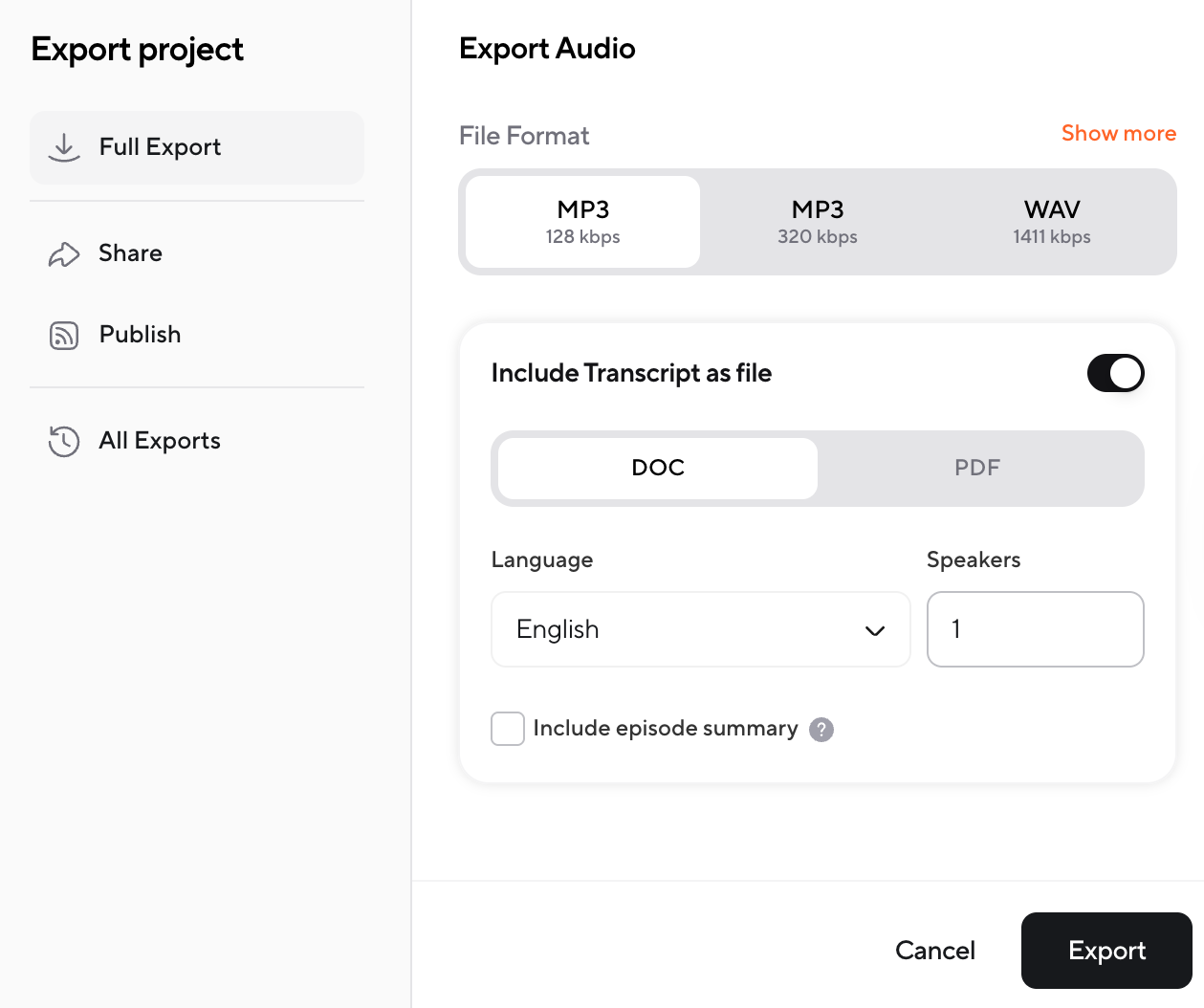
When everything looks right, export your subtitles in the format you need. Common options include SRT, VTT, or plain text files, depending on where the subtitles will be used.
You can also export your final audio or video alongside the subtitle files, making it easy to publish or repurpose your content across platforms without extra steps.
Why it’s worth adding subtitles to audio
Audio is powerful, but it’s also easy to miss. People listen while commuting, working, cooking, or scrolling, and even a great recording can lose meaning if a name, keyword, or key sentence gets swallowed. Subtitles (or a clean, time-synced transcript) make your audio easier to understand, easier to reuse, and easier for more people to access.
It’s a core accessibility requirement for audio-only content
If your content is audio-only (like podcasts, interviews, or voice notes), a text alternative isn’t just “nice to have.” WCAG guidance treats transcripts as required for prerecorded audio-only content (Level A), because text makes the information available to people who can’t access audio the usual way.
And this is not a small audience: U.S. health data shows 13% of adults report some difficulty hearing, and the percentage increases with age.
People want text because they’re trying to “catch every word”
Even when hearing isn’t the issue, subtitles help with clarity. In an AP-NORC study, about one-third of the public says they always or often use subtitles, and many do it simply to understand dialogue better, especially while multitasking, in noisy environments, or when accents are hard to catch.
Translate that to audio-first content, and it’s the same story: subtitles let people follow along, skim, replay specific parts, and not lose the thread.
Subtitles make repurposing into video actually work
A lot of audio ends up becoming video later, audiograms, reels, Shorts, interview clips, and podcast highlights. And when you repurpose, captions become the difference between “scroll-past” and “watched.”
Verizon Media + Publicis Media’s survey (5,616 U.S. adults) found that 69% watch video with sound off in public, and 80% are more likely to watch a full video when captions are available. So when you add subtitles to audio early, you’re basically pre-building your repurposing pipeline.
It makes your content searchable and easier to reuse
Search engines can’t “listen” the way humans do, text is what gets indexed and reused. Publishing a transcript/subtitle file gives you searchable content you can turn into:
• clip scripts
• quote graphics
• blog posts/newsletters
• chapter summaries
• social captions
This is why podcast accessibility and transcription workflows often highlight discoverability and reuse as a major upside of transcripts.
Get AI subtitles for audio
If you work with audio regularly, adding subtitles shouldn’t feel like an extra task you put off until the end. With AI-powered tools, it becomes a natural part of the workflow, something you do once and then reuse everywhere.
Instead of exporting transcripts, fixing timing in separate tools, or manually cleaning up text, you can generate accurate, time-synced subtitles directly from your audio file, review them in context, and export them in the format you need.
Whether you’re preparing podcast transcripts, creating captions before turning audio into video, or simply making audio content easier to work with, AI Subtitles help you move faster without sacrificing accuracy.
FAQ
How do I add subtitles to an audio?
To add subtitles to audio, you need a tool that can transcribe spoken content and turn it into time-synced text. The process usually starts by uploading your audio file, after which AI converts speech into subtitles automatically. You can then review and edit the text to correct names, phrasing, or timing before exporting it as a subtitle file like SRT or VTT. This approach is commonly used for podcasts, interviews, and voiceovers where accurate timing and readability matter.
Can I convert audio to subtitles?
Yes, audio can be converted into subtitle files using AI transcription tools. These tools analyze the audio, detect spoken words, and generate text that’s aligned with timestamps. The result is a subtitle file that matches the pacing of the original recording. After conversion, it’s recommended to review the subtitles for clarity and formatting, especially if the audio includes multiple speakers, accents, or technical terms. Once finalized, the subtitles can be reused across different platforms or formats.
How to get subtitles to match audio?
To make subtitles match audio properly, timing and segmentation are key. AI tools automatically sync subtitles to speech, but reviewing the results helps ensure readability. You may need to adjust line breaks, remove filler words, or slightly shift timestamps so the text appears natural with the spoken content. Well-matched subtitles follow the rhythm of the audio, stay on screen long enough to read, and avoid overwhelming the listener with long blocks of text.
Can VLC add subtitles?
VLC can display subtitles, but it doesn’t generate them automatically from audio. You can manually add an existing subtitle file to an audio or video track in VLC, but creating subtitles requires a separate transcription or subtitle-generation tool. VLC is useful for playback and testing subtitle timing, but it’s not designed for transcription or editing subtitles from scratch. For audio-only content, subtitles typically need to be created before importing them into VLC.
Can ChatGPT transcribe audio files?
ChatGPT itself doesn’t directly accept or transcribe audio files in standard workflows. To transcribe audio, you’ll need a tool that converts speech to text first. Once you have a transcript, ChatGPT can help clean up the text, summarize content, or adapt it for subtitles. For time-synced subtitles, though, a dedicated AI transcription or subtitle generator is necessary, since timing and formatting are just as important as the words themselves.