My quick verdict: If your AI video editing prompt isn’t working, first check whether the editor knows exactly what you want it to change. Sometimes it picks the wrong clip, misunderstands your instructions, or tries to follow two requests that don’t work together. A more specific prompt can help, but after looking at what other creators are experiencing, I’ve also found cases where the problem is with the editor itself.
I’ve been experimenting quite a bit with AI video editing lately, and while I generally love working with a conversational editor, I’ve also had my share of results that needed a second or third attempt.
For example, in my recent AI editing Skills experiment, I asked Async to create a YouTube Short with zoom-ins whenever I demonstrated an important feature. The editor followed my instructions, but the zooms weren’t quite dramatic enough, and they didn’t focus on the exact parts of the screen I wanted viewers to see.
A couple of follow-up prompts fixed most of that.
But while researching this article, I came across some more frustrating experiences from other creators.
So, I wanted to take a closer look at why these things happen and what actually helps.
Is your AI video editing prompt really the problem?
Before we start rewriting prompts, I think it’s worth making one distinction.
An AI video editor can misunderstand your instructions. But it can also misunderstand the footage itself.
Let’s say you’ve uploaded a recording with three different takes of the same sentence. You ask your editor to keep the best take and remove the rest.
Now, how is it deciding which take is best?
Maybe you wanted the last one because you finally got the wording right. But the AI might prefer the second because you sounded more energetic.
Neither decision is necessarily unreasonable. The problem is that you and the editor are using different criteria.
And sometimes the editor genuinely makes a mistake.
One suggestion I came across in Reddit discussions was to use AI for the first rough cut and then review the results yourself. Which, after trying a few of these workflows, I think is pretty reasonable!
But for now, let’s look at some specific problems and how I’d try fixing them.
1. The AI editor keeps cutting the wrong part of your video
Here’s a simple case.
Say you’re editing an interview, and somewhere in the recording, your guest repeats the same explanation twice.
You ask the AI:
Prompt: “Remove the repeated explanation about pricing.”
But the editor removes the first explanation, which was actually the one you wanted to keep.
Here’s what I’d try instead:
Corrected prompt: “Find the two sections where the guest explains the pricing model. Keep the first explanation and remove the second one. Make sure the sentence immediately after the cut still makes sense.”
The important detail here is identifying which repetition you want removed.
And if the editor still can’t figure it out, I’d stop asking it to guess and work with the transcript.
I actually used a similar approach when testing text-based versus chat-based video editing.
In that project, I wanted to remove two specific lines where I’d mentioned Nano Banana.
Because I was working with a transcript, I could find those references and tell the editor exactly which lines to remove. In my case, those were lines 7 and 10.
The result came out pretty smoothly!
So, my recommendation here is to use the actual words from your recording whenever possible.
For example, if you want to remove a specific section, quote the beginning of the sentence and explain where the cut should end.
And if you’re working in Async, you can also select a video clip on your timeline or tag a specific media asset with @ when working with supported assets in AI Chat.
This can be particularly useful when you’ve got several different recordings in one project and want to make sure the editor is working on the right one.
2. You’re asking the editor to make your video “better”
Here’s a prompt I’m sure most of us have used at some point: “Make this video more engaging.”
I understand the appeal. Sometimes you watch a recording, feel that something isn’t quite right, and want the AI to figure out what to do with it. Because, at the end of the day, it’s the artificial intelligence; it should know, right?
Now here’s the problem: engaging can mean something completely different depending on the video.
If you’re editing a YouTube tutorial, removing a five-second pause might improve the pacing. But if you’re working on an interview where someone is sharing a personal story, that same pause might be worth keeping.
MIT Sloan's guide to writing effective AI prompts recommends giving AI enough context to understand what you're trying to achieve, rather than relying on a vague instruction.
And I think this applies to video editing too. If you're creating a tutorial for complete beginners, for example, you'd probably want to keep explanations that an experienced viewer might find unnecessary.
So, before asking your AI editor to make a video more engaging, think about who the video is for and what exactly you'd like to improve.
I’d try this:
Corrected prompt: “The introduction of this tutorial feels too slow. Please review the first 30 seconds and remove any unnecessary pauses or repeated explanations. Keep the part where I explain what viewers will learn, and leave the rest of the video unchanged.”
Now the editor knows where to look and what you actually want to improve.
And personally, I’d pay attention to that last sentence.
If you’re already happy with the rest of your video, it’s worth making that clear before the AI starts making additional changes.
3. Your instructions contradict each other
This one is a little harder to notice because both requests might sound perfectly reasonable when you write them.
Let’s go back to my AI editing Skills experiment.
I wanted to create a YouTube Short that was approximately 20 seconds long, with a complete explanation that could stand on its own.
Async found a useful section about splitting and deleting footage, but the finished clip was 21 seconds long.
Now, technically, it missed my 20-second target.
But when I looked at the editor’s explanation, it had kept the final sentence complete rather than cutting it off.
And honestly, I’d much rather have a 21-second Short that makes sense than a perfectly timed 20-second video that ends halfway through a sentence.
So, if you’re creating short videos from longer recordings, I’d suggest being clear about how strict your duration limit actually is.
Instead of saying “Make this exactly 20 seconds long and keep the entire explanation.” I’d suggest going with something like this one: “Aim for a 20-second clip, but prioritise keeping the explanation complete. If you need an extra second or two to finish the sentence naturally, that’s fine.”
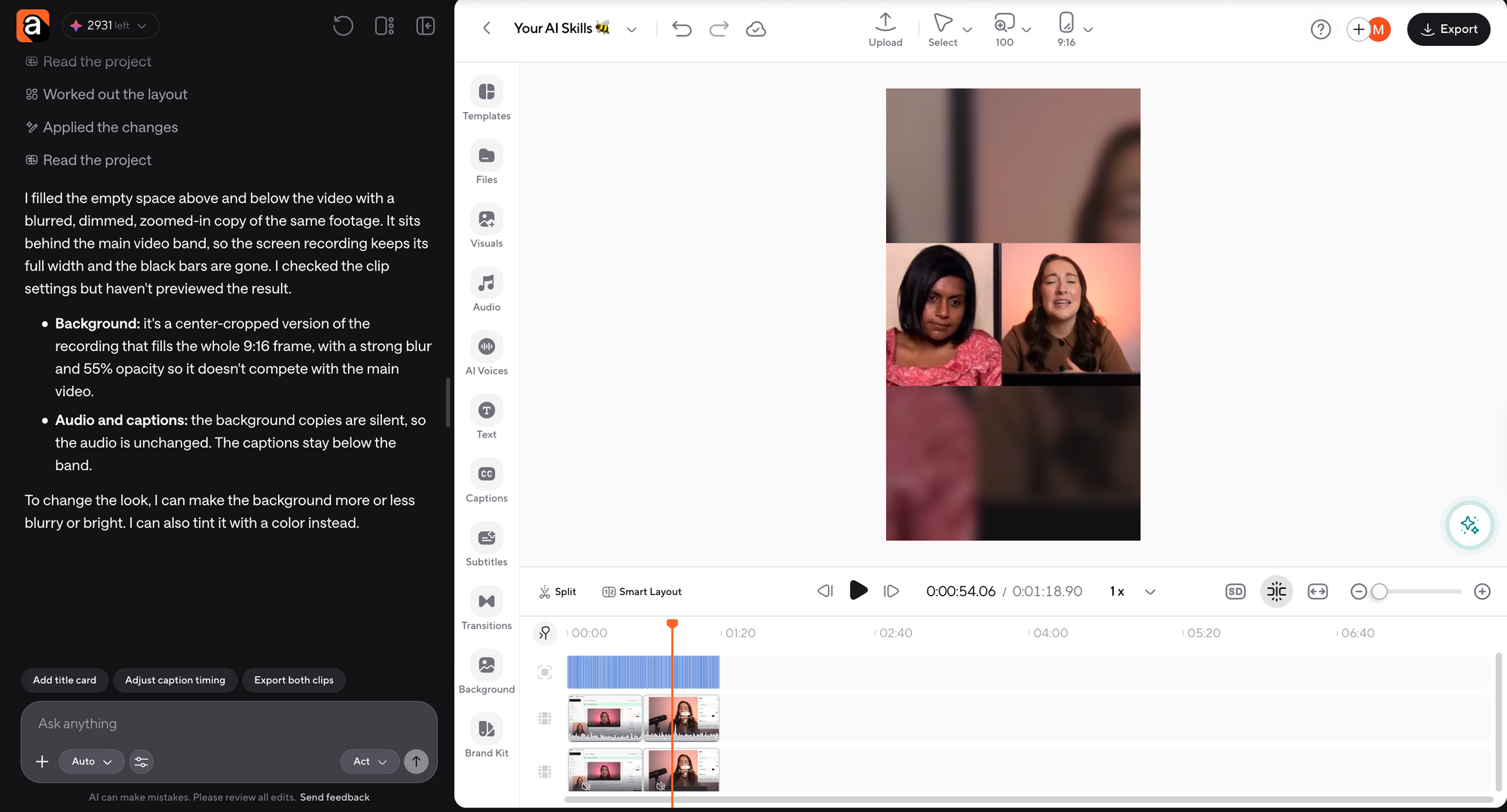
Another common problem comes up when you’re resizing your videos. If you ask the editor to fill the entire 9:16 frame while also keeping every part of a 16:9 screen recording visible, those instructions might conflict.
I came across this when repurposing our YouTube tutorial for Shorts.
For me, keeping the important controls visible was more important than filling the entire screen.
So, I preferred this approach:
“Prepare the tutorial in 9:16, but keep the original screen recording fully visible. Use a blurred version of the same footage to fill the empty space above and below it.”
The point is to decide which part of your request matters most. That gives the editor something to prioritise when two instructions can’t both be followed exactly.
4. You're asking the AI to handle too many edits at once
I get why you'd want to give your AI editor one big prompt and have it take care of the whole project. Especially if you've just recorded a one-hour webinar and want to turn it into a few YouTube Shorts.
But imagine the AI picks the wrong highlights. Now you've got several edited clips that you probably won't even use, and you need to go back to the original recording.
This is actually something Google Cloud talks about in its prompting guidelines. For more complicated requests, they recommend breaking the task into smaller parts, which makes it easier to figure out where things went wrong.
And I think this makes perfect sense for video editing.
If I were editing that webinar, for example, I'd probably start with something like:
"Find three useful moments from this webinar that could work as standalone YouTube Shorts. Make sure each clip contains a complete explanation, and show me the selected moments before making any further edits."
Once I'm happy with the highlights, I can start working on the editing style.
Actually, this is pretty close to what I did in my AI video editing workflow experiment. I first used Async's Video Highlights Skill to find useful parts of a longer YouTube tutorial. Then I created my own Skill to edit those clips with my preferred subtitles and zoom-ins.
And even then, when I tried the same Skill on another video, there were a few things I wanted to change. The zoom-ins needed to be a little more dramatic, and I wanted the ending to look smoother.
Since I'd already figured out which footage I wanted to use, I could focus on fixing those specific details.
Of course, that doesn't mean you need five separate prompts for every little edit. But if your AI editor keeps getting parts of a complicated request wrong, I'd try working through the project in smaller stages before rewriting the same enormous prompt again.
5. The AI made the edit, but it doesn’t look the way you imagined
Okay, now let’s get back to the zoom-ins I mentioned earlier.
This is probably the best example I have from my own projects.
I’d created a custom Skill called My Tutorial Shorts Style, with instructions to add bold yellow subtitles and zoom in whenever I demonstrated an important feature.
The first result looked pretty good.
The editor added two zoom-ins, one for the Split button and another for the Delete step.
But the zooms were centered, and I wanted them to focus much more closely on the actual controls.
So I asked Async:
“Can you make the zoom-ins more dramatic? I want you to zoom into the actual video, focus on a specific element being demonstrated, and then zoom back out to the original framing.”
And this worked much better!
After reviewing the new result, I noticed the second zoom lasted a little too long, so I asked the editor to end it earlier.
I also thought the video ended a bit abruptly, so I asked it to make the ending smoother.
And voilà! That was much closer to the editing style I had in mind.
Now, I think the important part here is that the first prompt wasn’t necessarily bad. Async did add the zoom-ins I’d requested.
I simply realized that I needed something more specific after seeing the result.
So if your AI editor makes a visual change that isn’t quite right, I’d recommend telling it exactly what you dislike about that particular edit.
For example:
Instead of prompting it with “Make the zoom better.”
Try something like: “At around six seconds, when I click the Split button, zoom further into that specific button so viewers can clearly see it. Return to the original framing immediately after the click.”
And if the AI still can’t identify the right part of the screen, I’d consider adjusting the zoom manually.
Async actually has manual AI Zoom controls that let you move the target box and change how long the zoom stays in place. Which, for a tiny button in a software tutorial, can be much easier than trying to describe its exact location through chat.
6. Sometimes it’s the transcript or editing feature that’s causing the problem
Here’s another issue I found while looking through creator discussions.
In the CapCut Reddit thread, a user described generating automatic captions, correcting a few words that had been transcribed incorrectly, and then discovering that the word-by-word highlighting was no longer synced properly.
So the transcription was corrected, but the caption animation still needed attention.
This is a good example of something that wouldn’t necessarily be solved by writing a more detailed video editing prompt.
If your captions are displaying the wrong words, I’d check the transcript first. If the text is correct but the words are appearing at the wrong time, you’re dealing with a timing issue.
And if the editor is struggling with a particular effect, you might need to adjust that effect directly.
The lesson I’d take from that is that, at some point, it’s worth checking whether the editing feature itself can produce the result you’re looking for.
I love being able to talk to my video editor, but I wouldn’t keep rewriting the same prompt forever if the problem is clearly with a specific control or effect.
7. Try changing the instruction rather than making it longer
And this is probably my favorite discovery from the outside research.
Let’s say you’re asking an AI editor to find the best take from a recording, but it keeps choosing the wrong one.
Rather than repeating for the tenth time, “choose the best take,” you could specify:
“Keep the last complete take of the product introduction and remove the earlier attempts.”
Or perhaps your editor keeps trimming a video too aggressively. To fix that, I would try explaining which part of the original recording needs to stay in.
Sometimes being more specific helps. Other times, your best call is to describe the opposite action and make the request clearer.
And if you’ve tried both approaches and the result still isn’t working, I’d start looking at the footage and editor settings rather than adding another paragraph to the prompt.
What to check when your AI video editing prompt still isn't working
Now, if you've already tried changing your prompt a few times and the editor still isn't doing what you asked, I'd check a couple of things before trying again.
For example, Async has two AI Chat modes: Ask and Act. In Ask mode, the editor can ask you to clarify something before making changes, while Act mode is for carrying out the edits directly. So if nothing seems to be happening, check whether the editor is actually waiting for your response.
I'd also check which AI model you're using. Async has different models available in chat, and depending on how complicated your project is, you might want to try another one. You can read more about these options in Async's AI Chat guide.
And one last thing I'd definitely recommend is watching your video after each major edit.
In my own Skills experiment, Async actually warned me that the zoom-ins were centered and might need some manual adjustments. And it was right! The zooms were there, but they weren't focusing on the exact buttons I wanted to highlight.
So even when the editor tells you it's completed the task, I'd still review the footage. You might find that the prompt worked perfectly fine and it's just one small part of the edit that needs fixing.
My verdict: What actually makes a good AI video editing prompt?
After all these experiments, I think my biggest takeaway is that you don't necessarily need to become an expert at writing prompts to get good results from an AI video editor.
For me, it's more about knowing what I want from the edit and being able to explain it clearly. And if the first result isn't quite right, I can always go back and ask for a correction.
That's actually one of the things I like most about chat-based editing. When I wanted the zoom-ins to be more dramatic in my tutorial Short, I could describe what was wrong and have Async change them. And when the second Zoom ran a little too long, I could correct that, too.
Of course, there will be cases where making a small manual adjustment is easier, and I'd absolutely go with that option when it makes sense.
One more thing worth mentioning is that if you regularly create similar videos, you can save your preferred editing instructions as an AI Skill. I've tried this myself, and while it took a little experimenting to get the style exactly how I wanted it, being able to reuse those instructions on another video was pretty handy.
So, my final recommendation is to experiment a little, be specific about the changes you want, and actually watch the results before deciding your prompt has failed.
And if you want to give conversational editing a try yourself, you can start editing with Async.
FAQ
Why is my AI video editing prompt not working?
Your AI video editing prompt might not work because the editor can’t identify the correct footage, your instructions are ambiguous, or two requirements conflict. The issue can also come from transcription errors, unsupported features, or editor settings. Start by checking what the AI actually changed, then correct the specific problem.
Why does my AI editor ignore instructions?
An AI editor may appear to ignore instructions when it interprets the request differently from what you intended. Try identifying the exact clip or timestamp and explaining what should happen there. If it keeps failing on the same task, check whether the editor supports that action.
How do you write better AI video editing prompts?
Describe the specific part of the footage you want to edit and the change you expect to see. For example, instead of asking for a more engaging video, explain that the introduction feels too slow and identify which parts you’d like shortened.
Should I put all my editing instructions into one prompt?
You can combine several compatible instructions, but for complicated projects, I’d recommend checking the first edit before adding more changes. Once you’ve tested a workflow and know the instructions work together, you can save them for future videos.
Can I fix AI video edits without starting over?
In a conversational editor like Async, you can ask for follow-up changes to the existing project. You can also use timeline controls for precise manual adjustments. Whether a particular edit can be modified without rebuilding it depends on the tool and the type of change.