If you just want the short version, the best free video editing software for Mac depends on what you are actually making. Here is the quick rundown by use case so you can skip straight to the tool that fits you.
- Best overall: Async, for creators who want to record, edit, caption, reframe, and repurpose in one place
- Best built-in option: iMovie, already sitting on your Mac and ready to go
- Best for beginners: Canva, thanks to templates and a near-zero learning curve
- Best for professional editing: DaVinci Resolve, a genuine pro suite with a free tier
- Best for online editing: Clipchamp and other browser editors that need no installation
- Best for AI workflows: Async, for editing with AI models, captions, and clip generation
- Best for social videos: CapCut, built for TikTok, Reels, and Shorts
- Best iMovie alternative: Async if you want more than a timeline, DaVinci Resolve if you want pro depth
Now, let us get into why each of these earns a spot, what the free plans really give you, and where you might outgrow them.
Best free video editing software for Mac
The best free video editing software for Mac is the one that matches your workflow without making you fight the timeline. For most creators, that means Async for fast AI-assisted editing, iMovie for simple cuts, DaVinci Resolve for serious projects, and CapCut for social clips. Below is a side-by-side look, followed by a closer breakdown of around ten tools worth trying.
Async: best for AI-powered video workflows
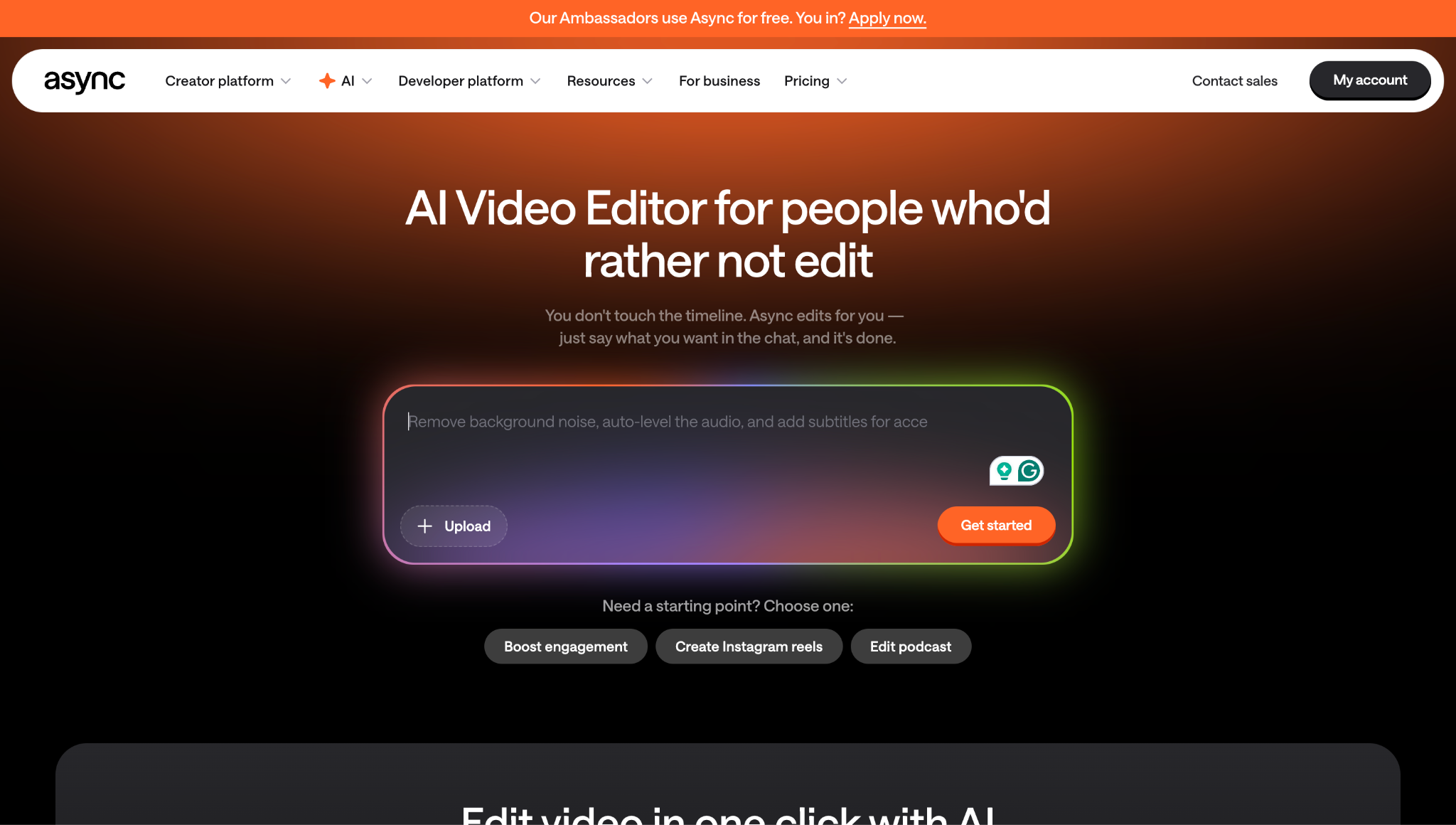
If your day looks less like "sit down and edit for three hours" and more like "turn this recording into five posts by lunch," Async is built for you. It is a browser-based video editor that brings recording, editing, captions, reframing, and clip generation into one workspace, so you are not bouncing between five apps to finish a single video.
Here is why it stands out as the strongest free video editing software for Mac for AI workflows. You can edit footage, lean on built-in AI models to handle the repetitive parts, add captions automatically, reframe a horizontal video into vertical, and pull short clips out of long-form content. There is even chat-based editing, so you can describe the change you want in plain language instead of hunting through menus.
Because Async runs in the browser, it does not care whether you are on an older MacBook Air or a maxed-out MacBook Pro. There is no heavy install eating your storage, and exports from the editor come out clean without a watermark slapped across your work.
Who it suits best: podcasters, YouTubers, marketing teams, and anyone who repurposes one video into many. You can sign up and start for free, then move to a paid plan when you need more volume or team features. If most of your work is short-form social content, our guide to AI video tools for social media goes deeper on that workflow.
iMovie: best built-in free Mac video editor
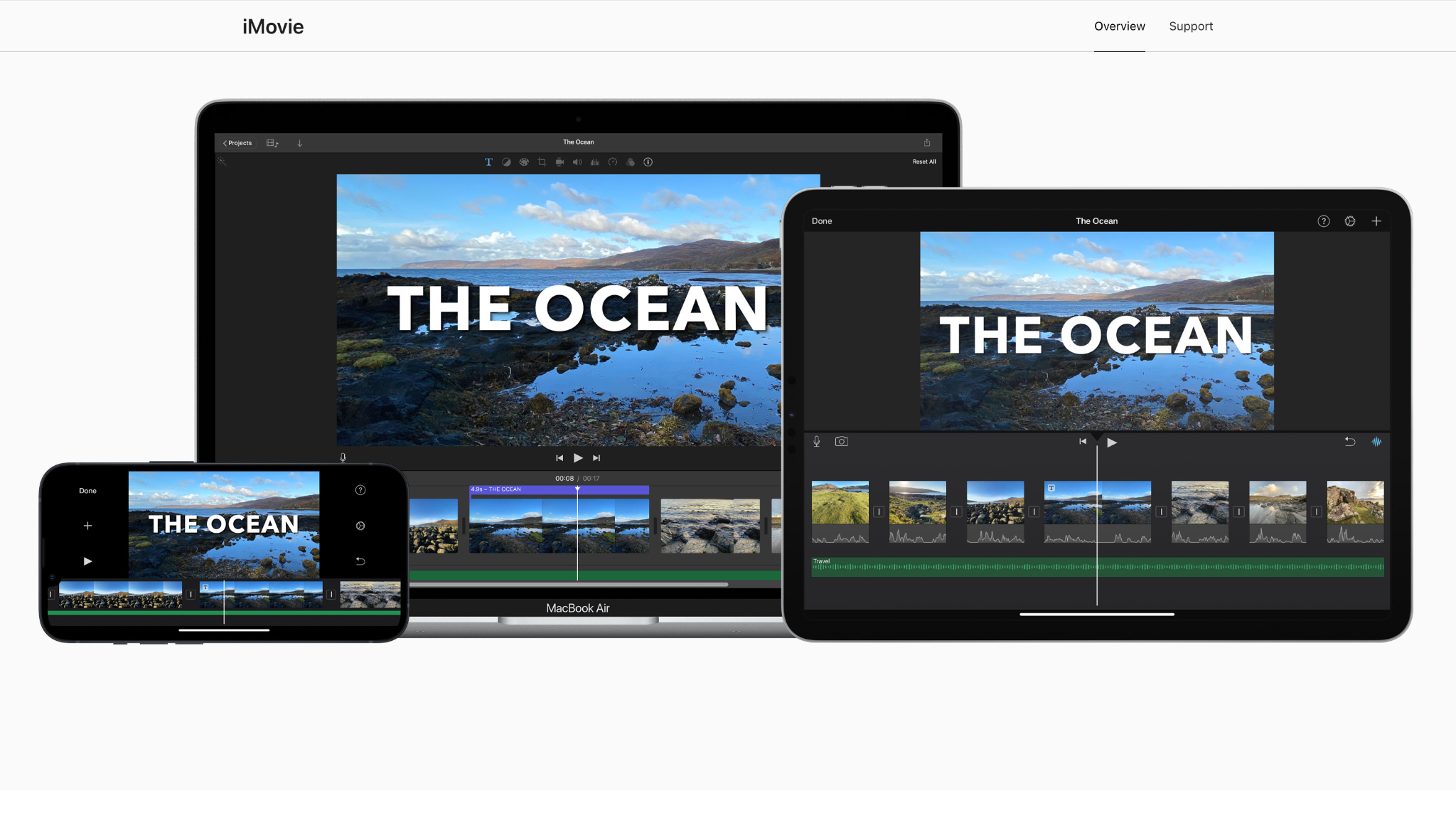
iMovie is the editor that came free with your Mac, and for a lot of people, it is genuinely all they need. It handles trimming, transitions, titles, basic color adjustments, and simple audio work without asking you to learn anything complicated. If you have never opened a timeline before, iMovie is a kind place to start.
The catch is that iMovie is intentionally simple. There is no multi-track flexibility beyond a couple of layers, no advanced color grading, no built-in auto-captions, and limited control over text and effects. It is a free video editor for Mac that does the basics beautifully and then politely runs out of road.
Who it suits best: home movies, quick family edits, simple talking-head videos, and anyone who wants a no-cost starting point. When you start wishing for more, that is your cue to look at the iMovie alternatives further down.
DaVinci Resolve: best free video editor for Mac professionals
DaVinci Resolve is the surprise of this whole list. It is a Hollywood-grade editing, color grading, visual effects, and audio suite, and the free version is genuinely free with no watermark and no time limit. The main limits are that the free tier caps exports at 4K and 60fps and locks some of the AI-powered and noise-reduction tools behind the one-time Studio license (around $295, no subscription).
For most creators, those limits are barely noticeable. You get a real multi-track timeline, professional color tools, and a proper audio mixer, all for nothing. The trade-off is the learning curve. Resolve is powerful, and power means menus. Expect to spend real time learning it.
Who it suits best: serious YouTubers, filmmakers, and editors who want professional control and do not mind a steeper start. If you want the best video editing software for Mac in the pro category without paying a subscription, this is it.
CapCut: best free video editor for social videos
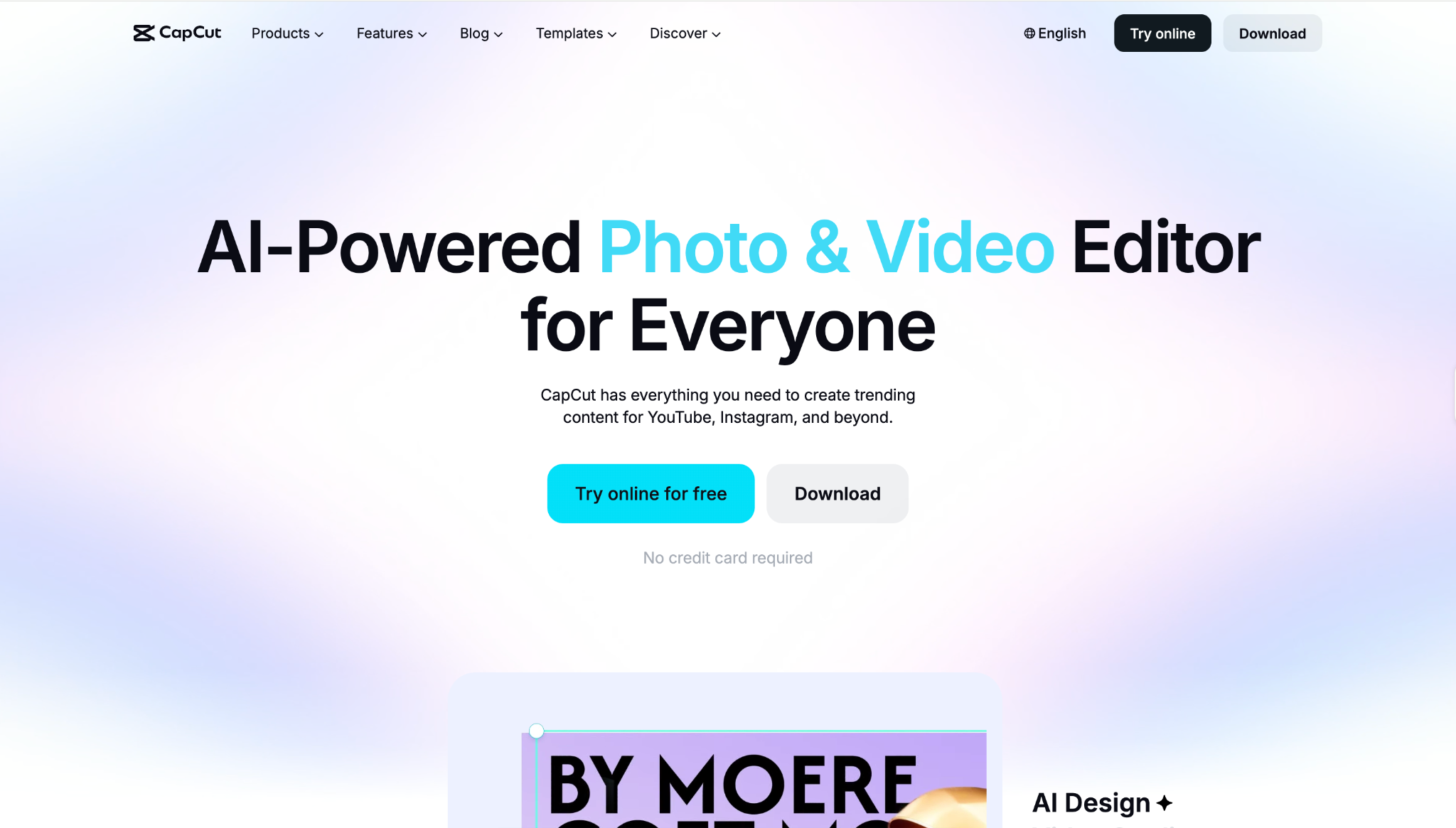
CapCut became famous for a reason. It is fast, packed with templates, and tuned for the kind of vertical, caption-heavy content that does well on TikTok, Reels, and Shorts. It runs on Mac as both a desktop app and in the browser, and the free plan is a real editor rather than a trial, with a multi-track timeline, auto-captions, effects, and a big library of music.
The watermark situation is worth understanding clearly. A plain manual export from CapCut generally comes out with no watermark. Watermarks tend to appear only when you keep a Pro-locked template in your project or export certain AI-generated clips. Free exports cap at 1080p, and the heavier AI features sit behind paid plans (Pro runs around $19.99 per month).
Who it suits best: social creators who want speed, trends, and templates. Just keep an eye on which template you picked if a watermark surprises you at export.
Canva: best free Mac video editor for beginners and templates
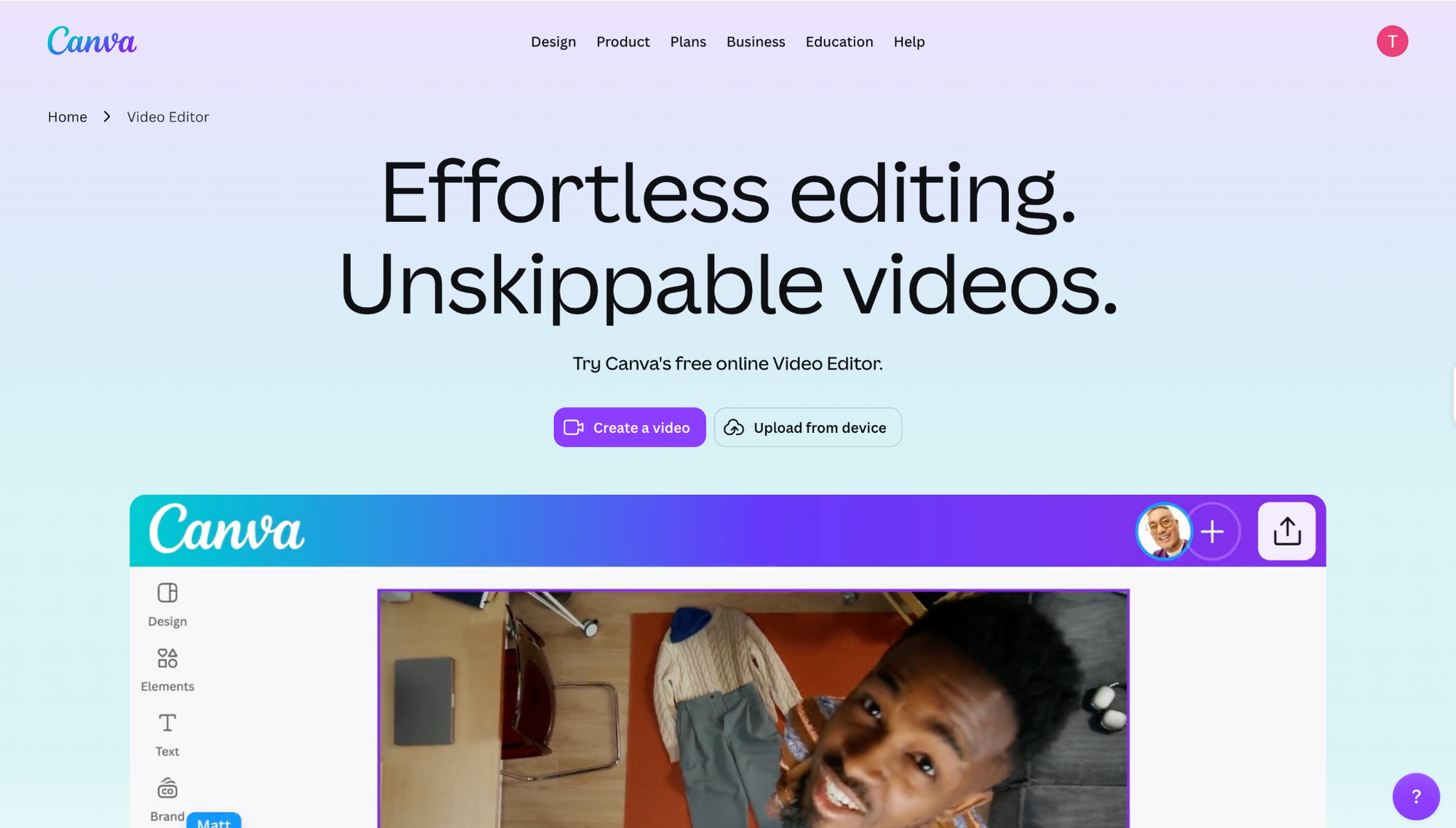
Canva is not only a graphic design tool anymore. Its video editor is a comfortable place for beginners because everything starts from a template. You drag, drop, and swap text, and you have a finished clip without ever feeling lost. It runs entirely in the browser, so there is nothing to install on your Mac.
The free plan is useful on its own, with plenty of templates, stock elements, and basic editing. Some premium elements and stock assets are gated behind Canva Pro, and a few of those will add a watermark if you use them on the free plan. For timeline precision and advanced effects, Canva is not the tool, and it does not pretend to be.
Who it suits best: beginners, social media managers, and anyone making quick branded clips, slideshows, or simple promos.
Adobe Express: best for fast, polished branded clips
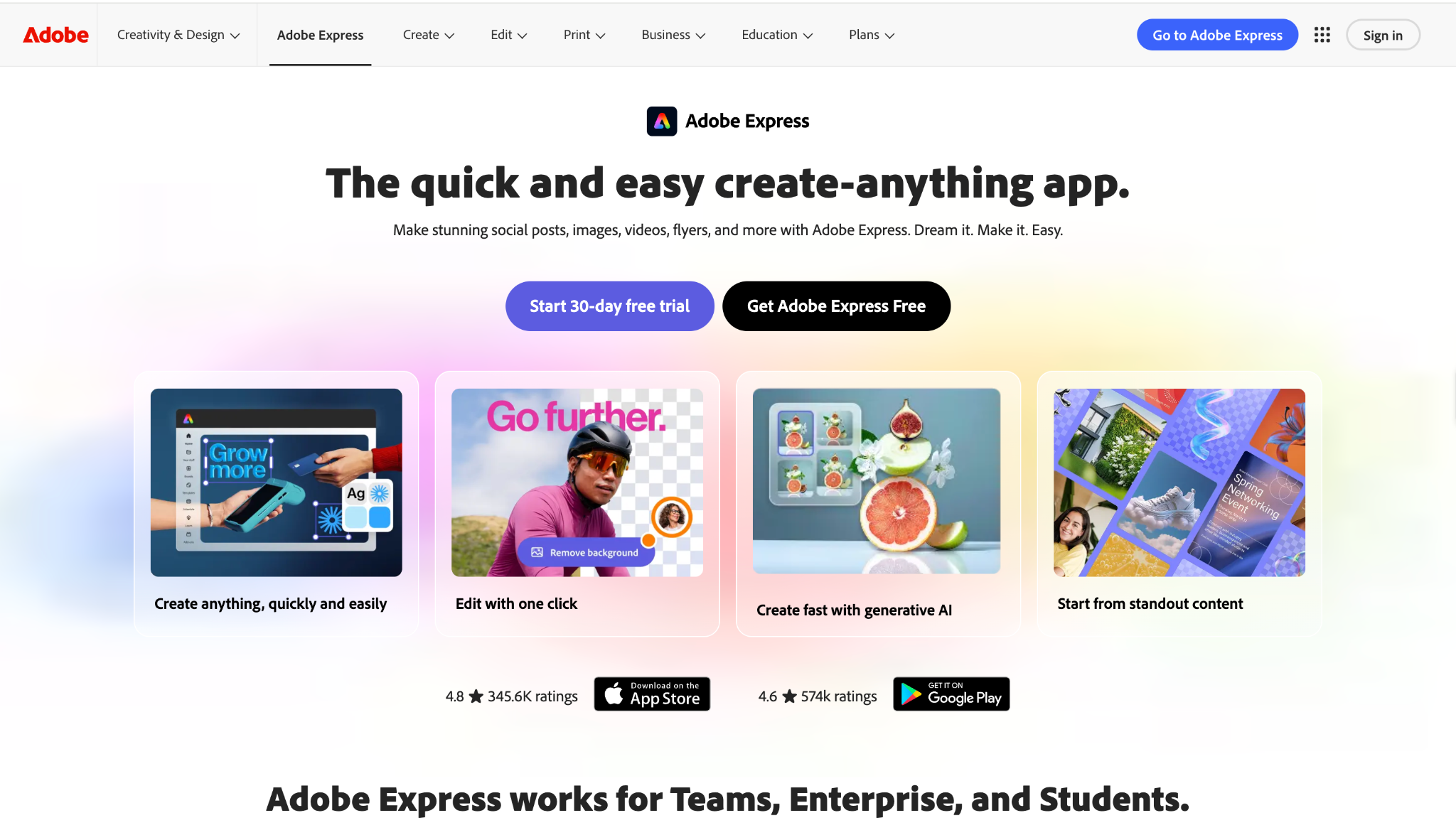
Adobe Express is the lightweight, browser-based cousin of Adobe's heavier apps. It leans on templates and quick tools to get good-looking social content out the door fast, with tidy fonts and clean motion built in. If you like the Adobe look but do not want to open Premiere Pro, this is a friendly middle ground.
The free plan covers a lot, though premium templates and assets sit behind a paid tier, and some of those add a watermark. It is a video editor for Mac that prioritizes speed and polish over deep control.
Who it suits best: creators and small teams who want attractive social clips quickly and already live a little in the Adobe world.
Clipchamp and other browser-based editors: best for online editing
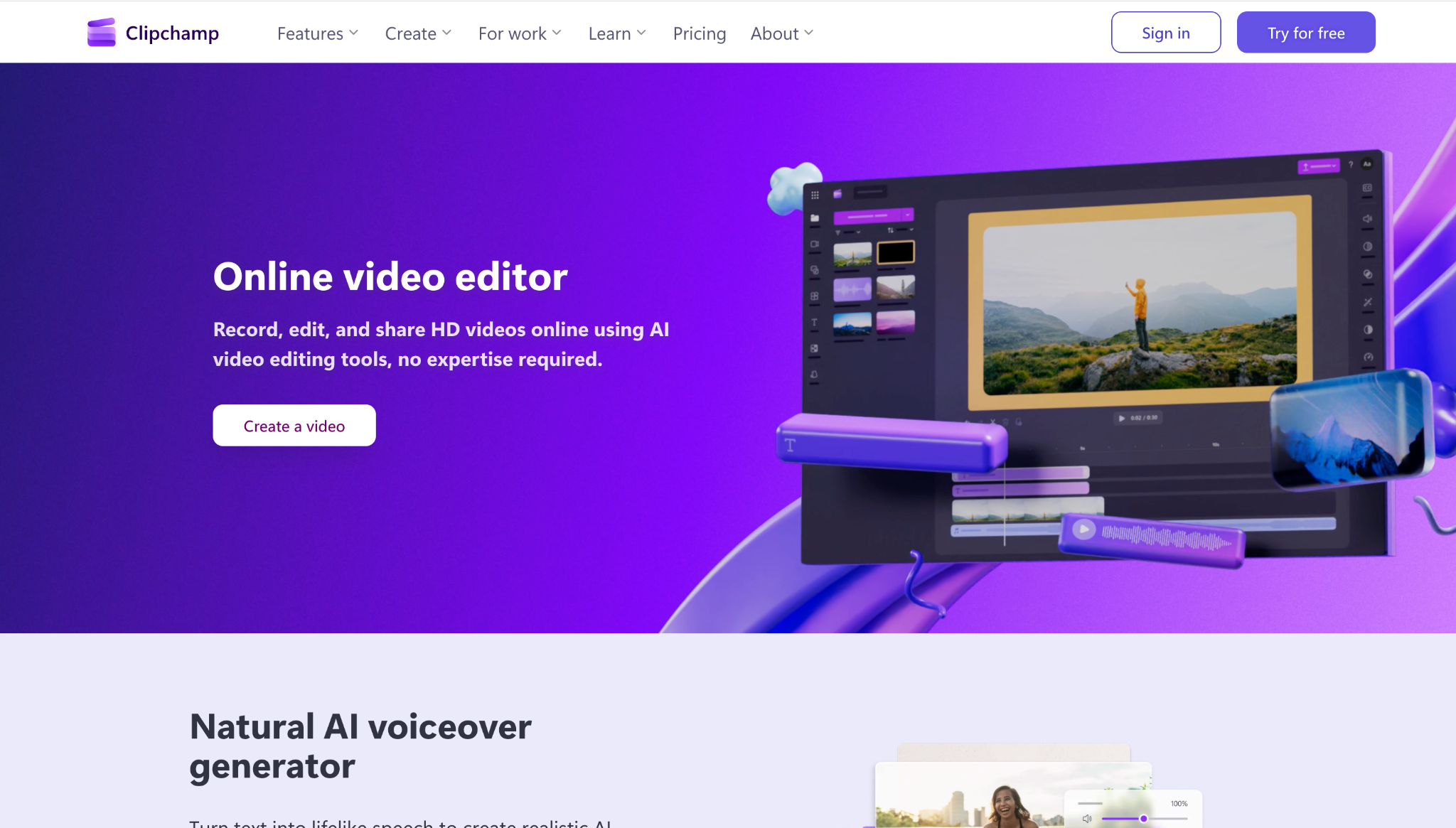
Sometimes the best free video editor for Mac is simply the one you do not have to install. Clipchamp, owned by Microsoft, runs in your browser on Mac and lets you trim, layer, add text, and export without downloading anything. Free exports go up to 1080p, which is plenty for most social and web video.
Browser-based editing in general is great when you are on a shared machine, low on storage, or just want to start editing in thirty seconds. The trade-off is that you usually need a stable internet connection, and you get less raw power than a heavy desktop app. Async fits this online category too, with the bonus of AI tools layered on top.
Who it suits best: people who want zero install, quick edits, and the freedom to work from any Mac.
Shotcut: best free open-source editor
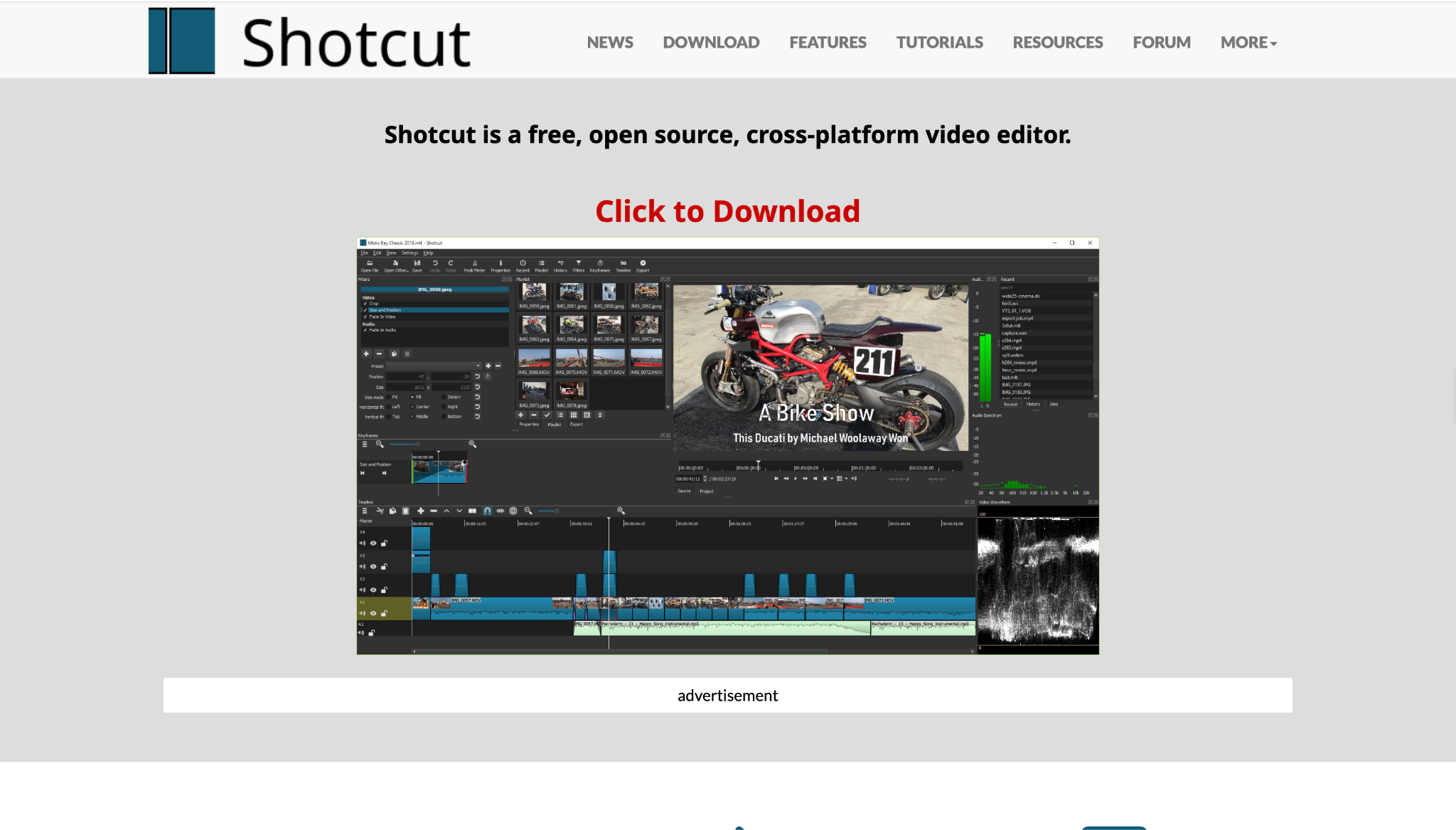
Shotcut is free, open source, and refreshingly free of catches. No watermark, no paywalled exports, no nudging you toward a subscription. It supports a wide range of formats, offers a real multi-track timeline, and handles 4K comfortably on a capable Mac.
The interface looks a little more utilitarian than the polished commercial apps, and there is a learning curve, but the value is unbeatable for zero dollars. If you want full editing control and you object to subscriptions on principle, Shotcut deserves a look.
Who it suits best: hobbyists, tinkerers, and anyone who wants genuine control with no strings attached.
OpenShot: best simple open-source option
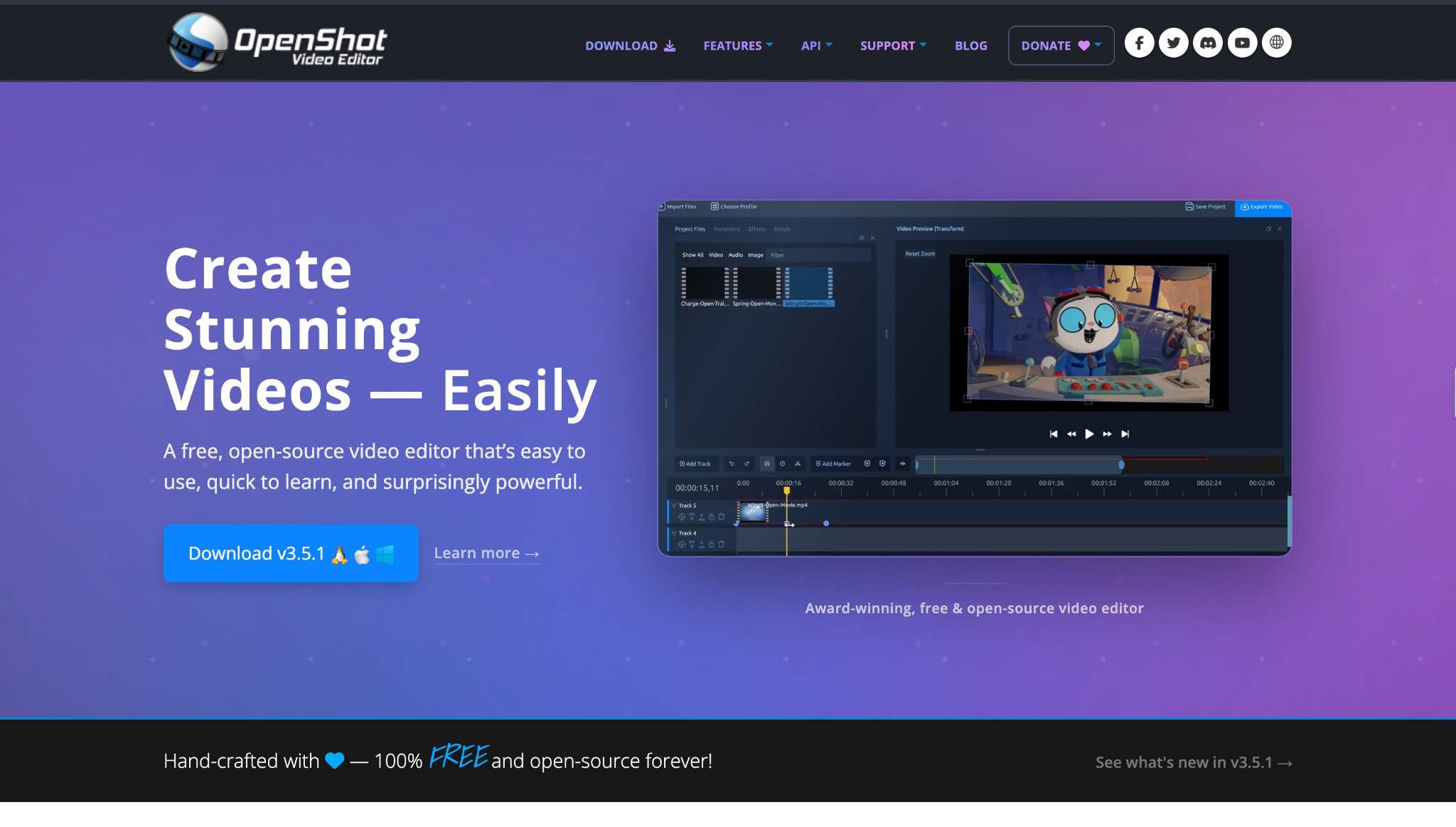
OpenShot is the gentler open-source choice. It keeps the layout simple, focuses on the essentials, and is forgiving for newcomers. You get drag-and-drop editing, transitions, titles, and basic effects, all free and watermark-free.
It is not built for heavy professional projects, and very large files can test its performance, but for straightforward edits, it does the job without overwhelming you.
Who it suits best: beginners who want a free, open-source editor that is a step up from iMovie in flexibility but still easy to grasp.
Blender: best free editor for advanced effects
Most people know Blender as 3D software, but it includes a full video sequence editor too, and it is completely free. If your project needs editing alongside motion graphics, compositing, or 3D elements, Blender can do all of it in one place at no cost.
This is the most advanced and least beginner-friendly tool on the list. The editor is buried inside a much bigger application, and the learning curve is steep. But for ambitious creators who want effects-heavy work without buying anything, it is remarkable.
Who it suits best: advanced creators and motion designers who want power over simplicity.
What to look for in a free Mac video editor
Short answer: A free plan is only worth your time if it is actually usable, exports without ugly watermarks, and matches the kind of videos you make. Here is what to weigh before committing to any free video editing software for Mac.
Ease of use. Be honest about your patience. iMovie, Canva, and Async get you editing in minutes. DaVinci Resolve and Blender reward time spent learning. Pick the curve you are willing to climb.
Export quality. Check the resolution cap on the free tier. Some tools give you 4K for free (iMovie, DaVinci Resolve, Shotcut), while others cap at 1080p (CapCut, Clipchamp, Canva). For most social and web video, 1080p is fine. For polished YouTube or client work, higher matters.
Watermarks. This is the big one. A watermark on a free export can quietly ruin a video you spent an hour on. The clean options here are iMovie, DaVinci Resolve, Shotcut, OpenShot, Blender, and Async editing exports. CapCut, Canva, and Adobe Express only add watermarks in specific cases, usually tied to premium templates or AI features, so read the fine print before you export.
Timeline editing. If you need to layer clips, audio, text, and effects with precision, you want a real multi-track timeline. Most tools here have one. The lightest template-first tools (Canva, Adobe Express) trade precision for speed.
Captions. Captions are no longer optional, since so much video is watched on mute. Look for auto-generated, editable captions. Async and CapCut handle this well, and our overview of AI clips shows how captions fit into a repurposing workflow.
Templates. Templates are a shortcut to good-looking video. Canva and Adobe Express lead here. If you want a finished clip fast and do not want to design from scratch, this matters a lot.
AI features. AI is where free tools differ most in 2026. The useful ones include auto-captions, reframing, silence removal, clip generation, and chat-based editing. This is where Async pulls ahead, since the AI is woven into the editing flow rather than bolted on.
Social resizing. If you publish across platforms, you want easy aspect-ratio changes from horizontal to vertical to square. AI reframing does this without you cropping every shot by hand. Our guide to going from horizontal to vertical walks through the smart way to do it.
Performance on your Mac. Browser-based editors (Async, Canva, Clipchamp) run light and do not care about your specs much. Heavy desktop apps (DaVinci Resolve, Blender) ask more of your machine, especially on older or lower-memory Macs.
Is the free plan actually useful? Some "free" tools are really demos. The genuinely useful free tiers here are iMovie, DaVinci Resolve, Shotcut, OpenShot, Blender, and Async to start with. Always test an export early so you know exactly what you are getting before you invest hours.
Best iMovie alternatives for Mac
iMovie is a great free starting point, but if you need captions, advanced control, AI tools, or social resizing, alternatives like Async, DaVinci Resolve, and CapCut fill the gaps. You can also keep iMovie and pair it with another tool.
Let us be fair to iMovie first. It includes trimming and arranging clips, basic transitions, titles and lower thirds, simple color correction, audio adjustments, green screen, and templated themes and trailers. For free, pre-installed software, that is a lot. It is genuinely one of the reasons Mac users start editing in the first place.
Now for what iMovie leaves out. There is no automatic caption generation, which is a real gap for social video. Color grading is basic compared with a pro tool. The timeline is limited to a couple of video layers, so complex layering gets awkward. There is no AI reframing for switching aspect ratios, no clip generation from long-form video, and no chat-based editing. Once your ambitions grow past "trim and title," iMovie starts to feel small.
Here is how to find what iMovie is missing, or combine tools so you keep what you like.
- If you want captions, reframing, and AI help, move to Async. It covers the simple edits iMovie does, then adds auto-captions, reframing, clip generation, and AI models in one browser workspace. Many creators edit a base in iMovie and then bring it into Async to caption, resize, and turn it into social clips.
- If you want full professional control, step up to DaVinci Resolve. It is the natural graduation from iMovie when you want serious color, audio, and effects, and it is still free.
- If you mainly make social short-form, CapCut is the closer match, with templates and caption tools built for vertical video.
- If you just want a simple free swap, Shotcut or OpenShot give you more flexibility than iMovie while staying completely free and watermark-free.
A common and very practical setup is to keep iMovie for quick rough cuts and pair it with one of these for the parts iMovie cannot do, like captioning and social repurposing. For a wider look at the landscape beyond free tools, our roundup of video editing software for Mac covers AI and online options in more detail.
Which free video editing software for Mac should you choose?
Still deciding? Match yourself to one of these and go.
- You are a total beginner at editing simple videos. Start with iMovie since it is already on your Mac, or Canva if you want templates to lean on. Both get you a finished video without frustration.
- You make YouTube videos. Go with DaVinci Resolve for full control and 4K export, or Async if you want faster editing with AI captions and clip generation built in.
- You make social clips for TikTok, Reels, and Shorts. CapCut and Async both fit. Choose CapCut for trend templates, and Async if you want to repurpose long videos into many clips and reframe them automatically.
- You work on professional projects. DaVinci Resolve is the best free choice, with Blender as an option when you also need 3D and heavy effects.
- You want an AI-powered workflow. Async is the pick. Editing, captions, reframing, clip generation, AI models, and chat-based editing live in one place, which is exactly what a modern creator workflow needs.
- You need no-watermark editing. Lean on iMovie, DaVinci Resolve, Shotcut, OpenShot, Blender, or Async editing exports. With CapCut, Canva, and Adobe Express, just avoid the premium templates and AI exports that trigger watermarks.
- You want fast online editing with no install. Async, Clipchamp, Canva, and Adobe Express all run in the browser on Mac, so you can start editing in seconds from any machine.
The verdict: Your Mac is ready, so go make something
The good news is that you genuinely do not need to spend a cent to edit well on a Mac. The best free video editing software for Mac ranges from the iMovie already on your machine, to the pro-grade DaVinci Resolve, to social-first CapCut, to open-source workhorses like Shotcut and OpenShot.
The bigger shift in 2026 is that free no longer means basic. AI-powered editors like Async let you record, edit, caption, reframe, and repurpose without juggling separate apps, which is why so many creators are moving toward them for everyday work. If that sounds like your kind of workflow, you can sign up and start editing for free.
Pick the one tool that matches what you make this week, open it, and start cutting. The best editor is the one you actually use.
FAQs
What is the best free video editing software for Mac?
There is no single winner, since the best free video editing software for Mac depends on your goal. Async is the strongest pick for AI-powered editing and repurposing, iMovie is the easiest built-in option, DaVinci Resolve is the best for professional-level work, and CapCut is great for social clips. Match the tool to the kind of video you make.
Does Mac have free video editing software?
Yes. Every Mac comes with iMovie pre-installed for free, and you can add other free options like DaVinci Resolve, Shotcut, OpenShot, and Blender, or use browser-based editors like Async, Canva, and Clipchamp without installing anything.
What is the best free iMovie alternative for Mac?
If you want more than iMovie offers, Async is a strong alternative because it adds auto-captions, AI reframing, clip generation, and chat-based editing on top of standard editing. For professional depth, DaVinci Resolve is the best free step up, and CapCut is the closest match if you mainly make social short-form video.
Is there a free video editor for Mac with no watermark?
Yes. iMovie, DaVinci Resolve, Shotcut, OpenShot, and Blender are free and add no watermark, and Async editing exports come out clean too. CapCut, Canva, and Adobe Express only add watermarks in specific cases, usually tied to premium templates or AI features, so you can avoid them by sticking to standard editing tools.
What is the best free video editor for Mac beginners?
For absolute beginners, iMovie is the friendliest place to start because it is free, pre-installed, and simple. If you prefer working from templates, Canva is very approachable. When you are ready for more, Async keeps things easy while adding AI tools that handle the repetitive parts for you.