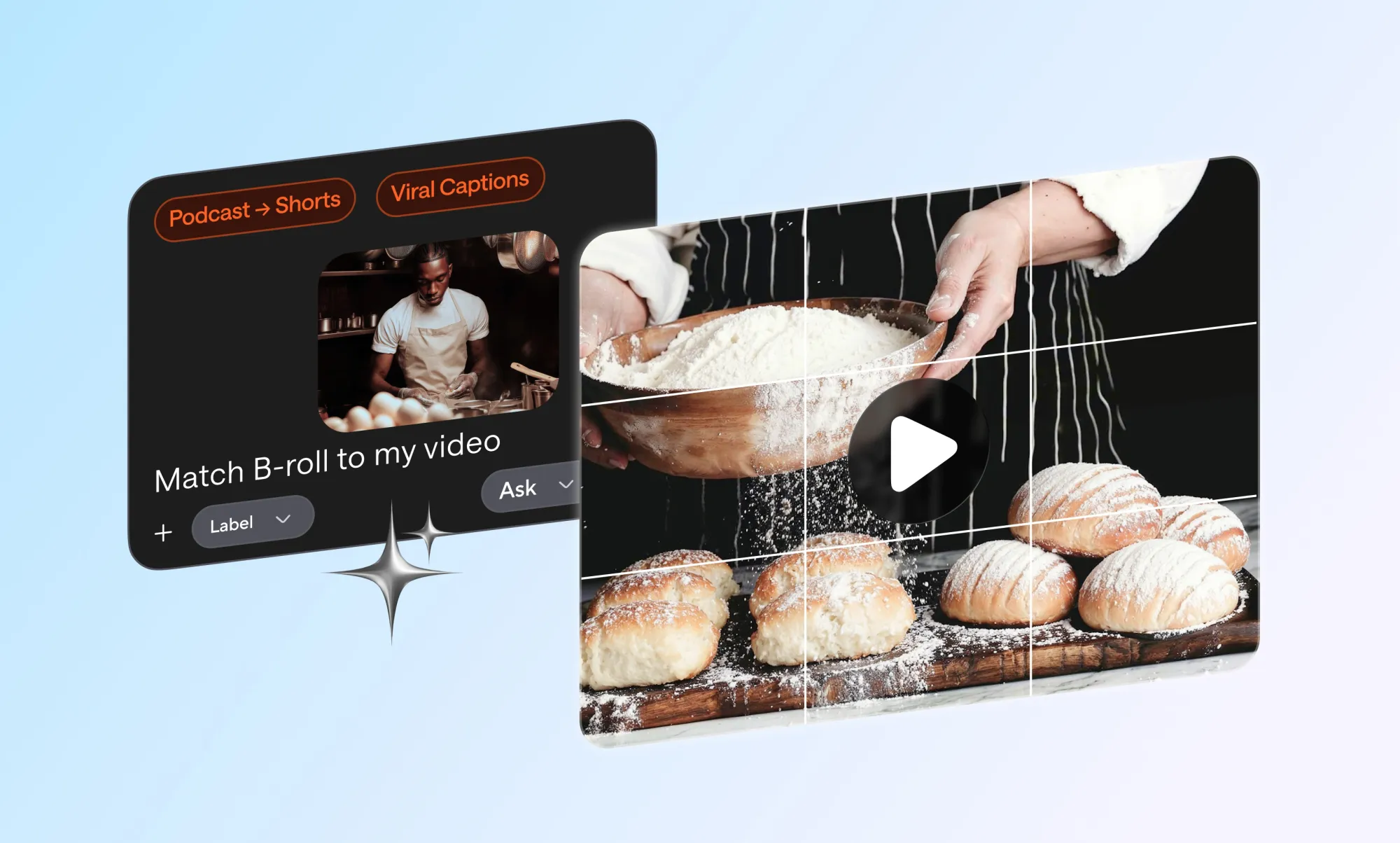
Automatic B-roll tools work in three moves. They read your script or transcript, mark the lines that need visual support, then find or generate a clip for each of those moments and drop it onto your timeline. B-roll is the supporting footage that plays over your main shot: the cutaways, close-ups, screen recordings, and atmospheric shots that illustrate what is being said. You still review the result because B-roll software guesses at meaning and sometimes guesses wrong.
That last sentence is the part most guides skip. This one covers both halves: how the matching actually happens and how to catch the clips that miss.
What is B-roll?
B-roll is any footage that is not your primary subject speaking. If your main camera is pointed at a person talking, that is A-roll. Everything you cut away to is B-roll.
The names come from film editing. Editors kept the principal footage on one reel, the A reel, and supplementary shots on a second reel, the B reel. The workflow disappeared. The vocabulary stayed.
A-roll carries the information:
- A founder explaining why they built the product
- A creator delivering the hook straight to camera
- An interview subject answering a question
- A voiceover narration track
B-roll carries the illustration:
- Hands typing on a keyboard while the narrator talks about workflow
- A drone shot of a city over a line about market expansion
- A screen recording of the dashboard being described
- A close-up of coffee being poured during a line about morning routines
- An empty office at 9pm over a line about burnout
One practical test: if you mute the audio and the shot still tells you what the video was about, it is probably A-roll. If the shot only makes sense once you hear the line it sits under, it is B-roll doing its job.
A short note on spelling, since both forms get searched. B-roll with the hyphen is the standard in style guides and industry writing. B-roll without it is how most people type it into a search bar. Both refer to the same thing, and you will see both in editing software, stock libraries, and briefs. For a deeper breakdown of the term and its place in a project, see our guide to B-roll in video editing.
Why matching B-roll to your script matters
Because unmatched B-roll is worse than no B-roll. A generic clip of a stock businessman shaking hands under a line about churn rate adds no context. It adds noise, and viewers register the mismatch even when they cannot articulate it.
Matched footage does five specific jobs.
It gives abstract lines something to hold onto
"We reduced onboarding time by 40 percent" is a number. A screen recording of the shortened onboarding flow makes the number visible.
It hides cuts
Every time you remove a stumble, a filler word, or a 20-second tangent from your A-roll, the frame jumps. Laying a B-roll clip across the splice makes the jump invisible. This is the single most common reason editors add cutaways, and it is why interview edits are so dependent on them.
It resets attention
Watch retention graphs on any talking-head video, and you will see decay. The frame stops changing, and the viewer's eye starts looking elsewhere. A cutaway restarts the clock. It does not need to be dramatic. Any genuine change in the frame buys attention back.
It controls pace
A slow establishing shot lets a heavy point land. A fast series of two-second cuts pushes energy up before a call to action. Same script, different feel, depending entirely on the B-roll footage you cut in.
It reduces the load on spoken information
People retain what they see alongside what they hear far better than what they only hear. When you are explaining a five-step process, showing each step as you name it is the difference between a viewer following along and a viewer rewinding.
For a broader look at how cutaways fit into a full edit, our video editing tips post covers pacing, cuts, and audio, as well as footage choices.
How to choose B-roll for each part of your video script
Read your script line by line and ask one question: what would the viewer want to see right now? The answer usually falls into one of seven categories.
Literal matches
The line names an object or action, and you show that object or action. "I open my laptop at 6am" gets a shot of a laptop opening. Literal matches are safe and instantly readable. They also become boring fast if they are all you use. Treat them as your baseline, not your whole strategy.
Conceptual visuals
Some lines have no physical referent. "Our team was misaligned" has no object in it. You need a visual metaphor: people talking past each other in a meeting, two arrows diverging in a simple graphic, a whiteboard covered in contradictory notes. Conceptual matches are where B-roll selection shifts from mechanical to editorial. They are also where automated tools struggle most, because the connection lives in interpretation rather than in the words.
Product footage
If your script mentions your product, show your product. This sounds obvious and is often skipped, usually because recording clean product footage takes effort. It is worth the effort. Nothing built from a stock library will illustrate your own product as well as three seconds of the real interface.
Demonstrations
Any line containing the word "how" is a demonstration opportunity. "Here is how you set up a campaign" should never play over a talking head. Show the setup.
Screen recordings
The workhorse B-roll for software, tutorials, and anything digital. Cheap to make, endlessly relevant, and specific to your actual subject. Record more than you need and at a higher resolution than your timeline so you can push in on details without softening the image.
Establishing shots
Wide shots that answer "where are we?" Useful at the top of a video, at section transitions, and any time the script changes location or scope. A single establishing shot after your intro orients the viewer and costs you four seconds.
Emotional and atmospheric footage
Footage chosen for feeling rather than information. Rain on a window under a line about a difficult quarter. Sunrise over a line about a new start. Used sparingly, atmospheric B-roll gives a video texture. Used heavily, it reads as filler, and viewers can tell when a clip is there to fill time rather than to say something.
A working rule: mix at least three of these categories in any video longer than two minutes. Variety in the type of B-roll matters more than variety in the quantity of clips.
How to match B-roll to your video script automatically
Here is the pipeline, in the order the software runs it. Knowing the sequence tells you where errors come from.
Step 1. The tool builds a transcript. If you upload footage, it transcribes the audio. If you wrote a script first, it uses that text and often aligns the script against the audio to get word-level timings.
Step 2. It segments the transcript into ideas. Not sentences. Ideas. A single sentence can contain two distinct visual moments, and a three-sentence paragraph can contain one. The quality of this segmentation determines whether your B-roll lands on the right words.
Step 3. It identifies visual opportunities. The model scores each segment for whether footage would help. Concrete nouns, named actions, locations, numbers, and process descriptions score high. Transitional filler and direct address to camera score low. Good tools also detect the cuts in your A-roll and flag them, because those are the moments that most need covering.
Step 4. It decides what the footage should show. For each flagged segment, the tool writes an internal description of the ideal clip. This intermediate step is why results vary so much between tools. "Person looking stressed at desk" and "close-up of hands hovering over keyboard, no keystrokes" both come from the same line about hesitation, and they produce very different edits.
Step 5. It sources or generates the clip. Two paths here. Either the tool searches a stock library and your own uploaded media for a match, or it generates the clip with a video model. Search gives you real footage with real physics and inconsistent style. Generation gives you exactly the described scene with occasional artifacts. Many tools now do both and pick per clip.
Step 6. It places clips on the timeline. The tool sets in and out points, usually two to five seconds per clip, ducks the B-roll audio, and keeps your A-roll audio continuous underneath. Better implementations avoid placing a cutaway mid-word and try to land cuts on natural pauses.
Step 7. You review. Non-negotiable. Steps 3, 4, and 5 each involve a judgment call, and a wrong judgment in step 4 produces a clip that is technically well-placed and completely wrong. More on catching those below.
If you are comparing tools that do this, our roundup of the best AI video editor options covers which platforms handle transcript-based editing well and which treat B-roll as an afterthought.
How to find and add automatic B-roll footage with Async
Async handles B-roll conversationally: you paste your script, it asks how to treat the lines, then it shows you its footage picks before touching the timeline. Here is the real run on an 8-line script.
Step 1. Paste your script.
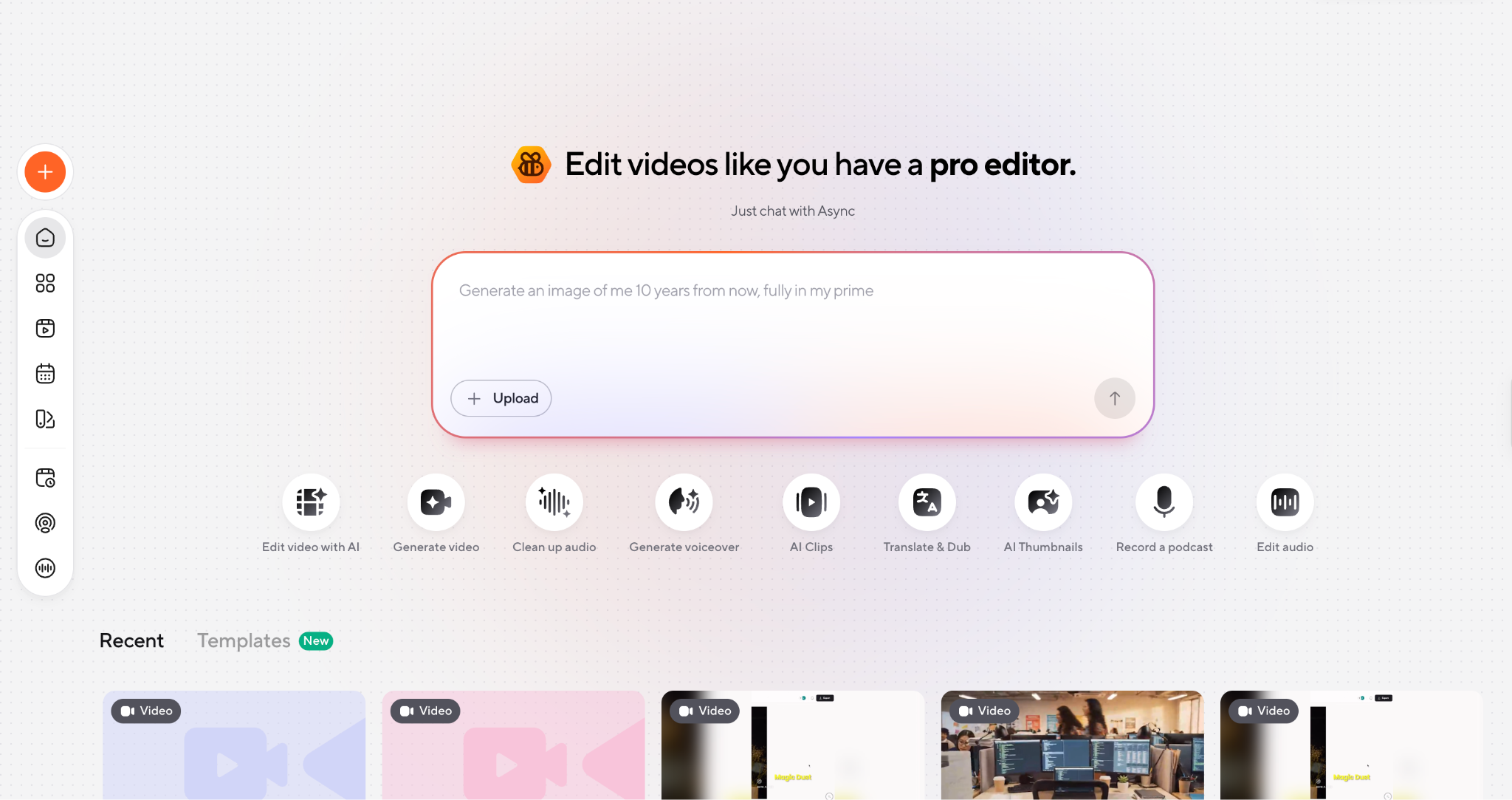
From the dashboard, choose Generate video rather than upload, and paste your script in.
Step 2. Answer the setup questions.
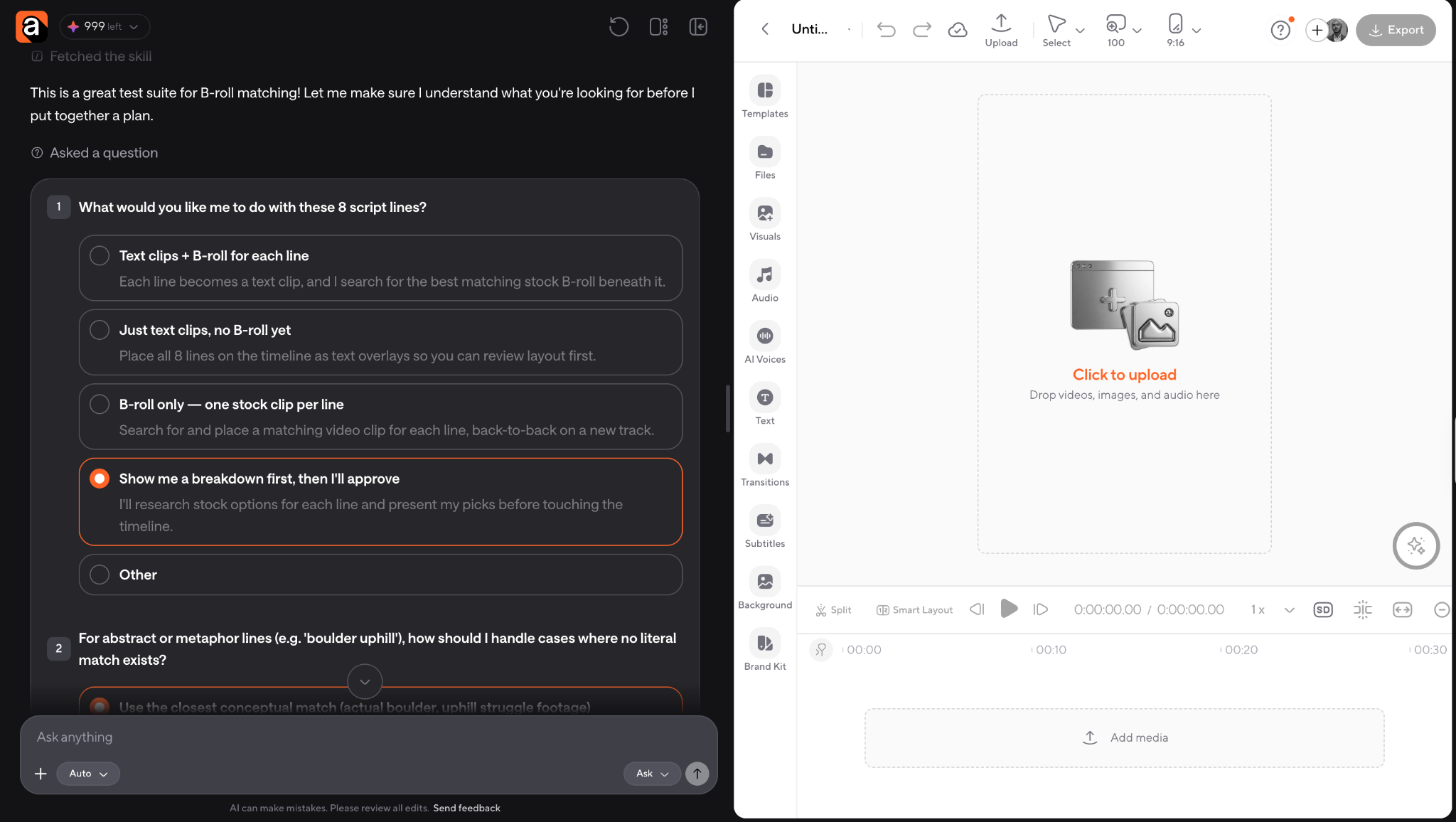
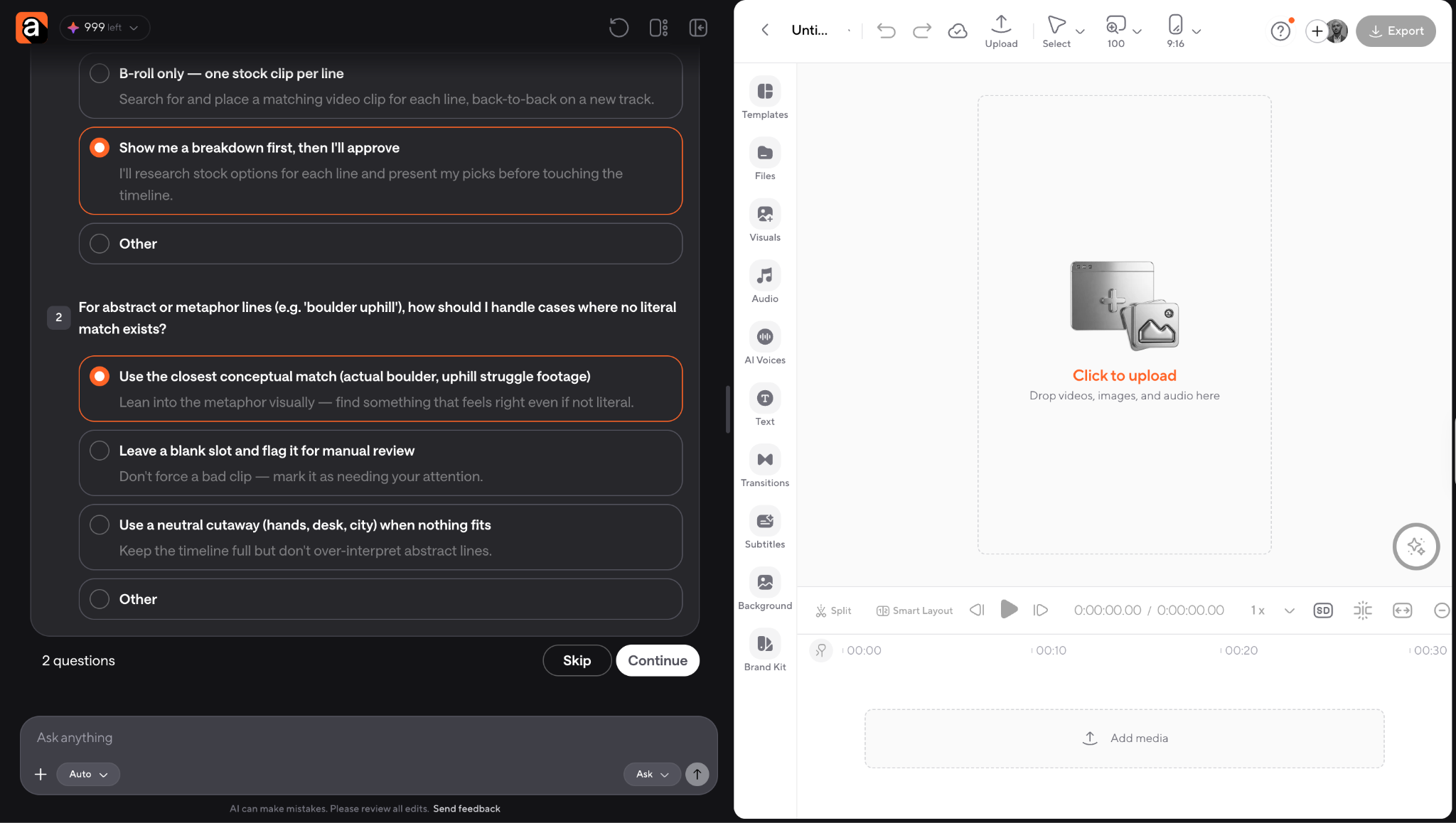
Async asks what to do with your lines (text clips plus B-roll, text only, B-roll only, or a breakdown you approve first) and separately how to handle metaphor lines with no literal match. Choose the breakdown and lean into the metaphor rather than accepting a neutral cutaway.
Step 3. Review the breakdown.
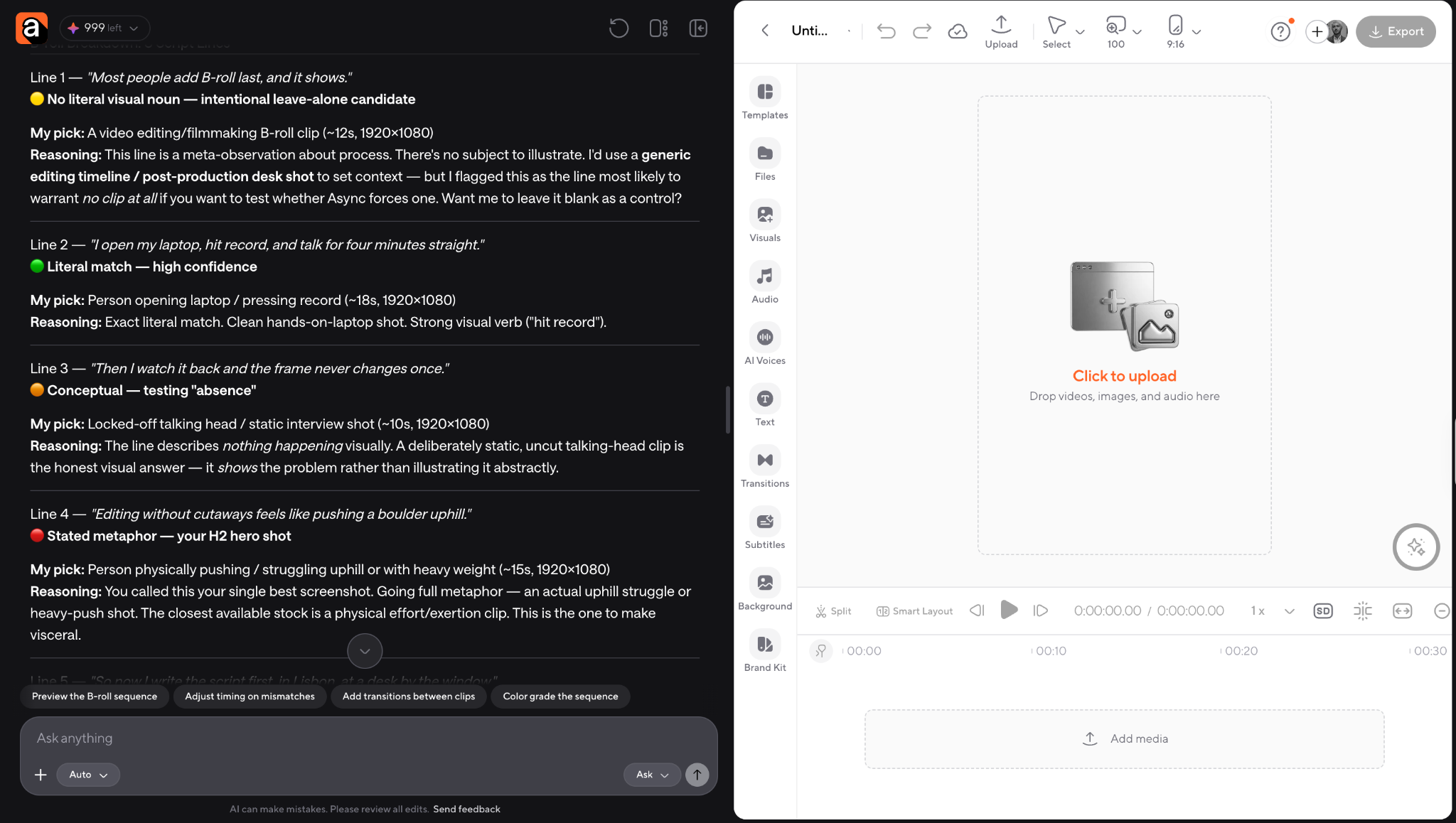
Async researches every line in parallel and reports its pick per line with a confidence flag before anything is placed.
Step 4. Confirm the plan.
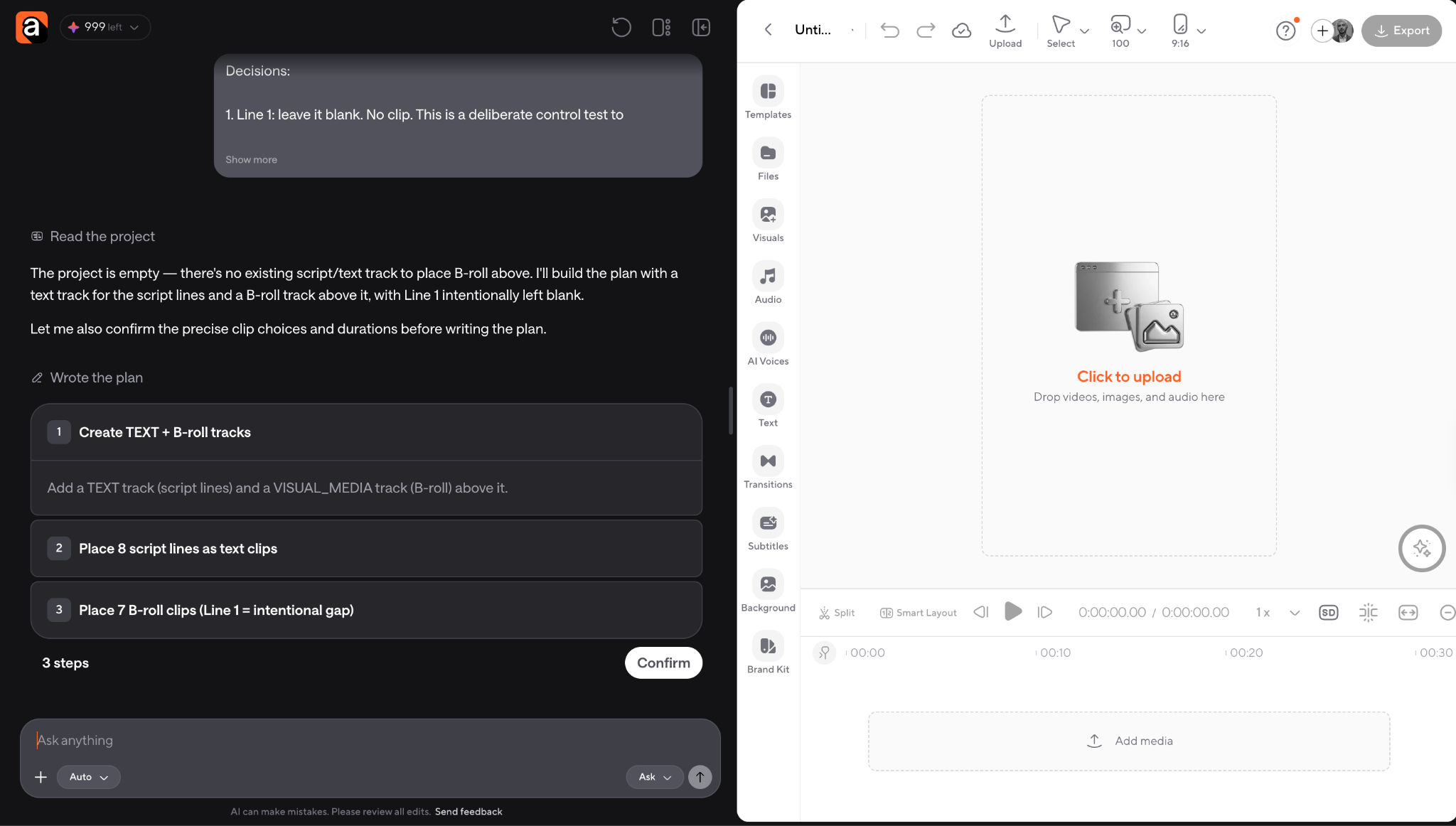
It writes a short numbered plan, adding a TEXT track for your lines and a VISUAL_MEDIA track for the B-roll above it, then waits for Confirm.
Step 5. Let it build.
The 8-line script took about 25 seconds because the footage search runs across all lines simultaneously.
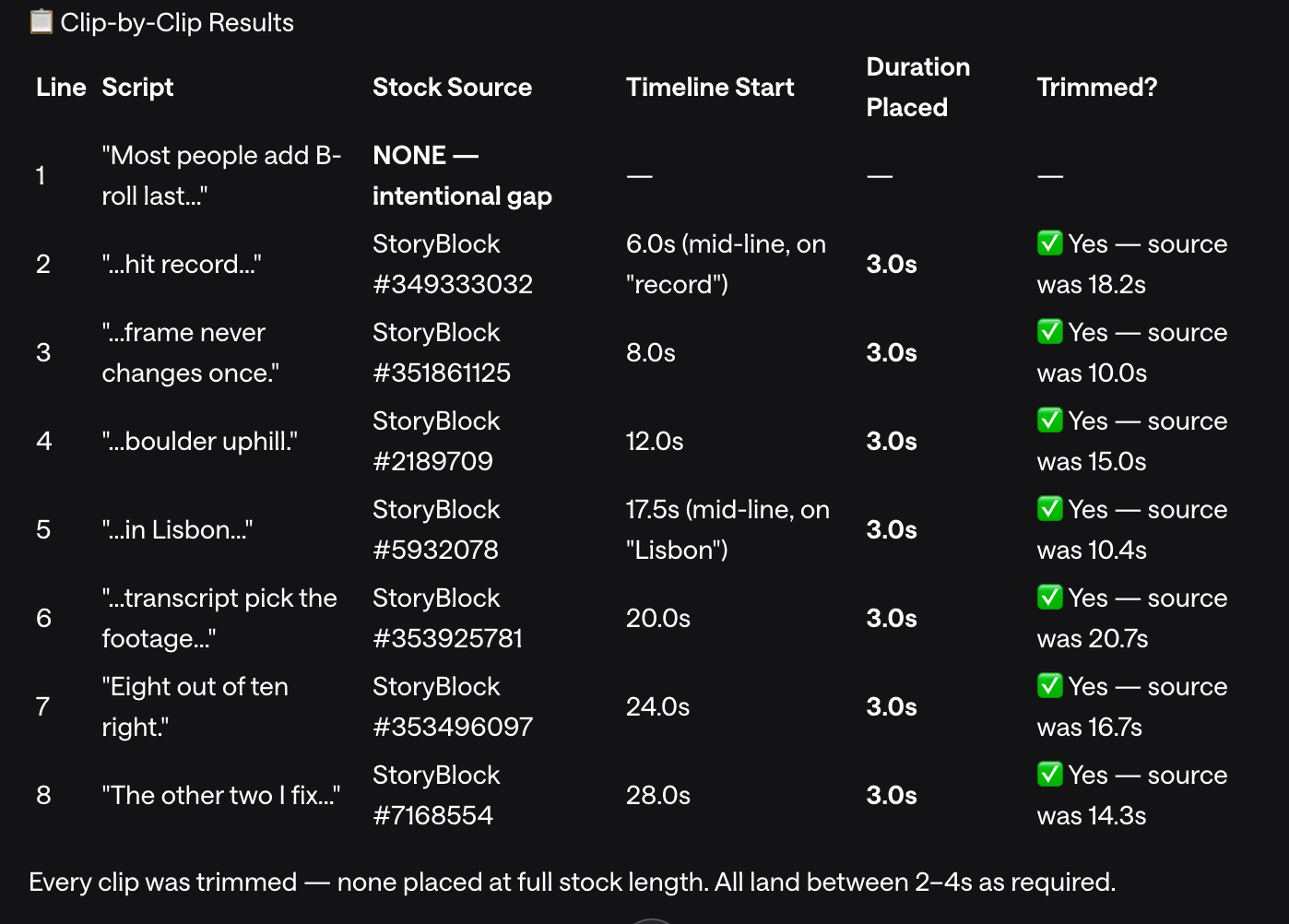
Three things that the table tells you. The footage is sourced from a stock catalog, not generated, so every clip has a real ID. Source clips run 10 to 20 seconds, so ask for a duration explicitly, or you get footage five times longer than a cutaway needs. And placement is word level: clips landed on "record" and on "Lisbon", not at the start of the line.
Line 1 stayed empty as requested, so Async does not force a clip into every line. Deliberate gaps in your script survive.
Step 6. Read the misses.
The metaphor line returned generic physical exertion rather than a literal boulder, and Async reported that plainly rather than passing it off as a match. Writing the metaphor into the script did get the search into the right territory, but the catalog had no boulder.
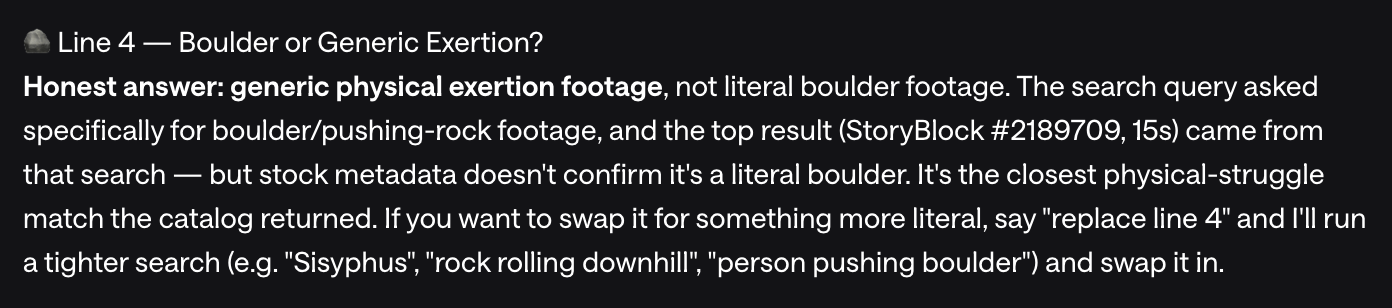
Step 7. Fix clips by asking.
Every edit is a sentence referring to the line number:
There is no regeneration because Async searches the stock rather than generates it. The equivalent is re-running the search with tighter terms, so name the specific thing you want.
Step 8. Get the aspect ratio right first.
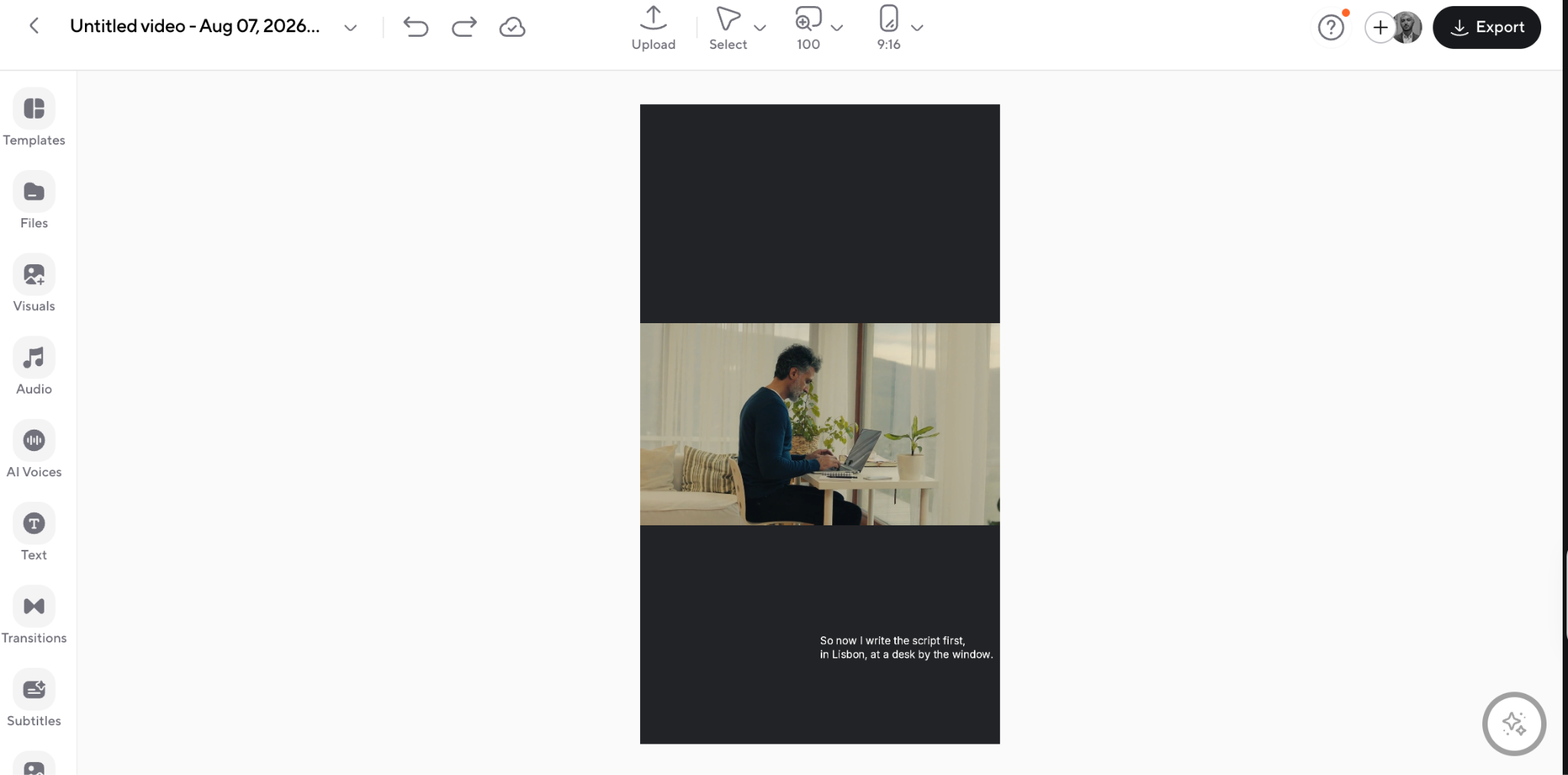
The test project was a 1080x1920 portrait canvas, while every stock clip was 1920x1080 landscape, so each clip scaled to 0.5625 and filled only 32 percent of the frame height, sitting as a letterboxed band. Refitting to fill crops out 56 percent of the width and did not look good enough to recommend, and hand-reframing did not rescue it. Stock is overwhelmingly 16:9, so set your project to match the footage you will source. This is the one decision here that is hard to undo.
Step 9. Export.
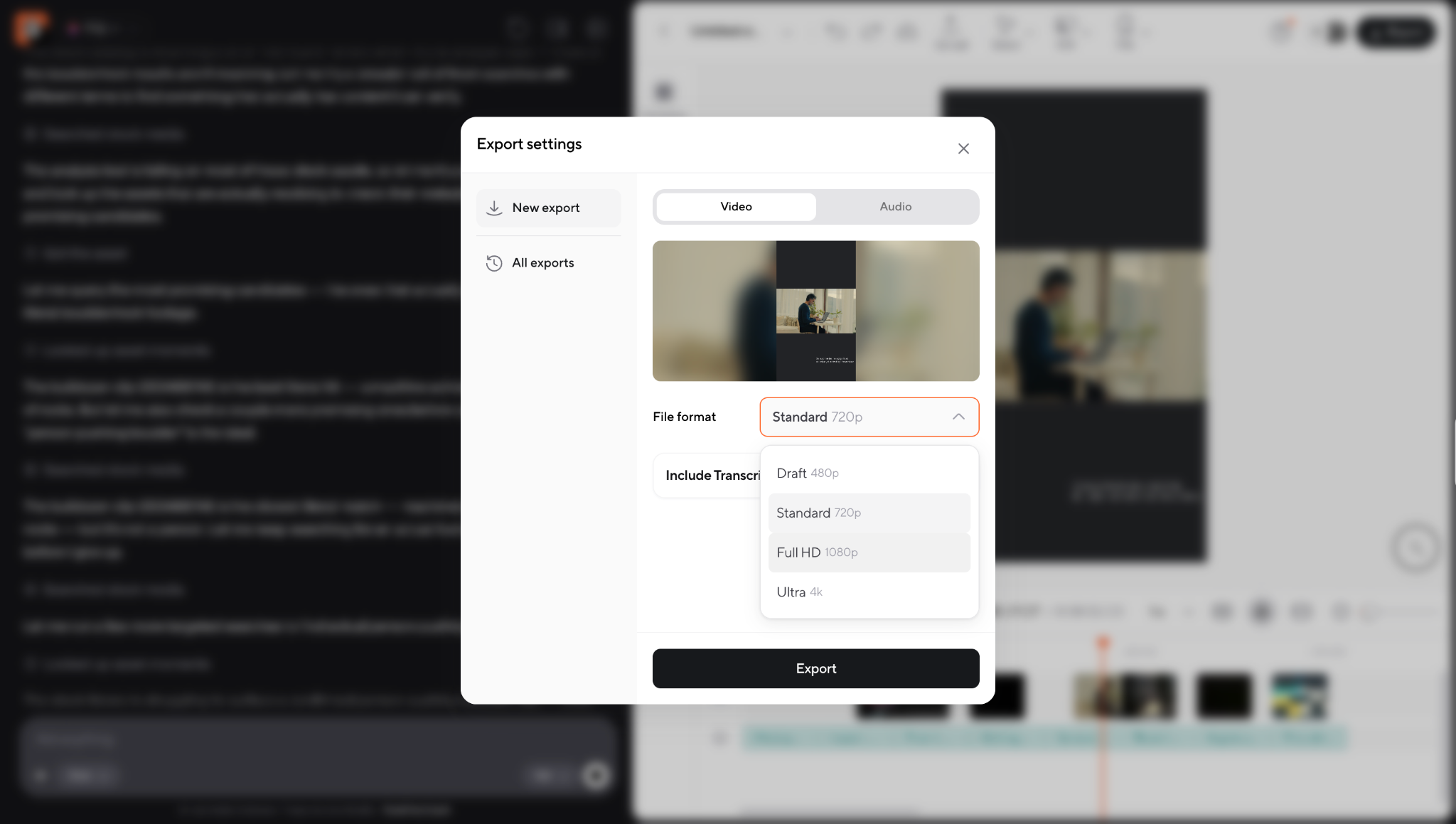
Click Export top right and take 1080p, since the 4K option only upscales a 1080-wide canvas. Aspect ratio is fixed at the project level, and export consumes no credits, so watch a draft on a phone before publishing.
If you are making videos without appearing on camera, this same matching does most of the visual work. Our guide on how to make videos without filming yourself covers that workflow in full.
B-roll examples for different video scripts
The table below pairs real script lines with the corresponding footage. Read it as a pattern library rather than a lookup table. What transfers is the reasoning, not the specific clip.
Two patterns worth pulling out. First, the strongest matches in this table are the specific ones: a particular field in a particular dialog, a particular number on screen. Second, almost every weak alternative would have been a generic person feeling a generic emotion. When you review automated matches, that is the failure mode to watch for.
If YouTube is your main channel, our comparison of video editing software for YouTube covers which tools handle long-form B-roll volume without slowing down.
How to write your script so the B-roll matching works better
This is the part almost nobody does, and it changes results more than switching tools.
The matching model reads your words. It cannot see what you pictured while writing them. If your script is vague, the model has nothing concrete to work from, and it defaults to generic footage. If your script is specific, the match improves without you touching a single setting. You are writing two things at once: a line for the viewer to hear and a description for the model to search on.
Five habits that consistently improve automatic matches:
Name the object
"We fixed the process" gives the model nothing. "We rebuilt the approval form" gives it a form. You do not have to write like a shot list. You just have to include at least one concrete noun per idea, which usually makes the line clearer for the viewer anyway.
Put the visual noun early in the sentence.
Segmentation and timing tend to anchor on the first strong noun in a segment. A line that opens with "The invoice arrives, and then..." will place its cutaway on the invoice. A line that saves "invoice" for the final word will often place the cutaway before the viewer knows what they are looking at.
Say the metaphor out loud
If you are thinking, "It was like pushing a boulder uphill", write that clause into the script. The model cannot infer a metaphor you only implied, but it can find footage for one you stated. This single habit fixes most of the abstract-line problem.
Give locations a sentence
Establishing shots are matched to the script when it mentions a place. "When I moved to Lisbon" reliably produces a Lisbon shot. "When I moved" produces nothing, or worse, a random airport.
Leave gaps on purpose
Write two or three lines per video that are deliberately plain and visual-free, and place them where you want the viewer looking at your face. Constant cutaways are as tiring as none. If you write no gaps, the tool will fill every one it finds.
There is a second-order benefit here. A script edited for concrete nouns and stated metaphors is also better for a human viewer. Optimizing for the matching engine and optimizing for clarity turn out to point in the same direction.
When AI-selected B-roll gets it wrong
It will get some clips wrong. Plan the review around these six failure modes rather than watching passively and hoping something jumps out.
Irrelevant clips. Usually caused by a homonym or a word used figuratively. A line about "running a campaign" is paired with a shot of someone jogging. A line about "cloud storage" gets weather. These are easy to catch because they are absurd, and they are the single most common miss.
Overly literal matches. The tool matched the noun instead of the meaning. Your line about "sitting down with the team to solve it" gets a shot of a person sitting in a chair. Technically correct, editorially useless. These are harder to catch than absurd errors because they do not feel wrong until you ask whether the clip is adding anything.
Repetitive stock visuals. Stock libraries have a house style and a small number of over-licensed clips. Run matching across a ten-minute video, and you will often get three variations of the same open-plan office. Viewers who watch a lot of video recognize these instantly, and recognition costs you credibility.
Poor timing. The clip is right; the placement is wrong. It lands half a second before the line that explains it, or it holds for six seconds when the idea took two. Watch for cutaways that begin mid-word. That is the usual sign of segmentation drifting off the audio.
Inconsistent style. Three clips in a row from three different sources: a warm-graded stock shot, a cool-toned generated clip, a flat-screen recording. Individually fine, sequentially jarring. Style mismatch is the most common reason an automated edit feels amateur even when every clip is relevant.
Inaccurate generated scenes. Generated footage produces confident, wrong details. Hands with the wrong number of fingers, text on signs that is not language, interfaces that resemble software but match nothing real, physics that does not hold. Look especially closely at generated clips containing people, text, or your own product category. A generated "dashboard" in a video about your dashboard is a specific kind of unforced error.
One thing to be clear about: no tool chooses the right footage every time, and any tool claiming otherwise is describing a demo rather than a workflow. Automatic matching is a strong first pass. It is not a final edit.
How to review and improve automatic B-roll
Do one pass per dimension. Reviewing everything at once means catching nothing.
Pass 1: Context
Mute the audio and watch the video. Then read the transcript with no video. Do the two tell the same story? Anything that only makes sense in one of the two views is a mismatch. This sounds fussy and takes two minutes on a five-minute video.
Pass 2: Timing
Watch at full speed and only look at where cuts land. A cutaway should start on or just after the word that motivates it, not before. If a clip begins mid-word, nudge it. If you can predict every cut, they are too evenly spaced, so vary the durations.
Pass 3: Variety
Count your clip types using the seven categories above. If your ten clips are ten literal matches, the video reads as flat regardless of clip quality. Swap two or three for conceptual or atmospheric shots. Also, check whether any single source is dominating the look.
Pass 4: Brand fit
Color grade, energy, and framing should be recognizably yours. If your channel is calm and neutral and the tool served you three high-saturation lifestyle clips, they are wrong for you even if they are right for the line. Consistency is what makes a back catalog feel like one channel.
Pass 5: Continuity
Check that nothing contradicts. Weather that changes across a continuous scene, a product in one clip showing a different version than in another, a person appearing in two shots that could not both be true. Continuity errors are quiet and undermine trust.
Pass 6: The one real question
For each clip, ask: Does this help the viewer understand the line it sits under? Not "is it relevant". Not "is it nice". Does it help? If the answer is no, delete it rather than replace it. A clean cut back to your A-roll is always better than decorative footage.
A practical time budget: on a five-minute video with roughly 20 matched clips, expect to keep about 12 as-is, adjust the timing on 5, and replace or delete 3. If you are replacing more than half, the problem is upstream in your script, not in the tool. Go back to the script section above.
For the full end-to-end process, from rough cut through review to export, see our walkthrough on how to edit videos.
Getting B-roll matching into your actual workflow
Automatic B-roll matching earns its keep on the videos you make repeatedly. Set up your process once, then reuse it:
- Write the script with concrete nouns and stated metaphors. Five minutes of editing here saves twenty minutes of clip replacement later.
- Record clean A-roll and do not worry about stumbles. Cutaways will cover the cuts, which means you can edit more aggressively for pace than you would otherwise dare.
- Build a personal media library. Every time you record product footage or a screen recording, keep it and label it. Tools that can match against your own media will pull from it, and your own footage always beats stock.
- Run automatic matching as a first pass, never as the final edit. Treat the output as a draft assembled by a fast assistant with no context on your brand.
- Run the six review passes. They compress to about five minutes once the sequence is habitual.
- Keep a reject list. Note the clips and match types that keep coming back wrong. Patterns show up quickly, and you can preempt them in the script.
Let AI find the B-roll, keep the final cut
B-roll is no longer the most expensive part of video editing. Sourcing footage used to mean hours in a stock library or a second shoot day, and automatic matching collapses that into a first pass you get in minutes. What has not changed is the judgment: knowing which line needs a visual, which needs silence on your face, and which clip actually helps the viewer follow the point.
So use the automation for the volume and keep the judgment for yourself. Write scripts with concrete nouns, let the tool assemble the draft, then run the review passes and cut anything that is decorative rather than useful. That combination is faster than manual editing and better than unreviewed output.
Ready to try it? Upload a script or a recording to Async and let it match B-roll to your transcript automatically, then adjust what needs adjusting. See what automatic B-roll can do with your next video.
FAQ
What is B-roll?
B-roll is supporting footage that plays instead of your main shot. If your primary camera is on a person speaking, that is A-roll, and every cutaway, close-up, screen recording, or establishing shot you cut to is B-roll. It illustrates what is being said, covers edits in your main footage, and keeps the frame changing so viewers stay engaged.
How do you add B-roll to a video?
Manually: import your clips into your editor, place them on a video track above your A-roll, set in and out points so each clip covers the line it illustrates, and mute the B-roll audio so your main audio runs continuously underneath. Automatically: use a tool that reads your transcript, flags the lines that need visual support, and places matched clips on the timeline for you. Either way, keep most cutaways between two and five seconds.
How do you match B-roll to a script?
Go through the script line by line and ask what the viewer would want to see at that moment. Concrete lines get literal matches. Abstract lines need a visual metaphor. Lines describing a process need a demonstration or screen recording. Automated tools do this by segmenting your transcript into ideas, scoring each for visual opportunity, and searching for or generating a clip for the ones that score high.
Can AI add B-roll automatically?
Yes. AI editors transcribe your audio, identify moments that would benefit from footage, and then source or generate clips and place them on your timeline. It works well as a first pass and saves most of the sourcing time. It does not remove the review step, since automated matching regularly produces clips that are literal but unhelpful, or stylistically inconsistent with the rest of your edit.
What is an AI B-roll generator?
An AI B-roll generator is a tool that produces supporting footage from text. Some search a stock library and your own uploaded media for the closest match to a described scene. Others generate original clips with a video model. Many do both and choose per clip: search when real footage exists, generate when the scene is too specific for a library to have.
How much B-roll should a video use?
There is no fixed ratio, but useful starting points: talking-head videos land around 20 to 40 percent B-roll, tutorials and software demos often run 60 to 80 percent because the screen is the subject, and short-form vertical video can be almost entirely B-roll with voiceover. The better guide is per clip rather than per video. Include a cutaway when it helps the viewer understand the line, and stay on your face when the connection matters more.
Where can you find B-roll footage?
Four sources, roughly in order of quality for most creators. Your own archive of past recordings and screen captures is always the best fit. Screen recordings and product footage you shoot for the specific video. Free and paid stock libraries. AI-generated scenes that would be impractical to film or find. Mixing sources works, as long as you grade them toward a consistent look.