Somewhere on the internet right now, someone is saying the word "growth" while a green arrow climbs a bar chart behind them. Somewhere else, someone says "team" and four stock strangers high-five in a sunlit office nobody has ever worked in.
Finding B-roll has never been easier. Every editor now ships an AI B-roll generator, a stock library, or both, and most will fill your timeline in one click. Finding B-roll that does not make your video look like a template is the harder job.
So these tools are ranked on how well they choose and place footage, not on how many clips they can throw at a transcript. If you are still working out the basics, start with what is B-roll and come back. This page is for picking a tool.
What are the best B-roll tools?
Async is the strongest option for talking-head video because it scores whether a line needs footage at all before placing anything. Gling is the fastest hands-off pass for long-form YouTube. Kapwing gives you the most control after the AI has picked. Runway is for shots that do not exist in any library. And if you just want footage, Artgrid and Storyblocks still beat any generator on realism.
Best B-roll tools at a glance
How we tested: one identical 45-second talking-head script through every tool that accepts one, then a comparison of which lines each tool chose to cover and with what. The script was four lines and deliberately mixed a literal noun with three abstractions, because that is where automatic matching either holds up or falls apart:
"Last quarter, our onboarding was slow. Users dropped off before they ever saw the product. We were burning cash on ads that sent people to a form they never finished. So we rebuilt the first five minutes."
The 9 best B-roll tools and AI generators
1. Async: best overall for talking-head video
Best for: creators editing spoken or scripted video who want B-roll placed for them but not blindly.
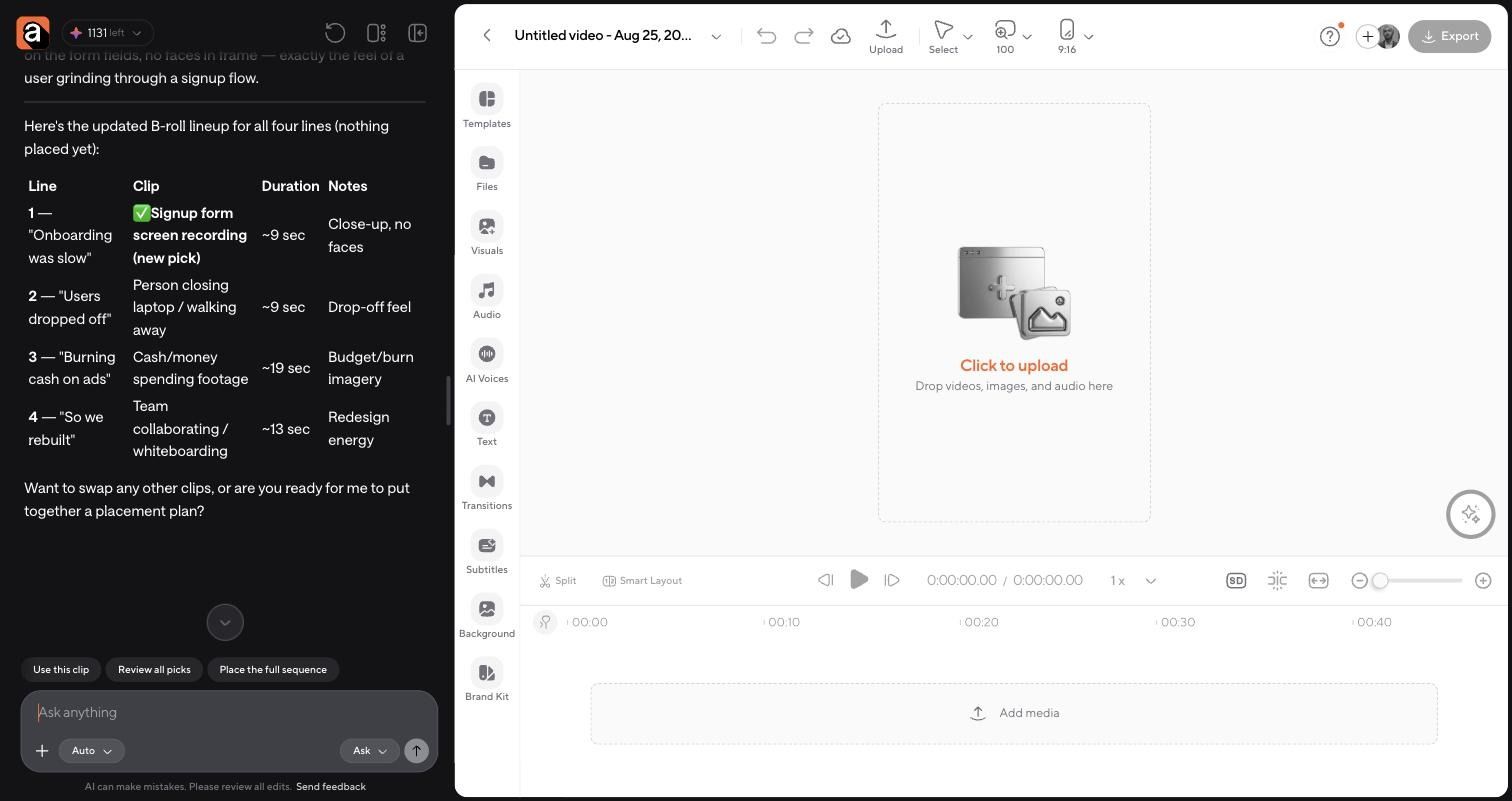
How it handles B-roll: you paste the script into chat, and Async searches all lines in parallel, writes a short rationale for each clip it finds, then stops. Nothing reaches the timeline until you approve it. Before placing, it asks two setup questions: whether you want to swap any picks, and whether B-roll should go full screen or sit over your talking head.
What we liked: it is the only tool we tested that showed its reasoning per line and then waited. For "Users dropped off before they ever saw the product," it picked a 15-second shot of a person disengaging from a screen and explained the choice as capturing "that moment of abandonment without over-explaining it". Every pick came back with a duration and a resolution, so you know before approving whether a clip is long enough to trim to fit. Swaps are per line and conversational, and re-searching is instant.
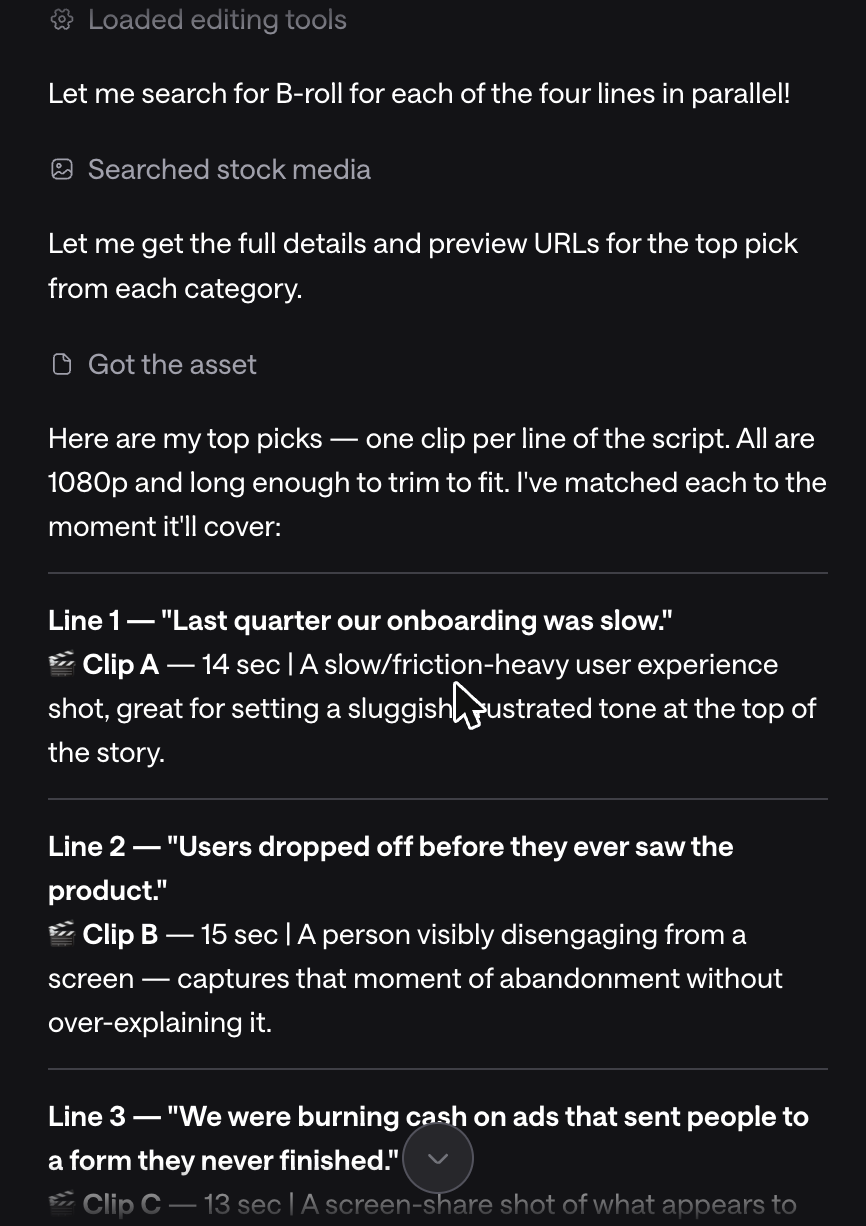
Where it falls short: two things. First, asking for B-roll from the home screen does not start the flow. Async replied with a suggestion to open the video editor and search the stock library manually, and only ran the real per-line matching once we were inside the editor, which is an easy way to conclude the feature does not exist. Second, and more interesting: it covered four lines out of four. Async's own documentation describes scoring whether a line needs footage at all, but in our test, nothing was left uncovered, and its pick for "we were burning cash on ads" was, in its own words, cash and money-spending footage. That is exactly the literal-noun trap we describe further down. The review gate saves you, but you have to actually use it.
Price/free option: free at 720p with a watermark and a small lifetime credit allowance. Paid plans start around $11.99/month billed yearly, adding 4K, unlimited exports, and monthly credits.
Bottom line: the best review step of any tool here, wrapped around matching, that still needs your judgment.
2. Gling: best hands-off pass for YouTube
Best for: long-form YouTubers who want B-roll to ride along with silence and filler-word removal.
How it handles B-roll: fully automatic and AI-generated, applied in the same one-click pass that cleans up your takes. A magnitude slider controls how aggressively it inserts.
What we liked: the slider is genuinely useful, and almost nobody else offers it. Set low, it gave us a handful of well-spaced inserts instead of a wall of them. B-roll is included on the free tier, which is rare.
Where it falls short: you get very little say in what appears. Gling positions it as a supplement to hand-picked B-roll rather than a replacement, and that matched what we saw. It does not disclose the model behind the clips.
Price/free option: free for 1 hour of AI-edited media per month with a watermark. Plus is $20/month or $10/month billed annually for 10 hours. Pro is $40/$20 for 30 hours.
Bottom line: the least effort per video on this list, and you pay for that in control.
3. Kapwing: best for editing what the AI picked
Best for: anyone who wants automatic B-roll as a starting point rather than a final answer.
How it handles B-roll: analyses the audio or text, finds themes, and places matching clips synced to the narration. Sources are iStock, Pexels, and Pixabay for stock, or text-to-video generation through Sora, Veo, and GPT models.
What we liked: everything the AI places is an ordinary timeline object. Trim it, swap it, retime it, delete it. That sounds basic until you use a tool where B-roll is a locked overlay. Paying for iStock alongside the free libraries also cuts down on the clips everyone else is using.
Where it falls short: generated clips cap out at around 5 to 10 seconds, so anything longer needs stitching and burns credits fast. Ten to fifteen generated clips a week exhaust a Pro allowance. The free tier is a demo, not a workflow.
Price/free option: free with 10 credits, watermarks, 720p, and a 4-minute cap. Pro is $16/month billed annually with 1,000 credits and unlimited stock.
Bottom line: the best hybrid if you actually want to edit afterward.
4. Opus Clip: best for short-form clips
Best for: repurposing podcasts and webinars into vertical clips.
How it handles B-roll: toggle it on for automatic insertion across a clip, or highlight a specific transcript sentence and choose "Add AI Image B-Roll" or "Stock Video B-Roll". Stock comes from Pexels.
What we liked: the per-sentence targeting is the clearest implementation of "put something here, not everywhere" we tested. Regenerating with a revised prompt is free.
Where it falls short: the AI tier generates images, not video. Users report this as a bug when it is actually the design, and a static image under a spoken line reads as filler. B-roll is paywalled too: none on the free plan, 3 clips a day on Starter.
Price/free option: free with 60 credits, a watermark, a 3-day file expiry, no B-roll. Starter $15/month. Pro $29/month, or $14.50/month annually, with unlimited stock B-roll and 50 AI image inserts a day.
Bottom line: great targeting, but treat the AI tier as an image tool.
5. Vizard: smartest matching in the clipping category
Best for: creators who want footage matched to meaning rather than keywords.
How it handles B-roll: multimodal analysis of voiceover, visuals, and audio to choose both the insertion points and the clip, drawing on Storyblocks and Pexels, with generation available through its AI Studio.
What we liked: it is the only clipping tool that publishes its generation lineup (Veo, Sora, Kling and Wan) and the only one whose matching goes beyond transcript keywords. On our abstract lines, it made noticeably less literal choices than the keyword-driven tools.
Where it falls short: brand templates apply your logo and colors without adapting the creative idea, so the output can feel stamped rather than designed. Budget two to three minutes of cleanup per clip on framing and in-points. No B-roll on the free plan.
Price/free option: free at 720p with a watermark, a 10-minute export cap, and no B-roll. Paid plans are credit-tiered rather than a flat monthly fee.
Bottom line: the best automatic matching logic here, held back by finishing quality.
6. Submagic: best for fast social edits
Best for: short vertical videos where speed matters more than nuance.
How it handles B-roll: "Magic B-rolls" reads the transcript and auto-inserts contextual stock clips, GIFs, images, or your own uploads.
What we liked: genuinely quick, and letting your own uploads into the matching pool is the single easiest way to stop a social edit from looking like everyone else's.
Where it falls short: Starter only includes basic B-roll, with the better library gated to higher tiers, so the plan most people buy is not the plan that was demoed. It also enhances existing video rather than building anything from a script.
Price/free option: free at 3 videos per month, 90 seconds, watermarked. Starter $19/month or $12 annually. Pro $39/$23. Business $69/$41.
Bottom line: fine for volume, thin at the entry tier.
7. Captions: best on your phone
Best for: creators who shoot, cut, and post entirely on mobile.
How it handles B-roll: AI Edit styles apply B-roll automatically alongside transitions and music, or you prompt the chat editor with "add relevant B-roll". You can also place clips manually from your camera roll, a built-in stock library, or text-to-video generation.
What we liked: generation, stock, and your own media in one app, so a full edit never leaves your phone. Credits roll over up to three times the monthly allowance.
Where it falls short: generative quality is serviceable rather than impressive, credit costs are opaque, and desktop and Android lag behind iOS. Reviews mention exports drifting out of sync and slow support.
Price/free option: the free plan includes no AI credits at all, so no AI B-roll. Max is $24.99/month with 500 credits.
Bottom line: the most convenient mobile option, not the best-looking output.
8. Runway: best AI B-roll generator for shots that do not exist
Best for: conceptual, impossible, or brand-specific shots you will never find in a library.
How it handles B-roll: it does not handle B-roll; it makes it. No transcript, no auto-insert, no library. You prompt each shot, generate, download, and place it yourself.
What we liked: the quality gap is real. Gen-4.5 produces native 4K with actual camera control through Motion Brush and Director Mode, and it is the only realistic answer when the shot is something like "a city built inside a server rack".
Where it falls short: zero automation, and the credit maths bites. 625 credits on Standard is roughly 52 seconds of Gen-4.5 a month, and failed generations still charge you. Budget 30 to 50% usable output when you start.
Price/free option: free with 125 one-time credits, roughly 6 seconds, watermarked. Standard $12/month annually or $15 monthly. Pro $28/$35. Max $76/$95.
Bottom line: the best-looking B-roll on this list and the slowest way to get it.
9. Artgrid and Storyblocks: best stock footage sites for real footage
Best for: anything with a human being in the frame.
How they handle B-roll: they do not automate anything. They are unlimited-download subscription libraries, and Storyblocks is the catalog sitting behind several tools above.
What we liked: Artgrid's "Stories" structure is the underrated feature in this category. Each Story is a set of clips from one shoot, so you can cut a whole sequence with consistent lighting, location, and talent instead of stitching mismatched shots. Storyblocks wins on volume, has a Premiere plugin, and offers indemnified licensing at the business tier.
Where they fall short: Storyblocks users consistently complain that search is slow and the library feels repetitive in common categories. Artgrid is smaller, annual-only, and HD on the entry tier.
Price/free option: no free tier on either. Storyblocks Essentials is $21/month billed annually, Unlimited All Access $30. Artgrid runs roughly $19.99, $29.99, and $49.92 per month on annual billing.
Bottom line: AI still loses to a camera when a person is on screen.
Two we tested and left off
VEED ranks well for this keyword, but its automatic B-roll generates images rather than video clips, which its own documentation confirms. Visla has excellent stock access (Getty at the top tier), but its AI B-roll is prompt-by-prompt and manual, so it does not deliver the automatic matching that the category implies.
Where to find free B-roll footage
If your budget is zero, Pexels and Pixabay cover free B-roll footage and stills, no attribution required, commercial use allowed. They are also the libraries most cheap "AI B-roll" tools quietly draw from, which is exactly the problem: everyone is pulling the same clips.
Two things to know. Pexels permits AI-generated uploads, so a clip's origin is not guaranteed, and Pixabay does not allow you to redistribute content unchanged on a standalone basis. Neither offers indemnification, so model and property releases are on you.
Use them for texture and atmosphere. Do not build a whole video on them.
AI-generated B-roll vs. stock footage vs. your own footage
There is no universal winner, which is why "best B-roll tool" is the wrong question. The right one is what the line actually needs.
AI-generated footage wins on shots that do not exist: conceptual metaphors, impossible scale, invented environments, stylized sequences. It still struggles badly with faces, hands, and complex movement. The 2026 tester consensus is blunt: if a person is on screen, use stock.
Stock footage wins on realistic supporting visuals you need fast. Real cameras, real people, real light. The cost is ubiquity, which you offset by paying for a better library or searching two levels past the obvious keyword.
Your own footage wins on anything specific: your product, your screens, your office, your face, your city. It is also the only footage nobody else has. A ten-minute phone shoot of your desk, hands, and screen outperforms a $30/month stock plan on a surprising number of lines.
Most good videos use all three, which is the real argument for picking a tool that lets your own uploads into the matching pool.
How to make B-roll less boring
Tools solve sourcing. These five rules solve everything else. For a wider view of pacing and cuts, our video editing tips guide covers the rest of the edit.
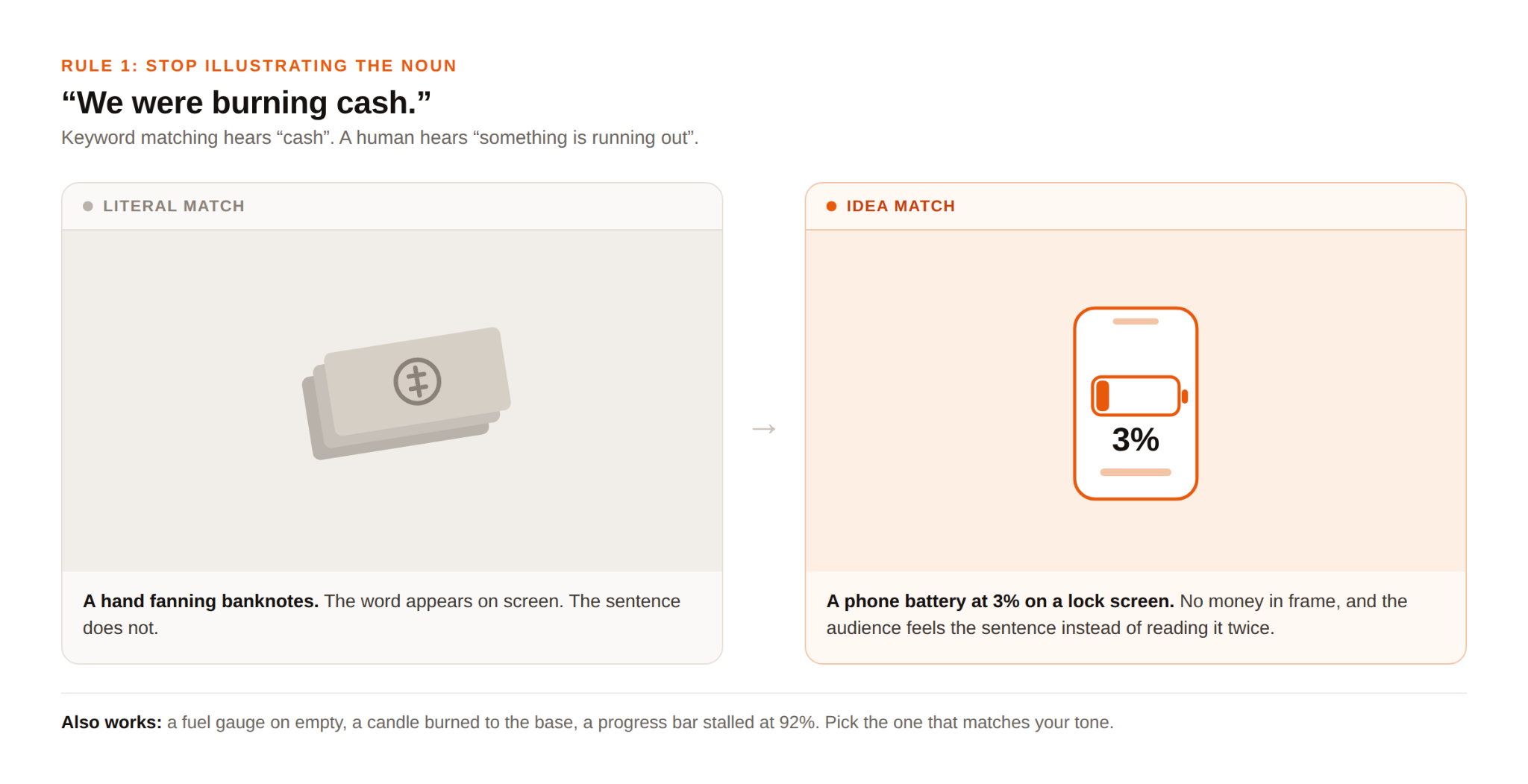
1. Stop illustrating every noun literally. The most common failure in automatic B-roll is keyword matching: you say "money"; you get a hand fanning banknotes. Ask what the sentence means. "We were burning cash" is not a money shot; it is a shot of something running out: a battery at 3%, a fuel gauge, a candle. The idea beats the noun almost every time.
2. Mix your B-roll types. Stock, then stock, then stock reads as filler no matter how good each clip is. Rotate: stock, screen recording, close-up of your hands, product shot, motion graphic, something you filmed on your phone. A variety of kinds matters more than a variety of subjects.
3. Use movement inside the frame. Static stock clips die on screen. Look for push-ins, handheld drift, rack focus, an object actually moving, a cursor doing something. If the clip works as a still photo, it is not working as B-roll.
4. Match the tone, not just the words. A gorgeous cinematic drone shot is wrong for a scrappy founder talking about a bug they shipped on a Friday. Clashing visual style is why some videos feel "off" even when every clip is technically correct.
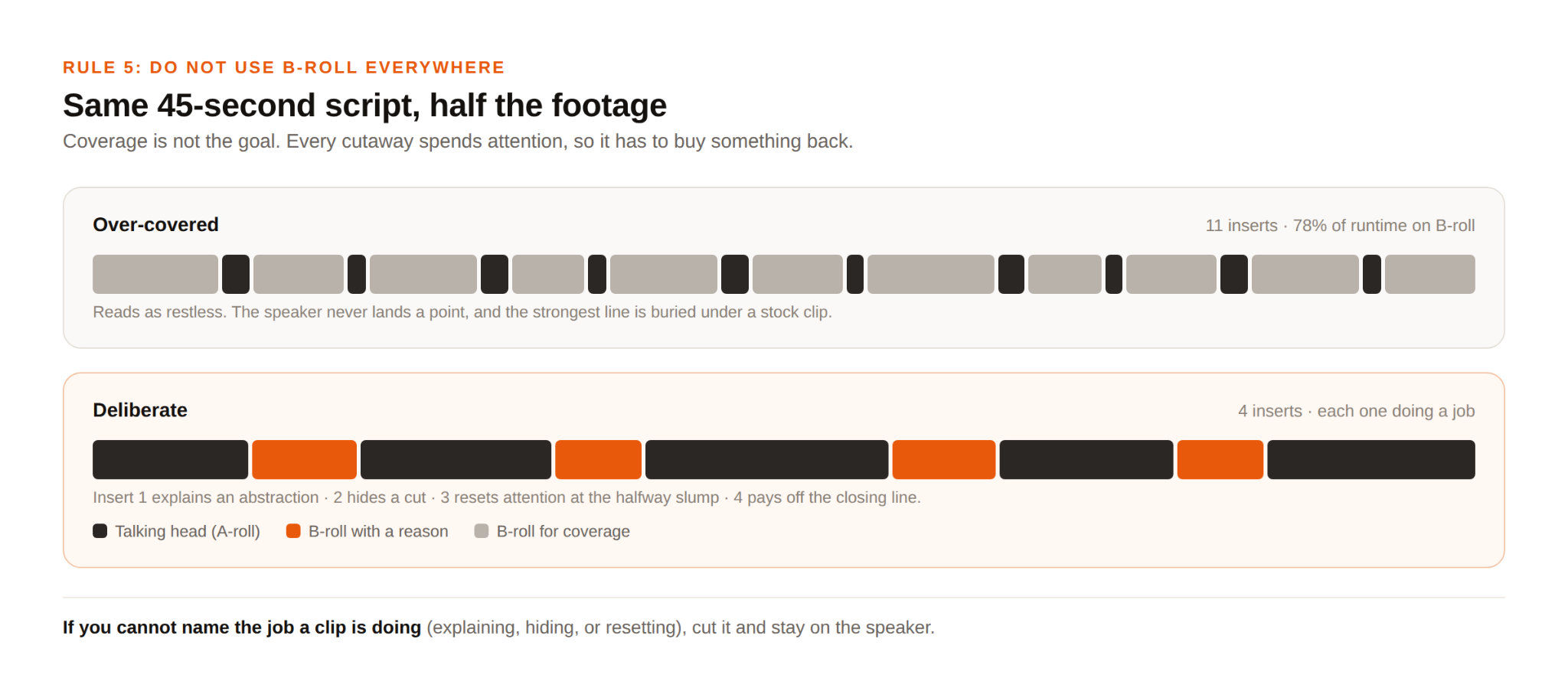
5. Do not use B-roll everywhere. Staying on the speaker is often the strongest choice available, especially on your best line. B-roll exists to hide cuts, reset attention, and explain abstractions. If a shot is not doing one of those three jobs, cut it. This is also the rule that automatic tools break most often, which is worth remembering when you switch one on.
How to find better B-roll with Async
Async can source and place footage for you, but the interesting part is how much the request changes the result.
Given only the line "Last quarter our onboarding was slow", it returned a 14-second "slow/friction-heavy user experience shot", useful for setting a sluggish tone and not much else. We then asked for one thing instead: a screen recording of a user stuck on a signup form, close on the screen, no faces. It came back with a 9-second close-up of a form being filled out, plus a longer runner-up in case we needed more coverage, and told us why the shorter one was the tighter match.
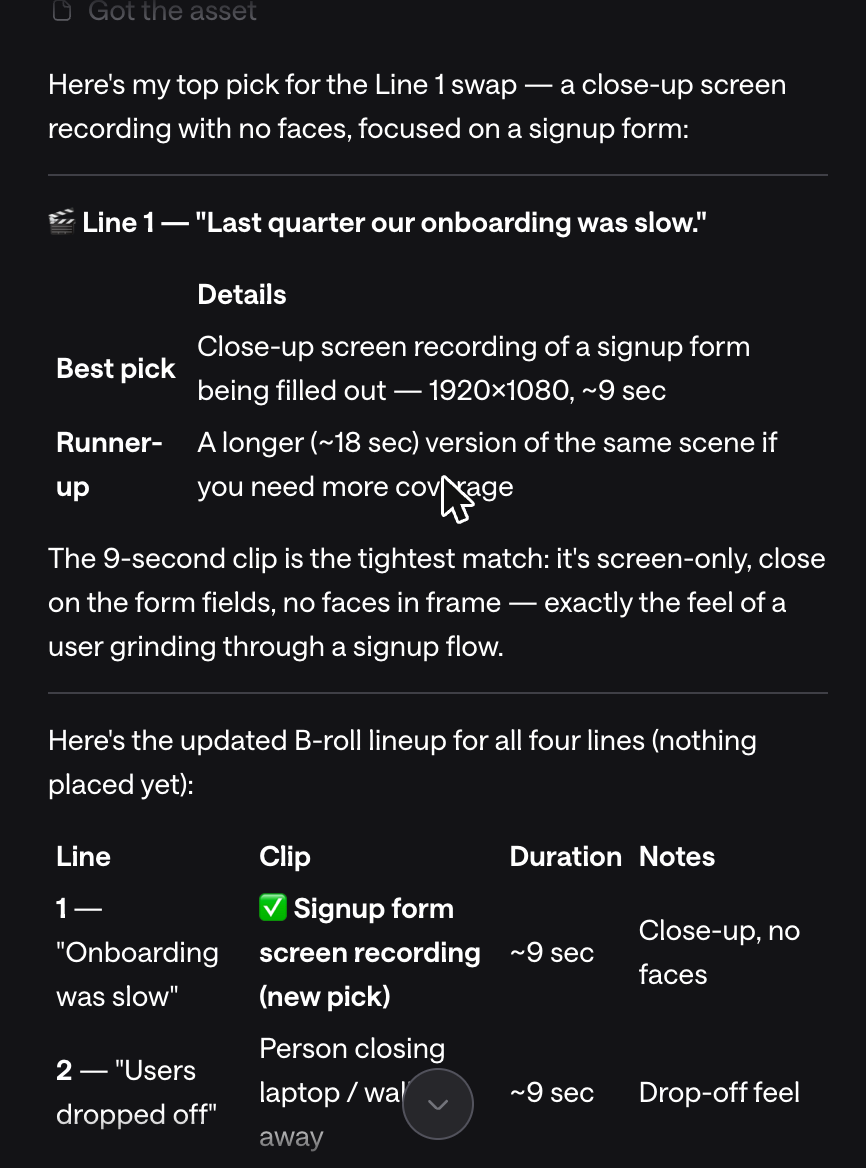
That is the whole trick, and it is why the review step matters more than the matching. Automatic B-roll tools are only as good as the description they match against, and you can always give them a better one.
Because Async shows its picks before touching the timeline, refining is cheap: you review, replace the ones that missed, and only then commit. For the full step-by-step process, including how it interprets each line and where it places clips, read our guide on how to match B-roll to your video script automatically. If you are comparing whole editing suites rather than just B-roll features, our AI video editor roundup goes deeper, and if you are working without on-camera footage at all, start with faceless Reels.
FAQ
What are the best B-roll tools?
Async for talking-head video, Gling for hands-off long-form, Kapwing for editing the AI's picks, Runway for shots that do not exist, and Artgrid or Storyblocks when you need footage that looks filmed rather than generated.
What is the best AI B-roll generator?
For automatic matching inside an edit, Async and Vizard made the most sensible choices in testing. For raw shot quality, Runway is ahead of everything else, but you place every clip yourself.
Is there a free AI B-roll generator?
Yes, with limits. Gling includes it for free for 1 hour a month with a watermark. Kapwing gives 10 credits. Runway gives 125 lifetime credits, roughly 6 seconds. Opus Clip, Vizard, and Captions exclude B-roll from their free plans entirely.
Where can I find free B-roll footage?
Pexels and Pixabay are both free for commercial use with no attribution. Expect overlap with other creators, and check Pixabay's restrictions on redistributing clips unchanged.
Can AI automatically add B-roll to a video?
Yes. Async, Gling, Kapwing, Opus Clip, Vizard and Submagic all transcribe your audio and place matching footage unprompted. Quality depends on how the tool reads abstract lines, which is where most of them slip.
How do I make B-roll more interesting?
Match the idea rather than the noun, mix stock with screen recordings and your own footage, favor clips with movement in frame, keep the visual tone consistent with the speaker, and cut anything that is not hiding an edit, resetting attention, or explaining something.
Is AI-generated B-roll better than stock footage?
Only for shots that stock cannot supply. For anything involving people, hands, or complex motion, stock is still clearly better.
How much B-roll should I use in a video?
There is no correct percentage. Use it where it does a job; stay on the speaker where it does not. Over-covered videos feel restless, and the moment you cut away from your best line is usually the moment you lose it.