Most AI video editors promise faster editing and outstanding results, but do they really deliver on those promises?
We tested five on the same messy recording to see what they actually fixed, and what still needed work.
Short verdict: The best AI video editor for most creators and content teams is the one that can take a messy recording to a captioned, vertical cut with the fewest manual fixes. In our hands-on test, Async did the most from a single prompt, including generated B-roll. Descript was a close second and produced the better vertical reframe. Kapwing gave the cleanest automatic rough cut, and CapCut was the fastest manual workflow.
Disclosure: Async publishes this article. We ran every tool through the same test, recorded the misses, and kept the ones that make Async look worse. Read the method section below before you weigh the results.
Best AI video editors by use case
Quick comparison table
Results are from our October 6, 2026 test on one 95.9-second raw clip. "Plan" is the plan we tested on. Prices are the cheapest paid plan on each vendor's pricing page on the same date.
We also cover Runway, Canva, Filmora, InVideo, Adobe Premiere Pro, and Clideo further down. We did not put those six through the hands-on test this round, and we say so in each entry.
AI video editor vs AI video generator
An AI video editor speeds up work on footage you already have: cutting silences and filler words, removing bad takes, cleaning audio, captioning, adding B-roll, and resizing for social. An AI video generator creates new footage from a prompt, image, or script. Many tools now do both, but this roundup ranks them on editing first.
That distinction matters for how you read the results. Runway and InVideo are strong products, but their core job is generation. If you want to make new visuals from text, start with a generator comparison. If you want to turn a raw recording into something you can publish, the editing test below is the one that matters.
How we tested
We gave every editor the same raw file and the same job, then wrote down what each tool did, how long it took, and what still needed fixing by hand.
The test clip
We built a 95.9-second, 1920x1080 talking-head clip designed to be messy in the ways real creator footage is messy:
- 11 filler words ("um", "uh", "you know")
- A false start ("So the first thing, the first thing I learned...")
- A flubbed first take followed by "Wait, let me say that again" and a clean retake
- Seven long pauses between 2 and 4 seconds
- A constant 60 Hz fridge-style hum plus room hiss under the whole recording
- A section about repurposing long episodes into short clips, where B-roll should go
The voice is synthetic text-to-speech, not a human presenter. That made the clip repeatable, but it also means transcription accuracy on real voices may be better or worse than what we saw. We share the script and the file so you can rerun the test yourself.
The task
Where a tool had an AI assistant (Async, Descript, Kapwing), we pasted the identical prompt:
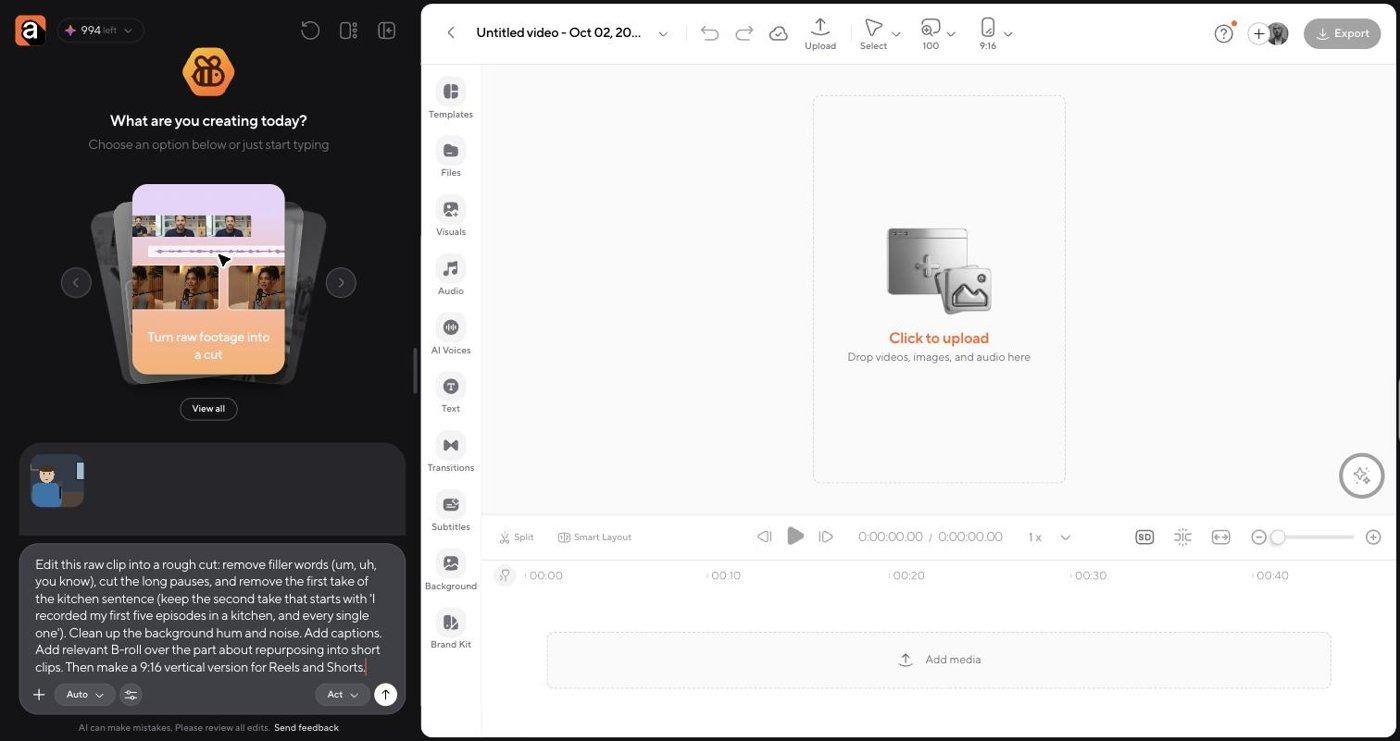
Edit this raw clip into a rough cut: remove filler words (um, uh, you know), cut the long pauses, and remove the first take of the kitchen sentence (keep the second take). Clean up the background hum and noise. Add captions. Add relevant B-roll over the part about repurposing into short clips. Then make a 9:16 vertical version for Reels and Shorts.
Where a tool had no assistant, or its assistant was locked on the free plan (VEED, CapCut, Kapwing as a fallback), we ran the closest one-click feature for each step: filler removal, silence removal, noise reduction, auto captions, and a 9:16 resize.
What we measured
- Time: wall-clock time from upload or prompt to finished edit, taken from browser timestamps
- Accuracy: fillers removed out of 11, whether the bad take was cut, and whether any real words were cut by mistake. We counted from each tool's own transcript or captions. A filler that a tool never transcribed cannot be confirmed either way, and we flag where that happened.
- Captions: words the captions got wrong
- Vertical output: whether the subject stayed in frame
- Manual correction: what we still had to fix before it was publishable
Fairness notes
- Plans were not equal. We tested Async on a paid Pro plan and every other tool on its free plan, because those were the accounts available. Free plans lock some features (Kapwing clean audio, VEED B-roll, CapCut noise reduction). We mark those as "paid only" rather than as failures.
- Times are indicative. We drove all the tools from one browser at the same time. Two apps (Async and Kapwing) appeared to pause progress while their tabs were in the background, which inflated their times.
- We did not export the final files. Every result below is from the editor's own preview and timeline, captured in screenshots.
Hands-on results: the best AI video editors tested
1. Async: best overall AI video editor for end-to-end content workflows
Our verdict: Async was the only editor that completed all six tasks from one chat request, including custom AI-generated B-roll. Its rough cut was accurate. The weak spots were caption transcription, a letterboxed vertical version, and a chat panel that stopped updating mid-task.
What happened in our test
- Rough cut: The agent planned 14 cuts (7 silences and 7 content cuts) and removed about 33 seconds, including all long pauses and the entire first kitchen take. Final length: 62.9 seconds. Async's summary said every filler was cut, but the captions show two survived: an "Um" it heard as "I'm" and a short "uh" it heard as "the". That is 9 of 11.
- Audio cleanup: AI noise reduction was applied to all 13 clips after the cuts.
- Captions: Added automatically. Three transcription errors: "Um, publishing" became "I'm publishing", "One 40-minute episode" became "140-minute episode", and stray commas were left where fillers had been.
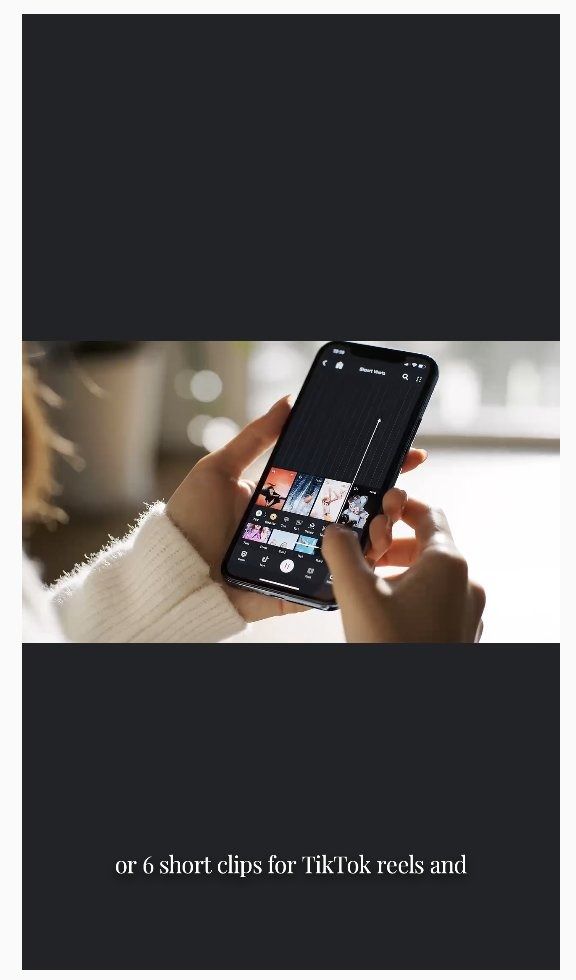
- B-roll: Async generated an original 8-second shot of hands scrolling short-form clips on a phone and placed it over the repurposing section. This cost 47 credits.
- Vertical export: Async asked whether to convert the whole project to 9:16 or keep 16:9. After we chose to convert, it fit the 16:9 footage inside the vertical frame with black bars above and below, rather than reframing the presenter.
Time taken: About 22 minutes of wall-clock time, which overstates the real work. The chat panel showed no progress for several minutes while the edits were, in fact, being applied. We stopped and resent the prompt, and the agent picked up from where it had left off. A page refresh was needed twice to see the live state.
Credits used: 99 credits on the Pro plan, including one B-roll generation that failed when we stopped the first run.
What needed manual correction
- Cut the two surviving fillers and fix three caption errors
- Reframe the vertical version so the presenter fills the frame, or ask the chat to do it
- Delete a duplicate B-roll clip left on the timeline by the restarted run
- The false start ("So the first thing, the first thing") was kept
Frank limitation: The chat-first workflow is the fastest way to get every step done, but when the chat panel stalls, you have no visibility into what the agent is doing. Budget time to review every cut, and expect to reframe vertical exports yourself.
Pricing (checked October 2, 2026): Free plan with limited lifetime AI credits and 720p export. Essentials 11.99/monthbilledyearly(19.99 monthly) With 450 AI credits a month. Pro 23.99/monthbilledyearly(39.99 monthly). Teams 49.99/monthbilledyearly(84.99 monthly) for 2 to 5 users. Business uses custom pricing. Async lists a 7-day refund window on new subscriptions rather than a free trial.
Choose Async if you want one tool that records, edits, captions, adds B-roll, and repurposes from a single instruction, and you are fine with reviewing the AI's work before you publish.
2. Descript: best AI video editor for text-based editing
Our verdict: Descript's Underlord assistant finished every task cleanly and quickly on the free plan, and it was the only tool that reframed the vertical version to fill the screen. It used stock B-roll rather than generated footage, and it burned most of the free plan's AI credits on one 96-second clip.
What happened in our test
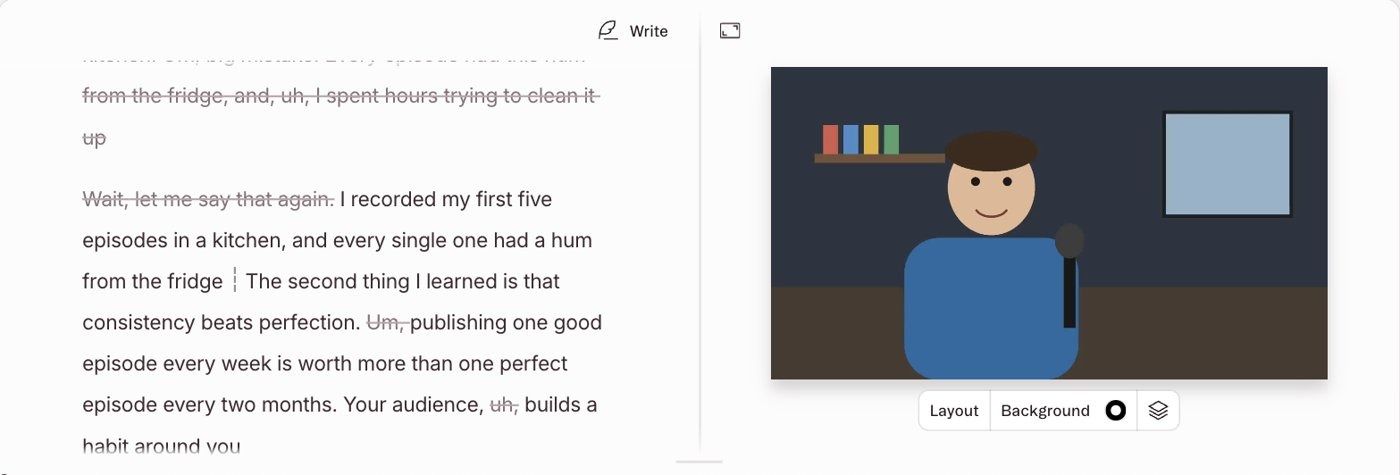
- Rough cut: 10 of 11 fillers removed (the same short "uh" that every tool heard as "the" survived), the first take and "Wait, let me say that again" cut, and six long pauses shortened to about 0.7 seconds. Final length: 65.4 seconds. Removed words stay visible in the transcript with a strikethrough, which makes review fast.
- Audio cleanup: Studio Sound applied at full strength.
- Captions: Animated word-by-word captions with a highlighted active word.
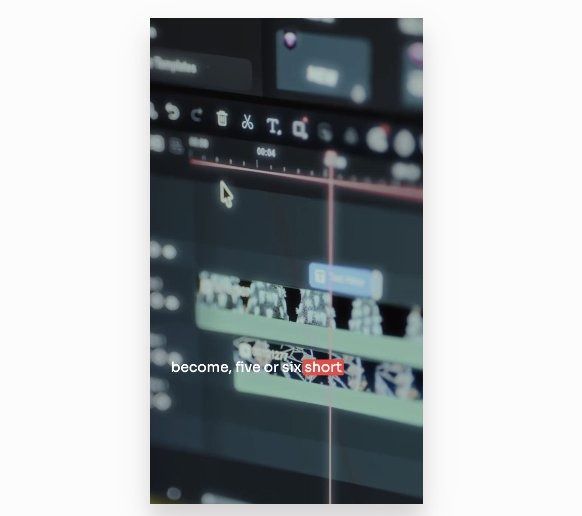
- B-roll: A stock clip of a video editing timeline, placed full screen over the repurposing section. Underlord noticed the B-roll was covering the captions and moved the captions on top without being asked.
- Vertical export: Underlord duplicated the project, switched it to 1080x1920, saw that the footage was letterboxed, resized every layer to fill the frame, and recentered the presenter after two attempts.
Time taken: About 8 minutes from prompt to finished summary. Underlord's own log shows roughly 3.5 minutes of active work.
Credits used: 54 of the free plan's 100 one-time AI credits, plus 32 credits on an earlier aborted run.
What needed manual correction
- The false start ("So the first thing, the first thing") was flagged in the transcript but not cut
- Captions are small in the vertical version and sit close to the B-roll subject
- The stock B-roll is relevant but generic
Frank limitation: The free plan's 100 one-time AI credits will not cover more than one or two edits like this, and free exports are watermarked at 720p. Visual-first editing, like layered motion graphics, is still easier on a traditional timeline.
Pricing (checked October 2, 2026): Free plan with 1 hour of media a month, 100 one-time AI credits, 720p and a watermark. Hobbyist 24/month(16 billed yearly). Creator 35/month(24 billed yearly). Business 65/month(50 billed yearly). Prices are per person.
Choose Descript if your content is speech-led and you want to review an AI's edits as a document, with every cut visible.
3. Kapwing: best automatic rough cut for teams
Our verdict: Kapwing's Auto Edit produced the tightest rough cut of any tool, and it removed the bad take on its own. On the free plan, the KAI assistant, clean audio, and B-roll were all locked, so the full workflow needs a paid seat.
What happened in our test
- KAI assistant: KAI read our prompt, built a sensible plan, and estimated 32 credits. The free workspace had 10, so it could not start. KAI also said noise cleanup was not supported in that workflow.
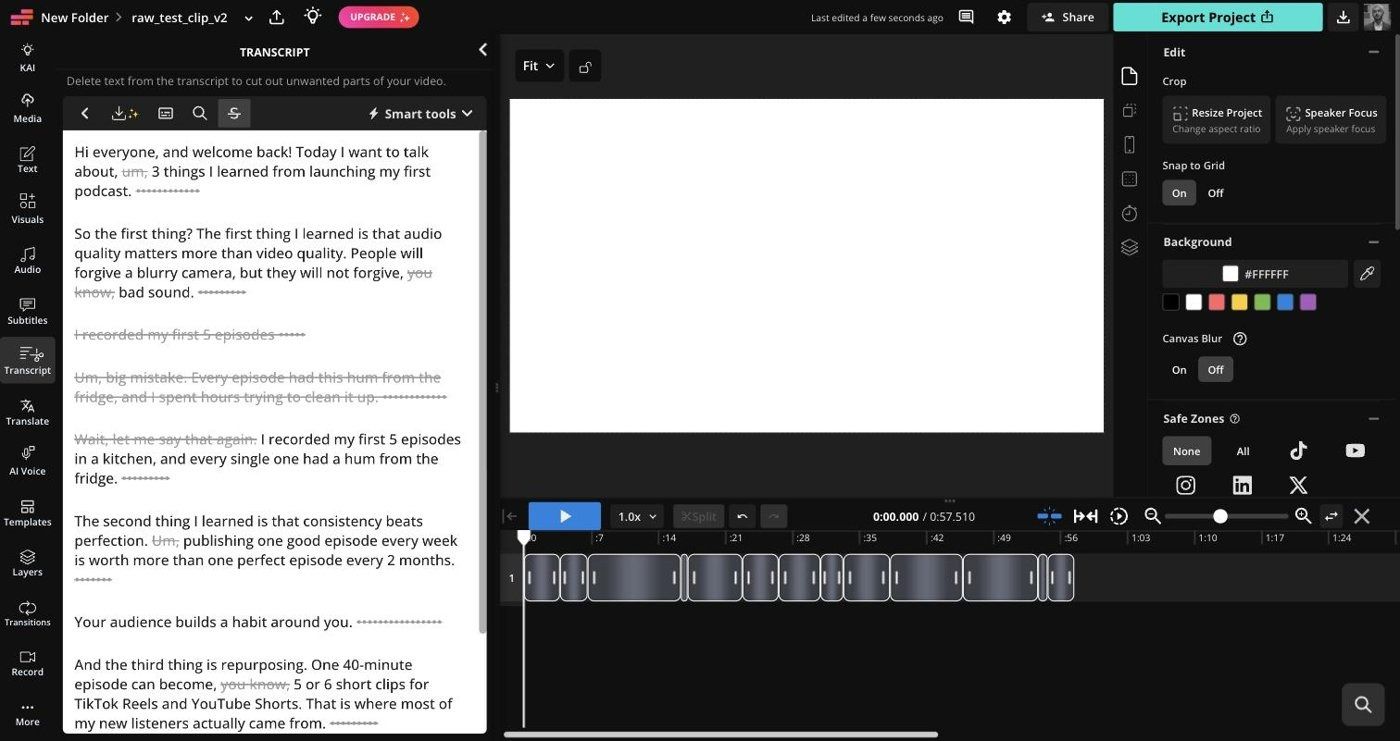
- Rough cut (Auto Edit, 2 credits): Every filler that appeared in Kapwing's transcript, including both "you know"s, was cut, along with every long pause and the entire first take with "Wait, let me say that again". Final length: 57.5 seconds, the shortest of the test. Kapwing's transcript never showed four of our scripted fillers at all, so we could not confirm from the transcript whether those sounds were removed. The false start stayed.
- Audio cleanup: Clean Audio is available to paid users only.
- Captions: Generated instantly from the existing transcript and re-chunked automatically for vertical.
- B-roll: Not available without paid credits.
- Vertical export: The free plan resized to 720x1280 using fill and crop and warned that the framing might need manual adjustment. Because Kapwing's preview stayed blank in our session, we could not see where the crop landed.
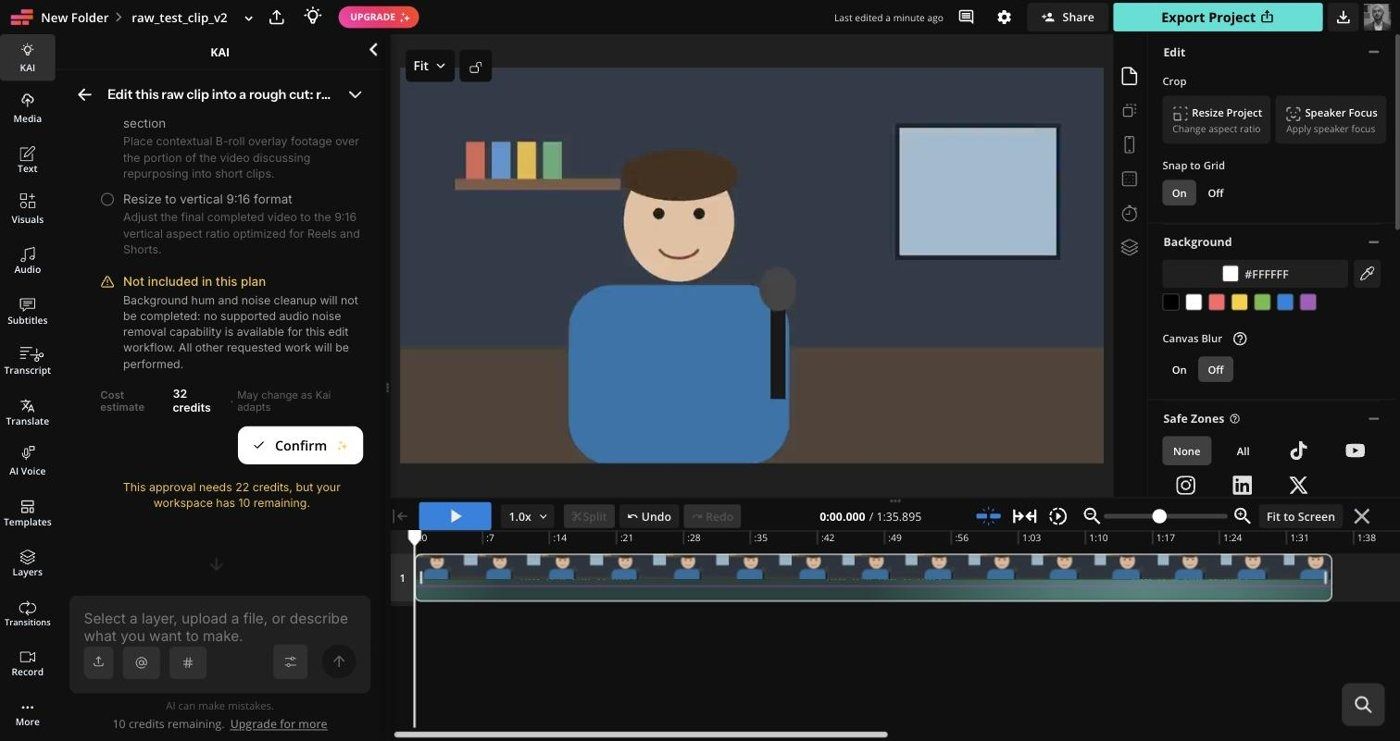
Time taken: About 11 minutes for Auto Edit, but the progress bar stalled while the tab was in the background, so a focused run would likely be faster. Captions and the resize took under a minute.
What needed manual correction
- Check, and probably adjust, the subject's position in the vertical crop
- Clean the audio outside Kapwing or upgrade
- Add B-roll manually
- The preview canvas stayed blank white for us throughout the session, although the timeline and captions updated normally
Frank limitation: The free plan is a demo of the rough-cut engine, not a working editor for this job. Per-member pricing also adds up quickly for larger teams.
Pricing (checked October 2, 2026): Free plan with watermark, 720p export, 4-minute export limit, and 30 export minutes a month. Pro 24/member/month(16 billed yearly). Business 64/member/month(50 billed yearly).
Choose Kapwing if you edit as a team in the browser and you want an automatic rough cut that catches bad takes without supervision.
4. CapCut: best for fast manual short-form edits
Our verdict: CapCut's tools are fast and mostly free, but its one-click filler removal cut real words from our clip. That makes it a great choice when you will watch the result before publishing, and a risky one when you will not.
What happened in our test
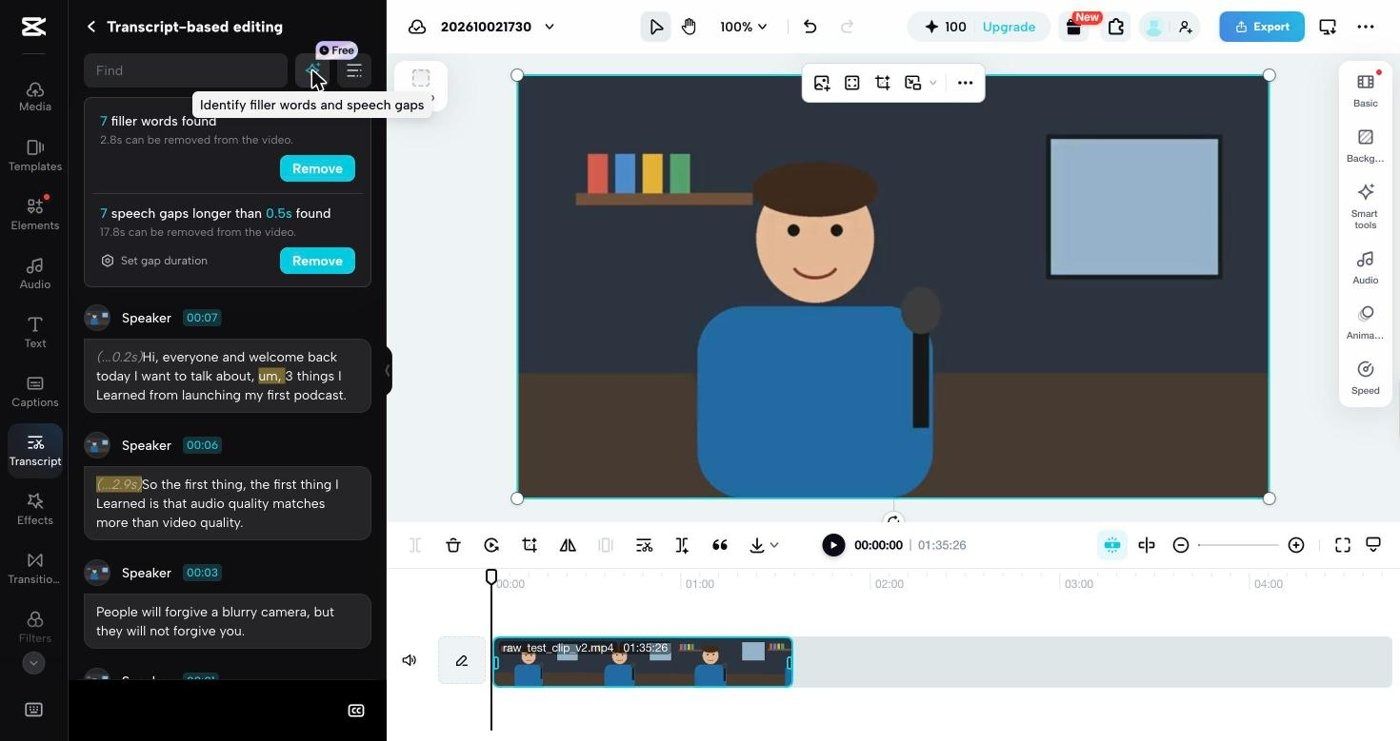
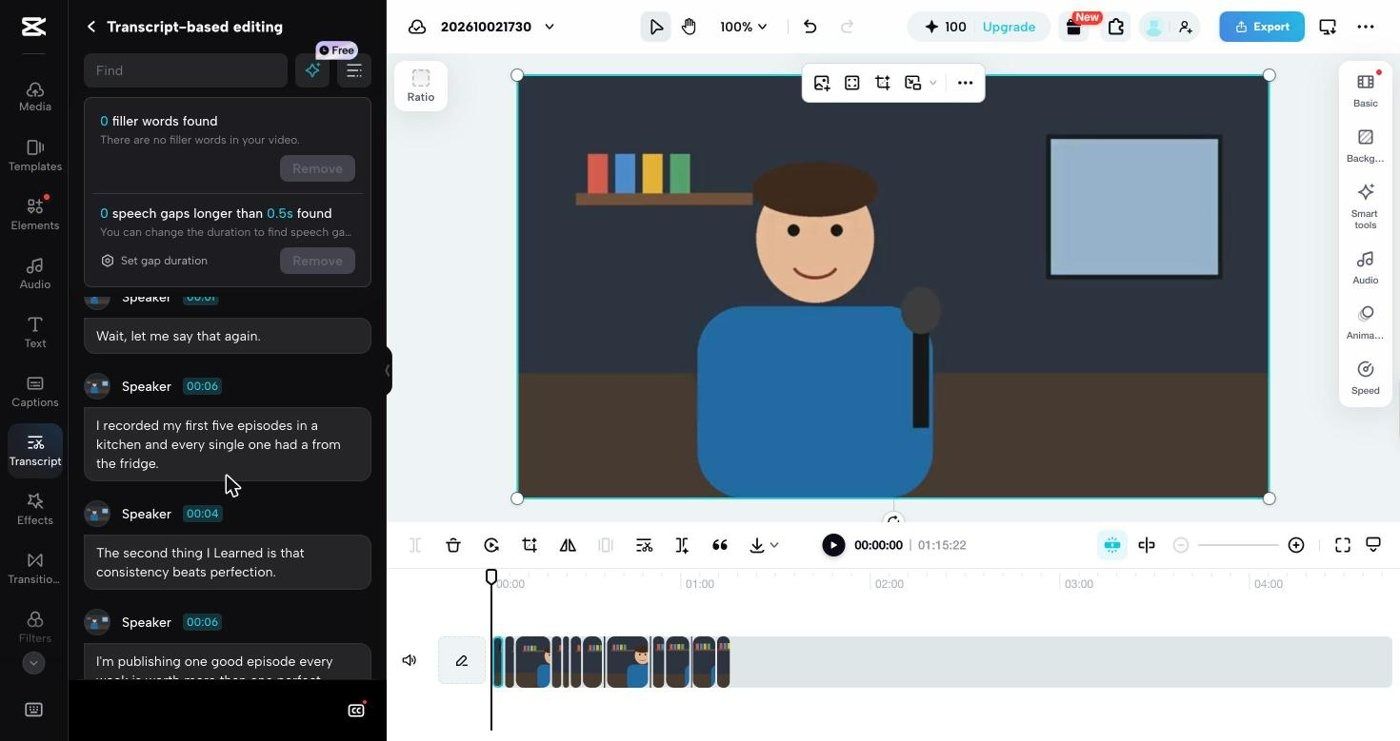
- Rough cut: Transcription finished in under 15 seconds. "Identify filler words and speech gaps" found 7 fillers and 7 gaps. Removing both took the clip to 75.2 seconds. However, the filler pass also deleted the word "hum" twice, so the line became "every single one had a from the fridge". Both "you know"s were misheard as "you. No" and stayed. The bad take had to be removed by hand.
- Audio cleanup: Noise reduction is a Pro feature, applied per clip.
- Captions: Auto captions in under 10 seconds, limited to 1 free use per month. They were all lowercase and still included one "um".
- B-roll: We did not find an automatic B-roll option in the web editor.
- Vertical export: The 9:16 ratio letterboxed the footage, and captions shrank to a size that would be hard to read on a phone.
Time taken: About 5 minutes of hands-on clicking for everything we could do on the free plan.
What needed manual correction
- Restore the two wrongly cut "hums"
- Cut the bad take and the false start by hand
- Fix transcript errors such as "unsubscribe" (for "um, subscribe") and "14 minute" (for "40-minute")
- Reframe the vertical version and enlarge captions
Frank limitation: Filler detection that removes real words is worse than no filler detection, because you only notice when you listen back. Always play the full cut before you export.
Pricing (checked October 2, 2026): Free plan. CapCut Pro is $19.99/month or $179.99/year according to CapCut's own plan comparison page. CapCut notes that prices vary by region, device, and promotion.
Choose CapCut if you make short vertical videos, you like a hands-on timeline, and you will review every cut yourself.
5. VEED: best for browser-based captions
Our verdict: VEED's subtitles were quick and easy to style, and clean audio ran in seconds. Filler removal missed both "you know"s, silence removal was unavailable on our account, and the 9:16 preset cropped the presenter out of the frame.
What happened in our test
- Rough cut: Remove filler words, cut at least 7 "um"s and "uh"s, but keep both "you know"s. Remove silences was greyed out. The bad take had to be removed by hand. Final length: 93.4 seconds, the least trimmed of the test.
- Audio cleanup: Clean audio processed in about 15 seconds.
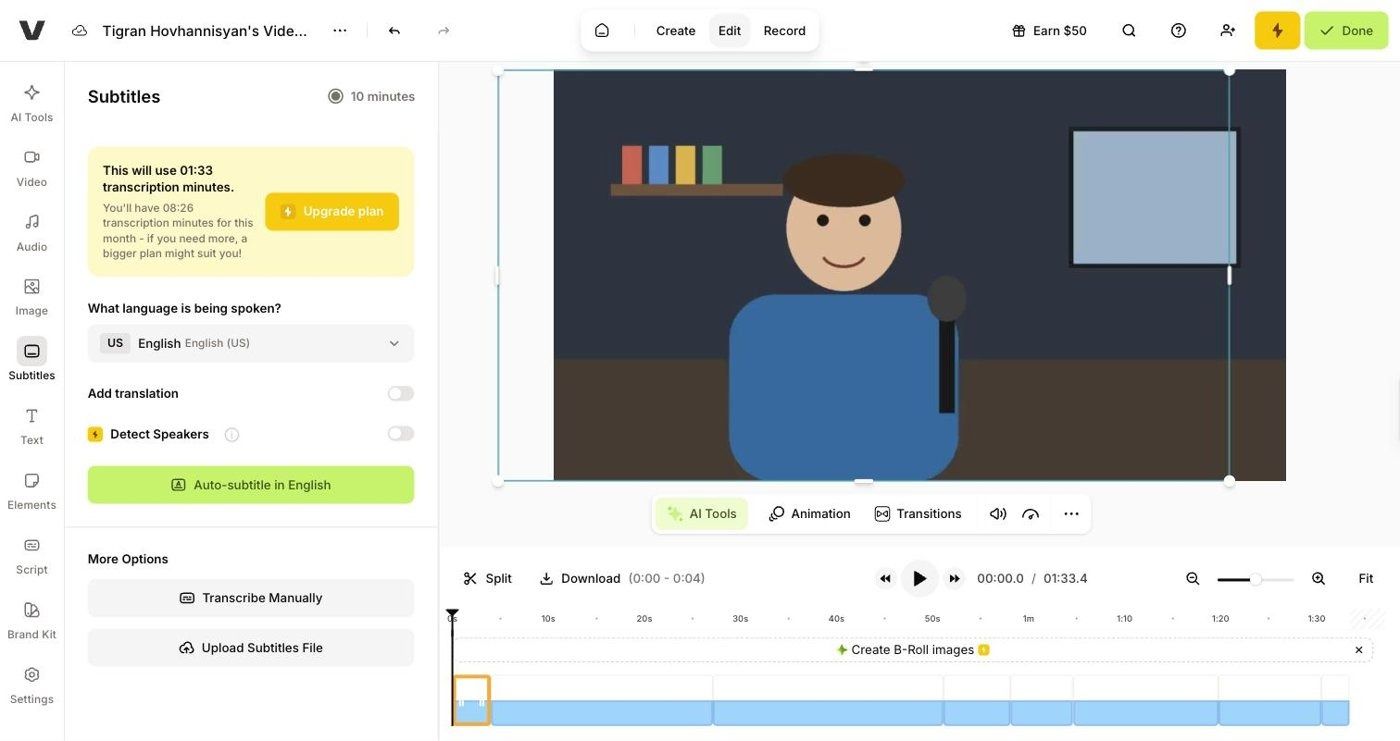
- Captions: Auto subtitles in under 10 seconds, using 1 minute 33 seconds of the free plan's 10 monthly transcription minutes. One error: "matters" became "matches".
- B-roll: "Create B-Roll images" needs paid credits.
- Vertical export: The YouTube Shorts 9:16 preset center-cropped the frame and cut off the left side of the presenter.
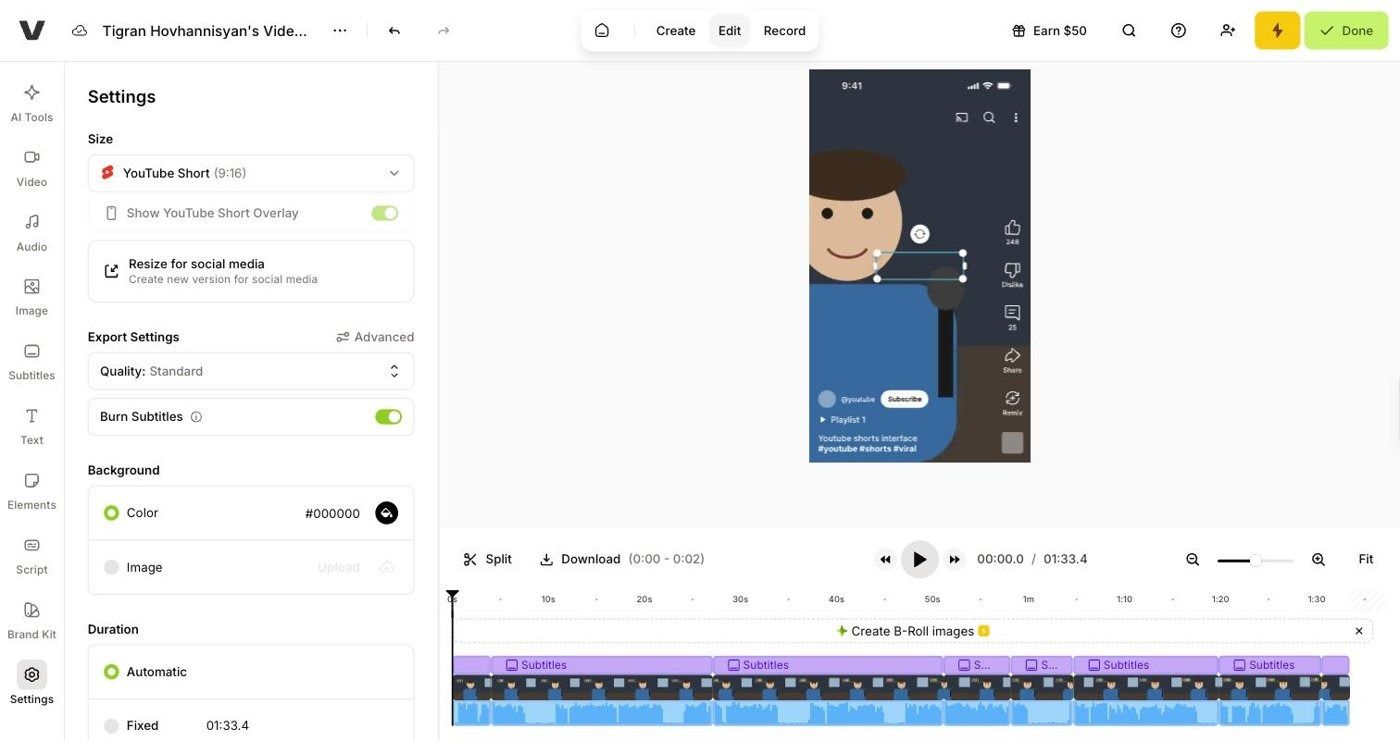
Time taken: About 7 minutes of hands-on clicking.
What needed manual correction
- Remove "you know" twice, the long pauses, and the bad take by hand
- Reposition the presenter in the vertical crop
- Fix one caption error
Frank limitation: On the free plan, VEED is a strong captioning tool rather than a full AI editor. The rough-cut features you would pay for are the ones that were missed in our clip.
Pricing (checked October 2, 2026): Free plan with watermark. Creator $20/month, or 10/monthbilledyearly(116 a year. Pro $44/month, or $21/month billed yearly. Studio $70/month, or $35/month billed yearly. Prices are per user and were viewed from Armenia, so your region may show different figures.
Choose VEED if captions and subtitle styling are your main job and you are happy to cut footage manually.
Other AI video editors worth knowing
We did not run these six through the hands-on test this round. The notes below come from each vendor's current product and pricing pages, so treat them as a shortlist to test yourself rather than as tested recommendations.
Runway: best for generative effects
Runway is built for generating and transforming visuals: text-to-video, image-to-video, background changes, and stylized effects. It is closer to an AI video generator than an editor, and it is not designed for captions, rough cuts, or filler removal.
Pricing (checked October 2, 2026): Free plan with 125 one-time credits. Standard 15/month(12 billed yearly. Pro 35/month(28 billed yearly).
Canva: best for simple branded videos
Canva suits marketers who already use it for graphics and need short branded videos with templates, brand kits, and background removal. Timeline and audio controls are basic.
Pricing (checked October 2, 2026): Free plan. Canva's pricing page showed Pro at US144/yearforonepersonandBusinessatUS250/year per person when we checked. We could not confirm the monthly prices, and Canva pricing varies by region.
Filmora: best desktop timeline with AI add-ons
Filmora is a desktop editor with AI helpers such as smart cutout, audio stretch, and auto reframe. You get local rendering and precise timeline control, but limited cloud collaboration.
Pricing (checked October 2, 2026): Free version exports with a watermark. Basic US49.99/year.AdvancedUS59.99/year (shown as discounted from US $ 79.99).
InVideo: best for script-to-video marketing
InVideo AI turns scripts and prompts into marketing videos using stock media and AI voiceovers. It is efficient for faceless and ad content, and less suited to editing your own raw footage.
Pricing (checked October 2, 2026): Free plan with weekly credits. Starter $20/seat/month. Plus 60/month(36 billed yearly). Max 150/month(75 billed yearly. This is a new plan lineup, so older price lists you find online are out of date.
Adobe Premiere Pro: best for professional editors
Premiere Pro adds AI features such as Generative Extend, text-based editing and auto ducking to an industry-standard timeline. It gives you the most control and has the steepest learning curve.
Pricing (checked October 2, 2026): US$22.99/month on an annual plan billed monthly, with a 7-day free trial.
Clideo: best for quick one-off browser edits
Clideo offers single-purpose browser tools for trimming, merging, resizing, compressing, and adding subtitles. It is handy for quick fixes, not for multi-step editing.
Pricing (checked October 2, 2026): Free plan with watermark, 720p export, 14-day project storage, 500 MB uploads and 10 credits a month. Pro $12/month, or 9/monthbilledyearly $ 108 a year.
Best free AI video editors
Every free plan in our test came with a limit that blocked at least one part of the job. Here is what you actually get for $0, based on what we hit while testing.
- Descript: The most complete free result in our test, but 100 one-time AI credits run out after one or two edits, and exports are 720p with a watermark.
- CapCut: The most generous free toolset for manual editing. Auto captions are limited to 1 use a month, and noise reduction is Pro only.
- Kapwing: Auto Edit is excellent and costs 2 of your 10 free credits. Clean Audio, the KAI assistant, and B-roll need a paid plan.
- VEED: Free auto subtitles (10 transcription minutes a month) and clean audio worked. Exports carry a watermark.
- Async: Free plan with limited lifetime AI credits, 720p export and one export, enough to try the chat workflow on a short clip. We ran our full test on Pro.
How to choose the best AI video editor
Start with the step that costs you the most time today, then pick the tool that handled that step best in our test. For a broader view of the available options, an AI tools directory like AArena can help you discover alternatives and explore community preferences. Use those preferences as a starting point, then test your shortlisted editors on your own footage to check editing accuracy, export limits, and the manual work each one leaves behind.
If cleaning up rough recordings takes the longest
Look for an editor that removes fillers, pauses, and bad takes accurately, and shows you what it cut. In our test, Descript cut the most fillers (10 of 11) and showed every cut as strikethrough text, which made review the fastest. Kapwing and Async also removed the bad take. CapCut's one-click pass was quick but cut real words.
If repurposing for Shorts, Reels, and TikTok takes the longest
The 9:16 step was the weakest part of every tool we tested. Only Descript visibly reframed the presenter to fill the vertical frame without manual work. If vertical clips are your main output, test this step with your own footage before you commit to a plan.
If you want one tool from recording to publishing
Async was the only editor that did every step from one prompt, including generating B-roll. That saves the most tool-hopping, as long as you review the output and reframe vertical versions.
If you edit YouTube videos
For long-form YouTube, accurate rough cuts and clean audio matter more than effects. Transcript-based editors like Descript and Async are the fastest for talking-head and podcast formats. Heavily produced channels that need color grading and multicam still benefit from a desktop editor like Premiere Pro.
Rerun this test yourself
You can repeat our test on your own footage in about an hour:
- Record 90 seconds of yourself talking, with a few "um"s, one deliberate retake, a couple of long pauses, and some background noise.
- Upload the same file to each editor you are considering.
- Run the same prompt, or the closest one-click feature, in each tool.
- Count fillers removed, check whether the bad take is gone, note caption errors, and look at the 9:16 frame.
- Write down what you would still have to fix by hand. That list is the real cost of each tool.
FAQ
What is the best AI video editor?
In our October 2026 test, Async was the best overall AI video editor because it completed a full rough cut, audio cleanup, captions, generated B-roll, and a vertical version from one prompt. Descript was a close second and produced the better vertical reframe.
What is the best free AI video editor?
Descript gave the most complete result on a free plan in our test, but its 100 one-time AI credits run out quickly. CapCut offers the most free manual tools, with captions limited to one free use per month.
Is there a free AI video editor online?
Yes. Descript, CapCut, Kapwing, VEED, Canva, Clideo, and Async all have free browser plans. Each one limits something: watermarks, 720p exports, monthly credits, or locked features such as noise reduction.
Which AI video editor removes filler words best?
Descript removed the most in our test, 10 of the 11 scripted filler words. Async removed 9, and Kapwing removed every filler its transcript picked up. VEED missed both instances of "you know". CapCut missed those too and also deleted two real words it mistook for fillers.
Can AI edit long videos into short vertical clips?
Yes, but check the framing. In our test, Descript was the only editor that automatically reframed the presenter to fill a 9:16 frame. The others letterboxed or center-cropped the footage, which you would need to fix before posting.
What AI video editor do YouTubers use?
Talking-head and podcast YouTubers often use transcript-based editors like Descript or Async for rough cuts because editing text is faster than scrubbing a timeline. High-production channels typically finish in Adobe Premiere Pro or DaVinci Resolve.
What is the best AI video editor for beginners?
Chat-based editors like Async and Descript's Underlord are the easiest for beginners because you describe the edit in plain language. Canva is the simplest for template-based branded videos.
What is the difference between an AI video editor and an AI video generator?
An AI video editor improves footage you already recorded by cutting, cleaning, captioning, and resizing it. An AI video generator creates new footage from text, images, or scripts. Runway and InVideo lean toward generation; the five tools we tested lean toward editing.