Most bad takes are not bad recordings. They are unedited recordings. A wrong sentence, three ums, a four-second pause, and one rambling section all look fatal on playback, but every one of them is a cut you have not made yet. Your raw footage can be messy. The final video does not have to be.
The recording I will use for the rest of this article is a four-minute talking-head clip about three lighting mistakes. It has almost every problem creators restart for:
- a false start in the first six seconds
- "so um, basically" three times in the first minute
- a four-second pause at 1:12 where I lost my place
- The same sentence twice at 1:40, once badly and once well
- My flatmate is walking through the background at 2:05
- a flat, low-energy stretch from 2:30 to 3:10
- a better hook in take 3 and a better ending in take 2
That is not a reshoot. It is about twelve minutes of editing.
Cut the mistakes, not the whole take
When you fumble a line, your instinct is to restart the recording. You almost never need to. The mistake is a few seconds long, and the rest of the take is fine. Look at the 1:40 moment in my clip:
"The second mistake is putting your key light... sorry, putting your key light directly in front of... the second mistake is putting your key light directly in front of your face."
Three versions of one sentence, and the third is clean. Isolate it and delete the two attempts before it: two splits and a delete.
Do this for every stumble before you judge the take. Creators write off footage based on how it felt to record, not on what survives once the fumbles are gone.
How to remove filler words and pauses from a video
To remove filler words from a video, transcribe the audio, then delete the words in the transcript instead of hunting for them on the waveform. Every um, uh, and mm is a timestamped word, so removing it from the text removes it from the video. Silence removal works the same way, cutting pauses over a threshold you set. These are text problems now, not timeline problems.
Here is my first minute before and after.
Before:
"So, um, today I'm going to basically show you how I, how I light these videos. Um. And it's, it's actually pretty simple once you..."
After:
"Today I'm going to show you how I light these videos. It's actually pretty simple once you..."
The meaning did not change, and the clip got 4.6 seconds shorter.
Two cautions. Do not strip every pause: speech with zero breathing room sounds like an ad read. Keep the pauses that land after a point; cut the ones that come from you thinking. And leave some connective words in, or sentences collide, and every cut point picks up a stutter.
On my clip, I removed the fillers, cut the 4-second dead spot at 1:12 to a 0.4-second beat, and left the deliberate pause before mistake three alone.
How to combine your best video takes into one
Your best take does not have to be one continuous recording. If you recorded six passes, the finished video can take 3's hook, take 6's explanation, and take 2's ending, with nothing in between.
This is where most creators leave value on the floor. They publish the least bad single take when the best version is spread across all six. Here is how I assembled mine:
Four sources, one video, were stronger than any single take was. The only requirement is that framing and lighting stay consistent, which they will if you do not move the camera. If you did, the next step covers the mismatch.
How to hide jump cuts with B-roll
Stitching together creates visible jumps. Your head sits in a slightly different position, or the cut lands mid-gesture, and the viewer notices the seam. Cover it.
Anything that takes the eye off your face for a second or two works: B-roll, a screen recording, product footage, a screenshot, a close-up. The audio runs continuously underneath while the picture changes, so the cut disappears instead of announcing itself.
On my clip, the join between take 3's hook and take 6's first mistake was ugly, so I put 1.5 seconds of a lighting setup shot over it. The seam is gone. You only need enough coverage to bridge the cut, and it needs to be relevant: see what is B-roll and match B-roll to your video.
How to make bad footage look better
Some takes are technically fine and still feel bad. My 2:30 to 3:10 stretch is like this: correct information, flat delivery, static frame, no reason to keep watching. Six fixes, and you rarely need all six:
- Tighter framing. Crop in so your face fills more of the frame. Wide framing reads as low energy even when your delivery is fine.
- Punch-ins. Cut to a closer crop on a key sentence. It changes the pace of a static shot without a second camera.
- Faster pacing. Trim the run-ups. "What I want to talk about here is" becomes nothing.
- Captions. They hold attention through weaker stretches, and most social viewing is muted anyway.
- Text emphasis. Put the key number or term on screen so the point survives a weak delivery.
- Cutting the section. If a 40-second stretch adds nothing, the strongest edit is a 40-second delete.
I cut the section to 22 seconds, punched in on the one useful sentence, and captioned the whole video. Same footage, and it no longer sags in the middle. More of this in video editing tips and the full guide to how to edit videos.
How to fix distracting things in the frame
Then there is my flatmate at 2:05. A person walking behind you, a messy shelf, a cable, a bright object pulling focus off your face. These feel like reshoot triggers, and mostly are not.
Four options, in order of effort: cut around the moment if the audio allows, cover it with B-roll, crop so the distraction falls outside the frame, or remove it. For a two-second walk-through, cropping in is enough. For a permanently messy room, replacing the background solves the whole clip. Both have their own tutorials: remove a person or object from video and remove the background from a video.
How to fix audio that makes a good take feel bad
Sometimes what feels like a bad take is a bad room. Background noise, a fan hum, echo off bare walls, volume that drifts as you lean in and out. Your delivery was fine; the recording made it sound amateur.
Noise reduction, volume leveling, and audio enhancement handle most of this after the fact. Clean audio on average video reads as professional; great video with noisy audio reads as a first attempt. So fix the audio before you write off a take. The exception is hard clipping: once the waveform is squared off, the information is gone.
When a take actually needs to be re-recorded
Not everything is fixable, and pretending otherwise wastes your afternoon. Re-record when the problem is the content rather than the presentation: the information is wrong, the meaning is unclear, a key sentence is missing, the audio is clipped, the subject is out of focus, or the fix would take longer than shooting again.
How to clean up a bad take with Async
Async is chat-based, so most of this is typing what you want rather than finding a tool. Start from your workspace, where the quick actions cover the jobs in this article: Edit video with AI for the cut, Clean up audio for the room noise, AI Clips for short-form versions afterward.
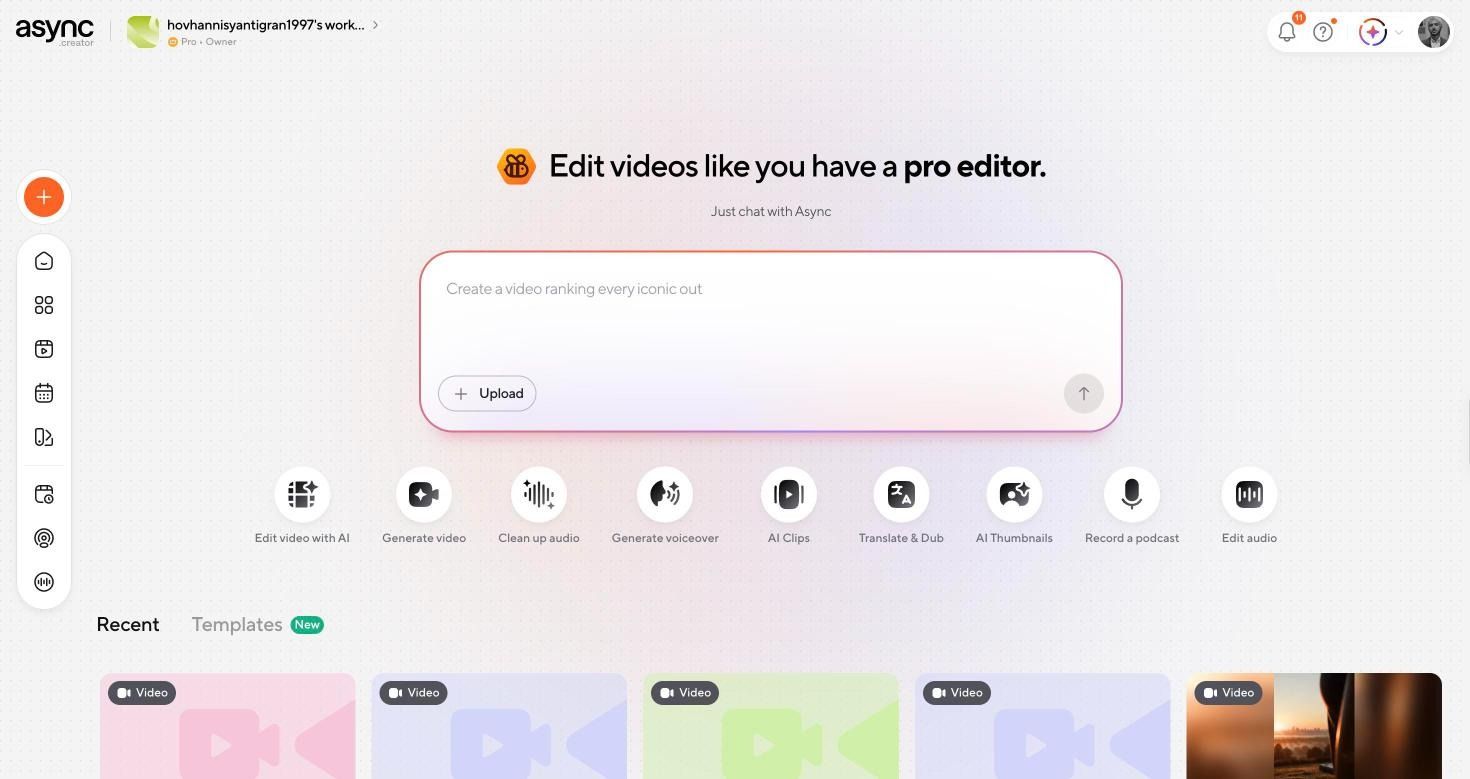
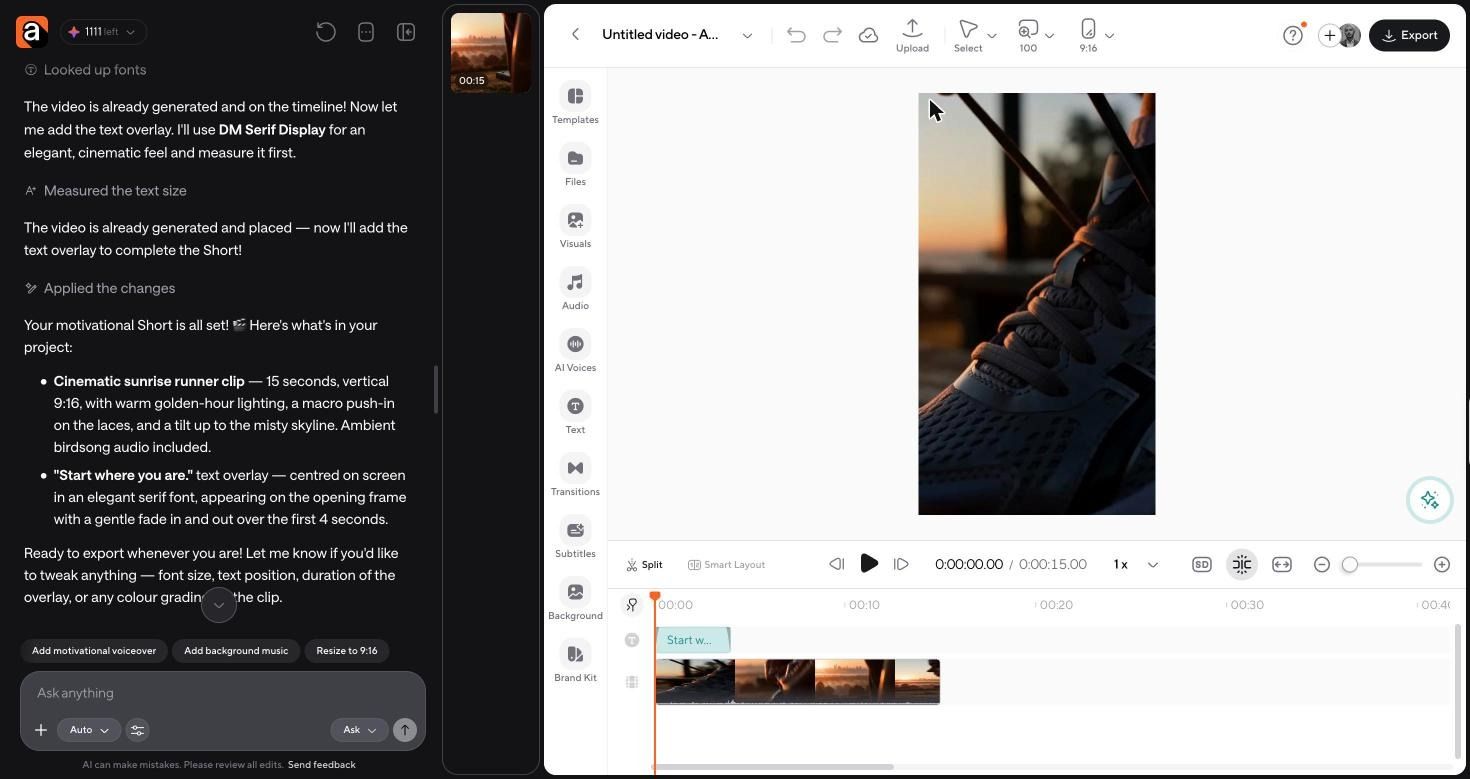
Upload the four minute take and it opens in the editor: chat on the left, timeline on the right. This is where the stitching happens. Split and drag manually, or ask in chat: "cut the false start, remove all filler words, and tighten any pause longer than a second".
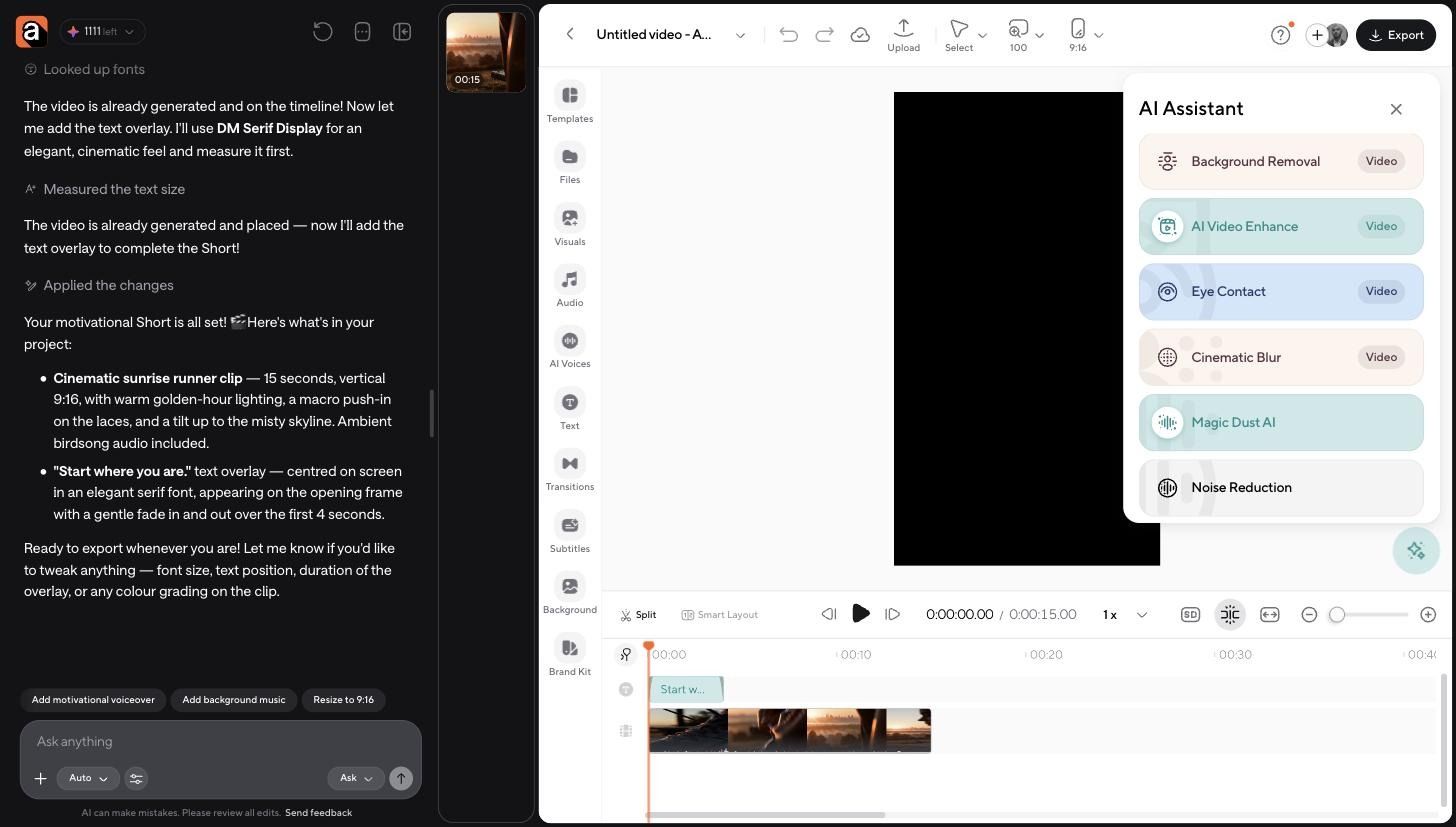
For the one-click fixes, open the AI Assistant panel at the right edge of the preview. Noise Reduction and Auto Leveling handled my room hum and drifting volume, Magic Dust AI cleaned up voice clarity, Eye Contact fixed the moments I was reading my notes, and Background Removal dealt with the messy room.
Then captions. The Subtitles panel transcribes the project and generates synced subtitles you can restyle, and that transcript is what makes word-level filler editing possible.
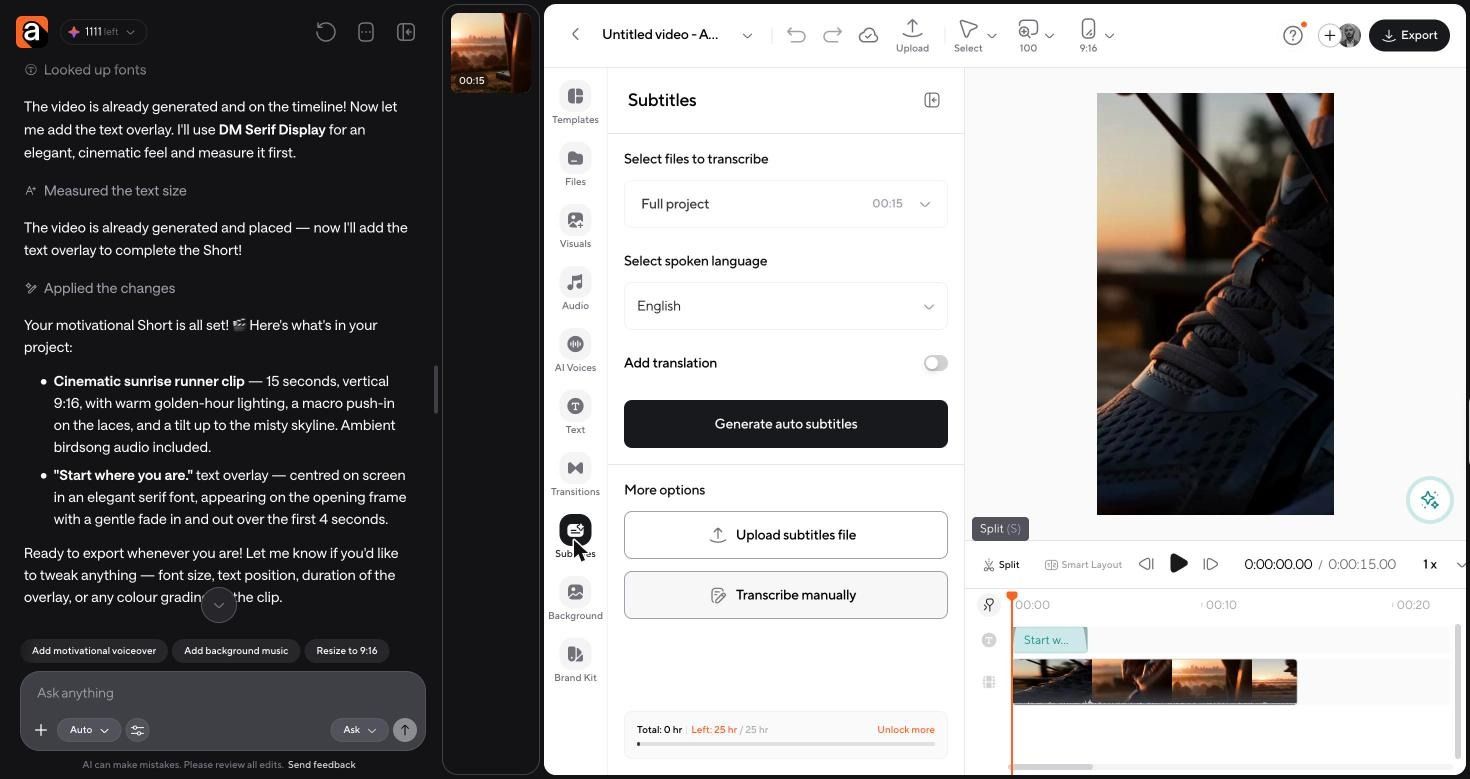
Once you have a cut you like, save it as a skill so the same fixes apply to your next messy recording without describing them again. Then export.
Raw take: four minutes, false start, fillers, dead air, a flatmate, a flat middle. Final: two minutes forty, no fillers, four takes stitched, captions throughout, clean audio. No re-recording.
FAQ
Can you fix a bad video recording?
Usually yes. Filler words, pauses, fumbled sentences, weak sections, noise, and distracting objects are all fixable after recording. Wrong information, out-of-focus footage, and clipped audio are not.
How do you remove mistakes from a video?
Split the timeline at the start and end of the mistake and delete what is between the splits. If you repeated the sentence correctly afterward, keep that version instead.
How do you remove filler words from a video?
Transcribe the audio and delete the fillers in the transcript, which removes the matching video. Detection tools find um, uh, and mm automatically, one by one or all at once.
Can AI remove pauses from video?
Yes. Silence removal detects gaps longer than a threshold you set, commonly half a second, and cuts them. Keep the intentional pauses so the delivery still sounds human.
How do you combine different video takes?
Put every take on the timeline, trim each to its best segment, then order those segments into the final video. Consistent framing and lighting keep the joins invisible.
How do you make bad footage look better?
Tighter framing, punch-ins on key lines, faster pacing, captions, on-screen text, and cutting the sections that add nothing. Cleaning the audio does more than any visual fix.
How do you hide jump cuts?
Cover the cut with a second or two of B-roll, a screen recording, a screenshot, or a close-up while the audio continues underneath.
Should I edit a bad take or record it again?
Edit it if the problem is presentation: fillers, pauses, stumbles, pacing, background, audio. Re-record if the problem is the content itself.