B-roll is supporting footage that plays alongside or over your main shot, called A-roll. It's basically what you use to show what someone is talking about or to highlight something interesting, instead of only showing their face as they talk.
If you’re watching a video and saw a cut to a close-up, or a product on a table, a POV shot, or a screen recording, for example, those are all B-roll shots. Basically, B-roll is there to cover camera cuts, add context to a scene, and make a video interesting by not having it all be just one shot of a person speaking.
This guide is made for anyone making talking-head or product videos to answer the question “What is a B-roll?” We’ll also explain how it’s different from A-roll, and share 25 real examples you can use for both talking-head content and product videos. Plus, we’ll talk about how much B-roll you actually need, since many people overthink this part.
What is a B-roll?
B-roll is any footage that isn’t your main shot. It supports what you’re saying, highlights something, or gives you a way to cut away from your main footage. In a talking-head video, for instance, your main footage (A-roll) is you speaking to the camera. B-roll is everything else, like a screen recording, a product shot, a location clip, or a close-up that helps viewers better understand what you’re talking about.
For example, if you’re making a video about your morning routine and mention making coffee, you might cut to a short clip of you actually preparing and pouring it. That’s B-roll. It doesn’t need to include you speaking, and often doesn’t need much or any audio, since your narration or A-roll audio keeps playing underneath.
The term B-roll actually comes from old film editing, when editors kept a second reel, called the “B” reel, with extra shots to add over the main reel. The idea stuck because it still helps editors cut between scenes and gives viewers something new to look at instead of just one long shot.
A-roll vs. B-roll: What's the difference?
A-roll is your main footage; the shot that carries your main message is usually on screen the most; basically, it’s your anchor. B-roll is everything you add or cut to for support. If you took out the B-roll from a video, the story would still make sense. If you removed the A-roll, it usually wouldn't.
Here's a simple way to tell them apart in a talking-head video situation:
For product videos, on the other hand, the idea is still the same, but how it’s applied is a bit different: your A-roll would be you talking about the product, or it could be the “hero” (or main) shot of the product, while your B-roll would include close-ups, different angles, or footage of the product in use.
What is B-roll used for?
B-roll is usually used to show instead of just tell, cover editing cuts, add visual variety, and give viewers context they can't get from a talking head alone. It's one of the easiest ways to make a video feel more polished and credible without changing your script.
A few of the most common jobs B-roll can do:
- Illustrating the script: If you're talking about a place, a product, or a process, B-roll shows it instead of making viewers imagine it.
- Showing rather than telling: "Here's how easy this is" lands much better with a quick clip of the actual setup than with just the words.
- Adding visual context: Location shots, environment clips, and detail shots help ground a video and give viewers visual context cues about what you’re talking about.
- Hiding cuts: If you stumble on a line or need to trim a pause, cutting to B-roll lets you remove the awkward part without a visible jump cut on your face.
- Breaking up talking-head footage: Long stretches of someone just talking get tiring to watch. B-roll gives the eyes somewhere else to go every now and then.
- Demonstrating products: For product videos specifically, B-roll often does most of the actual selling, since it shows the product working rather than someone describing it.
- Improving pacing: Cutting between A-roll and B-roll changes the rhythm of a video and keeps it from feeling flat, especially on platforms where retention drops fast.
If pacing and cuts are something you want to dig into further, our video editing tips guide covers how to think about rhythm throughout a full video and adjust pacing so that viewers stay hooked and interested from start to finish.
25 B-roll examples for your videos
The best B-roll footage ideas depend on your video type. If you’re a talking-head creator explaining something, you’ll need different shots than a brand showing a product. Here are 25 examples for both talking-head and product videos to inspire you.
Talking-head B-roll ideas
These B-roll examples work well for YouTube videos, podcast or interview clips, tutorials, and any video where you're mostly speaking to the camera.
- Screen recordings. Use this when you're walking through an app, a website, or a piece of software. If your script says "here's what you'll see when you log in," a screen recording is more useful than any description.
- Hands doing the action. If you're describing a physical task like writing, typing, cooking, or building something, cut to your hands actually doing it. This works especially well for tutorial-style videos.
- Location or environment shots. If you mention a place, like an office, a city, or a specific room, a quick establishing shot helps viewers picture where you are or what you're describing.
- Close-up cutaways. A close-up of your face, hands, or a nearby object gives editors a cut point when nothing specific needs to be shown. Good to use for better pacing.
- Process or step-by-step footage. For any script that walks through a process, film the actual steps instead of just narrating them. This is super effective for how-to and tutorial content.
- Before-and-after visuals. If your script makes a results-based claim ("this changed how I work"), a quick before-and-after clip backs it up visually instead of asking viewers to take your word for it.
- Analytics or data screenshots. When you mention a number, a stat, or a result, a screenshot pop-up of the actual dashboard, spreadsheet, or chart adds credibility and makes the data hit harder.
- Phone footage. Scrolling, texting, or opening an app on a phone works well for scripts about social media, communication, or day-to-day habits.
- Workspace or desk shots. A wide or overhead shot of a desk, notebook, laptop, or coffee cup is generic enough to use across a lot of business and productivity content, and it's easy to film a bunch in one batch.
- Reaction or detail inserts. A quick cut to a reaction, a raised eyebrow, or a small physical detail adds some fun visual storytelling, especially in vlog-style or narrative content.
- Stock footage. When you genuinely don't have footage of something (a historical event, a distant location, a concept you can't film), relevant stock footage fills the gap without derailing the script.
- Whiteboard or notebook shots. For scripts that explain a concept or framework, a sketch, diagram, or handwritten note gives viewers something to look at while you explain the idea.
- Archive or past-clip footage. If you're referencing something you made or did before, cutting in a clip from that earlier video or project adds proof and saves you from re-explaining it from scratch.
If you're building faceless content instead, a lot of these still apply, since screen recordings, hands-only shots, and stock footage don't need you to be on screen at all. You can also check these faceless video ideas for even more inspiration.
Product video B-roll ideas
If you’re making product-focused videos, like unboxing videos, e-commerce content, SaaS tutorial videos, or anything along those lines where the product is the focus, these B-roll examples can be useful go-tos to include, along with the reasoning behind them so you know which to pick where.
- Product close-ups. Use this to highlight material, texture, or build quality. It works well, for example, right after a line about craftsmanship or design.
- Unboxing footage. If part of your script talks about the experience of receiving the product, film the actual unboxing moment rather than describe it.
- Product-in-use footage. This is often the most persuasive shot in a product video. If your script claims the product does something, show a real person actually doing it.
- Detail or macro shots. Buttons, stitching, screens, textures, small features. These support lines that focus on specifics rather than general benefits.
- Multiple angles. A slow pan or turntable-style shot from a few angles supports scripts describing the product's overall design or shape.
- Packaging shots. For ecommerce and direct-to-consumer brands, the box and branding are part of the product experience, so a shot of packaging supports any line about presentation or unboxing.
- Setup or install footage. If somewhere you say "getting started only takes a minute," back it up with real footage of the setup, not just leaving it as a claim.
- Before-and-after results. For when you’re talking about a transformation or improvement, side-by-side or before-and-after footage is more convincing than pure narration.
- Hands-on demo footage. Similar to product-in-use, but more focused on close-up hand interactions, like pressing buttons, adjusting settings, or assembling parts.
- Lifestyle shots. The product in a real, lived-in environment (a kitchen, a desk, a gym bag) helps viewers picture it in their own life, which works well for benefit-driven script lines.
- Screen or UI recordings. For digital or SaaS products, this is your equivalent of product-in-use footage. Any line about a feature should be backed by an actual recording of that feature.
- Comparison shots. Side-by-side footage of old versus new, or your product next to a competitor, supports scripts built around differentiation.
To make things even easier, here's the full list to skim when you want quick ideas for B-roll footage:
How to choose B-roll that matches your script
To have extra compelling videos, you should give your B-roll meaning that matches the meaning of a script line, not just one keyword in it. It's easy to grab the first clip that technically relates to what you said, but the stronger choice is usually the shot that reflects what the line is actually trying to communicate. Check out these examples:
In each case, the weaker option technically connects to a word in the sentence while the stronger option connects to the point the sentence is making. This difference is important when you’re picking clips, especially for scripts making a specific claim rather than a general statement, because it lets your B-roll bring the point home much more effectively.
Also, knowing how to match B-roll to your video with tools like Async will make them flow more smoothly and strengthen your message, not to mention save you a bunch of time in the edit.
How much B-roll should you use?
Technically, there's no fixed A-roll vs. B-roll ratio or a required number of cuts per minute. How much B-roll you should add depends on what your video needs. A rule of thumb is to use it when it actively adds information, context, or variety, and skip it when your A-roll already does that on its own.
A thing many creators struggle with is how to edit videos with B-roll, treating the process like a checklist, cutting to something new every few seconds because a video "should" have a lot of cuts. That backfires quickly because if every sentence gets its own cutaway, the video starts to feel busy instead of polished. Viewers can also tell when a cut is there just to follow a rule, not to support the message.
Many creators make the mistake of treating B-roll like a checklist, cutting to something new every few seconds just because they think a video should have lots of cuts. This often backfires, making the video feel busy. Viewers will also be able to tell after a while that the cuts are there just to follow this rule, not to support what the script is saying.
A better way is to ask yourself for each part of your script: does the visual help your point? Basically, if you’re talking about strong claims, specific processes, moments that are hard to picture, you have a clunky cut you want to hide, or the shot has been on one scene for too long, you’ll usually need to use B-roll there. Meanwhile, when talking about something simple, transitioning between subjects, or having moments where your reaction is the focus, you'd better skip the B-roll then.
Having a good handle on when to cut to B-roll is even more important for short-form content, where pacing is faster. If you make lots of short clips, a social media video editor designed for quick edits can help you test different pacing without redoing the whole video each time.
How to find and add B-roll automatically with Async
As an AI B-roll software, Async helps you work faster by letting you find and add relevant B-roll footage without leaving your editing screen to search stock libraries or sort through clips.
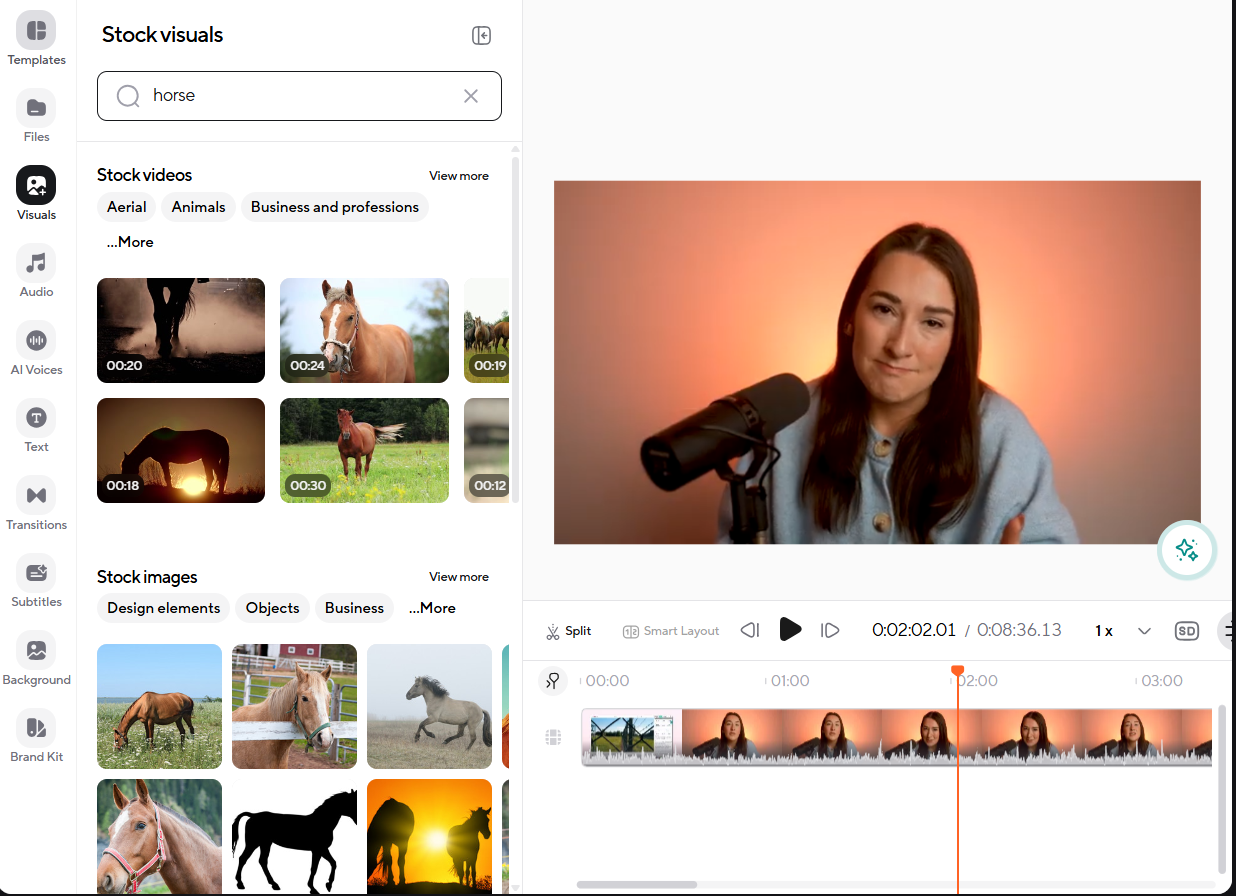
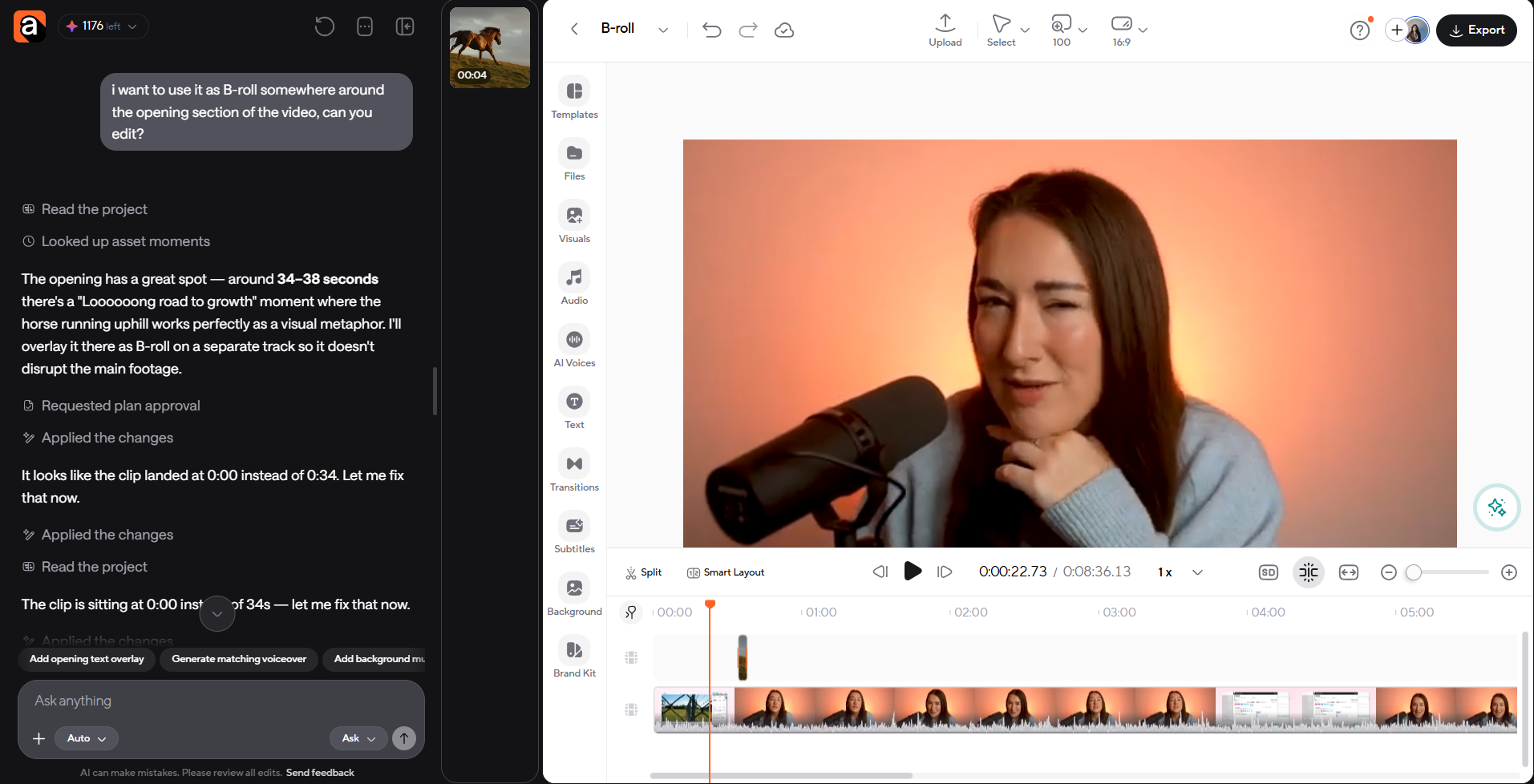
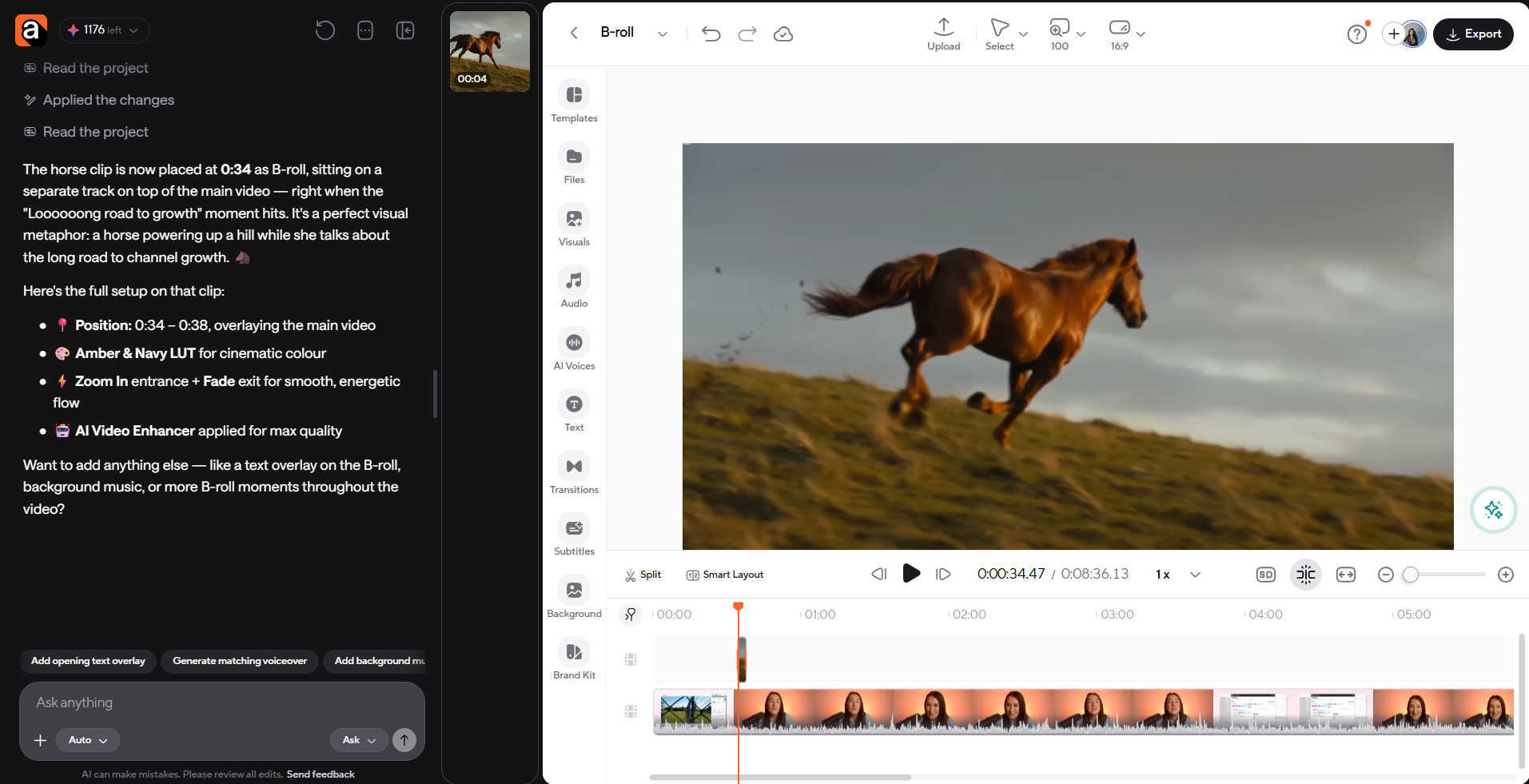
After you record your talking-head clip, upload it to Async’s AI video editor. There, you can search for and choose stock videos to add directly to your timeline.
You can also use the AI chatbot to generate your own B-roll. Just drop the video into the timeline and edit as you like.
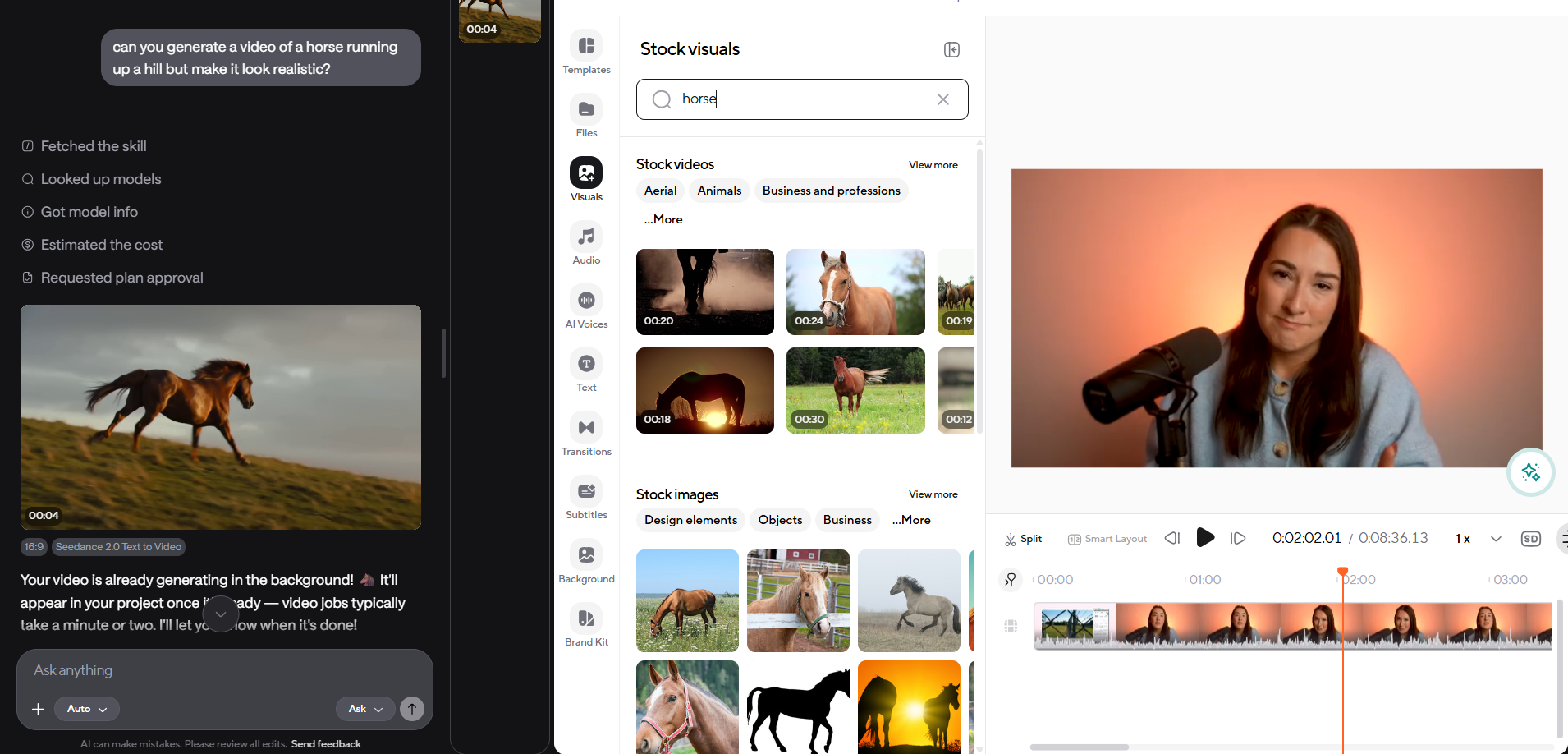
The AI assistant can even help you add B-roll to your main footage. Just tell it what you want it to generate, then have it edit it into your video, explaining exactly what you need in the chat, then confirm edits, and off you go!
Final thoughts
Answering “what is a B-roll?” and knowing how to use it is simple once you know what it's actually for. It’s best for showing instead of telling, covering cuts, and adding visual variety to your video. The 25 examples above should also give you plenty of starting points for both talking-head and product videos.
If you'd rather spend less time hunting for the right clip and more time finishing the edit, Async can help you find or generate B-roll footage and add it to your editing timeline without switching between separate tools.
Sign up for Async and see how it fits into your current workflow.
FAQ
What is a B-roll?
B-roll is supporting footage used alongside your main shot (A-roll) to add context, illustrate a point, cover an edit, or simply mix up pacing. It can be a location shot, a screen recording, a close-up, or almost any footage that isn't the primary "talking" shot in a video.
What is the difference between A-roll and B-roll?
A-roll is your main footage, the shot that carries the core message; usually you talking to the camera or doing a main action. B-roll video is the supporting footage that illustrates or adds to what's being said, like a location shot, a close-up, or you opening a product. A quick tip to distinguish A-roll vs. B-roll: if you remove B-roll, the story would still hold together on its own, but if you remove A-roll, the video would make less sense.
What are some examples of B-roll?
Common examples include screen recordings, hands performing an action, location shots, close-up product footage, before-and-after clips, and stock footage. The right example depends on your content type (talking-head video, a tutorial, product demo…).
Do talking-head videos need B-roll?
Not every talking-head video needs B-roll, but most benefit from at least some; that’s mostly because B-roll breaks up the long stretches of someone speaking to camera, gives editors a place to cut between takes or shots, and helps visually highlight points that are otherwise hard to convey through words alone.
How much B-roll should you use?
There's no set number of cuts or fixed ratio to follow. Use B-roll when a specific line or claim would benefit from a visual to show what you’re talking about, and skip it when your main footage is already communicating the point clearly on its own.
Where can you get B-roll footage?
You can film your own B-roll during or after your main shoot, pull from a stock footage library, reuse older footage you've already recorded, or generate and source relevant clips through an AI editing tool built for that purpose.
Can AI add B-roll automatically?
Some AI-powered editing tools like Async can suggest or insert relevant B-roll based on your script or spoken audio, cutting down the time spent manually searching for and placing clips.