You spent an afternoon on the perfect ad. The product shot glows, the headline lands, the CTA button is a shade of orange that could sell sand in a desert. Then you upload it as a Reel and watch the like button sit on your logo, the caption swallow your offer, and your headline get trimmed to "Brunch dr."
Nobody warns you that the same video can look brilliant in one placement and broken in the next. The fix is not more design talent. It is picking the right format before you start and starting from a template that already knows where the safe zones are.
This guide gives you the short answer on 1:1, 4:5, and 9:16, four ready-made Async social media video templates to start from, and a simple way to turn one campaign into three placement-ready versions without awkward cropping.
Square, portrait, or vertical: Which format should you use?
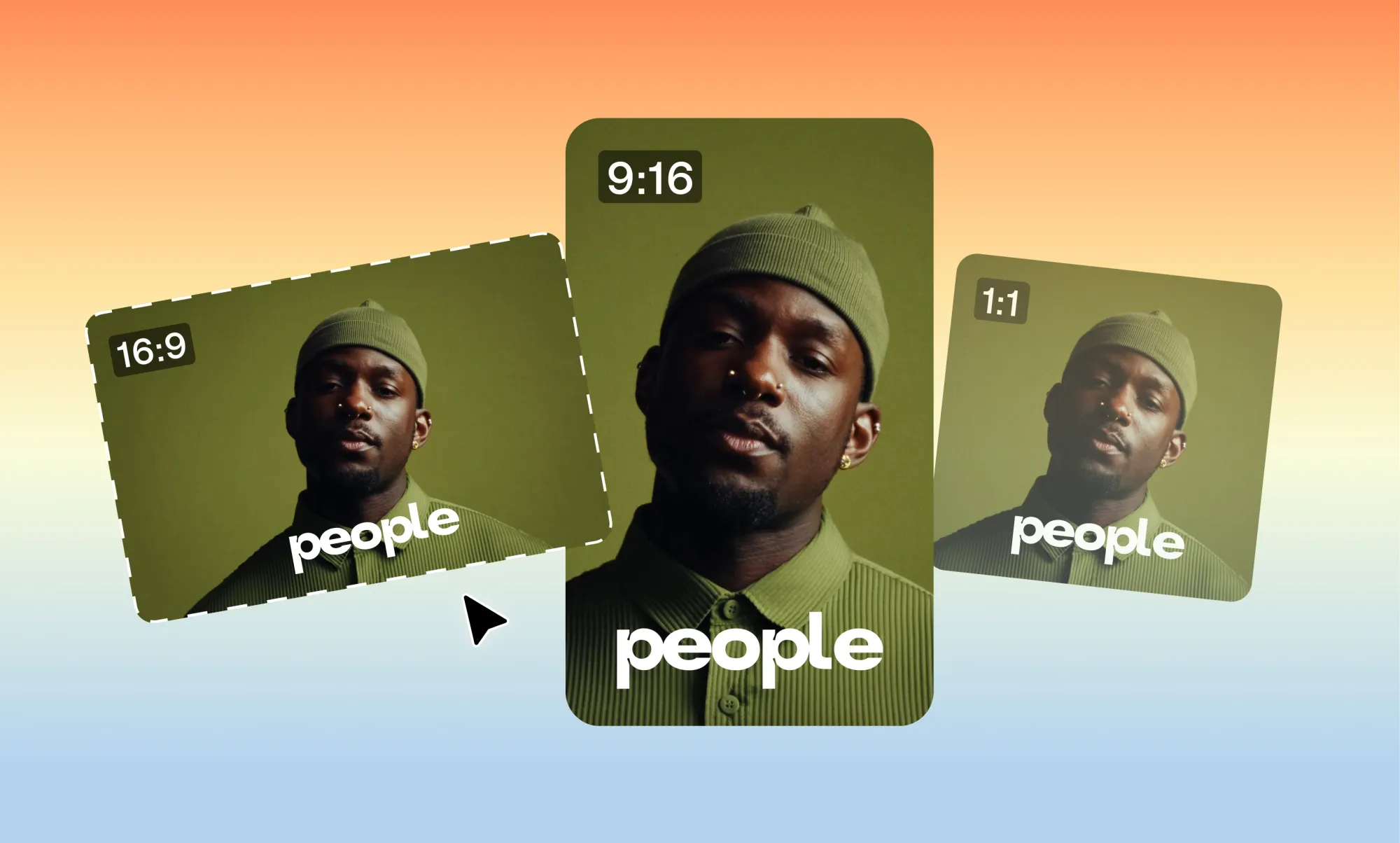
Use 1:1 when one video has to work across several feeds, 4:5 when the ad lives mainly in the Instagram or Facebook feed, and 9:16 for Reels, Stories, TikTok, and Shorts. Pick the format based on where the ad runs, then choose a template built for that layout.
Need the full spec list for every Instagram placement? See our guide to Instagram aspect ratios and the breakdown of Instagram video sizes. Below, we skip the theory and go straight to templates.
Social media video templates by format
All four templates below come from the Social Formats collection in the Async templates library. Each one uses a 9:16 canvas, but keeps the core content inside a square or feed-post frame in the middle of the screen. That is the useful part: the important elements sit where a square or feed crop will not cut them.
1. One Square
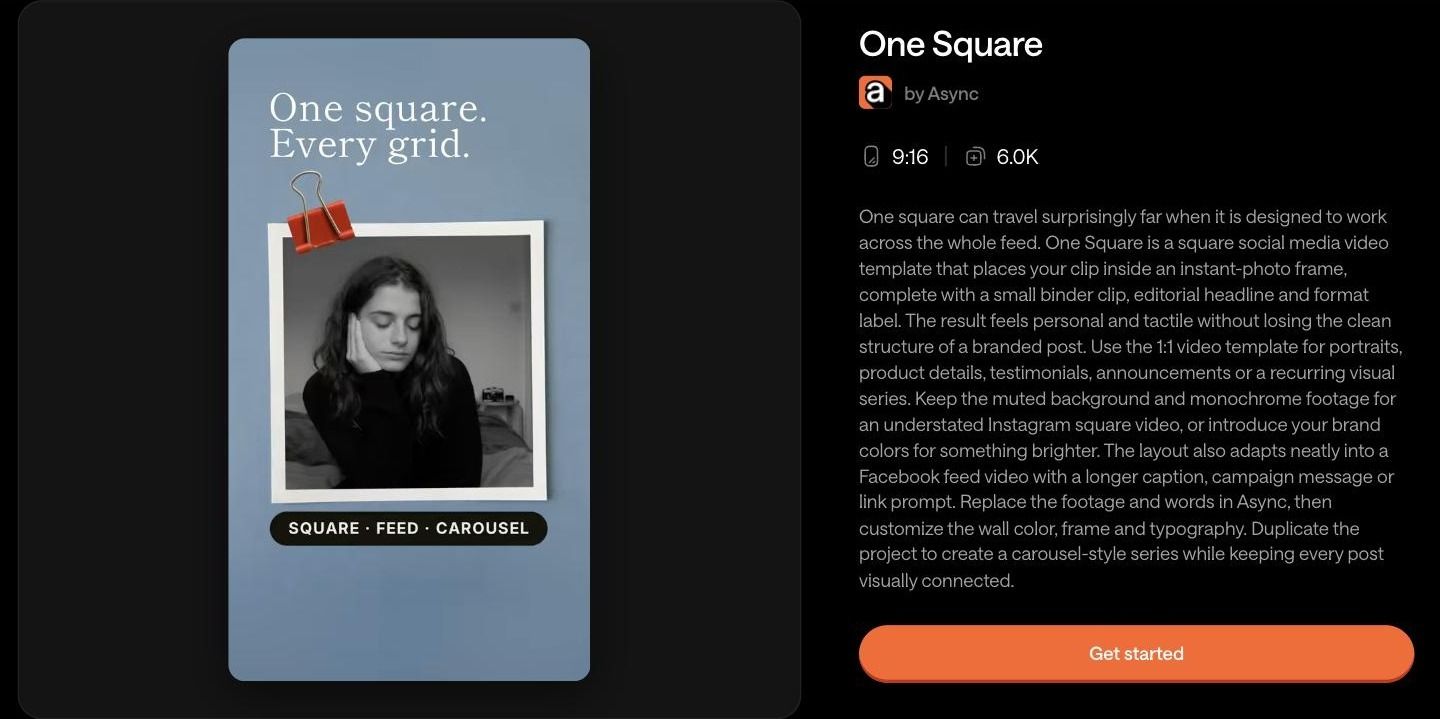
Best for: Portraits, testimonials, product details, and recurring visual series.
Aspect ratio: 9:16 canvas with a 1:1 instant-photo frame at its center.
Use it for: A boutique posting a weekly "customer of the week" photo series, or a founder sharing a short quote clip.
Why this format works: Your clip sits inside a square frame with a binder clip, a two-line headline above, and a format label below. Everything that matters stays in the middle, so the same edit holds up as a Reel, a square Instagram post, or a Facebook feed video with a longer caption. Duplicate the project to build a carousel-style series that still looks connected.
Template: One Square
2. No Crop
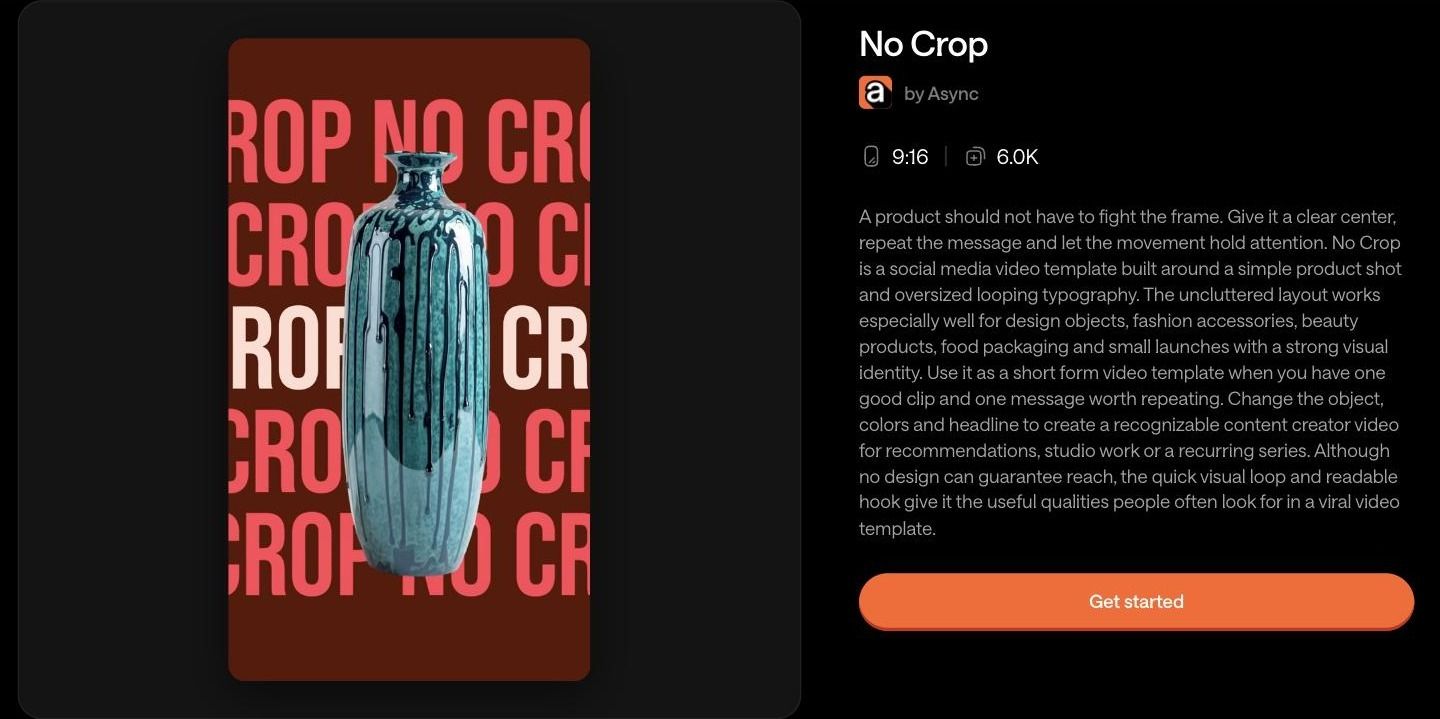
Best for: Single-product launches with a strong visual identity.
Aspect ratio: 9:16 canvas with a centered product and full-width looping type.
Use it for: A ceramics studio launching one new vase, a beauty brand teasing a single SKU, or food packaging with a bold color.
Why this format works: The product sits dead center while oversized, repeating typography runs edge to edge behind it. Because the words repeat, losing the edges to a crop never loses the message. You need one good clip and one line worth saying several times. Swap the object, colors, and headline to make it your own.
Template: No Crop
3. Square Ready
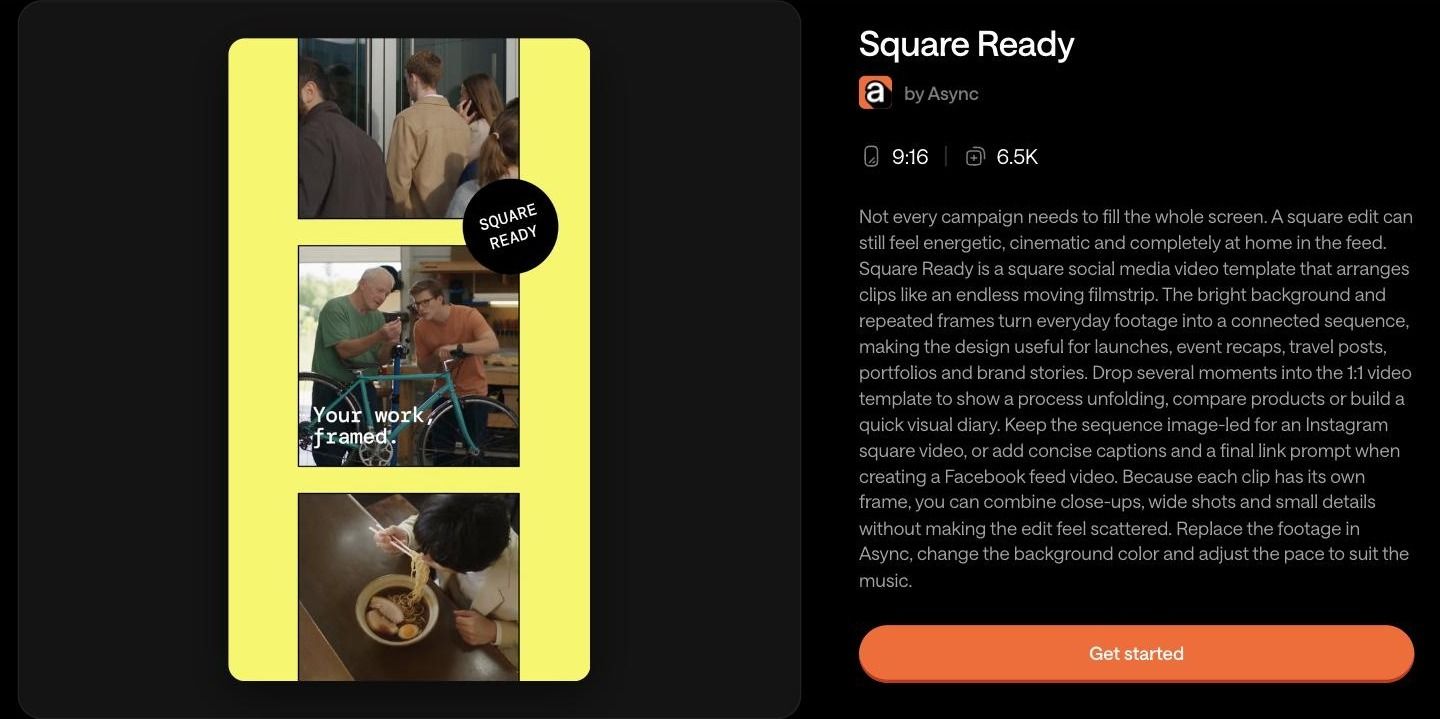
Best for: Event recaps, launches, travel posts, portfolios, and process videos.
Aspect ratio: 9:16 canvas with a scrolling filmstrip of square frames, built for 1:1 feed use.
Use it for: A bike repair shop showing a full service in five quick shots, or an agency recapping a launch event.
Why this format works: Each clip gets its own frame on a bright background, so close-ups, wide shots, and details can sit side by side without feeling scattered. Keep it image-led for an Instagram square video, or add short captions and a closing link prompt for a Facebook feed video.
Template: Square Ready
4. Feed Classic
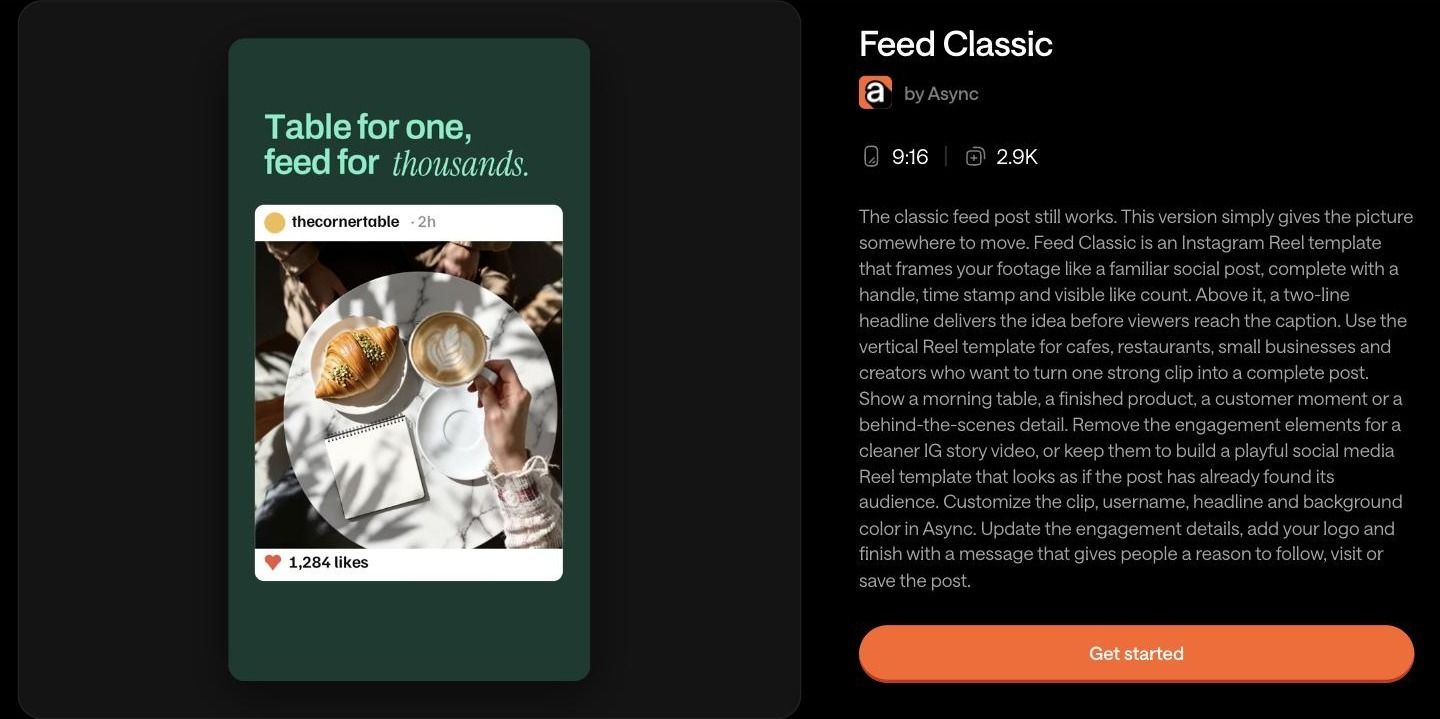
Best for: Cafes, restaurants, small businesses, and creators with one strong clip.
Aspect ratio: 9:16 Reel canvas with a near-4:5 feed post card in the middle.
Use it for: A cafe turning a morning-table clip into a Reel that still reads like a familiar feed post.
Why this format works: Your footage is framed like a social post, complete with handle, timestamp, and like count, with a two-line headline above it. The postcard carries the message, so it translates naturally to portrait feed placements. Remove the engagement elements for a cleaner Story, or keep them for a playful, social-proof look.
Template: Feed Classic
Working with square footage from scratch instead? The square video editor gets you a 1:1 canvas in one click.
Square vs. vertical video: What actually changes?
The ratio changes more than the canvas. It changes where text, captions, logos, and subjects can safely sit. Here is when each one earns its place. (For the full theory, see how to change a video's aspect ratio.)
1:1 square is best when:
- the content needs to work across several feeds
- the subject is centered
- the layout needs to stay compact
4:5 portrait is best when:
- you want more feed real estate than a square gives you
- the campaign is designed primarily for the Instagram or Facebook feed
9:16 vertical is best when the content is for:
- Reels
- TikTok
- YouTube Shorts
- Stories
- any other full-screen mobile placement
The catch with 9:16 is that the platform draws on top of your video. Widely shared Meta safe-zone guidance suggests keeping roughly the top 14% and bottom 35% of a vertical frame free of key text, plus about 6% on each side. That is a lot of screen you cannot fully trust.
How to avoid cropping your text, captions, and CTA
Most cropping problems come from one habit: designing for one ratio and assuming it will survive the others. Run through this checklist before every export.
- Keep important text away from the edges of the frame.
- Do not place CTAs too low in 9:16 layouts, where captions, handles, and buttons cover them.
- Keep faces and products inside a central safe area.
- Check caption position after every resize.
- Preview every format before export.
- Do not assume a square design will automatically work vertically (or the other way around).
The last point is easy to underestimate. Here is Feed Classic, built for 9:16, switched straight to 1:1 in the Async editor with no other changes. The headline runs off the frame, the background stops short, and the layout hugs the left edge.
Switching the ratio is step one, not the finish line. You still need to reposition and resize the elements for the new frame.
For vertical versions, Async helps with the guesswork. In the editor's aspect ratio menu, the Portrait 9:16 option includes a social media overlay for Reels, TikTok, Shorts, and Story. Turn it on and you see exactly where the platform's icons, handle, and caption will land over your design.
One campaign, three formats
Say a cafe is promoting a Saturday brunch. The core ad has four parts: logo, a two-line headline, a hero shot of the pastry, and a "Book a table" CTA, plus a short caption. Here is how that one campaign changes across formats.
The pattern: the 1:1 and 4:5 versions can use the whole frame, while the 9:16 version squeezes everything into a middle band. If you repurpose content across social media regularly, building that middle band first saves you the most rework. Starting from wide footage? Learn how to reframe horizontal video for vertical.
How to adapt a template in Async
- Choose the template. Open it from the templates library and click Get started.
- Replace the footage and text. Drop in your clips, headline, handle, and logo.
- Set the correct aspect ratio. Use the ratio menu at the top of the editor: Landscape 16:9, Portrait 9:16, Square 1:1, plus 4:3, 2:1, and 3:4.
- Reposition important subjects. Move faces, products, and text back inside the safe area for the new frame.
- Check captions and graphics. Turn on the Reels, TikTok, Shorts, or Story overlay for vertical versions.
- Export the campaign version. Repeat steps 3 to 5 for each placement.
Have a long video instead of a template? Async's AI Clips workflow can output several social ratios at once, and you can resize video for social media in a few clicks.
Pick the template, then adapt the frame
Pick the template based on where the ad will run, then adapt the crop, text, captions, and CTA. Stretching one design into every ratio is how logos end up under like buttons. Start with One Square, No Crop, Square Ready, or Feed Classic, and build your next campaign in Async.
FAQ
Is square or vertical video better for social media?
Neither wins everywhere. Vertical 9:16 fills the screen on Reels, Stories, TikTok, and Shorts. Square 1:1 is the safer choice when one video has to run across several feeds. Choose based on the main placement, not a general rule.
What size is a square social media video?
A square social media video is 1080 × 1080 pixels, a 1:1 aspect ratio. It works in Instagram and Facebook feeds, LinkedIn, and X, which is why it is a popular default for cross-platform posts.
What is the best aspect ratio for video ads?
It depends on the placement. Use 9:16 for full-screen Reels, Stories, TikTok, and Shorts ads, 4:5 for Instagram and Facebook feed ads, and 1:1 when you need one flexible version for several feeds.
Should Instagram ads be 1:1, 4:5, or 9:16?
Use 4:5 for feed ads, since it takes up more screen than a square. Use 9:16 for Reels and Stories ads. Use 1:1 only when you want one asset that works across many feeds. Check our Instagram video sizes guide for exact specs.
Can I use the same video for Reels and feed ads?
Yes, if the key content sits in the middle of the frame. Templates like One Square and Feed Classic keep the message inside a central square or feed-post card, so the edit still reads well when a feed crops it.
How do I stop text from getting cropped in vertical video?
Keep headlines and CTAs out of roughly the top 14% and bottom 35% of the frame, and away from the side edges. In Async, turn on the Reels, TikTok, Shorts, or Story overlay to preview where platform buttons and captions will sit.
Where can I find square video templates?
The Async templates library has a Social Formats collection with square-ready layouts, including One Square, Square Ready, No Crop, and Feed Classic. Search "square" in the templates library to see more.
Can I resize one template for different platforms?
Yes. Open the template in Async, switch the aspect ratio from the editor menu, then reposition text, subjects, and the CTA for the new frame. Duplicate the project for each placement so every version stays editable.