The recommended YouTube banner size is 2560 × 1440 pixels. YouTube requires a minimum upload size of 2048 × 1152 pixels at a 16:9 aspect ratio. At the minimum size, keep important text and logos inside the 1235 × 338 pixel safe area. Banner files should be 6 MB or smaller.
That is the whole answer. In the rest of this guide, we'll explain the part that actually breaks people's banners: the same image is cropped differently on a phone, a laptop, and a TV, so where you place your text matters as much as the canvas you start with.
What is the YouTube banner size? Specs at a glance
Here is the full set of YouTube channel banner size requirements in one place.
YouTube also asks creators to avoid adding embellishments such as shadows, borders, or frames to the file itself.
These figures should be checked against YouTube Help immediately before publication, because platform specifications can change.
What is the YouTube banner safe area?
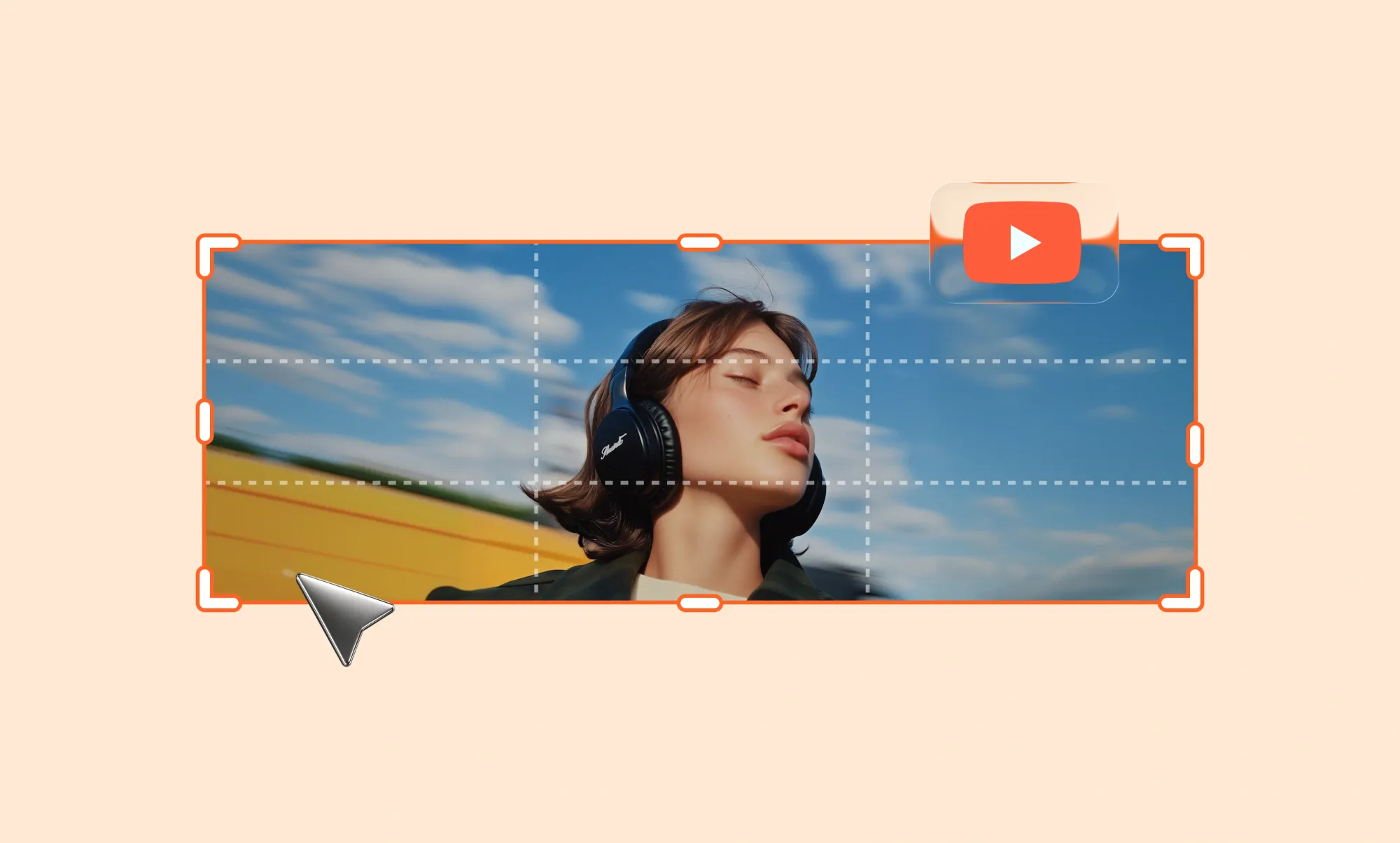
The safe area is the centered region of your banner that stays visible no matter what device someone is using. Everything outside it is optional decoration.
YouTube stores one image per channel, but it does not display that image the same way everywhere. On a television, the full 16:9 frame fills the screen. On a desktop browser, the banner is trimmed to a wide horizontal strip. On a phone, that strip is trimmed again from both sides. YouTube states plainly that images "should accommodate the entire screen for larger devices but will get cropped on certain views and devices."
So the safe area is not a design suggestion. It is the intersection of every crop YouTube applies.
At the 2048 × 1152 minimum, that intersection is 1235 × 338 px. Scale up to the recommended 2560 × 1440 canvas, and the same region becomes 1546 × 423 px, centered horizontally and vertically. Both numbers describe the identical area, which is why you will see them used interchangeably.
Inside that box, place:
- your channel name or logo
- a short tagline explaining what the channel is about
- your upload schedule, if you keep one
- social handles, only if they still fit comfortably
Outside that box, place background texture, gradients, photography, and anything else you would not miss if it disappeared.
YouTube banner size for mobile, desktop, and TV
A common mistake is trying to make separate banners for separate devices. You cannot. There is only one YouTube banner image size you ever upload, because YouTube accepts one banner image per channel and derives every view from it. The different YouTube banner sizes people refer to are not separate uploads. They are crops of the same file.
Here is what each view shows on a 2560 × 1440 upload:
Two things follow from this table.
First, the vertical crop is severe. Of 1440 pixels in height, a desktop visitor sees roughly 423, taken from the middle. If your channel name sits near the top or bottom edge, most of your audience will never see it.
Second, mobile is the narrowest view, which means the YouTube banner size for mobile is effectively the safe area itself. Design for the phone first, and the wider views take care of themselves. Design for the TV first, and the phone will cut your banner in half.
The practical takeaway for a YouTube banner size for all devices: upload one 2560 × 1440 image, then judge it by what survives the mobile crop.
Why is my YouTube banner cropped?
If your banner looks cut off, one of four things is usually happening.
- Your content sits outside the safe area. This is the most common cause by a wide margin. The fix is to move text and logos toward the center.
- You uploaded a non-16:9 image. A square or portrait image gets fitted to a 16:9 frame, which means aggressive cropping or unwanted padding. Always start from a 16:9 canvas.
- You uploaded below the minimum. Anything under 2048 × 1152 either gets rejected or is upscaled, which looks soft on large displays.
- You are judging it on one device. A banner that looks perfect on your desktop monitor can be unusable on a phone. Check both before deciding it is finished.
How to make a YouTube banner that fits correctly
The process takes about fifteen minutes once you know the numbers.
1. Create a 2560 × 1440 canvas. Any editor works: Photoshop, Figma, GIMP, Canva, Affinity. Set the document to 2560 × 1440 px at 72 ppi in RGB.
2. Mark the safe area. Draw a 1546 × 423 px rectangle centered on the canvas and lock it to a guide layer. This rectangle is the only part of your design guaranteed to survive. If you prefer, mark the desktop band (2560 × 423 px) and the tablet band (1855 × 423 px) as well, so you can see exactly what each audience gets.
3. Put essential content inside the rectangle. Channel name, logo, value proposition, upload schedule. Keep type large. Remember that the whole banner is displayed at a fraction of 2560 px wide on a phone, so 24 px body text at full size becomes unreadable.
4. Let the background extend to the edges. Texture, imagery, and color should bleed past the safe area, so the TV view does not look empty. This is what the outer region is for.
5. Preview at multiple crops. Before exporting, hide everything outside the mobile rectangle and look at what remains. Then do the same for the desktop band. If either view is missing your channel name, move it.
6. Export under 6 MB. JPG at 80 to 90 percent quality usually lands well under the limit for photographic banners. PNG is better for flat color and sharp text, but check the file size, because a full-bleed 2560 × 1440 PNG can exceed 6 MB.
7. Upload and check it live. In YouTube Studio, go to Customization, then Branding, then Banner image. Upload, adjust the crop preview YouTube offers, and save. Then open your channel on your phone, on a desktop browser, and on a TV app if you have one.
Free YouTube banner size template
To skip the setup, download the template below. It is a 2560 × 1440 px file with the mobile safe area, tablet band, and desktop band already marked. Drop your design underneath the guide layer, delete the guides, and export.
What should you put on a YouTube banner?
The banner is prime real estate at the top of your channel page, and it works best when it answers one question fast: what is this channel and why should I subscribe?
Channel identity. Your name or logo, rendered clearly. This should match your profile picture so the two read as one brand. YouTube's own guidance is that your banner and profile picture should create a consistent look, feel, and voice, on and off the platform.
A concise value proposition. One line, ideally under eight words. "Weekly Blender tutorials for beginners" tells a visitor more than a decorative slogan does.
Recognizable branding. Consistent colors and typefaces across your banner, thumbnails, and end screens make your videos identifiable in a crowded feed.
An upload schedule, if you keep one. YouTube specifically suggests adding your upload schedule to the banner image. Only do this if it is true, because a stale schedule reads worse than no schedule.
What to leave off: long paragraphs, clickable-looking buttons that are not clickable, contact details you would rather not publish, and anything near the edges. Links belong in the dedicated links section of your channel, where they render as real buttons over the banner.
How to create YouTube visuals with Async
A banner is one piece of a channel's visual identity. The pieces that decide whether people click are your thumbnails, and those need the same consistency and the same volume of iteration.
Async helps on that side of the workflow. Use the AI thumbnail generator to produce thumbnail options that match the palette and type treatment you have established in your banner, so a viewer arriving from search recognizes your channel before they read the title. From there, Async's AI video editor and the YouTube video editor guide cover the rest of the production pipeline.
Once your visuals are consistent, the next levers are distribution and retention. Our guides on how to get more views on YouTube and how to grow your YouTube channel cover both, and if you are building a channel without appearing on camera, see how to start a faceless YouTube channel.
FAQ
What size should a YouTube banner be?
2560 × 1440 pixels is the recommended size. The minimum YouTube accepts is 2048 × 1152 pixels at a 16:9 aspect ratio, and the file must be 6 MB or smaller.
What is the YouTube banner safe area?
The safe area is the centered region that stays visible on every device. It measures 1235 × 338 px at the 2048 × 1152 minimum, which is the same as 1546 × 423 px on a 2560 × 1440 canvas. Keep your channel name, logo, and any essential text inside it.
What size is a YouTube banner for mobile?
Mobile shows the narrowest crop, roughly 1546 × 423 px out of a 2560 × 1440 upload. You do not upload a separate mobile banner. You upload one 2560 × 1440 image and keep the important content inside that central region.
What aspect ratio is a YouTube banner?
16:9. Both 2560 × 1440 and 2048 × 1152 are 16:9, which is why a design built at one size scales cleanly to the other.
Why is my YouTube banner cropped?
Because YouTube crops the same image differently for TV, desktop, tablet, and mobile. If content is disappearing, it is sitting outside the safe area. Uploading a non-16:9 image or one below the minimum size will also cause unexpected cropping.
What is the maximum YouTube banner file size?
6 MB. Accepted formats are JPG, PNG, non-animated GIF, and BMP.
Is 2560 × 1440 good for a YouTube banner?
Yes. It is the size YouTube recommends, and it is the size that looks correct on TV and other large displays. Going larger gains nothing and risks exceeding the 6 MB file limit.
How do I make my YouTube banner fit all devices?
Build on a 2560 × 1440 canvas, keep all essential text and logos inside the centered 1546 × 423 px safe area, let the background bleed to the edges, export under 6 MB, then check the result on a phone and a desktop browser after uploading.