There is always one. The stranger who strolls into your perfect travel shot. The tripod leg you swear was not there. The delivery van parked in frame like it pays rent.
The fix: to remove an object from a video, open the clip in an AI editor, mark or describe the thing you want gone, and let the model track it across frames and rebuild the background behind it. Small object, steady shot, plain background: about a minute. Something big moving across a handheld shot: it will not look clean, and a crop, a B-roll cutaway, or a manual mask will give you a better video.
This guide covers both, plus the real workflow inside Async and what to do when removal falls apart.
How to remove an object from a video with AI
Every AI video object remover follows the same four steps, whatever the interface looks like.
- Upload the video. Most tools cap clip length or resolution on free plans, so trim to the section that contains the problem first.
- Select or describe the unwanted person or object. Some editors give you a brush or a box to paint over the object in one frame. Others take a text prompt, such as "remove the traffic cone on the left."
- Let the AI track and reconstruct the background. The model follows the object across frames, then fills the hole with pixels borrowed from other frames plus generated detail where no frame showed that area.
- Review the result and fix the problem frames. Watch the whole clip, not the thumbnail. Entrances, exits, and moments where the object passes behind something else are where artifacts show up.
The exact workflow depends on the editor. Prompt-based tools are faster and need no masking skill, but you get less control over the boundary. Brush-based tools like Adobe After Effects Content-Aware Fill give you frame-level control and take much longer, since you create the mask yourself before the fill runs.
One thing worth knowing before you start: reconstruction is invention. The editor is not uncovering footage hidden behind the object; it is guessing what was there. The more of the background the object hides, and the longer it hides it, the more guessing is involved, and the more likely the result looks soft or warped.
How to remove a person from a video
Removing a person is the same technical task as removing an object. The model masks the shape, tracks it, and rebuilds what was behind it. So if you have searched for how to remove someone from a video, the same tools apply. In practice, though, removing people from video is harder than removing objects for five specific reasons.
They move across the frame. A cone stays put, so the AI only needs to reconstruct one patch of background. A stranger walking through your shot exposes a new patch every frame, which multiplies the reconstruction work and the chances of a visible smear.
They overlap with your actual subject. When a background walker passes behind the person you are keeping, the model has to separate two silhouettes that share edges, hair, and clothing tone. Expect chewed edges on your subject.
The camera is moving. Handheld or gimbal footage means the background shifts under the mask, so the fill has to match motion as well as texture.
Their body covers a large part of the background. Someone standing three feet from the lens can hide a third of the frame. There is simply not enough real information to rebuild that convincingly.
Shadows and reflections stay behind. This is the most common failure people miss. The AI removes the body and leaves a shadow walking across the pavement, or a figure still visible in a shop window. Both read as obviously fake even when the main removal is perfect.
If your clip has two or three of these at once, decide early whether you are actually removing the person or hiding them. Hiding is often the better video.
How to remove an object or person with Async
Async does not have a brush-and-erase button. Object removal runs through the AI chat, which picks a model, prices the job, and returns the edited clip for you to review. Here is the real workflow on a real clip.
The footage. A handheld travel shot of a seafront promenade, sixteen seconds, two subjects walking away from the camera. In the lower right, a pigeon stands on the paving: small, on a plain surface, and pulling the eye exactly where it should not go. Close to the easiest possible case.
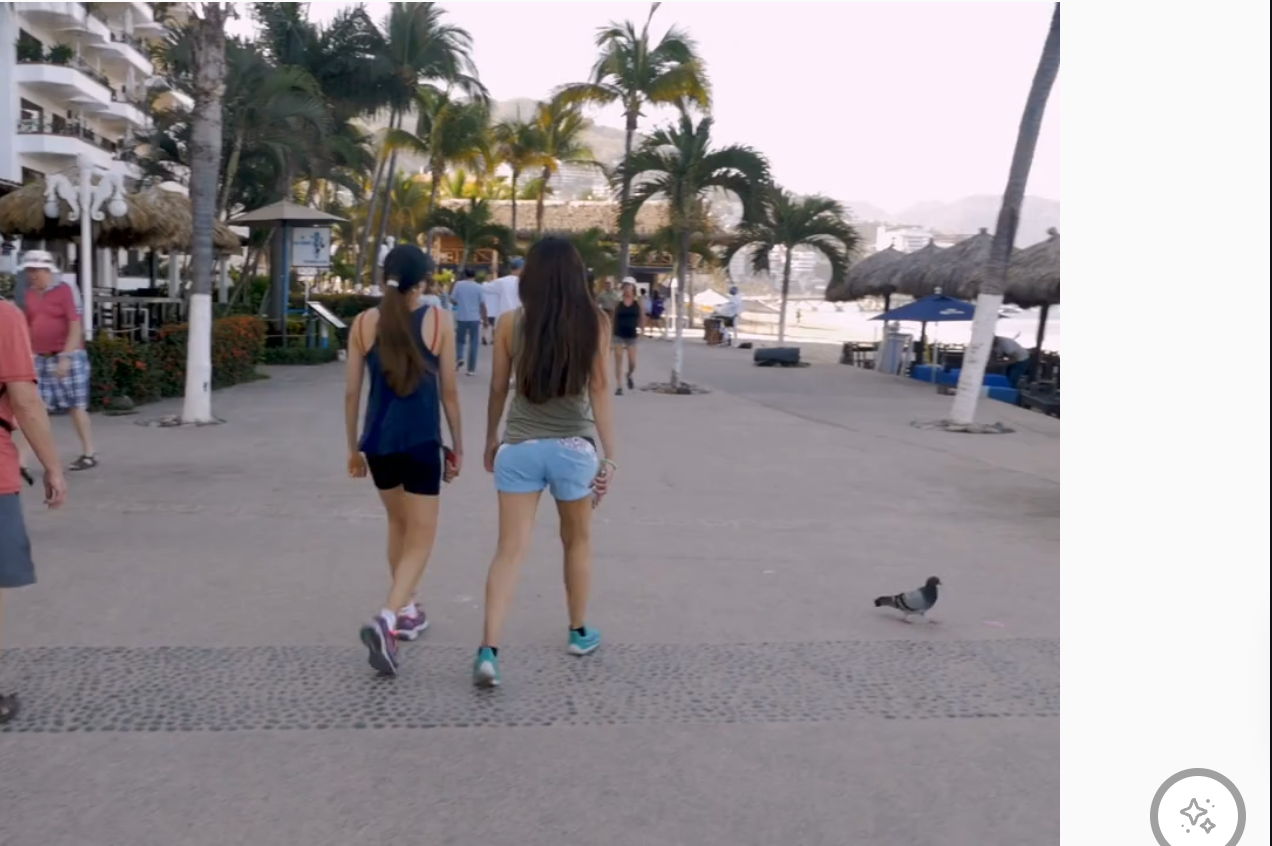
Step 1: Get the clip into a project.
Open Async's AI video editor, create a video project, then click Upload for your own footage or open Visuals for a stock clip.
Step 2: Select the clip on the timeline.
Click it once. "Working with the selected item" appears above the chat box, so you know the chat will act on that clip and not the whole project. You can also tag an asset with @.
Step 3: Describe what you want gone.
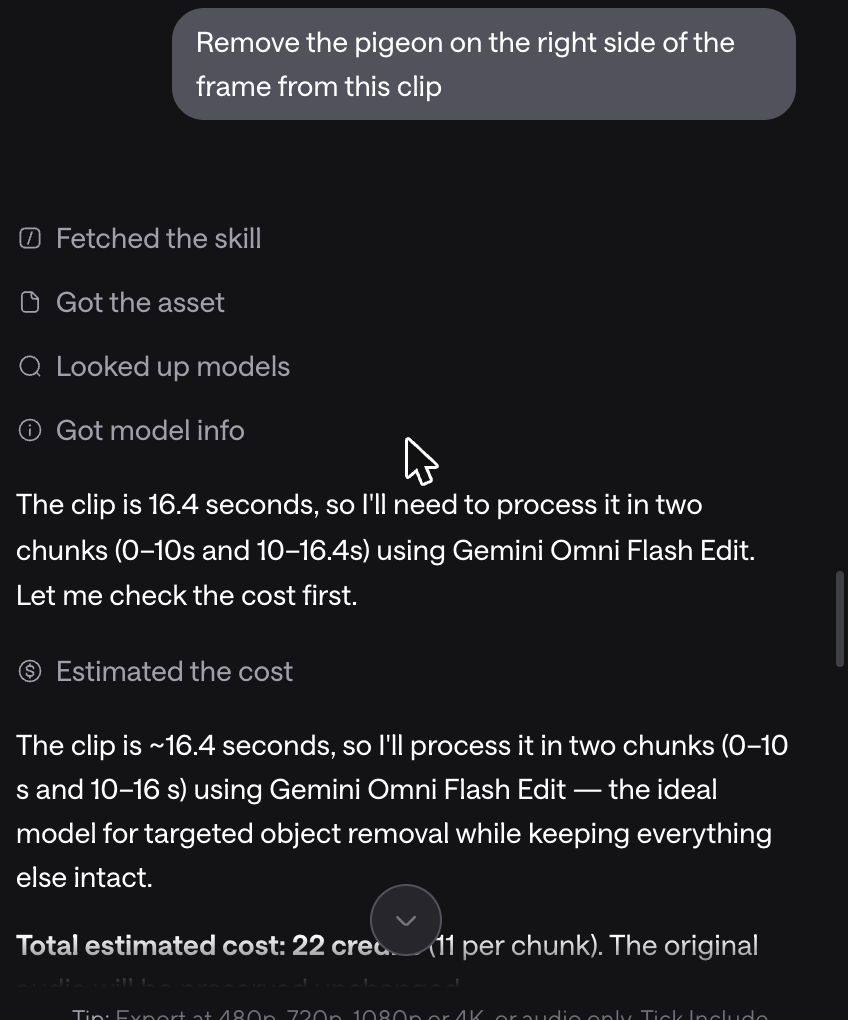
Be specific about position, because "remove the bird" is ambiguous in a frame with several. The prompt here was: "Remove the pigeon on the right side of the frame from this clip."
Step 4: Check the plan and the cost.
Async reads the clip, picks a model, and prices the job before spending anything. Here, it reported 16.4 seconds, processed in two chunks using Gemini Omni Flash Edit for targeted object removal, 22 credits total, original audio preserved. Clips over ten seconds are split automatically, so a longer edit costs proportionally more.
Step 5: Review the result.
Async previews each chunk in the chat as it finishes. The pigeon is gone, and the paving underneath has been rebuilt with no visible patch.
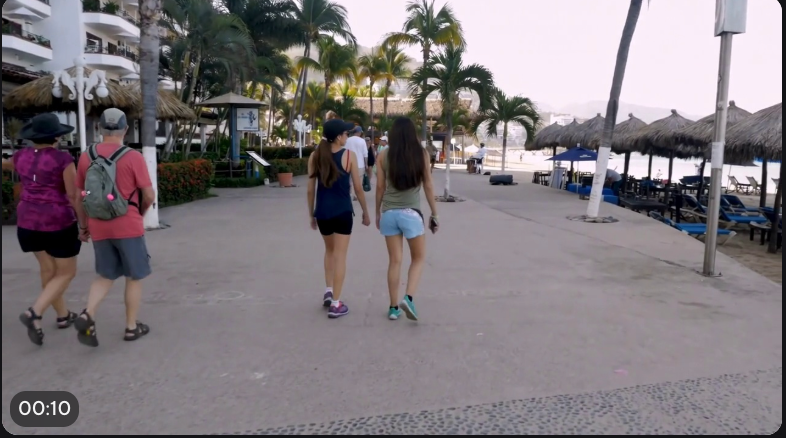
Two things worth knowing from the test. Async chooses the model per segment and will switch to another one mid-job if it gets a better result that way, so processing time varies more than the credit estimate does. And because the model re-renders the frame rather than patching one region, small background details you did not ask about can shift slightly: in this clip, distant figures further down the promenade changed between the original and the result. Compare frames before you commit, and run removal on the shortest segment that contains the problem.
Other ways to handle it in Async. Removal is one option among several, and for some shots, another one is simply a better fit. Crop in the Basic panel reframes the object out of shot. AI Zoom pushes in on your subject. Cinematic Blur softens the background so a distant figure stops competing for attention. Background Removal, under the AI Assistant, cuts the background entirely and takes every background person with it: a different job with its own rules, and one you do not need a green screen for, covered in our guide to removing a background from a video without a green screen. You can also Split the clip, drop the seconds you do not want, and add B-roll to your video over the gap. New to that idea? Start with what is B-roll.
When AI object removal works well
Results are usually clean when most of these are true:
- The background is static, such as a wall, sky, road, or floor.
- The unwanted object is small relative to the frame.
- A person only briefly crosses the frame, so other frames show the background they hid.
- There is a clear separation between your subject and the thing you are removing.
- The camera is stable or moving slowly and smoothly.
- The texture behind the object is simple and repeating.
- The clip is short, ideally under ten seconds.
A tripod leg, a water bottle on a desk, a bin at the edge of a static wide shot, a bird on the pavement: these are the jobs an AI video object remover finishes in one pass.
When removing something from a video gets difficult
This is where tool landing pages go quiet, so here is what actually breaks.
Heavy camera movement. Handheld pans, whip movements, and drone footage mean the fill has to match parallax as well as texture. Warping is common.
The object crosses another moving subject. Overlapping edges are the hardest case in the category. The mask bleeds, and your subject loses hair or a shoulder edge.
Complex textures. Water, foliage, crowds, patterned tile, and signage almost never rebuild cleanly. Adobe's Content-Aware Fill documentation flags moving water and varied light and texture as unreliable, and that is a mature manual tool.
Reflections. Windows, car paint, glasses, wet pavement. The AI removes the object and leaves its reflection.
Shadows. A body-shaped shadow with no body is worse than the original problem.
Motion blur. Fast movement makes an object's edge semi-transparent, so a hard mask leaves a faint ghost.
Long clips. More frames mean more places for the fill to drift, and tools that chunk the footage can leave a visible seam between chunks.
Large objects. If the thing you are removing covers a large share of the frame, there is not enough real background to work from.
When you hit these, stop trying to erase and change the approach. Shorten the affected segment. Crop or reframe so the object sits outside the new frame. Cover the section with a B-roll cutaway. Reshoot if you can. Or mask it frame by frame in a manual editor, which works but costs hours.
AI object removal vs. cropping vs. background replacement
The honest rule: if the object is near the edge, crop. If it is a background human, blur or replace the background. If the section is short and you have footage to spare, cut away. Reach for AI removal when the object is small, central, and stubborn.
Tips for getting a cleaner object-removal result
- Start with the highest-quality footage you have. Removal works from real pixels. Compressed, re-uploaded, screen-recorded footage gives the model less to work with.
- Remove the smallest possible area. Tight prompts and tight masks beat generous ones. Do not select a comfortable margin around the object.
- Work on shorter sections. If the object moves a lot, split the clip and treat every few seconds separately rather than asking for one long pass.
- Check the frames around entrances and exits. The first and last frames where the object appears are where masks slip.
- Look for leftover shadows and reflections. Step through frame by frame in the areas below and beside where the object was.
- Preview the full clip at full speed before exporting. A single frame can look perfect while the sequence flickers. More habits like this are in Async's video editing tips.
Can you remove someone from a video on an iPhone or Android?
Yes, for simple cases. Mobile apps handle a small static object on a plain background reasonably well, and they are convenient for a quick Reel fix. What they struggle with is what desktop tools struggle with, only sooner: moving people, overlapping subjects, long clips, and handheld camera motion. Phones also compress aggressively on export, which makes artifacts more visible. If the shot matters, do the removal in a desktop or browser editor and keep the phone for easy fixes.
FAQ
How do I remove an object from a video?
Upload the clip to an AI video editor, mark or describe the object, let the tool track it and rebuild the background, then review the full clip and trim any bad frames.
Can AI remove a person from a video?
Yes, and it works well when the person crosses the frame briefly against a static background. It struggles when they move a lot, stand close to the camera, overlap your subject, or cast a visible shadow.
How do I remove someone from the background of a video?
For a talking-head shot, background removal or replacement is usually faster and cleaner than erasing the individual, because it eliminates everyone behind you at once. Cinematic blur is the lighter-touch version.
Can you remove moving objects from a video?
Yes. Moving objects are often easier than static ones, because other frames reveal the background they were hiding. The problem is not motion itself; it is motion combined with a moving camera or an overlapping subject.
What is the best AI video object remover?
There is no single best tool, only the right tool for the footage. Prompt-based editors like Async are the fastest for small objects on ordinary footage. After Effects Content-Aware Fill wins when you need frame-level control. Mobile apps are fine for simple, short clips.
Can I remove an object from a video for free?
Most tools offer a free tier with limits on clip length, resolution, or watermarking. Free is realistic for a short test clip and rarely realistic for a finished export.
Why does AI object removal look blurry or distorted?
Because the model had to invent too much. Large objects, complex textures, long durations, and moving cameras all increase how much of the background is guessed rather than borrowed. Shrink the selection, shorten the section, or switch methods.
Can I remove a person without removing the background?
Yes, that is what object removal does: it targets one subject and reconstructs the background behind them. Background removal is the opposite operation, and it is the better choice when you do not need the background at all.