The best editing software for beginners should be easy to pick up, affordable, and flexible enough to handle YouTube videos, TikTok clips, Reels, Shorts, and everyday content without a steep learning curve.
And while most beginners start with a basic timeline editor, they quickly realize they also need a separate tool for captions, another for resizing, and maybe another for repurposing clips. That adds up fast, both in cost and in time spent moving files between apps.
If you want a simple editor that handles one step at a time, tools like iMovie, CapCut, and Clipchamp are solid starting points. But if you want to generate videos, edit footage, add captions, resize for different platforms, and repurpose content without switching tools, Async is built for that workflow.
This guide covers the best video editing software for beginners available right now, what makes each one worth trying, and how to pick the right one based on what you actually want to make.
Best editing software for beginners
The table below compares the most beginner-friendly video editors available right now. If you want a simple tool to trim clips and add music, options like iMovie, CapCut, and Clipchamp are good starting points. However, if you want to generate videos, edit footage, add captions, resize for different platforms, and repurpose content all in one platform, Async is the best tool for you.
Why Async is the best editing software for beginners
Most beginner video editors focus on cutting and trimming. Async is different because it makes the workflow easy, simple, and fast. You can start from a script, a prompt, or existing footage and then edit, add captions, resize for different platforms, and repurpose the same video into multiple clips, all without opening a second tool.
That matters because if beginners don't hit a wall during editing, they’ll usually hit it when they realize they need captions, then a resizing tool, then something to turn the long video into short clips. This becomes frustrating because it means each extra step adds a new tool to learn, more time to work on, and more time before anything can get published.
Async helps you skip that whole tool confusion. In fact, Async works best if:
- You don't want to learn complex timeline software. Async uses a simpler chat-based editing workflow where you can describe what you want instead of manually skimming a timeline. If you've ever watched a tutorial just to do one basic edit, that's the problem Async removes.
- You're making content for YouTube, TikTok, Reels, or Shorts. Async's AI reframe tool converts horizontal footage to vertical automatically, so the same video works across platforms without needing to re-edit from scratch.
- You're a small business owner or solopreneur. You probably don't have an editor on staff. Async handles the repetitive steps, including captions, silence removal, clip creation, and resizing, and lets you focus on your next video idea.
- You want to turn ideas or scripts into videos faster. Async supports AI video generation, meaning you don't always need to record footage first. Start from a prompt or a script and generate the video directly.
- You need captions and social-ready exports. Async generates subtitles automatically and exports them in formats ready for each platform, without needing to add captions manually in a separate tool.
Best video editing software for beginners: top tools to try
The best beginner video editing software depends on what you are making and how much you want to learn. Some tools are built for quick social clips, others for longer YouTube videos, and a few handle the full workflow from recording to publishing. Here are the strongest options right now.
Async
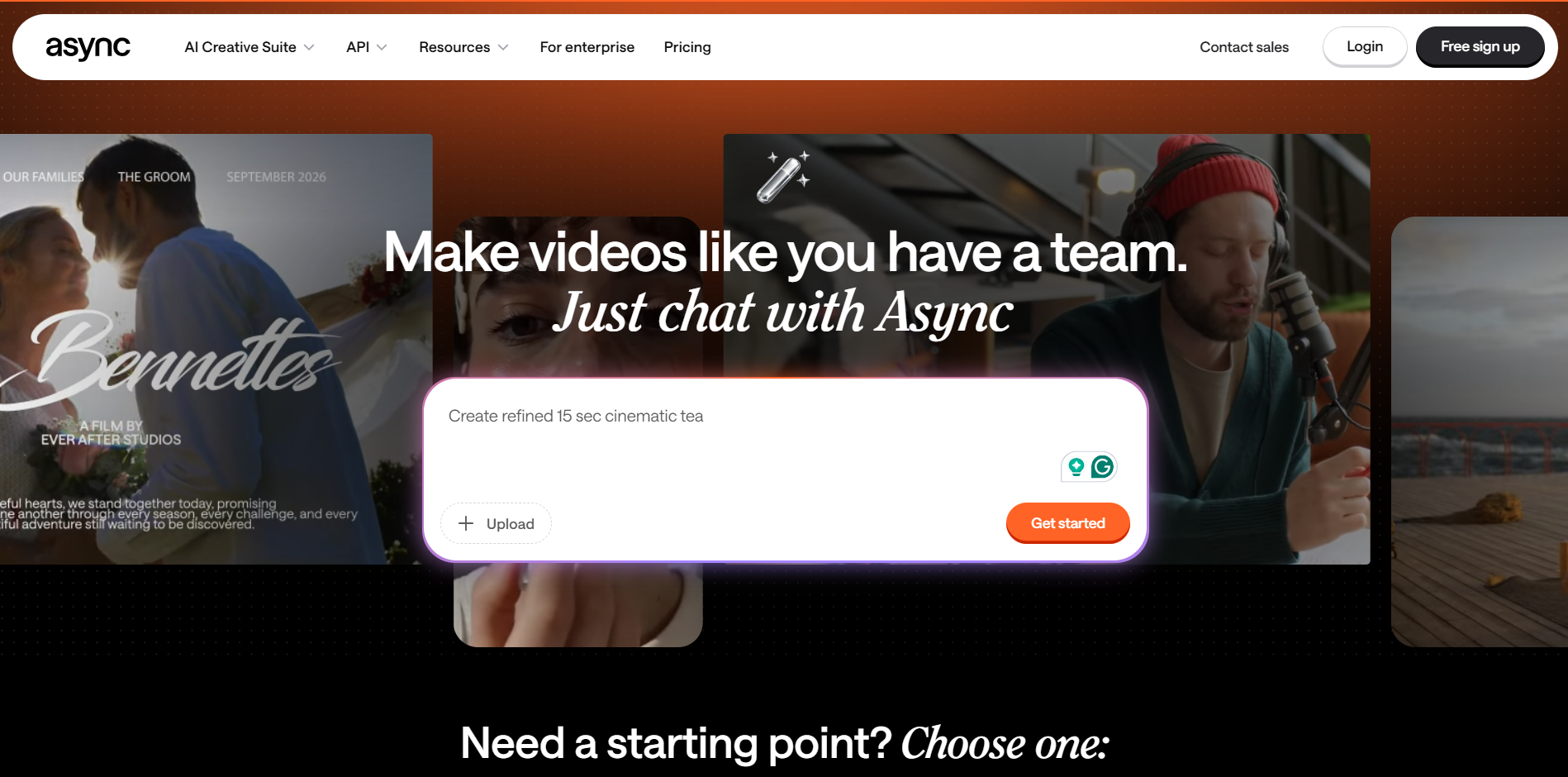
Async is the best editing software for beginners who want to skip jumping between separate tools for editing, captions, resizing, and repurposing. What’s even more helpful is that you can start working either from existing footage, a script, or an AI-generated video, then edit, caption, reframe, and export without leaving the platform.
It’s most practical for beginners because the editing workflow is simpler than a traditional timeline. You can use chat-based commands to make edits, generate subtitles automatically, convert horizontal video to vertical for Reels or Shorts using the AI reframe tool, and turn longer videos into short clips without going through the full footage manually.
Best for: beginners who want editing, captions, reframing, and repurposing in one place without learning complicated timeline software.
Free plan available. Paid plans from $11.99/month.
CapCut
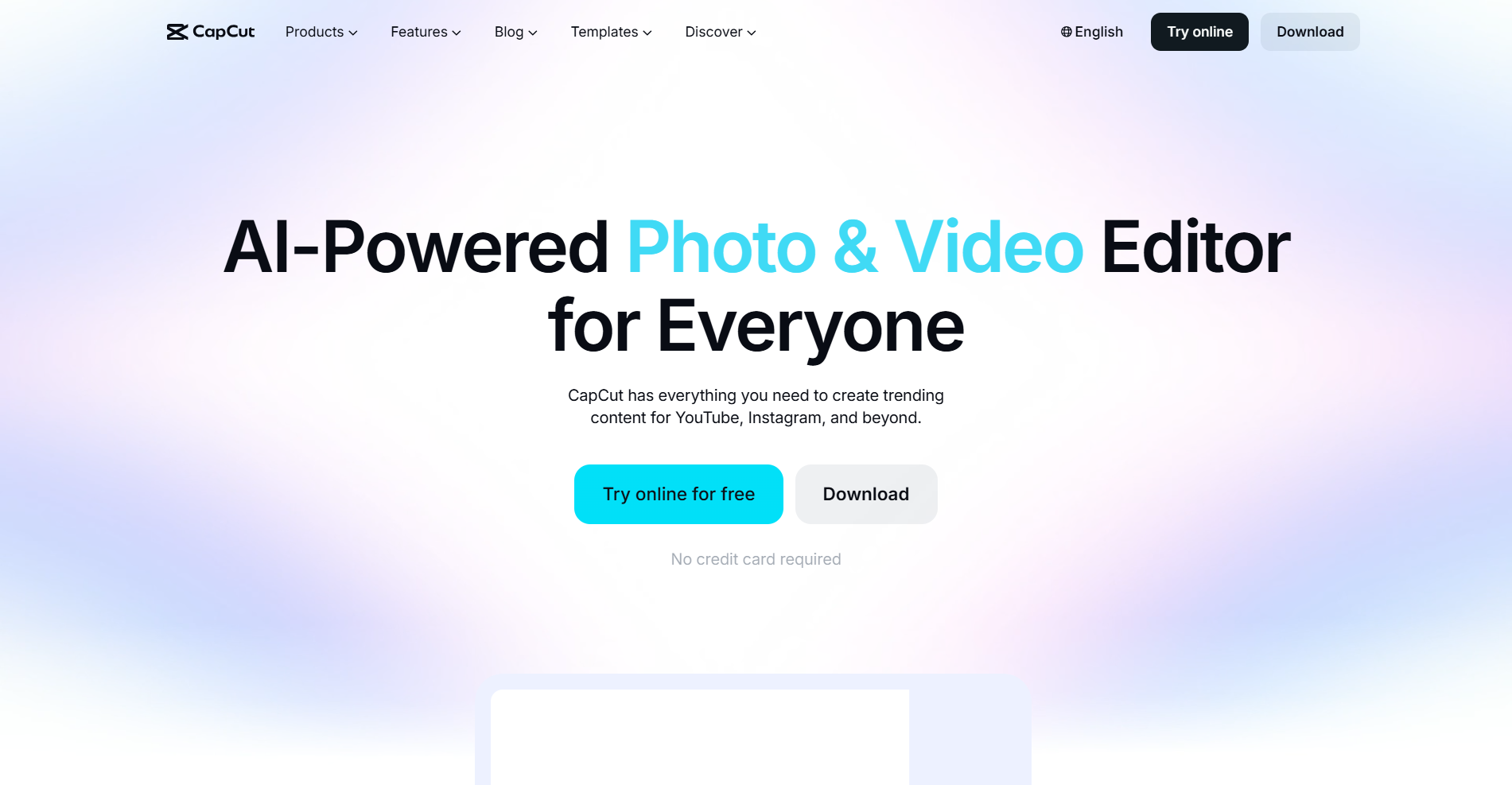
CapCut is one of the most popular free video editors for short-form content. Its template library is large, auto-captions work well, and its interface is fast to pick up on both mobile and desktop. It’s a strong starting point for TikTok, Reels, and Shorts.
The main downside for CapCut right now is its pricing update. CapCut restructured its plans earlier this year and moved the full AI tools to the $19.99/month Pro tier. The free plan still covers basic editing and 1080p exports, but features like text-to-video, 4K exports, and advanced AI tools require upgrading.
Best for: short-form social content, TikTok and Reels creators.
Free plan available. Pro from $19.99/month.
iMovie
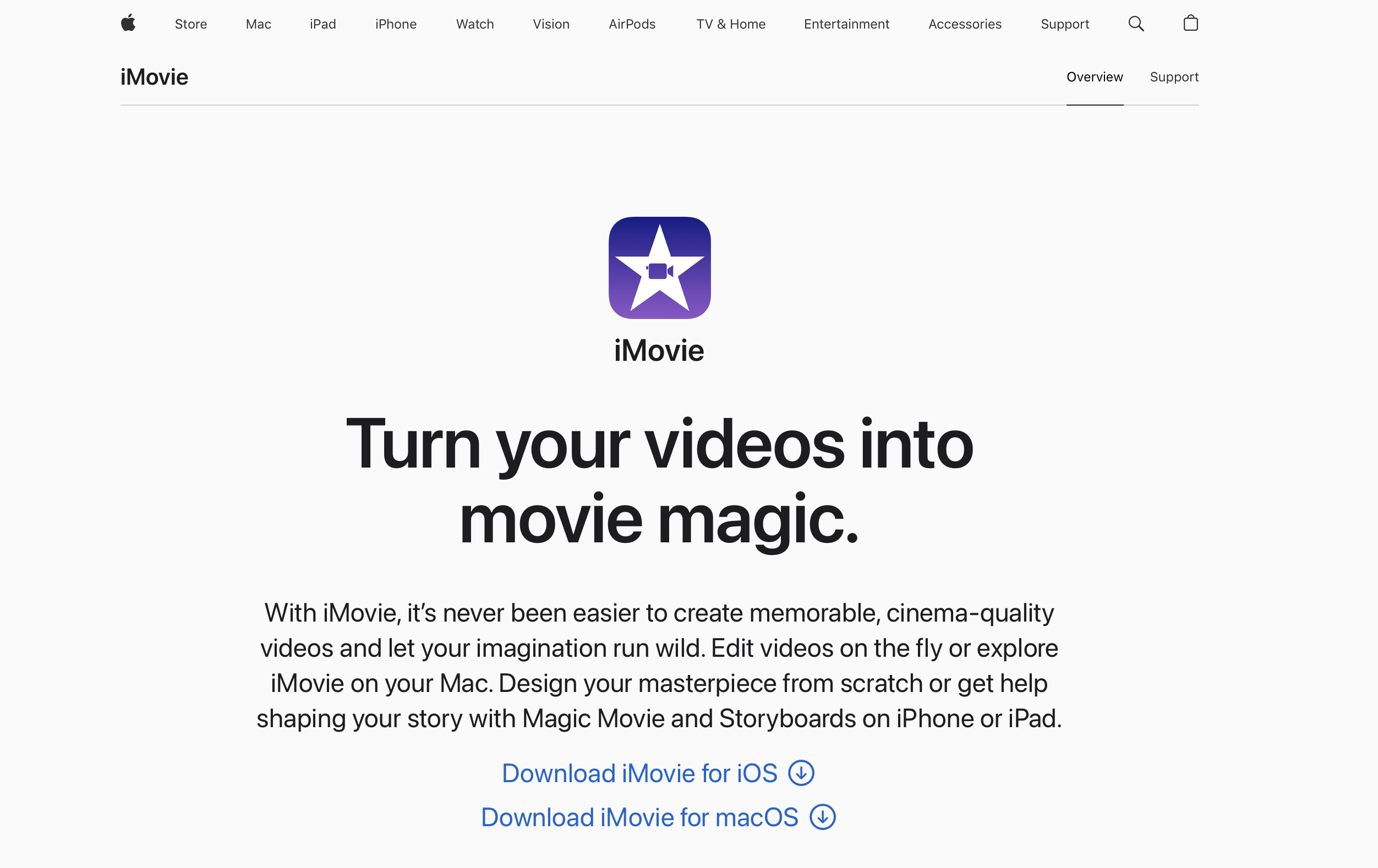
iMovie is Apple's free video editor and comes pre-installed on every Mac, iPhone, and iPad. The interface is clean and simple, and beginners can put together a polished video without needing any editing experience. The Magic Movie feature also automatically assembles clips with music and transitions applied.
However, iMovie supports only two video tracks, has no AI captions, and is only available on Apple devices. This makes it a good first editor for Mac users, but you will most likely outgrow it once you need captions, resizing, or other tools.
Best for: Mac and iPhone beginners who want a free, zero-setup starting point.
Free on Mac, iPhone, and iPad.
Canva
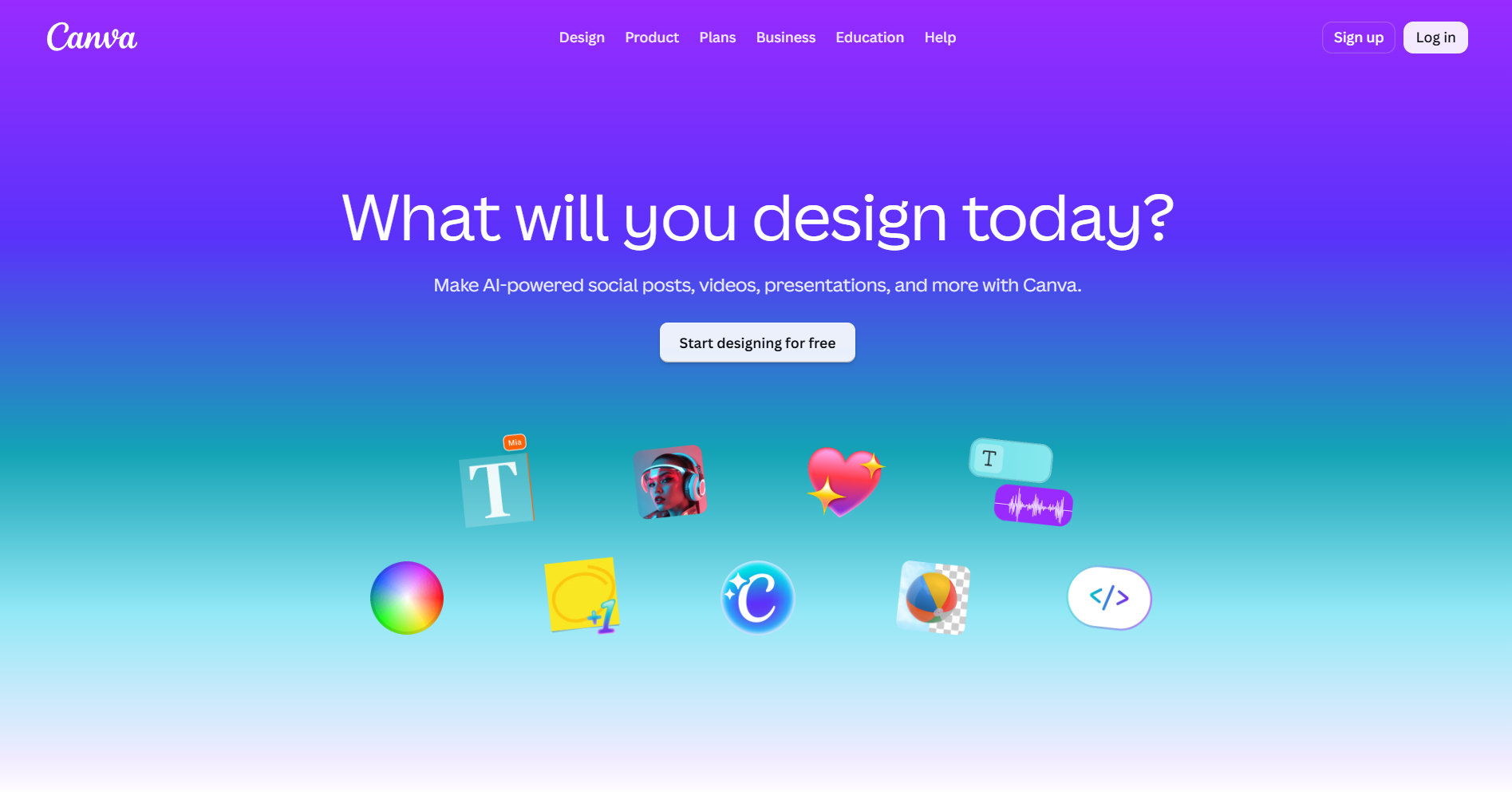
Canva started as a design tool and has since then added a full video editor with templates, a drag-and-drop timeline, and AI video generation through Magic Media. The tool works well for creators who want design-heavy social videos, branded content, or educational material without learning traditional editing.
On the other hand, Canva’s video editing features are more limited than those of other dedicated editors. For example, you cannot do complex multi-track work, and AI generation credits run out quickly on the free plan. But if you already use Canva for graphics and thumbnails, the video features are included at no extra cost with the Pro tier.
Best for: design-heavy social videos, educators, and creators who also need thumbnails and graphics.
Free plan available. Pro from $15/month (monthly) or ~$120/year.
Clipchamp
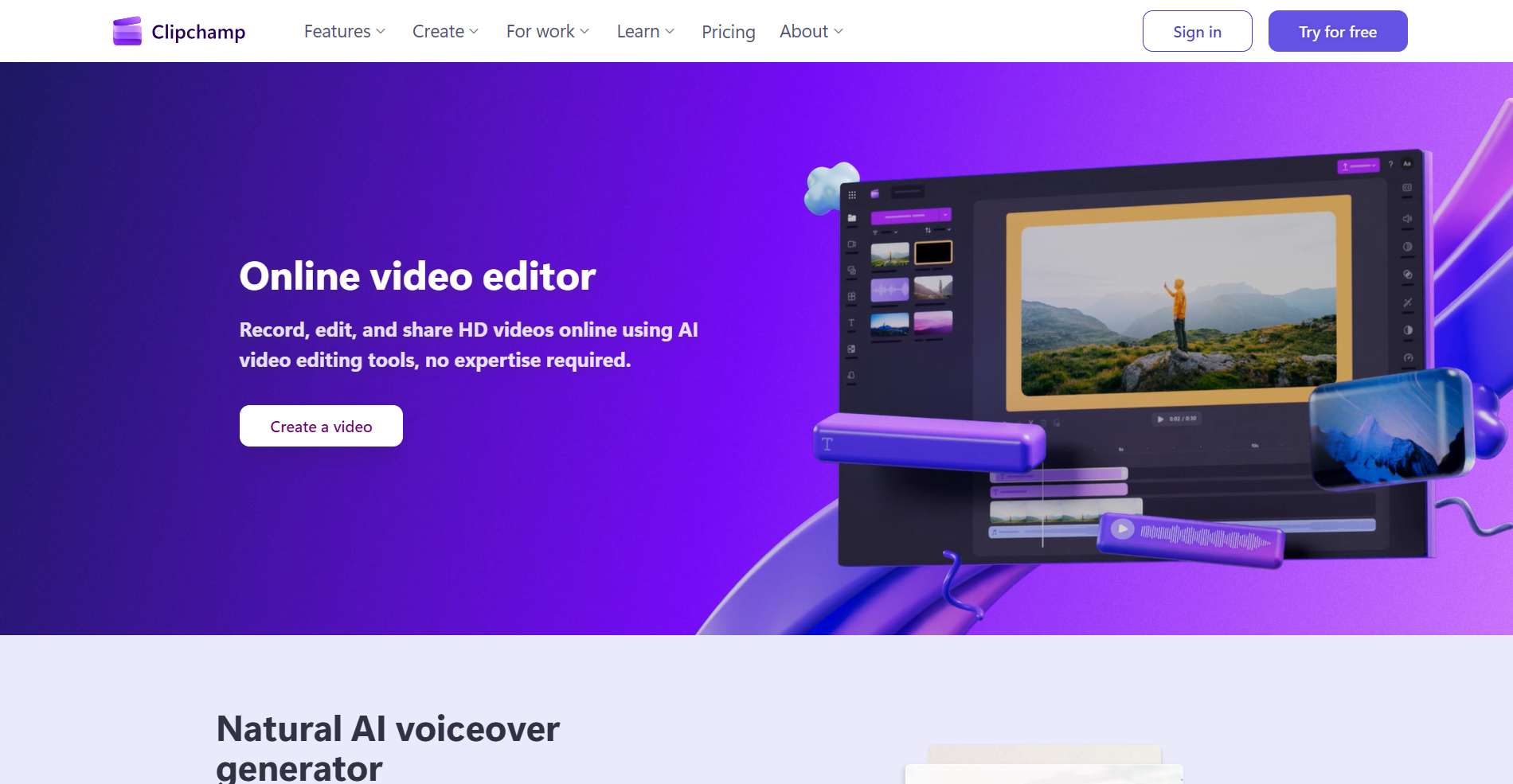
Clipchamp is Microsoft's browser-based video editor and comes built into Windows 11. Upsides include that there’s nothing to download, the interface is clean, and the free plan covers trimming, transitions, text overlays, and 1080p export. It also includes auto-captions, a screen recorder, and AI script suggestions through Copilot.
The main limitation of Clipchamp, though, is that exporting in 4K requires a Microsoft 365 subscription ($6.99/month). Also, it’s not the right tool for complex projects or professional color work, but for quick edits and basic social content, it’s hard to argue with zero setup time.
Best for: Windows beginners who want a simple, free, no-install editor.
Free (1080p). 4K export with Microsoft 365 from $6.99/month.
Filmora
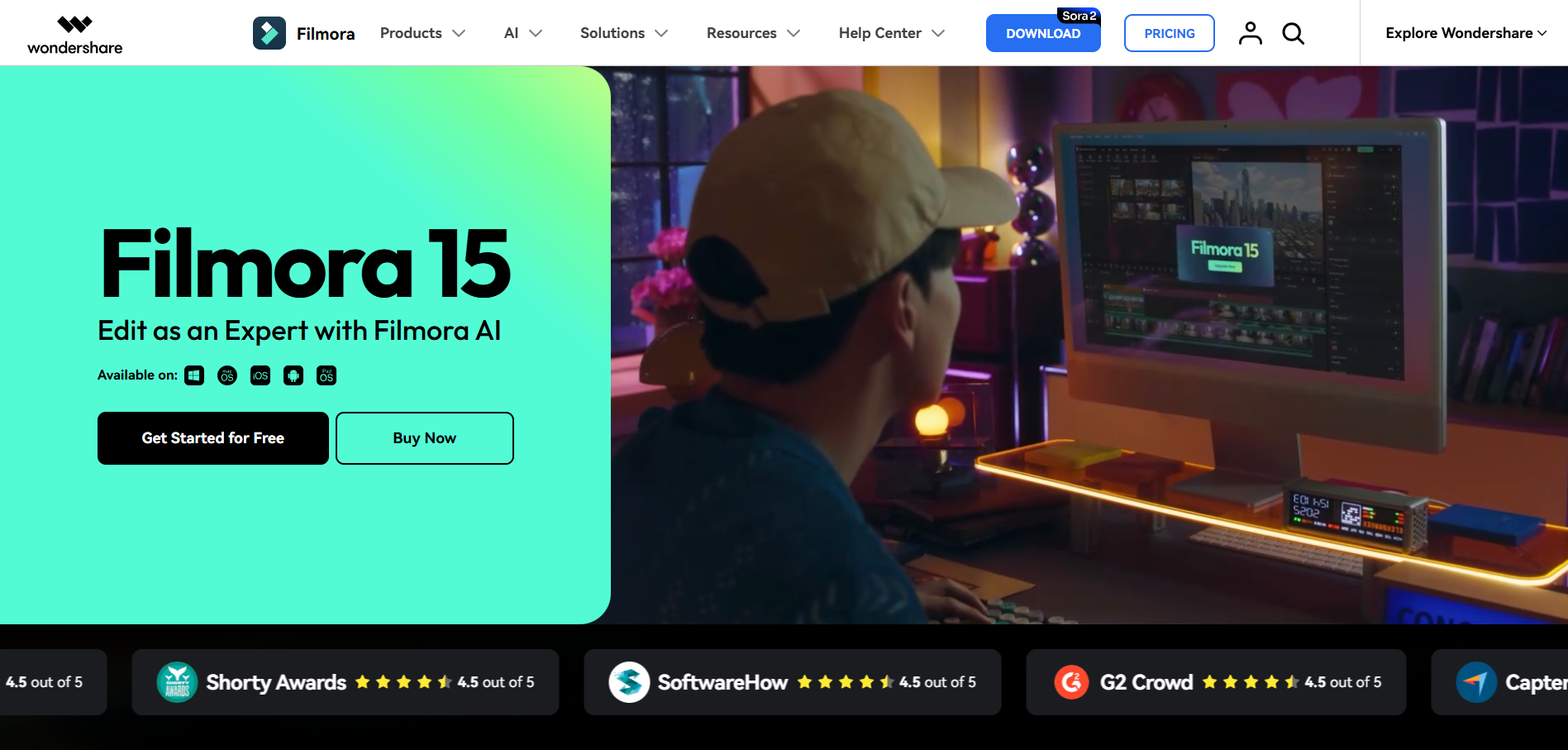
Filmora sits between beginner and intermediate. Its interface is clean and well-organized; it has a large effects library and features like AI auto-reframe, AI text-based editing, and audio denoise that can be really useful. It’s a good option for beginners who want a proper desktop editor with more creative control than Canva or Clipchamp.
Filmora still has its downsides, though: the free version adds a watermark to exports, and AI credits are limited unless you are on the Advanced plan ($59.99/year). Also, the tool has a good deal of add-on costs: the premium asset library and extra credit packs are sold separately.
Best for: beginners who want a desktop editor with effects and AI tools without the complexity of DaVinci Resolve.
Free with watermark. Plans from $49.99/year. Advanced plan (with AI credits) at $59.99/year.
DaVinci Resolve
DaVinci Resolve is the most powerful free video editor available. The free version includes professional-grade color grading, multi-track editing, audio tools, and visual effects with no watermark and no export limits. It’s often used in film and television production, and the free version has no meaningful gaps for most creators.
The tradeoff is the learning curve. DaVinci Resolve is more complex than any other tool on this list and takes time to learn properly. That’s why it’s not the right starting point for complete beginners, but it is worth moving to once you have outgrown simpler editors and want more control.
Best for: beginners ready to invest time in learning a professional tool that will not cost anything and will not limit their growth.
Free (no watermark). Studio version: $295 one-time.
Descript
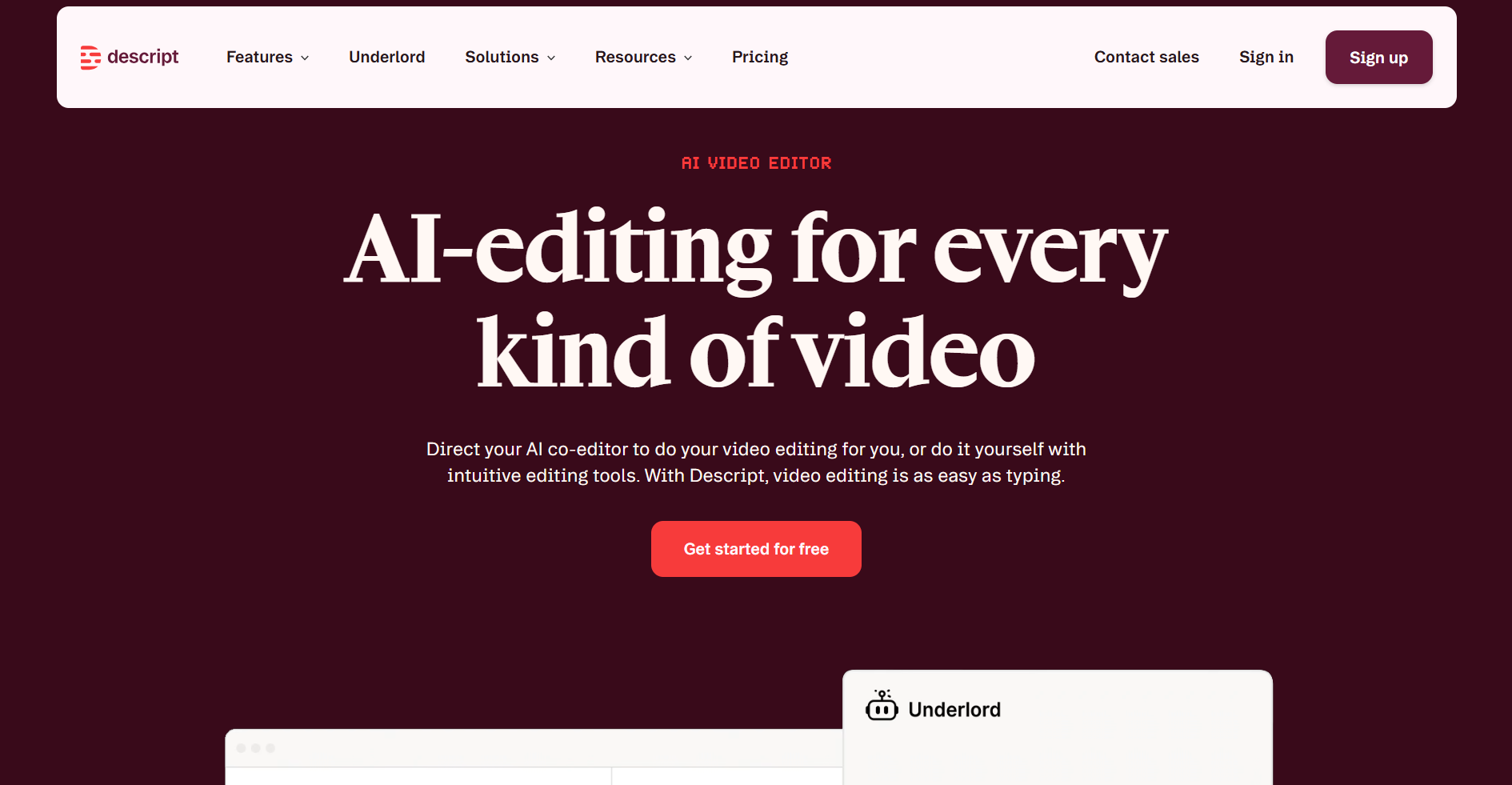
Descript takes a different approach to editing. Instead of working with a traditional timeline, you edit video by editing the transcript. Delete a word in the text, and the relevant footage is cut with it. It also removes filler words automatically and includes AI captions and Studio Sound for audio cleanup.
It’s the fastest editing workflow for talking-head videos, tutorials, podcasts, and interview-style content. But it's not the right tool for cinematic edits, motion graphics, or more complex projects.
Best for: podcasters, educators, and talking-head creators who want to edit by editing text, not a timeline.
Free plan (1 media hour). Hobbyist plan from $16/month.
What makes video editing software beginner-friendly?
The most beginner-friendly video editors have a couple of things in common: they’re fast to set up, easy to use from scratch, and flexible enough to produce a finished video without needing a second tool for captions, resizing, or exports.
But what actually separates a beginner-friendly editor from one that just looks simple on the surface?
Ease of use from the start
A good beginner-friendly video editing software shouldn’t need a tutorial to get you started. The best editors for beginners have a clear starting point, whether that’s uploading a file, picking a template, or typing a prompt.
A simple timeline or no timeline at all
Similarly, traditional multi-track timelines are a big obstacle for new editors. That’s why some tools have simplified this into a single track. Others, like Descript, remove the timeline completely and let you edit by editing text. Both approaches make for a beginner-friendly editor that lowers the barrier to entry for first-time users.
Templates that do some of the work
Templates help beginners produce something that looks finished without needing to build every element from scratch. The best ones are flexible enough to customize but structured enough to give a clear starting point.
Auto-captions
Most platforms now expect captions, but adding them manually is slow and risks errors. So, good beginner-friendly tools either generate captions automatically or make it easy to upload an SRT file. If a tool requires manual captioning, then it’s worth reconsidering.
Resizing and reframing for different platforms
A video shot in 16:9 horizontal format needs to be reformatted for TikTok, Reels, and Shorts. Tools that handle this automatically, or with a single click, save beginners a huge amount of extra work, especially since manually cropping every clip for every platform is not a practical workflow for most people starting out.
Browser-based access
Downloading and installing software can be an extra step that many beginner editors don’t want to get into yet. That’s where browser-based tools like Clipchamp, Canva, and Async are useful, letting beginners start immediately without checking system requirements or waiting for an install.
Pricing that makes sense
A free plan or a low-cost entry tier matters for beginners who are not yet sure how much they will use the tool. The tools that charge full-blown prices from day one are usually not the right fit for someone just starting out.
Start-to-end editing without switching apps
This is the one that catches most beginners off guard. A tool can be easy to use, but then leave you stuck when you need captions, a vertical version for Reels, or a shorter clip for TikTok. The fewer tools involved in finishing one video, the better, especially for beginners.
Best beginner video editing software by use case
Now that you know what to look for in a video editor, you’re probably wondering, "Which software is actually best for me right now?"
Here’s a quick decision guide based on the most common beginner use cases.
Best for AI video editing: Async
If you’re looking for software to edit footage, generate captions, reframe for different platforms, and turn long videos into short clips without switching tools or doing every step manually, Async is just right for you. Its powerful AI models make it the strongest fit when you need a finished, platform-ready video created fast and easily.
Best for generating videos from scripts: Async
If you don’t have footage yet and want to turn a script or prompt into a video, then Async’s AI video generation feature is for you. Put simply, you can go from script to an edited, captioned video without recording anything.
Best for social media clips: Async or CapCut
CapCut is fast and template-heavy, which makes it good for quick TikTok and Reels content. Async, however, is the better option when you also need to repurpose content, like cutting longer videos into clips automatically, or when you want captions and reframing handled in the same place.
Best built-in Mac option: iMovie
If you’re on a Mac and want to start editing immediately with no downloads and no cost, iMovie is your best starting point, as it’s simple, reliable, and already installed on your device.
Best for advancing beyond the basics: DaVinci Resolve
DaVinci Resolve gives you professional tools with no minimum cost once you’re ready to invest time in learning a more advanced editing interface. The learning curve is a bit steep, but the ceiling is high, and the free version does not hold back on features.
Best for design-heavy videos: Canva
If your videos lean more toward branded social media content, presentations, or educational material, and you already use Canva for graphics and thumbnails, then the platform’s video editor will be a natural fit. Its design tools are stronger than the editing tools, which could be exactly what some beginners need.
Best for quick browser editing: Clipchamp
For Windows users who want to make fast edits without downloading anything, Clipchamp is great because it’s already on your computer and can handle basic projects and social media content, although it only exports videos in up to 1080p resolution.
Best for repurposing content: Async
For turning a longer video, a podcast recording, or a webinar into multiple shorter clips, Async's AI clips tool will pick out the best moments without you having to manually review the full timeline.
Free vs paid editing software for beginners
Looking for free tools is a great way of getting into video editing for beginners. Many of the best beginner video editors have free plans that are useful and offer a decent amount of features.
What free plans usually cover
Most free tiers include basic trimming, cutting, and timeline editing at 1080p. DaVinci Resolve and iMovie are fully free with no watermark and no meaningful feature limits. Others, like CapCut, Clipchamp, and Async, all have free plans that cover core editing without making you feel that you need to update immediately.
Where free plans aren’t the best solution
While there are great free plan options, some tools will quickly feel restricted or limit you in frustrating ways, like with watermarks on exports (Filmora), limited AI features (CapCut), lower export resolution, and caps on how many videos or minutes you can process per month (Descript).
When is it worth paying?
A paid plan starts making sense when the free tier is actively slowing you down. If you’re often hitting export limits, frustrated by dealing with watermarks on published content, or spending a lot of time moving between multiple free tools just to finish your video, then paying for a higher plan might just be worth the cost.
In general, if you’re just getting started, try the free plan that fits your device and content type first, and only then move to paid plans when the limitations become a recurring problem.
How to choose the best editing software for your first videos
The honest answer is that the best video editor for beginners is the one that matches what they are actually trying to make. A trap a lot of new creators fall into is spending more time choosing software than they do making their first video. So, here is a practical way to think about it based on the content type you’re planning to make.
- YouTube videos: For making longer YouTube content, you need a tool with a proper timeline, clean audio controls, and easy export settings. Async’s video editor works wonders here, especially if you want captions and repurposing built in. DaVinci Resolve is also a good choice if you want to invest in learning a professional editing workflow without paying for software.
- Short-form social content: For TikTok, Reels, and Shorts, speed matters most. CapCut is fast and template-heavy, which suits the quick turnarounds. However, Async is the better fit if you’re also making short clips from longer videos or need automatic reframing for different platforms.
- Business and marketing videos: If you’re making product demos, explainers, or company updates, you probably care more about looking polished than about advanced editing features. Async, Canva, and Clipchamp all handle this well without requiring much editing experience.
- Faceless videos: If you don’t want to appear on camera, AI video generation is the most practical starting point. Async lets you generate video from a script or prompt, then edit, caption, and export without needing to record footage.
- Tutorials and talking-head content: Descript is the strongest fit here. Editing by cutting words from a transcript is faster than skimming a timeline when most of your footage is someone talking.
- Repurposed content: If you’re starting with a longer recording, a podcast, or a webinar and want to turn it into multiple shorter clips, Async's AI clips tool handles that without the manual hassle. It’s extra practical for beginners who already have content but need a faster way to get it into a social-ready format.
Beginner video editing tips before you start
Picking a good editing tool is great, but having good editing habits will actually make an even bigger difference in your work. Follow these tips and actually save time once you start publishing consistently.
Start with a clear script or outline
Even a rough bullet point outline before you record makes the edit significantly faster and gives you a clearer sense of what to cut.
Keep your first videos short
A two- to three-minute video is much easier to edit, caption, and publish than a ten-minute one, and it helps you build a repeatable workflow before moving to more complex projects.
Use captions every time
A large portion of social video is watched on mute, and most platforms reward content that keeps viewers engaged regardless of whether audio is on.
Cut pauses and fillers aggressively
Removing dead air and filler words keeps viewers watching and makes the final edit feel more polished without the need for any visual effects.
Export in the right format for each platform
Know the specs before you export, or use a tool that handles resizing automatically, so you’re not reformatting the same video multiple times.
Repurpose one video into multiple clips
A single YouTube video can become several short clips for TikTok, Instagram, and LinkedIn; look into tools like AI clips that can pick out the best moments automatically.
Use AI tools for repetitive work
Captions, silence removal, reframing, and clip creation are all tasks AI handles faster than manual editing, freeing you up to focus on the content itself.
The hardest part of editing is just getting started
The best editing software for beginners is the one that gets you from idea to published video without making you feel like you need a second tool to finish the job. For most beginners, that means starting simple, matching the tool to your content type, and not overcomplicating the workflow before you have even published your first video.
If you are on a Mac, iMovie is already waiting for you. If you are on Windows, so is Clipchamp. If you want to grow into professional editing without spending anything, DaVinci Resolve is genuinely hard to beat. And if you want editing, captions, reframing, repurposing, and AI video generation in one place without jumping between five different apps, Async is built for exactly that.
With tools better and more accessible than they have ever been, finding beginner-friendly video editing software is now easier than ever. The only thing left to do is start.
Ready to simplify your video workflow? Sign up for Async and start creating, editing, and repurposing videos from one place.
FAQ
What is the best editing software for beginners?
The best editing software for beginners depends on what you’re making. If you want one workflow that handles editing, captions, reframing, and repurposing without switching tools, Async is the strongest option. If you’re on a Mac and want something free and simple, iMovie is a solid starting point. For short-form social media content, CapCut is fast and easy to pick up.
What is the easiest video editing software for beginners?
iMovie is the easiest video editing app for beginners on Mac and iPhone since it comes preinstalled and has a straightforward drag-and-drop interface. On Windows, Clipchamp works as it’s already built into the OS and requires no setup. For beginners who want AI to handle more of the work, Async's chat-based editing workflow removes a lot of the manual steps that make traditional editors feel overwhelming.
What is the best free video editing software for beginners?
DaVinci Resolve is the most powerful free editor available, with no watermark, no export limits, and professional-grade tools. Though for beginners who are not ready for that learning curve, iMovie on Mac and Clipchamp on Windows are both fully free and easy to use. Async also has a free plan that includes multiple editing and AI features.
What video editing software should beginners use for YouTube?
For longer YouTube videos, DaVinci Resolve gives you the most room to grow without paying for software. If you also want captions, AI clips, and repurposing tools built into the same tool, Async is worth trying. CapCut works well for YouTube Shorts specifically, but is less suited to longer-form content.
Can beginners use AI video editing software?
Yes, and in a lot of cases, AI tools actually make editing easier for beginners, with features like automatic captions, silence removal, AI reframe, and AI clips that handle the most repetitive parts of the editing process automatically. Async is built around this kind of workflow, so beginners can create polished, platform-ready videos without needing to learn advanced editing techniques first.