How to add motion to still images?
The recipe for success is having a good video generation platform that has multiple AI models, a talent of writing AI video prompts and the spark of curiosity and creativity within you to just play around with and have fun!
That said, before you'd usually have to take a crash course of Adobe Premiere and Adobe After Effects, watch around 5 hours worth of YouTube videos and then ask a motion graphics friend to guide you through it in order to get a quick animated video that was probably going to look amateur either way.
Luckily for you, you no longer live in the before.
Adding animations to your still image can now be done in a matter of seconds and we'll show you right away how to do it! If you want another option to try, MagicShot’s image to video tool animates a still photo with multiple AI models and exports up to 4K.
Animate images with AI in 3 simple steps
Okay now here's what you'll need for your animation:
- Still image (obviously)
- Async platform
- Around 10 minutes of free time, maybe even less
As we're currently in our whimsical era, the image we picked for our animation was this beautiful flower store we accidentally came across in Barcelona.
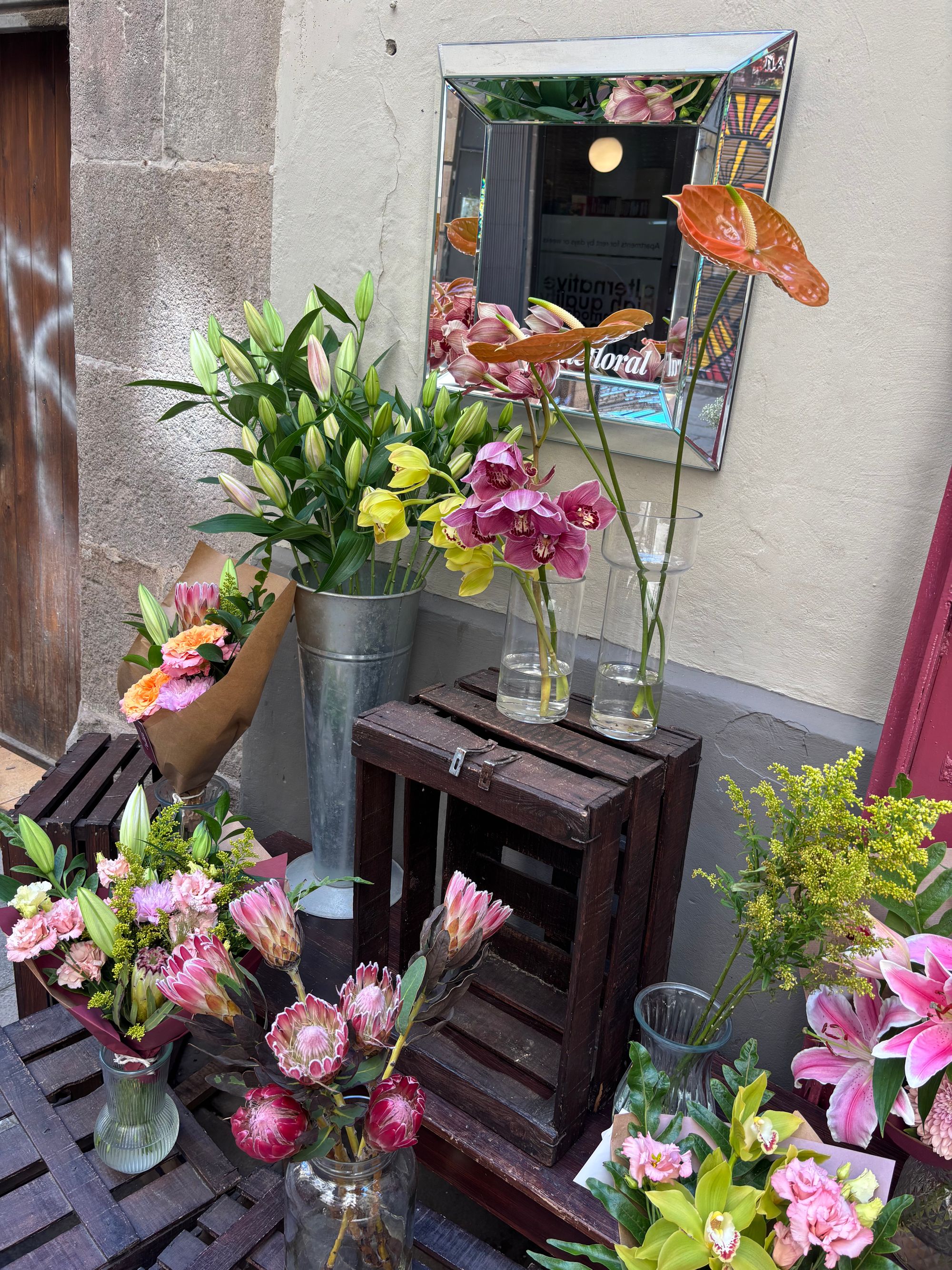
Flowers? For spring? Groundbreaking, we know.
Anyway, for our next trick, we'll show you how to bring them to life:
1) Sign in to Async and upload your still image
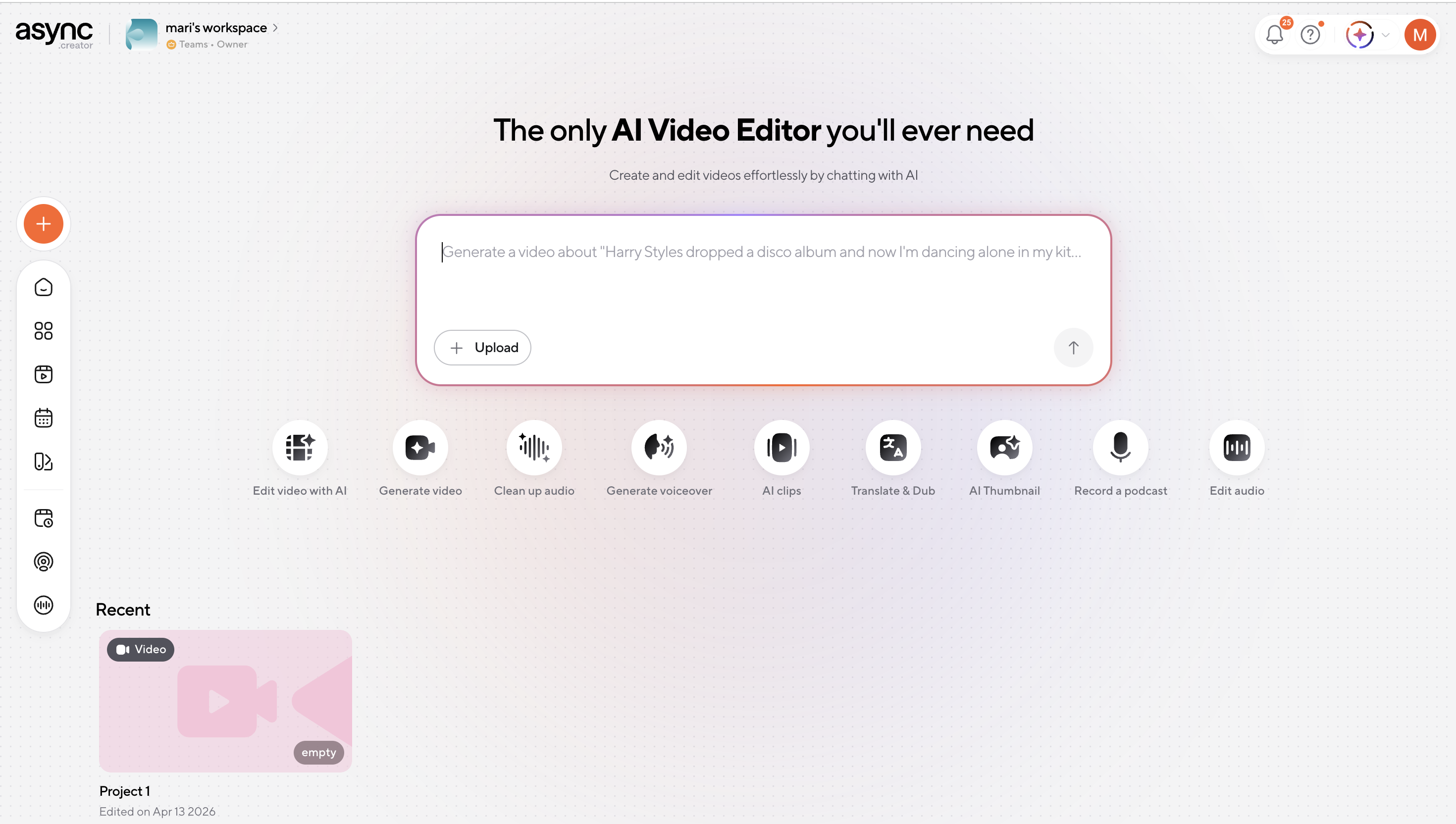
In your AI video editor upload your still image and write down how you want to animate it. In our case, we've written "Make the flowers in the picture come to life by having them sway gently in the wind."
2) Refine the animation in the chat editor until it looks right
Sometimes, the chat editor will understand you right away and create the exact animation you had in mind, maybe even better. Other times, it unfortunately won’t be able to read your mind, so you may need to gently communicate with it, like you did with your ex, to make sure your animation doesn’t get lost in human-AI translation.
Again, luckily for you, our chat editor will meet you halfway.
Here’s approximately what our conversation looked like:
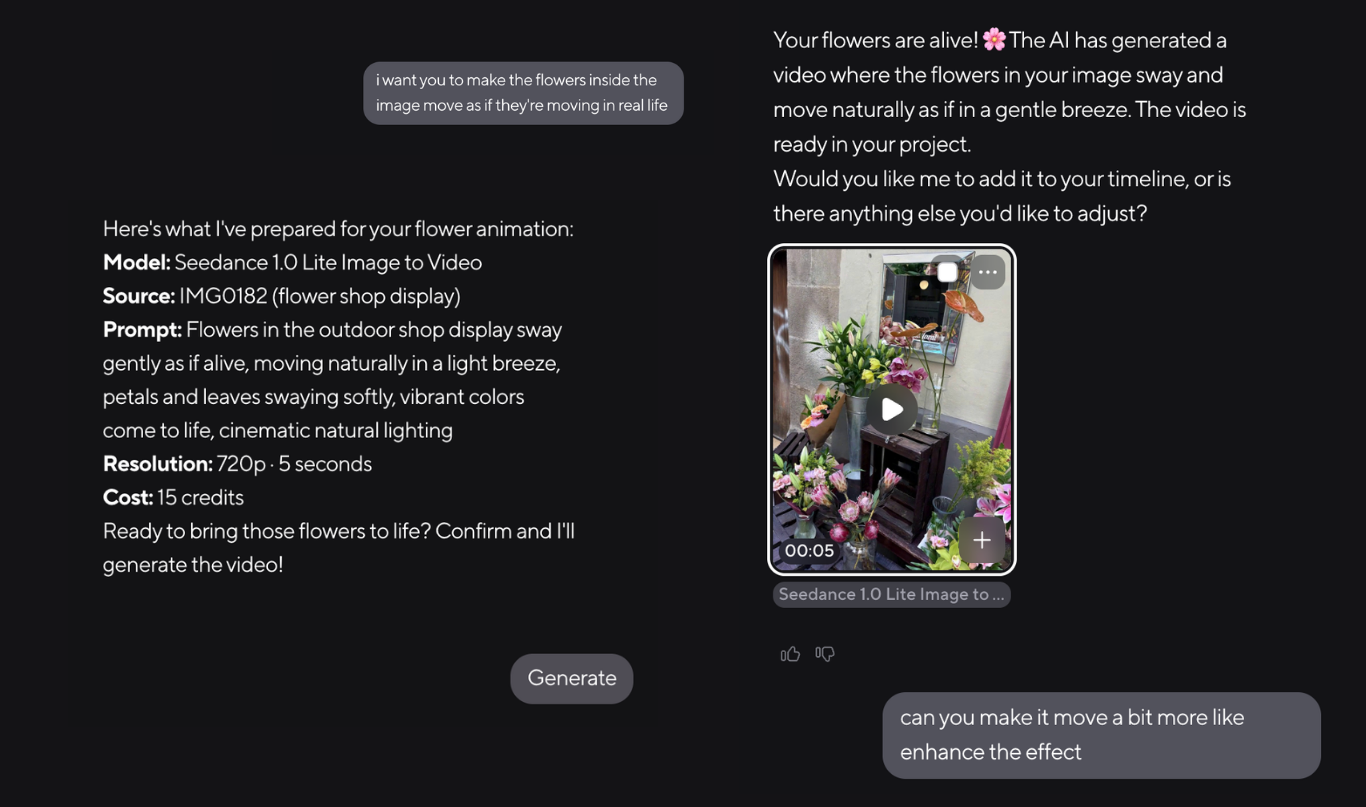
As you can see, the chat editor tells you which AI model it's going to use to animate your image and turn it into a video, so if you have a specific AI model in mind, you can make the job easier for both of you by specifying exactly which model you want it to refer to. Don't worry though, if you're not sure which model does what, as our AI will figure it out on its own depending on your request and image.
Async has more than 100 AI models inside the platform, so no matter what you request, there will be a model in it that will know how to do the job!
3) Edit the final video and export!
Now after around 5 minutes of a pleasant convo with our chat editor your video will be ready to share! Async also offers you all the basic tools of video editing right inside the platform, plus AI-powered enhancement features, in case you want to add anything additional to your generated video.
If not, that's pretty much it! Your video is ready to be exported and shared with whoever you wanted to share it with.
Here's how ours ended up looking like:
Groundbreaking!
How to write better AI video prompts
Now, before you start typing “make it cool” and hoping for the best, let’s talk about the tiny but mighty art of writing a good AI video prompt.
Because yes, technically you can write one vague sentence and let the AI figure it out, but sometimes it will make your flower shop look like it’s being possessed by a very emotional ghost.
So, to avoid that, here’s how to write video prompts that actually help the AI understand what vision you have for your project.
Start with the main subject
First, tell the AI what the focus of the video is. This sounds obvious, but AI is very literal. If your image has flowers, a storefront, people walking in the background, and other details, the AI might not magically know that the flowers are the star of the show.
Instead of writing: “Animate this image.”
Try: “Animate the flowers in the storefront display.”
Or even better: “Animate the flowers in the storefront display, making them gently sway in the wind.”
See? Already less chaos. The AI now knows what to focus on and what movement matters most.
Describe the motion clearly
This is the most important part. Since your still image already gives the AI the visual information, your prompt should focus mostly on what needs to move.
Think of it like giving stage directions. You don’t need to describe every petal and shadow if they are already in the image. What you need to explain is the action.
Good motion words include:
- sway
- float
- glow
- gently move
- slowly pass by
For example:
“Make the flowers sway gently in the wind while the leaves lightly flutter.”
This gives the AI two separate but related movements: the flowers sway, the leaves flutter. Cute and controlled.
Add camera movement, but don’t overdo it
Camera movement can make your animation feel much more cinematic. But too much camera movement can ruin it.
For still image animations, simple camera directions usually work best:
- “Slow camera push-in toward the flower shop.”
- “Subtle handheld camera movement.”
- “Gentle zoom out to reveal the storefront.”
- “Slow pan from left to right.”
If your image is already detailed, a small camera movement can make it feel alive without distracting from the subject. For example:
“Make the flowers sway gently in the wind with a slow, subtle camera push-in.”
Now the video has subject motion and camera motion. Very professional. Very “I definitely know what I’m doing.”
Set the mood and style
This is where you add the vibe. AI video tools respond well to mood words because they help shape lighting, pacing, and atmosphere.
You can use words like:dreamy; cinematic; soft; natural; playful.
For our flower shop example, something like this works beautifully:
“Make the flowers sway gently in the wind with a soft, dreamy, spring-like mood.”
Now the AI knows we’re not going for horror movie wind. We’re going for cute Barcelona flower shop, maybe someone is about to fall in love, maybe some churros are involved, who knows.
Mention what should stay still
This is one of the most underrated prompt tricks. Sometimes the AI gets excited and starts moving things that should absolutely mind their own business.
If you only want one part of the image animated, say that clearly.
For example:
“Only animate the flowers and leaves. Keep the storefront, signs, and background still.”
This helps prevent unwanted warping, weird background movement, or that classic AI moment where a window suddenly decides to become soup.
You can also say: “Keep the original composition and colors.” or “Keep the image realistic.”
Basically, don’t be afraid to politely set boundaries. AI respects boundaries. Usually.
Keep it short, but specific
A good video prompt does not need to be a novel. In fact, shorter prompts often work better, as long as they include the right details.
A simple formula you can use is:
Subject + motion + camera movement + mood + constraints
For example:
“Animate the flowers in the storefront display, making them sway gently in the wind. Add a slow camera push-in and keep the storefront and background still. Make the motion feel natural, soft, and realistic.”
That’s it. That’s a solid prompt. No need to write a screenplay unless you’re asking for a more complex scene.
You’re human, mistakes are part of the process
Here’s the thing: your first prompt doesn’t have to be perfect. AI video generation is a conversation, not a one-shot magic spell. If the first result is too dramatic, ask for softer movement.
For example:
“Make the flower movement more subtle.” “Keep the camera more stable.” “Make the wind feel softer and more natural.”
The goal is not to become a prompt engineer overnight, but to learn how to describe what you want clearly enough that the AI can meet you halfway.
A few prompt examples you can steal
Here are a few prompts you can steal from us. Use them as your template to start!
For a soft, realistic animation:
“Animate the [subject] so it gently moves in a light breeze. Keep the [background/location] still. Add subtle natural movement and preserve the original image style.”
For a cinematic look:
“Create a slow cinematic push-in toward the [subject/location] while the [main moving element] softly moves. Keep the lighting [warm/natural/soft] and make the animation feel realistic.”
For a whimsical social media video:
“Bring the [subject] to life with soft movement, gentle light effects, and a dreamy [season/mood] atmosphere. Keep the motion subtle and elegant.”
For a more dramatic result:
“Make the [subject] move with stronger, more noticeable motion while the camera slowly pans across the [scene/location]. Keep the animation realistic and preserve the original details.”
FAQ
How do you add motion to a still image?
You can add motion to a still image by uploading it to an AI video generation platform, writing a prompt that describes the movement you want, and then refining the result until the animation looks right. For example, you can ask the AI to make clouds drift, hair move in the wind, water ripple, lights flicker, or flowers sway gently.
The better your prompt, the better your result. Instead of just saying “animate this image,” describe what should move, how it should move, and what should stay still. AI is smart, but it is not yet your creative soulmate. Give it a little direction.
What is the best AI tool to animate still images?
The best AI tool to animate still images is one that gives you access to multiple video generation models, lets you edit your result, and helps you refine the animation through prompts. Different AI models are good at different things, so having more than one option gives you more creative control.
With Async, you can upload a still image, describe the animation you want, and let the platform choose the right AI model for the job. You can also keep adjusting the result in the chat editor until the final video matches your idea.
What kind of images work best for AI animation?
The best images for AI animation are clear, high-quality images with a strong subject and enough visual detail for the AI to understand the scene. Portraits, product photos, landscapes, architecture shots, food images, fashion photos, and travel pictures can all work well.
Images with natural movement potential usually animate especially nicely. Think moving water, wind-blown fabric, glowing lights, clouds, hair, flowers, leaves, smoke, reflections, or busy city scenes. Basically, if something in the photo looks like it could move in real life, AI can probably help it do exactly that.
How do I write a good prompt for image-to-video AI?
A good image-to-video prompt should clearly explain the subject, the movement, the camera direction, the mood, and anything that should stay unchanged.
A simple formula is:
Animate [subject] with [type of motion]. Add [camera movement]. Keep [background/details] unchanged. Make it feel [style/mood].
For example:
“Animate the [subject] with soft, natural movement. Add a slow camera push-in. Keep the background still and preserve the original image style.”
This gives the AI enough detail to understand your vision without overwhelming it with a 12-page creative manifesto.
How long should an AI video prompt be?
An AI video prompt should usually be short but specific. One to three sentences is often enough for a simple image animation. The goal is not to describe every pixel in the image, but to clearly explain the motion and feeling you want.
For example, this is better:
“Make the ocean waves move gently while the sky stays still. Add a slow cinematic zoom-in and keep the scene realistic.”
Than this:
“Make it beautiful and cinematic and cool and magical and realistic but also dreamy and viral and aesthetic.”
The second one is a mood board having a panic attack. The first one is a direction.
Can I animate only one part of a still image?
Yes, you can animate only one part of a still image by telling the AI exactly what should move and what should stay still. This is especially useful when you want a subtle, realistic animation.
For example:
“Only animate the hair and fabric moving gently in the wind. Keep the face, background, and lighting unchanged.”
This helps avoid unwanted motion, distortion, or random background drama. Because sometimes the AI gets excited and suddenly your wall, chair, and left eyebrow all want screen time.
Can AI turn a photo into a video?
Yes, AI can turn a photo into a short video by generating motion from the still image. This is usually called image-to-video generation. The AI analyzes the image, predicts how elements in the scene could move, and creates a video based on your prompt.
You can use it to animate portraits, product shots, landscapes, artwork, social media visuals, marketing images, and more. It is especially useful when you already have a great image but want to make it more engaging, dynamic, or scroll-stopping.
Do I need video editing skills to animate a still image?
No, you do not need advanced video editing skills to animate a still image with AI. You do not need to master keyframes, timelines, masks, or whatever After Effects is doing at 2 a.m.
With an AI video editor, you can describe the animation in plain language and let the AI generate the motion for you. Basic editing skills can still help if you want to trim, enhance, resize, or polish the final video, but you do not need to start with professional motion design experience.
How can I make AI animations look more realistic?
To make AI animations look more realistic, use prompts that ask for subtle, natural movement. Avoid overly dramatic motion unless that is the look you want.
Try phrases like:
“subtle movement”
“natural motion”
“realistic lighting”
“gentle camera push-in”
“preserve the original photo details”
“keep the background still”
Realistic AI animation usually works best when the movement feels possible in the real world. A little breeze? Great. A coffee cup growing wings and emotionally flying into the sunset? Also possible, but maybe not realistic.
Why does my AI animation look weird?
Your AI animation might look weird if the prompt is too vague, the image is too complex, or the model moves parts of the image you wanted to keep still. Sometimes AI may also distort faces, hands, text, logos, or detailed backgrounds if the motion is too strong.
To improve the result, try simplifying your prompt. Tell the AI exactly what to animate, what to preserve, and how strong the movement should be.
For example:
“Make the movement more subtle.”
“Keep the face unchanged.”
“Preserve the original background.”
“Reduce camera movement.”
“Make the animation more realistic.”
Basically, guide it gently. Like a creative intern with unlimited power.
What are some good prompt ideas for animating still images?
Good prompt ideas for animating still images include natural movement, camera movement, lighting effects, and atmospheric details.
Here are a few editable examples:
“Animate the [subject] with soft, natural movement while keeping the [background] still.”
“Add a slow cinematic zoom toward the [subject] and preserve the original image style.”
“Make the [main element] gently move in the wind with realistic lighting.”
“Create subtle motion in the [scene], with soft camera movement and a dreamy mood.”
“Bring the [subject] to life with gentle movement, natural atmosphere, and realistic detail.”
Use these as templates, then swap in your own subject, location, mood, or visual style.
How long does it take to animate a still image with AI?
Animating a still image with AI can take just a few minutes. The actual generation may only take seconds or minutes depending on the platform, model, and video length. The part that may take a little longer is refining the result until it matches what you had in mind.
In most cases, you can upload your image, write a prompt, generate a video, make a few edits, and export the final animation in around 10 minutes or less. Which is much faster than taking a crash course in motion graphics and questioning every life choice that led you to keyframes.
Can I use AI animated images for social media?
Yes, AI animated images are great for social media. Turning a still image into a short video can make your content more eye-catching on platforms like Instagram, TikTok, LinkedIn, YouTube Shorts, Pinterest, and X.
AI animations work especially well for product posts, travel content, fashion campaigns, mood videos, ads, thumbnails, brand visuals, and storytelling content. A little motion can make a simple image feel more alive, polished, and worth stopping the scroll for.
What is the difference between image-to-video and text-to-video?
Image-to-video uses an existing image as the visual starting point and adds motion to it. Text-to-video creates a video from a written prompt without needing an image.
Use image-to-video when you already have a photo, design, artwork, or product image you want to animate. Use text-to-video when you want to generate a completely new scene from scratch.
So, if you have a flower shop photo and want the flowers to sway, use image-to-video. If you want to create “a dreamy flower shop in Barcelona at golden hour with petals floating through the air” from nothing, text-to-video is your friend.
What should I avoid when writing AI video prompts?
When writing AI video prompts, avoid being too vague, asking for too many movements at once, or giving conflicting instructions. For example, “make it realistic, cartoonish, dramatic, subtle, fast, slow, cinematic, and chaotic” is not a prompt. It is a cry for help.
Instead, keep your prompt focused. Choose one main subject, one or two types of movement, and one clear style or mood. Also, mention anything important that should stay unchanged, especially faces, logos, text, products, or backgrounds.
The clearer you are, the less the AI has to guess. And the less it guesses, the fewer surprise portals, melting buildings, or emotionally unstable flowers you’ll get.