You can use ChatGPT to edit a video, but the workflow depends on what you actually want it to do.
ChatGPT is most useful before you get into the actual edit. You can use it to look through a transcript, spot the parts worth keeping, or rethink how the story should come together. But once you’re ready to actually cut, move, or change the footage, you’ll still need a video editor that can carry those instructions out.
In this guide, you’ll learn:
- How to edit a video with ChatGPT step by step
- What ChatGPT can and can’t actually edit
- The best ChatGPT prompts for video editing
- How to turn ChatGPT’s suggestions into real edits
- How chat-based video editors like Async handle the actual footage
So, let's get straight into it!
How to edit a video with ChatGPT
The best way to edit a video with ChatGPT is to provide as much information as possible about the footage, explain the video's purpose, ask for an editing plan, review its recommendations, and then apply the approved changes yourself or via a connected editing tool. ChatGPT works best when you keep editorial decisions and technical execution separate. From there, the rest comes down to the usual decisions involved in how to edit videos: what to cut, what to keep, how to pace it, and how the final version should feel.
Step 1: Give ChatGPT something it can actually analyze
A transcript is usually the best place to start for spoken content. You can also throw in screenshots of important frames, your script, timestamps, notes about bad takes, platform requirements, your intended audience, target duration, and examples of the style you're going for.
Don't start with:
"Edit this better."
"Better" isn't an editing instruction. Tell ChatGPT what the video is actually supposed to do.
For example:
"This is a three-minute product explainer for people who've never used the product. I want it under 90 seconds. Keep the explanation of the main benefit and the demonstration. Remove repetition and anything that assumes prior knowledge."
That gives the model something it can actually work with.
Step 2: Ask for decisions before asking for changes
Before you start giving it any prompts and start editing, first ask for advice, opinion, or a plan. For example:
"Give me an edit plan first. List the sections you would keep, shorten, move, or remove, and explain why. Do not rewrite the speaker."
This is one of the easiest ways to stop an over-aggressive AI edit before it happens. You get to review the plan before committing to anything, and it plays right to ChatGPT's strengths: comparing information, spotting patterns, making recommendations.
Step 3: Turn the plan into specific instructions
Once you understand what you need to edit and change and fix, you’ll need to start writing a prompt that would make sense. Here’s an example of a do and don’t:
Do say: "Remove the first introduction and make the part that goes 'Most teams lose time…' the new intro. Cut the repeated explanation between 01:24 and 01:48. Keep the customer example, but remove this “…” sentence."
Don’t say: "Make this punchier."
The closer your prompt gets to something an editor would write in their own notes, the easier it is for you (or a connected tool) to apply it correctly. For bigger projects, you can ask ChatGPT to turn the decisions into a full editing brief with cut instructions, B-roll notes, caption treatment, pacing, music direction, aspect ratio, and export requirements.
Step 4: Apply the changes
This is the part people skip over when they talk about how to edit video with ChatGPT. Something still has to actually execute the edit.
You can take the instructions into your regular video editor and make the changes yourself. Or, if you've got a compatible connected app that supports the right actions, ChatGPT may be able to pass the request straight into that tool.
OpenAI describes connected apps as services ChatGPT can use to pull information and, depending on the app, take supported actions. Availability and capabilities vary a lot, so the safest move is to check what a specific integration can actually modify before you build a whole workflow around it.
Step 5: Review the finished edit as a video
Don't review an AI edit just by reading the transcript. Watch it.
A cut can read perfectly on paper and still look terrible. Look for jump cuts that feel accidental, chopped breaths, disappearing hand gestures, changes in eye line, awkward audio transitions, references to information that got removed, B-roll that doesn't actually match the sentence, and captions that mishear names or terminology.
The best ChatGPT video editing workflow still ends with a human watching the video start to finish.
Can ChatGPT actually edit videos?
ChatGPT can plan, review, and direct video edits, but changing the actual footage requires access to a video-editing system. A connected app may let ChatGPT perform supported actions in another service, while a chat-based video editor lets you give natural-language instructions directly inside the video project.
Here’s an easier way to explain the difference and how it might benefit you best:
The important word here is access. ChatGPT can understand an instruction like "remove the repeated explanation in the middle and make the opening faster" just fine. Understanding that request and physically shortening clips on a timeline are two completely different jobs.
OpenAI lets ChatGPT connect with external apps, and some plugins can package those app connections into broader workflows. What exactly that means depends on the specific app, its permissions, your plan, and the workspace you're working in.
So there's no universal "ChatGPT video editor" quietly waiting inside every ChatGPT conversation. One more limit worth knowing: OpenAI's own documentation still covers static images, not video processing, so don't assume dropping an MP4 into a regular chat gives ChatGPT the same frame-by-frame access an actual video editor has.
A better mental model: ChatGPT is the editorial brain. The video editor is the pair of hands.
Sometimes those two things are connected. Sometimes they're separate. And in newer chat-based editors, they're increasingly built as one workflow from the start.
What can ChatGPT actually do for video editing?
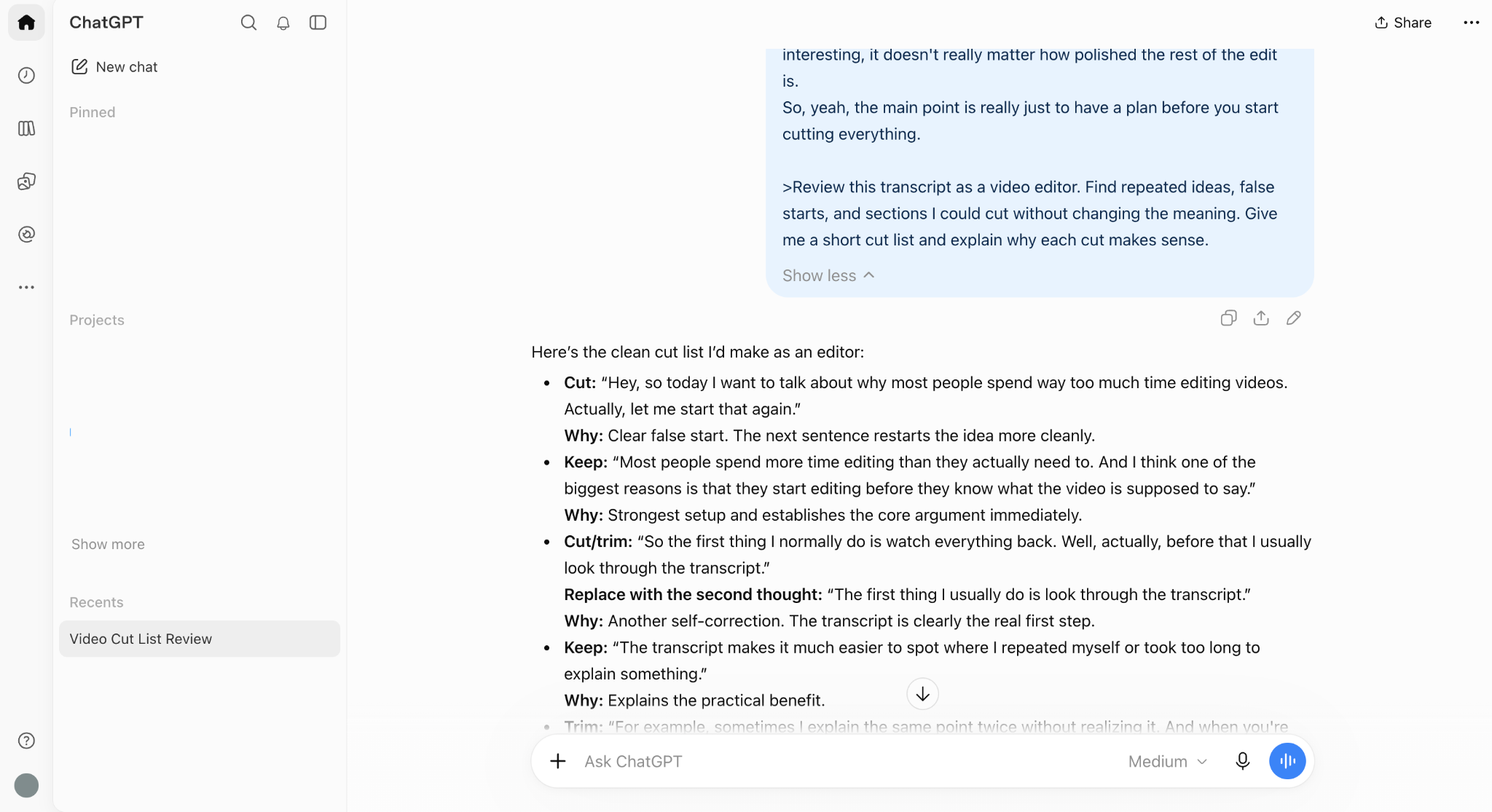
ChatGPT is most useful during the decision-making part of video editing. It can quickly go through a transcript, check for repetition, find possible hooks, restructure sections, suggest B-roll, adapt content for different platforms, and turn rough creative direction into a proper editing brief.
That might sound less impressive than "edit my whole video," but this is often where a surprising amount of editing time actually disappears.
Say you recorded a six-minute talking-head video and ended up with three versions of the opening, two explanations of the same idea, a long detour in the middle, and a conclusion that takes 40 seconds to arrive anywhere. A traditional editing workflow starts with watching everything, start to finish. With ChatGPT video editing, you can start at a higher level.
Once you decide on the pieces of content you want to use and get to the editing part, here’s an example of a prompt you could use:
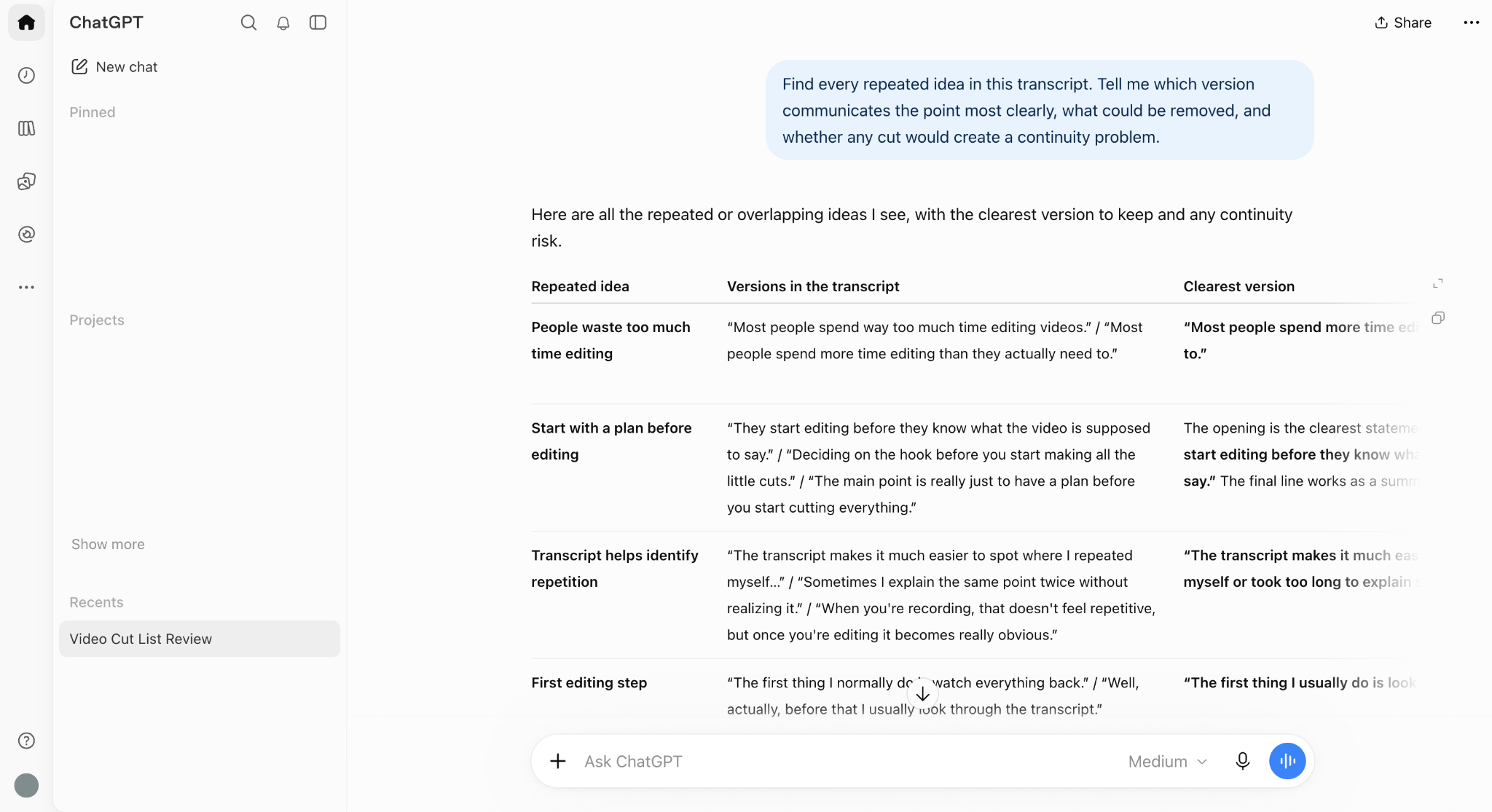
"Find every repeated idea in this transcript. Tell me which version communicates the point most clearly, what could be removed, and whether any cut would create a continuity problem."
Now you've got a rough editorial map before you've even touched the timeline.
Choosing the strongest material
ChatGPT can compare several takes or transcript sections and spot differences in clarity, conciseness, tone, or information. It can't always tell which take looks better without visual context, so hand it screenshots or your own notes when appearance actually matters.
For dialogue-heavy content, though, the transcript alone can cut out a lot of hunting. This is especially useful when you need to fix bad video takes without re-recording. A weak take isn't always a completely unusable one. Sometimes the clean opening from one take, the strongest explanation from another, and a well-hidden cut can save the whole recording.
Finding a better hook
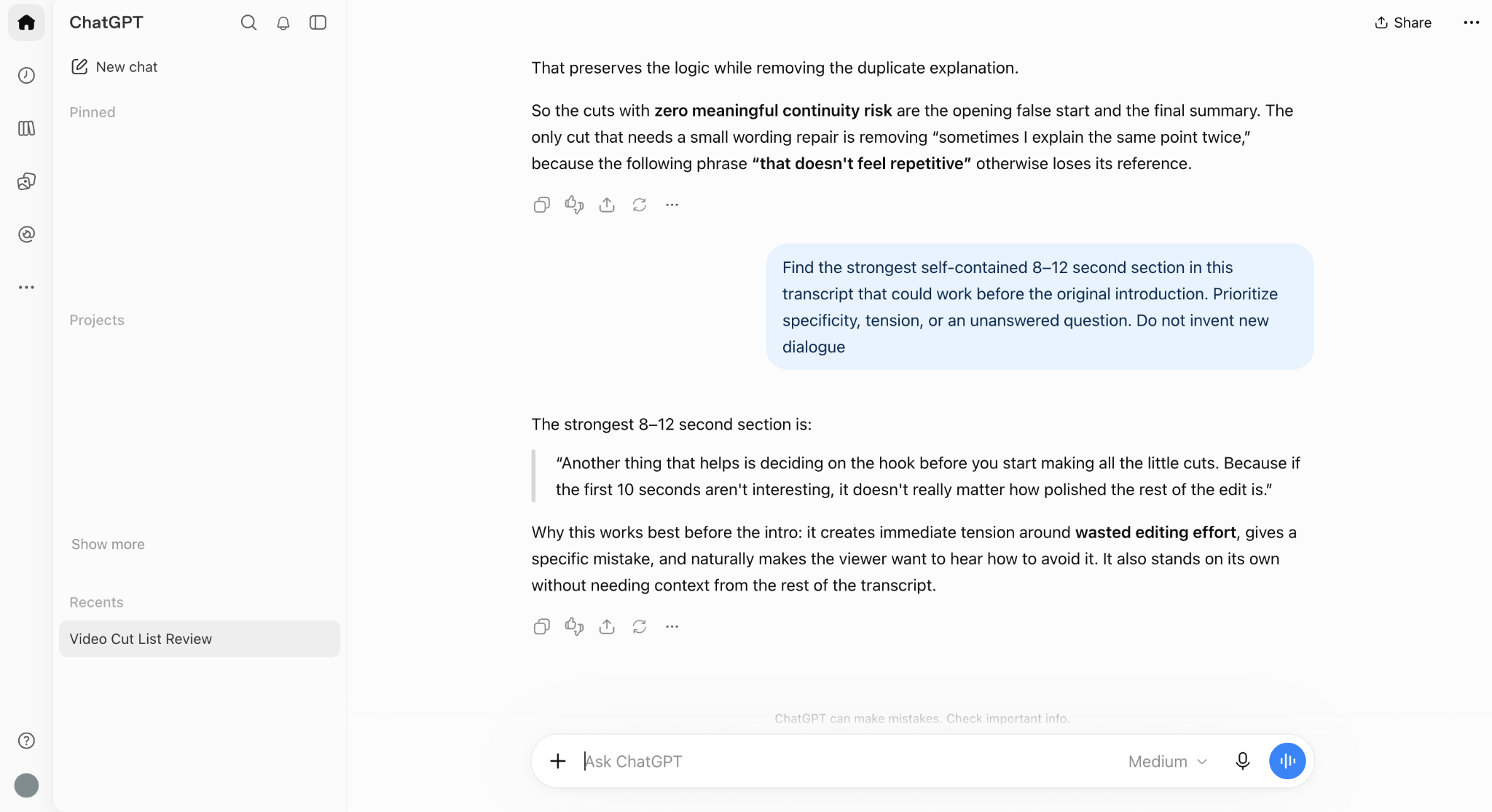
Your first recorded sentence isn't automatically your best opening. Paste a transcript into ChatGPT and ask it to find the sentence, claim, question, or moment that gives someone the most immediate reason to keep watching.
For example:
"Find the strongest self-contained 8–12 second section in this transcript that could work before the original introduction. Prioritize specificity, tension, or an unanswered question. Do not invent new dialogue."
That last line matters. When you're editing real footage, asking ChatGPT to rewrite the hook isn't much use unless you're planning to re-record it. Asking it to find a better hook that already exists somewhere in the footage is far more practical.
Removing filler and repetition
Transcript analysis is one of the strongest practical uses of ChatGPT for editing. Ask it to flag:
- false starts
- repeated explanations
- unnecessary examples
- tangents
- verbal filler
- long setup before the real point
- sections that can disappear without breaking context
For a one-minute video, doing this by hand is easy enough. For a 40-minute interview, webinar, podcast, or course recording, a first transcript pass can save you a lot more time than that. The same principle becomes even more useful when you're trying to edit hours of footage faster without sitting through every take several times.
Restructuring the story
Sometimes nothing in the recording is technically wrong. It's just in the wrong order.
ChatGPT might think moving the example before the explanation could make the video more interesting to viewers, delaying the extra information, introducing a problem earlier, or combining two related sections. You'll still want to check whether that restructuring actually works visually.
Looking at the content alone, it might seem that sections A and D fit together perfectly, while the footage reveals that your position, background, lighting, or props changed between the two. AI can propose the story structure. The editor still has to protect continuity.
Planning B-roll
ChatGPT can also turn dialogue into a B-roll brief. Give it your transcript and ask:
"Identify places where the viewer would benefit from seeing something instead of watching the speaker. Suggest literal B-roll for concrete statements and conceptual B-roll only where it adds information."
That second sentence is the important part. "Add B-roll every five seconds" isn't an editing strategy; it's how you end up with someone saying "our sales increased" while generic footage of strangers shaking hands plays for no reason at all.
If you're still figuring out what B-roll is and when to use it, the simplest rule is that it should add something the talking head alone cannot show. Good B-roll explains, demonstrates, or hides a necessary cut.
Once you've got the ideas, a video editor still needs to source and place the footage. Some AI editors can take that further and match B-roll to your video automatically, but you'll still want to review the result rather than accept it blindly.
Turning long videos into short-form content
Another solid ChatGPT video editing workflow is repurposing. Hand ChatGPT a long transcript and ask it to find sections that work independently as Shorts, Reels, or TikToks.
A good prompt specifies that each clip has to make sense without the rest of the video. Otherwise, AI has a habit of picking interesting moments that open with things like:
"And that's exactly why the second one works better."
And that clearly makes no sense, which is why context matters. Ask for an opening that stands alone, the rough endpoint, the key idea, and any missing context the clip would need. That gets you a usable shortlist instead of a pile of random timestamps.
10 ChatGPT video editing prompts you can actually use
Sometimes it’s a bit confusing to find the right words that best describe what you have in mind. So we made a list of useful ChatGPT video-editing prompts that describe the goal, provide the AI with decision criteria, and specify what it must not touch. The best ones also tell you what to check afterward, because transcript logic, pacing, B-roll relevance, and visual continuity still need a human eye.
1. A talking-head video clean up
Best for: false starts, repetition, rambling, and filler.
Prompt:
Review this transcript and identify false starts, filler, repeated points, unnecessary setup, and sections that can be removed without changing the speaker’s meaning. Give me a cut list first. Do not rewrite the dialogue or remove pauses that add emphasis.
Once you have the cut list, give it a quick check if it makes before starting. The suggestions can seem good on paper and still create an awkward breath, strange jump, or slightly different meaning once you see the footage.
2. Find the perfect opening
Best for: interviews, explainers, educational videos, and podcasts.
Prompt:
Find the strongest 8–15 second opening that already exists in this transcript. It must make sense without earlier context and create a clear reason to continue watching. Give me three options and explain what makes each one work. Do not write new dialogue.
Then check the footage itself. The strongest line on paper may not be the strongest moment visually, and you also want to make sure the hook sets up something the rest of the video actually delivers.
3. Turn one video into three Shorts
Best for: podcasts, webinars, interviews, tutorials, and long-form YouTube videos.
Prompt:
Find three sections in this transcript that could each become a 30–60 second standalone vertical video. Every clip needs its own hook, complete idea, and satisfying ending. Avoid clips that require context from an earlier section. Give me the opening and closing sentence for each.
Use those suggestions as starting points rather than exact cut marks. Watching a few seconds before and after each section will usually help you find a cleaner opening or ending.
4. Tighten the pacing
Best for: slow-paced videos.
Prompt:
Identify every place where this video spends longer than necessary reaching the next useful point. Keep examples that improve understanding, but flag repeated explanations, overlong transitions, and setup that can be shortened. Prioritize clarity over making the video artificially fast.
The goal here is not to turn every video into a speed run. Some pauses are doing real work, especially when they help with humor, emotion, emphasis, or simply give the viewer a second to process what was said.
5. Suggest B-roll
Best for: talking heads, tutorials, explainers, and brand videos.
Prompt:
Go through this transcript and suggest B-roll only where another visual would explain, demonstrate, prove, or clarify what the speaker is saying. Separate literal B-roll from conceptual B-roll. Avoid generic stock suggestions that don’t add information.
This is one to review carefully. AI can make a suggestion because one word technically matches, even when the visual makes very little sense in context.
6. Build an editing brief
Best for: handing a project to another editor or keeping a team on the same page.
Prompt:
Turn the following script, footage notes, and creative direction into an editing brief. Include the story structure, sections to prioritize, pacing, cut style, B-roll opportunities, caption treatment, graphics, music direction, aspect ratio, target duration, and anything the editor should avoid.
Before sending it off, strip out anything vague. “Make it dynamic” sounds useful until someone actually has to edit it. The clearer the brief is about what that means, the better.
7. Adapt a video for TikTok, Reels, or Shorts
Best for: repurposing an existing video for short-form platforms.
Prompt:
Adapt this edit plan for a 9:16 short-form video under 45 seconds. Keep one central idea, move the strongest hook to the beginning, flag anything that can be cut, and identify where captions or visual changes would help comprehension. Do not add claims that are not in the source material.
Before you export, check the current requirements for the platform you are posting to. Formats, limits, and recommended specs do change.
8. Find the parts viewers probably don’t need
Best for: tutorials and educational videos.
Prompt:
Read this transcript as a first-time viewer. Identify sections that repeat information the viewer already understands, explain obvious steps, or delay the next useful piece of information. Separate necessary context from optional context.
This one needs a little judgment, especially with beginner content. Something that feels painfully obvious to you may be the exact explanation a first-time viewer needs.
9. Create a first-pass cut from multiple takes
Best for: recordings where you have several attempts at the same section.
Prompt:
Compare these takes section by section. Choose the clearest and most natural version of each idea, flag any contradictions between takes, and create a recommended sequence. Do not combine fragments where the meaning changes or a sentence would sound unnatural.
The transcript only tells part of the story, though. Camera position, lighting, gestures, tone of voice, and even where someone is looking can make the “best” combination impossible to stitch together cleanly.
10. Critique the edit before export
Best for: one last check before you call the video finished.
Prompt:
Act as a critical video editor reviewing this final transcript and edit notes before export. Look for slow openings, repeated points, missing context, abrupt transitions, unnecessary B-roll, weak endings, and captions or graphics that may compete with the speaker. Prioritize only changes that materially improve the video.
Treat this as a second opinion, not a final verdict. You still get to decide which suggestions actually make the video better.
Prompts become much more useful once you stop treating them like magic commands. You do not need to write a giant paragraph telling the AI everything imaginable. You just need to be clear about the decision you want it to make, what matters most, and what it should leave alone.
For more generation-focused examples, these AI video prompts show how adding specific direction around subject, action, camera movement, style, and constraints can change what the model actually produces.
How to edit a video by chatting directly with Async
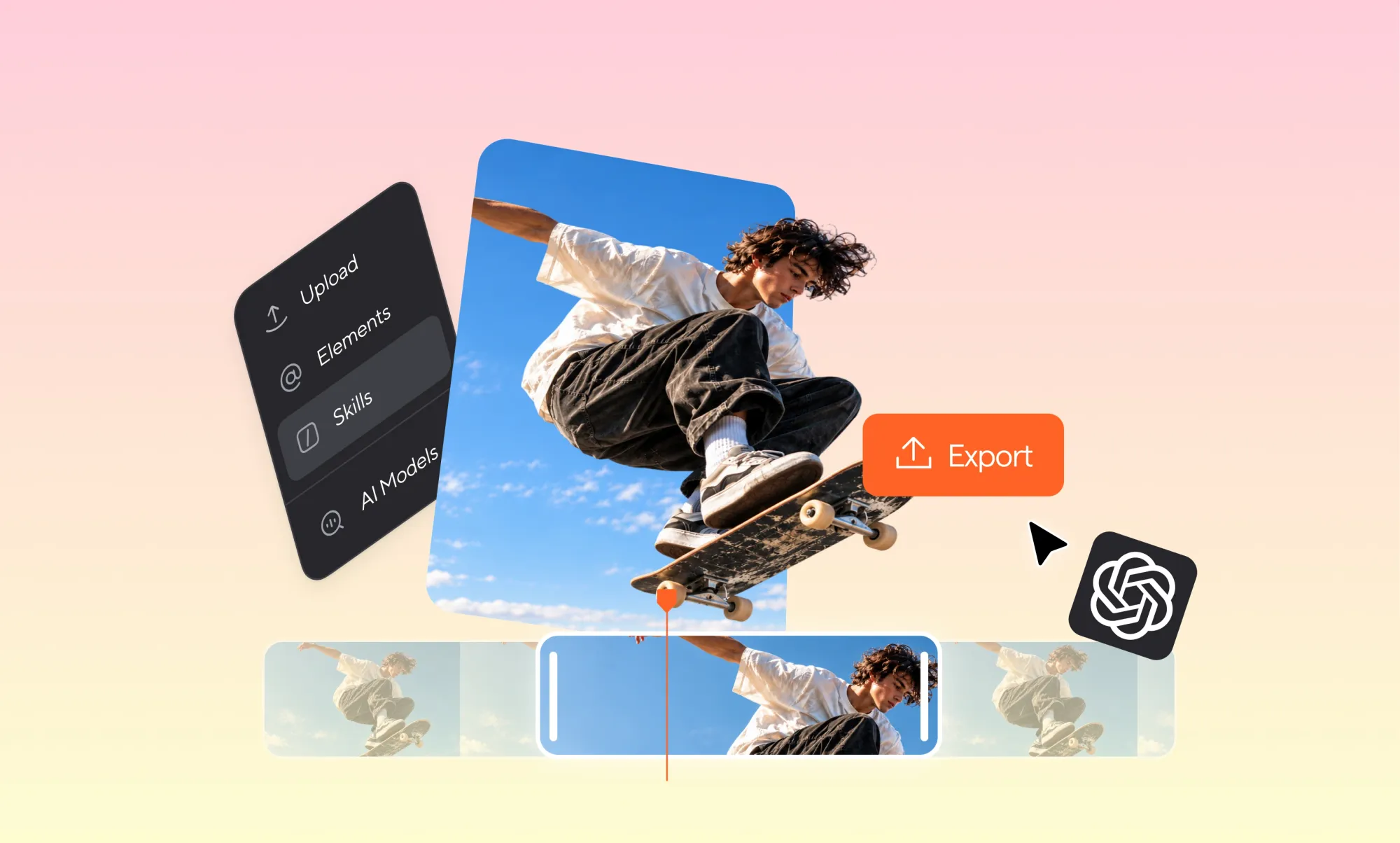
Async lets you work directly inside the video project instead of planning the edit in one tool and then applying those decisions somewhere else. In one published demo, a creator used chat-based video editing to upload raw footage, ask for a rough cut, review the proposed edits, refine the hook through chat, and export the finished Reel.
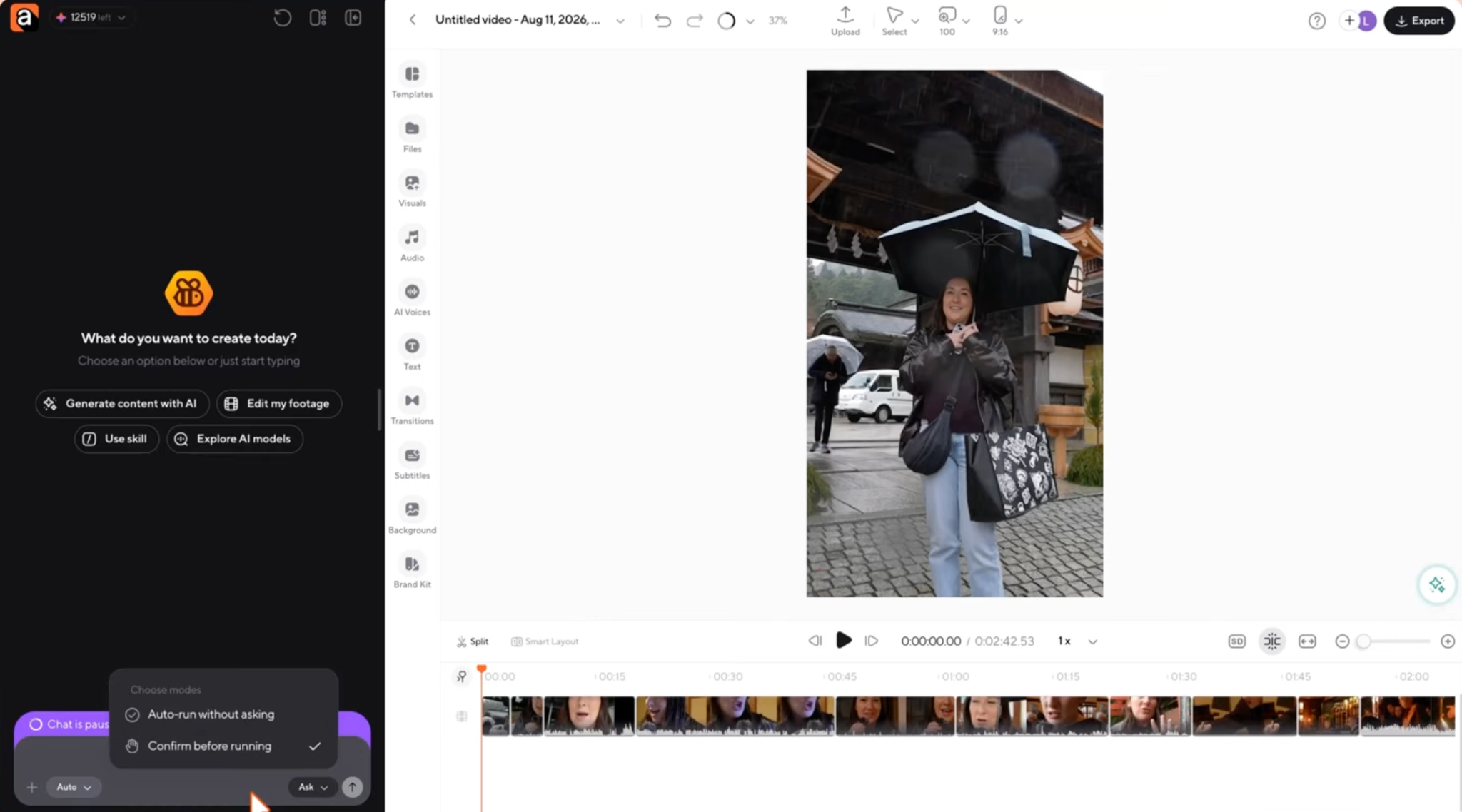
Rather than jumping straight into the edit, the creator first used Ask mode to work through the structure. That gave them space to think through the narrative before triggering any changes to the footage.
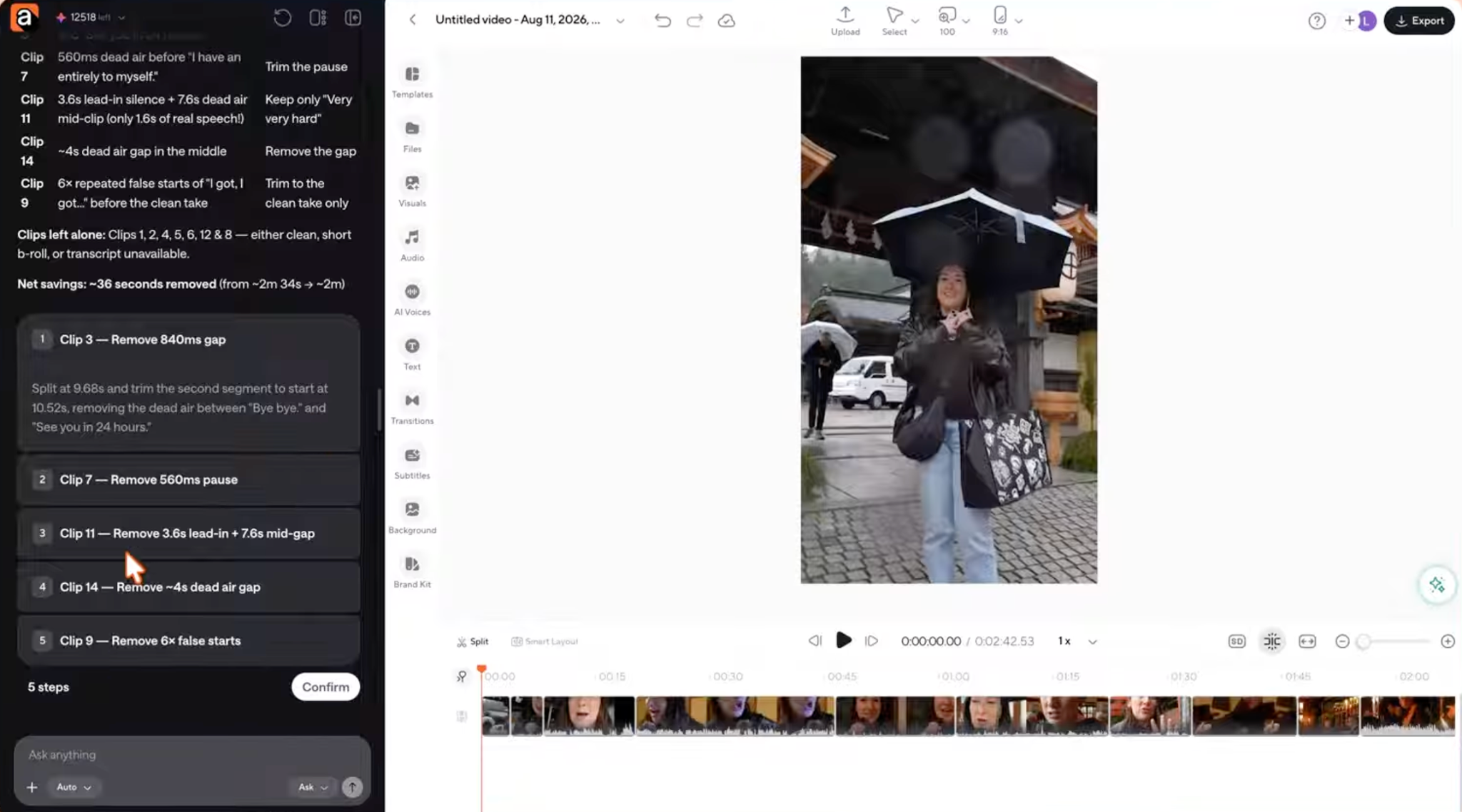
Once the direction was clear, they moved into the actual edit and asked Async for a rough cut of the A-roll, mainly removing silences, filler words, and awkward pauses.
What is useful here is that Async did not just make the edits without showing what it was about to do. It created a plan first, breaking the changes into specific steps so the creator could review them, tweak anything that looked off, or confirm the whole thing before the edit was applied.
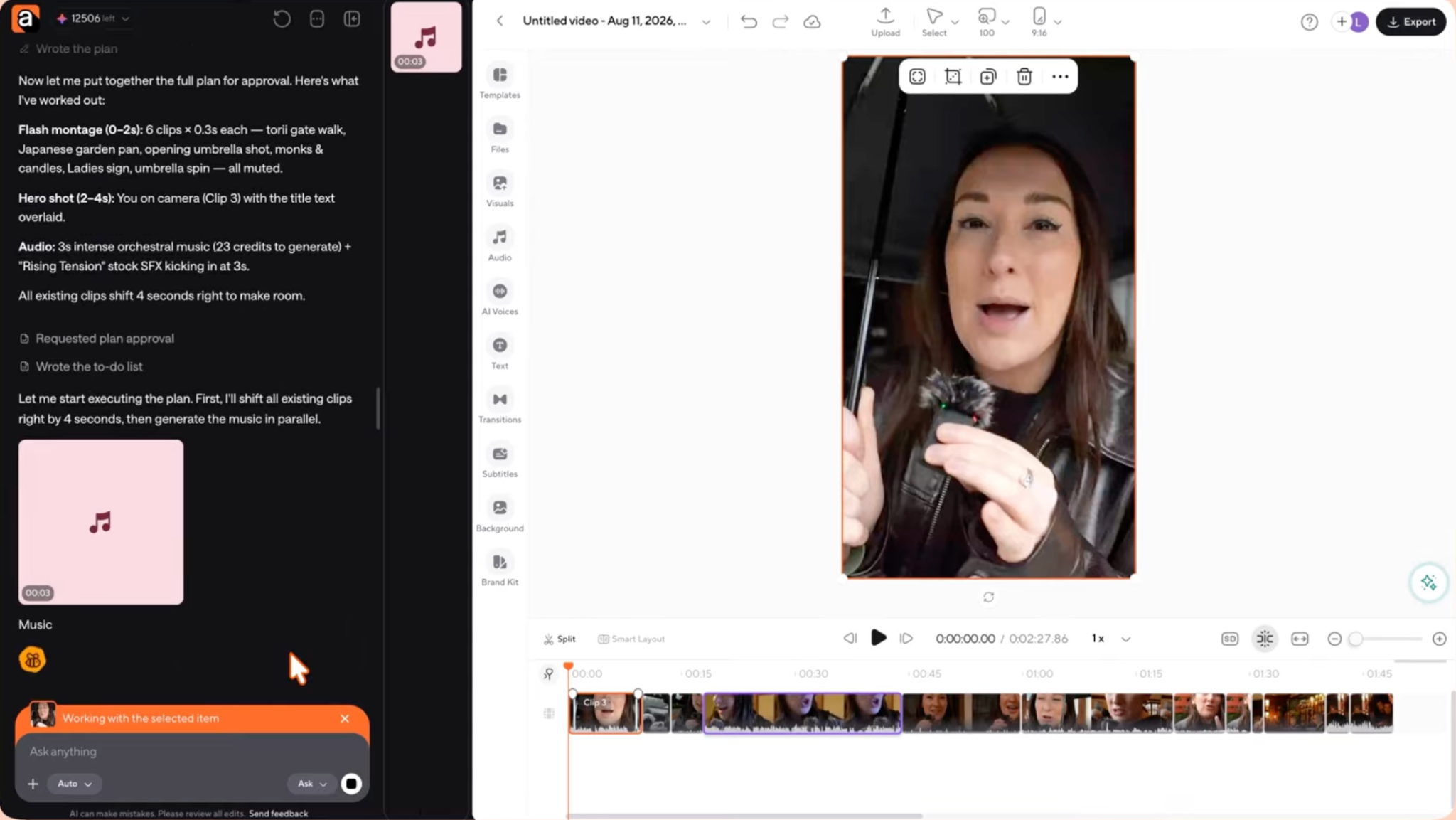
That first pass created a usable draft, but the opening still needed work. So the creator gave Async a much more specific follow-up prompt for the hook: quick flashes from later in the video, on-screen text, a high-intensity classical track, and a suspense sound effect at a specific moment.
Again, the process was not one-and-done. The creator checked the proposed changes, confirmed them, watched the revised hook, and then made smaller adjustments like changing the font, adding subtitles, adding background music, and refining the text styling.
That makes the workflow pretty easy to understand:
Upload footage → plan → rough cut → review → refine the hook → polish → export
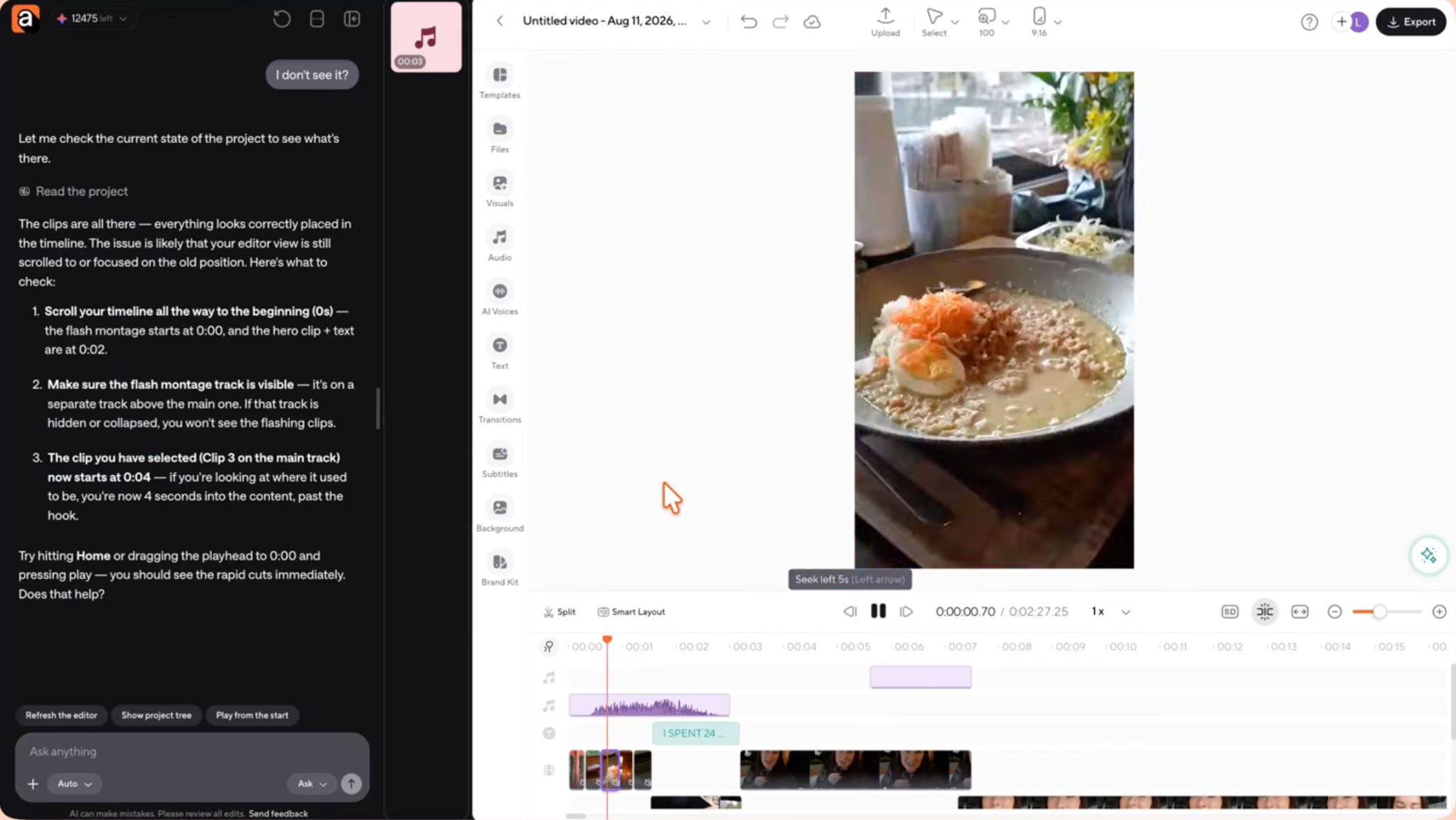
The main takeaway is not that one prompt magically creates a finished video. The useful part is the back-and-forth. You give the editor a direction, see what it does, then keep tightening the result from there.
ChatGPT vs a chat-based video editor: what's the difference?
ChatGPT is great for figuring out what should change in a video. A chat-based video editor is built to actually make those changes inside the project.
That is the simplest way to separate the two.
You could ask ChatGPT to remove a false start, tighten the opening, or turn a long section into a Short. It can understand the request and help you decide what the edit should look like, but something still has to apply those changes to the footage.
With a chat-based editor, that step is already built into the workflow. You give the instruction inside the project, review what changed, and adjust it from there.
That does not mean ChatGPT is only useful for planning. In fact, it can be really helpful when the job goes beyond the edit itself. You might use it to work through a long transcript, compare different hooks, restructure the script, come up with a title, or build a detailed brief before anyone touches the timeline.
A chat-based editor becomes more useful once the direction is already clear and you want to move from “here’s what I want” to “show me the edit.”
The two can also work together. You might use ChatGPT to figure out the strongest structure for a long interview, then take that direction into your editor. Or, for a simpler job, you can skip that extra step and just tell the editor what you want changed from the start.
So it is less about finding one AI tool that does everything and more about using the right one at the right stage. If you're deciding which approach fits your workflow best, the best AI video editors tend to fall into three categories: those that focus more on planning, those that focus more on hands-on editing, and those that focus on both. ChatGPT helps with the thinking. A chat-based editor helps turn that thinking into an actual edit.
What does AI still get wrong when editing video?
AI video editing is great for first passes and repetitive decisions, but it can still mistake emphasis for repetition, skip over a visual theme, the humor, pacing, B-roll relevance, captions, and the reason a creator deliberately left something a little imperfect. Its biggest weakness: technically valid edits aren't always editorially good ones.
That gap shows up fast with real footage.
It removes intentional pauses
A transcript can make a two-second pause look like dead space. Watch the footage, and that same pause might be doing real work, disbelief, comedic timing, room for an important point to land, or just letting the viewer process what they heard.
"Remove silence" is easy. "Remove the silence that serves no purpose" is a lot harder.
It can choose the cleanest take instead of the best one
Picture two takes. One's technically flawless but flat. The other has a tiny stumble, but the speaker sounds human, energetic, convincing.
A purely textual comparison can favor the first one because it reads better on paper. A human editor would probably pick the second without thinking twice.
Video isn't a transcript wearing pictures. Performance matters.
AI-generated B-roll can be too literal
You might say "we need to think outside the box” and the AI will add footage of a cardboard box.
Technically? A match.
Editorially? Straight to jail.
B-roll matching works best when the system understands what the visual is supposed to actually contribute, not just which nouns showed up in the transcript.
Captions will always need a check
Names, brands, acronyms, technical vocabulary, accents, fast speech, all of it can produce transcription errors. One wrong word can be funny. One wrong number can change the entire claim.
Misunderstanding your vision
Tell a human editor "make the pacing faster" and they'll probably tighten up three weak moments. Tell an AI, and it might decide nobody's allowed to breathe anymore.
Better direction fixes this:
"Tighten repetition and very long pauses, but preserve pauses used for emphasis and keep speech natural."
Prompt quality helps, but so does judgment. That's why regular video editing tips are still relevant even in an AI workflow. You’re still responsible for making sure all the details fit together.
AI changes how some of the work gets done. It doesn't change what actually makes an edit good.
What is the best way to use AI for video editing?
The most reliable workflow is to let AI take a first pass, then use human review to protect context, pacing, continuity, and creative intent. Give the AI a specific goal, check what it changed, fix mistakes with another prompt or a manual edit, and only export after you've watched the whole thing normally, start to finish.
In other words:
Direct → review → correct → export.
Don't judge an AI video editor by whether the first prompt nails it. Judge it by whether the workflow gets you to a good result faster while still leaving you enough control to fix what it got wrong.
Sometimes that means using ChatGPT to boil down an hour-long transcript before you even open your editor. Sometimes it means using a connected tool that can act on the plan directly. And sometimes the more direct route is working right inside a conversational editor, where you can say what needs to change and judge the result immediately.
The useful question in 2026 isn't really:
"Does AI edit video?"
It clearly can, at least part of it.
The better question is:
"Which parts of this edit should AI handle, and which decisions matter enough that I still want to make them myself?"
That's the workflow actually worth building.
So, how to edit videos with ChatGPT in 2026?
Right now, ChatGPT can handle a large part of the thinking behind an edit. It can analyze transcripts, identify stronger hooks, spot repetition, rethink the structure, and turn creative direction into clear editing instructions.
Actually changing the video still requires an editing system that can carry those instructions out. You might apply ChatGPT’s suggestions manually in your usual editor, use a connected app that supports editing actions, or work inside a chat-based video editor where the instructions and the video project already live in the same place.
As conversational editors keep improving, the gap between telling software what you want and actually making the edit keeps getting smaller.
FAQ
Is there a ChatGPT video editor?
ChatGPT isn't a traditional video editor with its own universal timeline, trimming tools, effects panel, and export workflow. It can help make editing decisions and may interact with supported external tools through connected apps. Dedicated chat-based editors take the idea further by connecting natural-language instructions directly to the video project.
Can I upload a video to ChatGPT and ask it to edit it?
Don't assume that uploading a video to a normal ChatGPT conversation gives it a native, editable video timeline. OpenAI's standard documentation currently describes static-image processing rather than video processing. For video work, transcripts, screenshots, editing notes, or a supported connected tool are more reliable inputs.
How do I use ChatGPT for video editing?
Start with a transcript or other accessible information about the footage, explain the audience and the goal, then ask ChatGPT to build an edit plan. Review its recommendations before applying anything. You can make the changes manually in your editor, or use a compatible connected editing system when one supports the actions you actually need.
Can ChatGPT turn a long video into Shorts?
ChatGPT can analyze a transcript from a long video and pick out sections that could work as Shorts, Reels, or TikToks. Ask it for clips with a self-contained hook, a complete idea, and a clear ending. A video editor still has to cut, reframe, caption, and export the actual footage, unless that execution is handled by a connected tool.
Can ChatGPT add B-roll to a video?
ChatGPT can suggest where B-roll would improve a video and describe what footage to use. Actually sourcing and inserting those clips needs real video-editing access. Some AI video editors can automate more of that process, but B-roll should still get a human review, keyword matches don't always make sense in context.