
The best CapCut alternative for most desktop creators is Async, because it runs in the browser on Mac and Windows and replaces timeline scrubbing with chat-based and transcript-based editing.
And if you're looking for the best free CapCut alternative, we'd say it's DaVinci Resolve. For those of you who are into professional client work, it's definitely Adobe Premiere Pro, and if you have a team, we'd say go for Kapwing.
That's it, you have all your answers! So why should you keep on reading you might ask? Well, because sometimes the simple answers are not enough, and you need an in-depth review of each tool, so you don't end up searching for the "best x alternatives" weeks later. If you agree with us on that, keep on reading!
By the way, in this article we focus specifically on desktop CapCut alternatives, if you want a general CapCut alternatives blogs, we've got you covered here.
Desktop CapCut alternatives at a glance
How we tested
We ran every editor on a Mac and a Windows machine with identical source material: a 12-minute talking-head recording, three screen captures, and vertical clips. For each tool, we imported the footage, cut it, generated captions, resized it to 9:16, and exported, logging how long the first usable cut took, whether the free tier watermarked the file, and the real export ceiling rather than the advertised one.
Pricing, platform support, and free-plan limits were checked against vendor pages on 10 August 2026. Prices are US list and vary by region and promotion.
The best desktop CapCut alternatives for Windows, Mac, and browser
1. Async: best overall browser-based CapCut alternative
Best for: Creators and teams who want AI-assisted editing with no install. Platforms: Browser on Mac and Windows.
Async changes the workflow rather than reproducing CapCut's timeline in a different window. You record in the studio or upload footage, then edit by typing what you want in the chat, or by deleting words in the transcript to cut the matching video. The AI video editor includes Silence Removal, AI Subtitles, AI Reframe, AI Clips for pulling short-form moments from long recordings, AI Translation and Dubbing, AI Audio Enhance, Background Removal, and Eye Contact.
Our first watchable cut of the 12-minute recording took under ten minutes: Silence Removal handled dead air, transcript editing removed two tangents, and AI Reframe produced a 9:16 version with no keyframing. Publishing happens in the same workspace, cutting the export-then-upload round trip entirely.
Pricing: Free with 150 lifetime AI credits and one hour of recording. Essentials $19.99/month or $11.99 yearly (450 credits), Pro $39.99 or $23.99 (1,200 credits, 4K), Teams $84.99 or $49.99 per creator with collaboration, Producer Mode, and Brand Kit. Business is custom.
Advantages over CapCut: No install, transcript and chat editing instead of manual timeline work, built-in publishing, and documented team pricing.
Limitation: AI features draw on a monthly credit pool. Deep color grading is not the point here.
Verdict: The best CapCut alternative for creators who value speed over manual control.
2. DaVinci Resolve: best CapCut alternative free for advanced editing
Best for: Editors who want professional color and audio at no cost. Platforms: Mac, Windows, Linux.
Resolve 21's free version is not a trial. It is a complete editor, color grader, Fairlight audio suite, and Fusion compositor handling 8-bit formats up to 60fps at Ultra HD 3840 x 2160, with multi-user collaboration and HDR grading, and it does not watermark exports. It is also the hardest tool here to learn and requires a capable GPU. Our Windows machine handled UHD timelines comfortably; an older laptop would struggle.
Pricing: Free. Resolve Studio is a one-time $295, adding the DaVinci AI Neural Engine (Magic Mask, Smart Reframe, Super Scale, object removal, Speed Warp), text-based editing, hardware-accelerated H.264 and H.265, Dolby Vision and HDR10+, and higher frame rates.
Advantages over CapCut: Real grading and audio work, no subscription, and a paid upgrade you own outright.
Limitation: The learning curve and the AI tools sit behind the Studio license.
Verdict: The strongest free desktop alternative to CapCut if you are willing to learn a professional interface.
3. Adobe Premiere Pro: best for professional workflows
Best for: Editors working with clients, agencies, or mixed-format footage. Platforms: Mac, Windows.
Premiere is where CapCut users go when a project outgrows social formats. Generative Extend stretches short clips and fills missing ambient sound, Media Intelligence searches footage in plain language, Object Mask replaces rotoscoping with a click, and Enhance Speech cleans up dialogue recorded in bad rooms. Round-tripping to After Effects and Audition remains unmatched.
Pricing: $22.99/month for the single app on an annual plan billed monthly, Creative Cloud Pro $69.99, Premiere for Teams $37.99 per license, students $19.99 in year one. Seven-day trial, no free tier.
Advantages over CapCut: Full codec coverage, precise color and audio control, and AI built for craft rather than templates.
Limitation: Subscription only, and intimidating if CapCut is your reference point.
Verdict: the best desktop CapCut alternative for professional editing. For channel work, see our guide to video editing software for YouTube.
4. Final Cut Pro: best CapCut alternative for Mac
Best for: Mac creators who want a fast native desktop editor. Platform: macOS.
The Magnetic Timeline still produces the quickest rough cuts of any traditional editor we tested. Enhance Light and Color fixes badly lit footage in one pass, Transcribe to Captions handles subtitles, and Magnetic Mask separates the subject from the background with no green screen. It needs macOS 15.6 or later, and some features need Apple Silicon.
Pricing: Note the January 2026 change. Apple Creator Studio is $12.99/month or $129/year and bundles Final Cut Pro, Logic Pro, Motion, Compressor, Pixelmator Pro, and MainStage. Final Cut Pro is still sold outright at $299.99, but the 90-day trial is gone: it is now one month with Creator Studio, or three with a new Mac or iPad.
Advantages over CapCut: Exceptional performance on Apple hardware, buy-once pricing, and a friendlier structure than Premiere.
Limitation: Mac only, so no help if you need a CapCut alternative for Windows. Weigh it against our wider rundown of video editing software for Mac and the free video editing software for Mac worth trying.
Verdict: The best desktop CapCut alternative for Mac users who edit on one machine.
5. Canva: best for simple branded social videos
Best for: Marketers producing on-brand social clips from templates. Platforms: browser plus desktop apps for Mac and Windows.
Canva is the least editor-like option here, which is its appeal. Brand Kit assets, fonts, and templates sit beside the timeline, so a consistent series of posts takes minutes. Magic Switch resizes and translates a design into other formats, Magic Design assembles video with Beat Sync, and the AI video generator makes eight-second clips with synced audio via Google Veo 3 on Pro and above.
Pricing: Free plan available. Pro is roughly $14.99/month or $119.99/year, Business $20, Teams $30. Free video export limits are not clearly published, so test an export first.
Advantages over CapCut: Brand consistency is enforced by design, and non-editors can produce usable video.
Limitation: Frame-level control is limited, and audio work is basic.
Verdict: Best for branded social video, not for anyone needing real editing control.
6. VEED: best for browser subtitling and quick cuts
Best for: Captions and fast cuts in a browser. Platforms: Browser only, on Mac, Windows, and Linux.
VEED's auto-subtitles were among the most accurate we tested, and Magic Cut removes silences, filler words, and bad takes in one pass on every plan, including the free one, though it is English-only. Eye Contact correction fixes the gaze when you are reading a script off-screen.
Pricing: Free exports are watermarked and capped at 720p, with roughly 10 minutes of video and two minutes of auto-subtitles a month. Watermark removal starts at $9/month billed yearly or $ 19/month. VEED lists Lite at $19 and Pro at $49 on its comparison pages, though not in the pricing table.
Advantages over CapCut: Nothing to install, excellent caption quality, and team collaboration even on the free version.
Limitation: The free watermark and 720p ceiling make it a trial rather than a free tier.
Verdict: Best for subtitle-heavy browser work, but budget for a paid plan.
7. Kapwing: best for browser-based collaboration
Best for: Small teams reviewing and editing the same video together. Platforms: Browser only.
Kapwing is built around shared editing: multiple people in one project, comments, shareable links, and workspace folders. Smart Cut strips silences, auto-subtitles cover 60+ languages, AI B-Roll fills visual gaps, and Repurpose slices long videos into social clips.
Pricing: Free gives 10 credits a month, a watermark, one-minute exports, and 720p. Pro is $24/month or $16 annually with 1,000 credits, no watermark, 120-minute exports, 4K, and Brand Kit. Business is $64 or $50.
Advantages over CapCut: Real collaborative editing rather than passing files around, plus repurposing for multi-platform publishing.
Limitation: The one-minute export cap makes the free tier close to unusable.
Verdict: The best browser option for teams, once you are on Pro.
8. Clipchamp: best for basic Windows editing
Best for: Windows users who want a free editor that is already installed. Platforms: Windows 10 and 11 app, plus a browser app in Edge and Chrome.
Clipchamp has the most honest free tier here: unlimited export up to 1080p, no watermark, plus AI subtitles, text-to-speech voiceovers, silence removal, and screen recording at no cost. For a quick trim-and-caption job, it is hard to beat.
Pricing: Free as described. Premium adds 4K, premium stock and filters, and Brand Kit, and comes with Microsoft 365 Personal and Family. Microsoft also references a standalone premium subscription but publishes no price for it.
Advantages over CapCut: Genuinely free 1080p exports with no watermark and zero setup.
Limitation: No macOS app, so Mac users are limited to the browser. The ceiling is low.
Verdict: Among CapCut alternatives for PC, the best free pick for simple jobs.
9. Descript: best for transcript-based editing
Best for: Podcasters, interviewers, and talking-head video. Platforms: Mac, Windows, browser.
Descript turns video into a document. Delete a sentence in the transcript, and the video cuts with it. Filler word removal clears the ums in a click, Studio Sound rescues bad audio, Eye Contact corrects gaze, Regenerate clones a voice and matches mouth movement when you edit text, and Underlord acts as an agentic co-editor. It needs macOS 14 or Windows 11 or later.
Pricing: Free covers 60 minutes of media a month, watermarked 720p exports, transcription in 25 languages, 100 one-time AI credits, and 5GB storage. Hobbyist $24/month or $16 annually, Creator $35 or $24, Business $65 or $50.
Advantages over CapCut: Text-based editing is dramatically faster for dialogue, and transcription quality is high.
Limitation: The free tier has watermarks and caps at 720p, and it suits visually simple edits only.
Verdict: The best desktop choice when dialogue and transcript editing drive the workflow.
Why switch from CapCut on desktop?
Pricing changed. CapCut restructured its subscriptions on 25 March 2026. Previous pricing is no longer available to new subscribers. Pro moved to more AI credits and storage, and a lower-cost Standard tier arrived. CapCut declines to publish fixed prices, saying cost varies by region, device, and promotion, which makes budgeting awkward. More in CapCut's terms of service and pricing changes.
Availability has been uneven. CapCut was removed from US app stores on 18 January 2025 under the Protecting Americans from Foreign Adversary Controlled Applications Act, restored days later, and reinstated on 13 February 2025. It has been unavailable in India since the 2020 app bans. See if CapCut is getting banned and what you should do.
Workflow ceilings. Timeline editing built for phones gets slow past 20 minutes of footage. Transcript editing, AI automation, and shared review are where the time goes back. Platform needs matter too: some creators want no install at all, others need Mac-native speed or a Windows app that is already there.
How to choose a desktop CapCut alternative
- Editing complexity. Social cuts and captions: Async, Clipchamp, Canva. Color, compositing, multicam: Resolve, Premiere, Final Cut Pro.
- AI assistance. Async and Descript automate the most. Resolve's AI needs Studio. Canva's AI video is Pro and above. Our roundup of AI video editors goes deeper.
- Desktop setup. Async, VEED, and Kapwing run in a browser without a large installation. Resolve, Premiere, and Descript have Mac and Windows apps. Final Cut Pro is Mac-only, while Clipchamp is the most Windows-focused option.
- Templates and formats. Canva leads with templates. Async's AI Reframe and Kapwing's Repurpose lead in format conversion, and a dedicated social media video editor handles vertical output without manual resizing.
- Captions and transcripts. Descript and Async for transcript editing, VEED for subtitle accuracy.
- Collaboration. Kapwing and Async Teams, or Premiere for Teams inside Creative Cloud.
- Watermarks. Clean on free: Resolve, Clipchamp. Watermarked: VEED, Kapwing, Descript.
- Price. Free with depth: Resolve. Free and adequate: Clipchamp. Buy once: Final Cut Pro or Resolve Studio.
What actually breaks when you migrate a CapCut project
CapCut projects are not portable. There is no project file you can hand to Premiere, Resolve, or a browser editor, so migration means rebuilding, not importing. Three things go wrong, in order.
Templates vanish. Anything built on a CapCut template, trending transition, or auto-beat effect has no equivalent elsewhere. Rebuild your three or four most-used looks as presets, or as a Brand Kit in Async, Kapwing, or Canva, before you migrate real work.
Licensed audio does not travel. CapCut's music library is licensed for use inside CapCut. Re-exporting a finished video is fine, but rebuilding the edit elsewhere means sourcing the track again, so pull audio stems first.
Caption styling resets. Burned-in CapCut captions arrive as pixels, not text. If you need them editable, export a clean version without captions and regenerate. Async's AI Subtitles, VEED, and Descript all work from source audio, and the result is usually cleaner than retyping a match.
The sequence that works: export clean masters at maximum quality, save audio stems, screenshot your caption and title styling for reference, then rebuild your template once. A weekend of setup saves months of friction.
How to edit desktop videos with Async
Screenshot placeholders marked below. Confirm exact UI labels with the product team before publishing.
- Start a project. Open Async in Chrome, Safari, or Edge on Mac or Windows. Record in the studio, upload footage, or generate clips from a prompt.
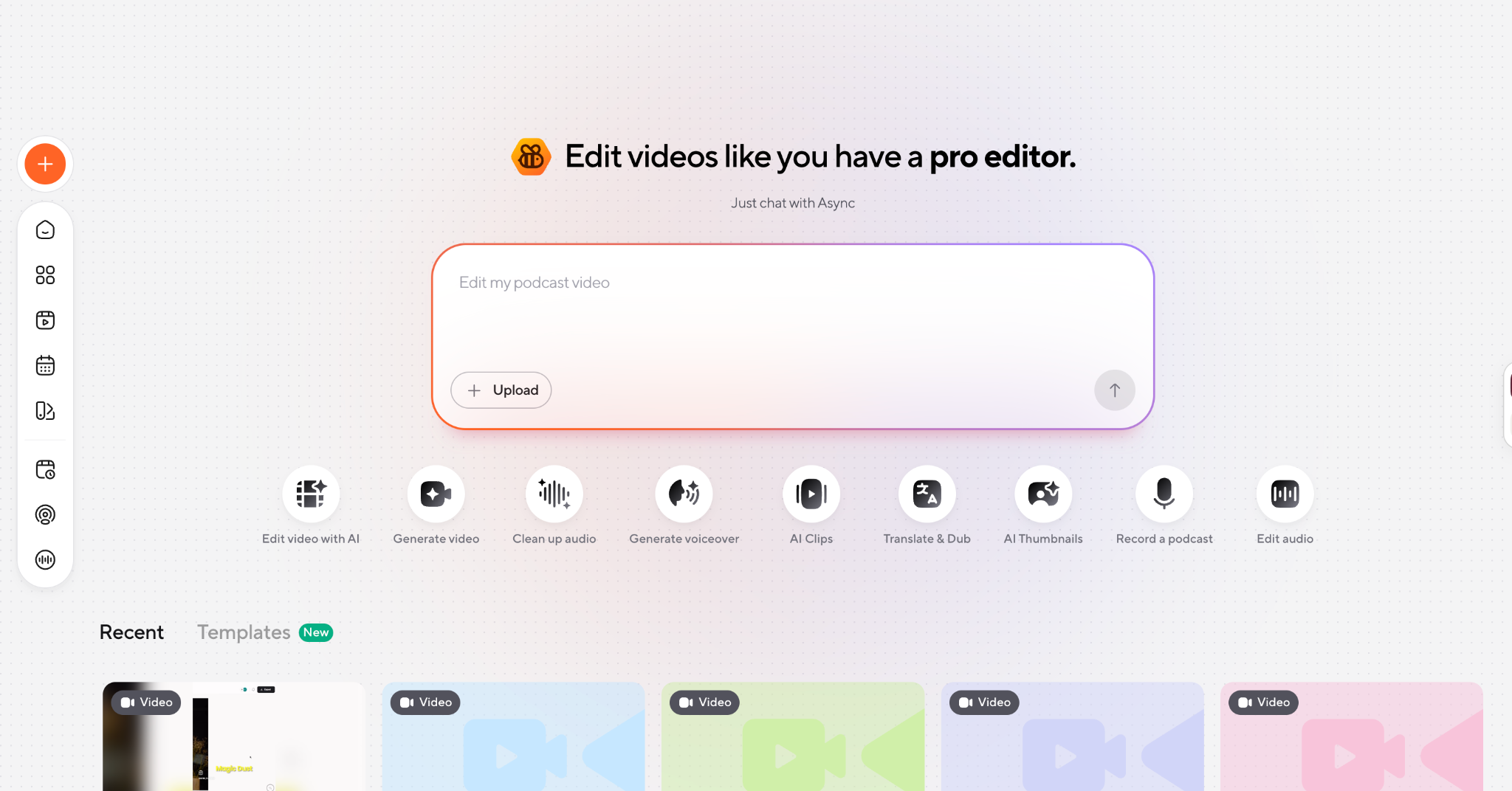
- Get the transcript. AI Transcription produces the transcript that drives everything after.
- Cut by deleting words. Delete a sentence, and the matching video goes with it. Fastest route from raw recording to rough cut.
- Or edit by chat. Describe the change you want instead of doing it manually.
- Clean the audio. Silence Removal for pauses, then AI Audio Enhance and Noise Reduction.
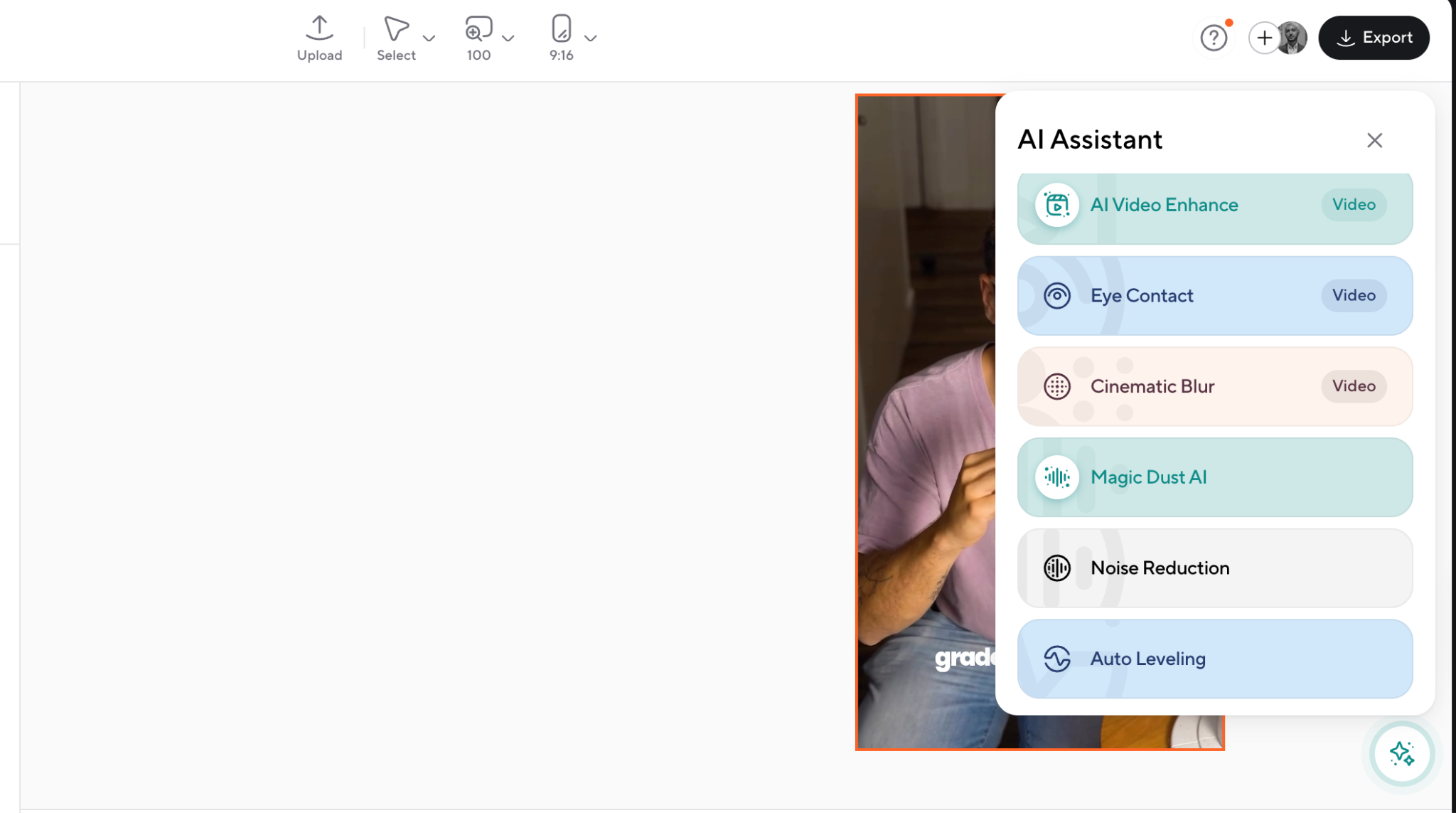
- Add captions and visuals. AI Subtitles generates captions. Add stock B-roll, then AI Video Enhance, Background Removal, Cinematic Blur, or Eye Contact as needed.
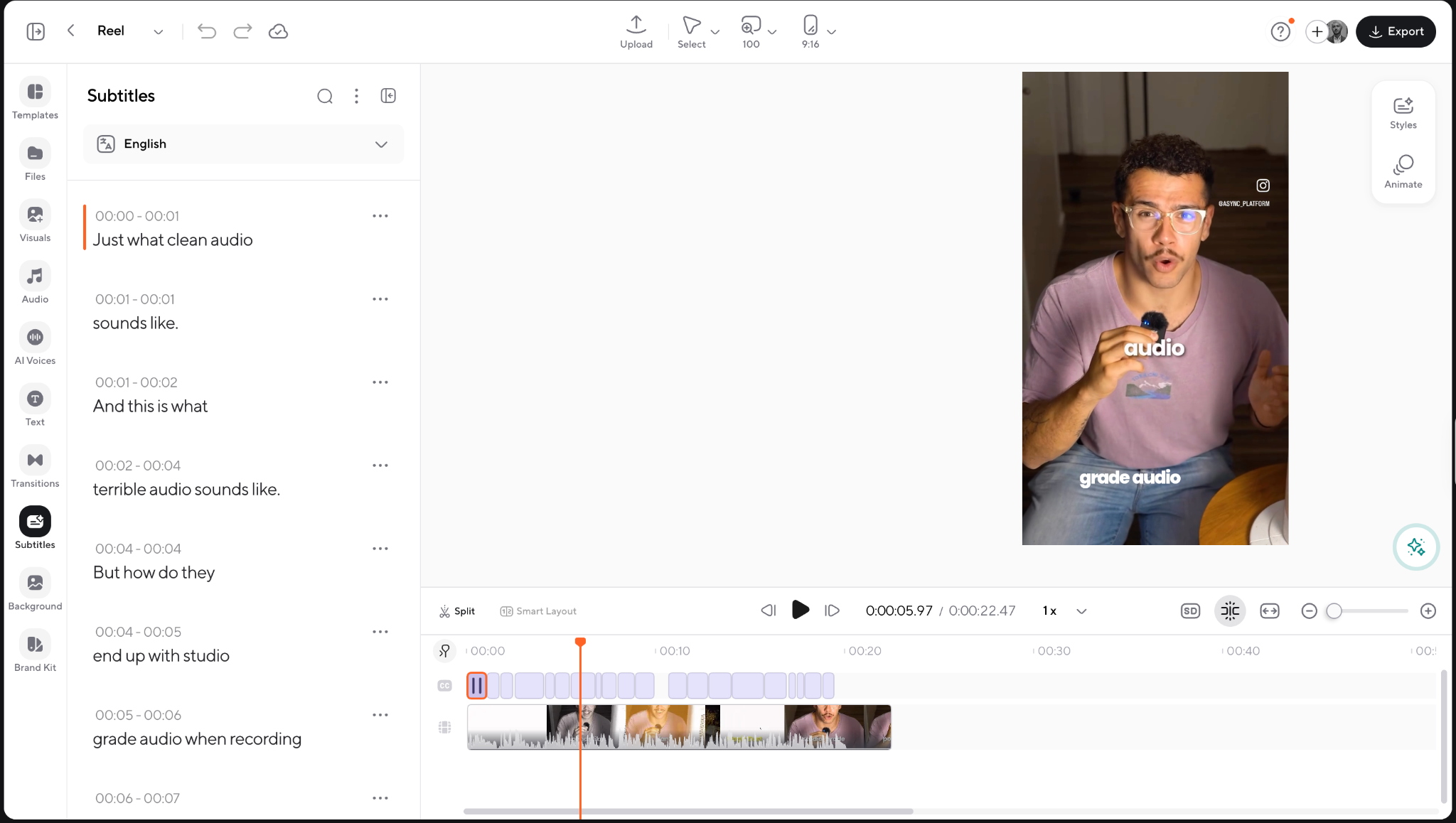
- Resize per platform. AI Reframe converts to vertical, square, or wide. AI Clips pulls short-form moments out.
- Collaborate. On Teams plans, Producer Mode and Brand Kit keep shared projects consistent.
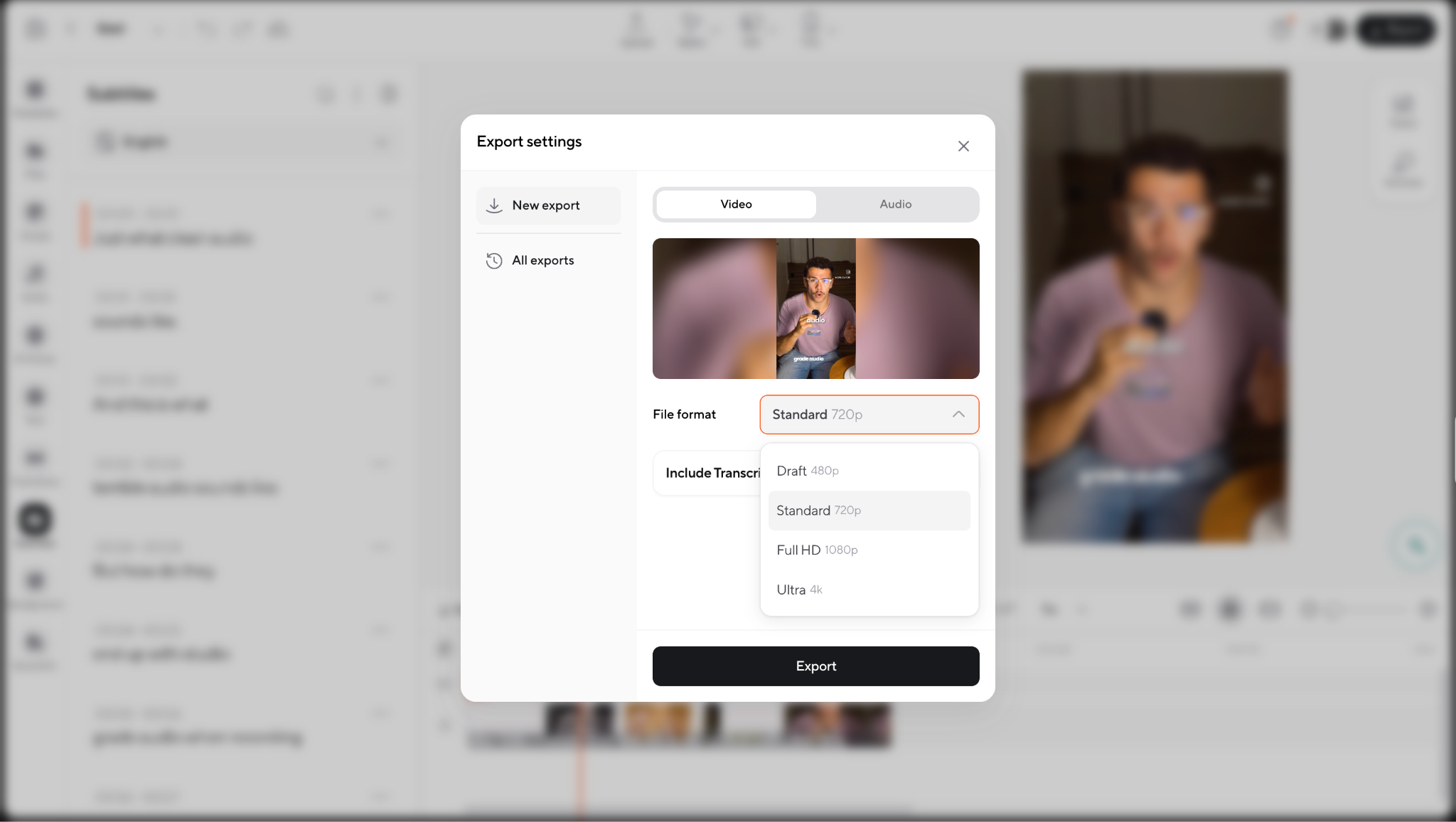
- Export and publish. Export the file or publish straight to social. AI Translation and Dubbing produce localized versions.
Try Async as your desktop CapCut alternative
The right CapCut alternative comes down to whether you need control or speed. If your bottleneck is time rather than creative precision, start with Async: open it in a browser on Mac or Windows, upload a recording, and cut it by editing the transcript. The free plan is enough to tell whether it suits you.
FAQ
What is the best CapCut alternative for PC?
Async is a strong browser-based option on Windows for AI-assisted and transcript-based editing. For a free install-and-go option, Clipchamp is built into Windows 11 and exports 1080p with no watermark. For advanced work, DaVinci Resolve is free and professional.
What is the best free CapCut alternative for desktop?
DaVinci Resolve. The free version is a complete professional editor with no watermark, handling 8-bit formats up to Ultra HD at 60fps. Clipchamp is the easier free choice on Windows, and Async's free plan includes 150 lifetime AI credits.
Is there a free desktop CapCut alternative without a watermark?
Yes. DaVinci Resolve and Clipchamp both export without watermarks on their free versions. VEED, Kapwing, and Descript offer watermark-free exports, so those need a paid plan.
Which CapCut alternative works on Mac and Windows?
Async works in the browser on both. DaVinci Resolve, Adobe Premiere Pro, Descript, and Canva have native apps for both. Final Cut Pro is Mac-only, and Clipchamp has no Mac app.
What is the easiest CapCut alternative to use on desktop?
Async and Canva are among the easiest options. Async uses chat and transcript editing, which reduces the need to learn tracks and keyframes. Canva is particularly approachable for template-based work.
Is Async a good desktop alternative to CapCut?
Yes, especially for creators who want AI automation on a computer without installing heavy editing software. It covers recording, chat and transcript editing, silence removal, AI subtitles, reframing, translation, and social publishing in one browser workspace, with a free plan to test it.
Which desktop CapCut alternative is best for professional editing?
Adobe Premiere Pro for client and agency work, thanks to its format coverage and Creative Cloud integration. DaVinci Resolve is better value if color grading matters most; Final Cut Pro is strongest on Mac.