Ever watched a video that instantly grabbed your attention before you even realized why? Chances are, the music had something to do with it, and no we’re not exaggerating the importance of it. But how to add music to a video as as fast and as stress-free as possible?
Upload your footage into a video editor, choose a song or sound effect that suits the mood of your content, place it beneath your video on the timeline, trim it to fit your edit, adjust the volume so it doesn't overpower dialogue or voiceovers, and export your video in the correct format for YouTube Shorts, Instagram Reels, or TikTok. And, voila, you’re good to go!
While the process is simple, picking the right music and using it properly can make the difference between videos people scroll past and those they actually watch. The right soundtrack can transform a video's feel. It evokes emotion, sets the pace, highlights key moments, and makes your content more memorable. In this article, we’ll explore how to add music to a video for YouTube Shorts, Reels, and TikTok effectively.
In this article, we’re going to learn how exactly to add music to a video for YouTube shorts, Reels and TikTok and do it right. So get your headphones, roll up your sleeves and let’s jump right into it. Off we go!
- How to add music to a video
- How to add music to YouTube Shorts
- How to add music to YouTube Shorts on PC
- How to choose music that actually fits the Shorts
- Copyright-safe music for YouTube Shorts
- How to add music to Instagram Reels
- How to add music to TikTok video
- How to add music in Async
- Mistakes to avoid when adding music to Shorts
- Why music matters more than you think
- Don’t just add music, create an experience
How to add music to a video
No matter which platform you're creating for, the editing workflow is mostly the same. Whether you’re creating a YouTube Short, Instagram Reel, TikTok, or even a longer YouTube video, these steps will help you add music that supports your content without distracting from it.
1. Start with your finished video
It’s usually easier to edit your visuals before adding music. Trim unnecessary clips, arrange your footage, and establish the overall structure of your video first. Once your story is set, you’ll have a clearer idea of what kind of music naturally fits.
2. Choose music that fits the mood
Instead of asking, "What’s trending?", consider: "What emotions do I want my audience to feel?" Different types of content require different music styles. For example, tutorials often work best with upbeat background music, fitness videos with high-energy or hip-hop tracks, and comedy videos with quirky sounds.
Trending songs can raise visibility on platforms such as TikTok and Instagram, but they may not always suit your content. If the music distracts your viewers, it weakens your message.
3. Add the music to your timeline
Once you've chosen a track, import it into your video editor and place it under your video. Most editing software lets you drag the music onto the timeline, making it easy to move around, trim, or split it.
4. Trim the music to fit your edit
Your music should improve the pacing of your video, not control it. Cut the beginning or end of the track if needed, and remove sections that don’t add value. If your video is 20 seconds, there’s no need to fit in a three-minute song. Instead, select the best part of the track.
5. Adjust the volume
If your video has narration or dialogue, lower the music enough so viewers can hear clearly. A good rule is that viewers should notice the voice before the music. A lot of creators also use audio ducking, which automatically lowers the music when someone speaks. This provides a cleaner listening experience and makes your content feel more polished.
6. Sync important moments to the beat
One of the easiest ways to make your edits feel professional is to align visual changes with the rhythm of the music. You can switch camera angles on each beat, time text animations to the beat, or to introduce a product exactly as the chorus begins. The world is your oyster. These small details create satisfying edits that feel intentional.
7. Check music rights before publishing
Before you upload your video, make sure you have permission to use the music. Using copyrighted songs without the proper license can lead to copyright claims, muted audio, limited monetization, and even blocked videos, depending on the platform.
If you’re uncertain, consider using royalty-free music or tracks from each platform’s licensed music library. We’ll cover this in more detail later, so keep reading.
8. Export in the right format
Finally, export your video in a vertical format suitable for major platforms. For YouTube Shorts, Instagram Reels, and TikTok, the recommended format is this:
- Aspect ratio: 9:16
- Resolution: 1080 × 1920 pixels
- File format: MP4
- Frame rate: 30 or 60 FPS
How to add music to YouTube Shorts
Let's start with the good news: adding music to YouTube video is surprisingly easy. The tricky part isn't finding a song. It's choosing one that actually improves your Short.
We've all seen it happen. Someone pairs an emotional piano track with a fast-paced recipe video, or blasts an energetic dance song over a calm tutorial where you can barely hear the creator speaking. Technically, they added music. But did it make the video better? Quite the opposite.
The top YouTubers treat music like they do lighting, transitions, or captions. It's another tool for storytelling, not just something to fill silence.
If you're making your Short directly in the YouTube app, here's how to add music in just a few taps:
- Open the YouTube app and tap the + button.
- Choose Create a Short.
- Record a new clip or upload an existing video.
- Tap Add Sound at the top of the screen.
- Browse YouTube's music library or search for a specific song.
- Pick the track you want to use.
- Select the track and use the Edit tool to choose the exact part of the song you want. Let's be honest, nobody wants to hear an awkward 12-second intro when the chorus is the best part.
- Finish editing and publish your Short.
How to add music to YouTube Shorts on PC
If editing videos on your phone feels like trying to paint a masterpiece with a tiny brush, we feel you.
While the YouTube app is excellent for quick uploads, you can’t edit your Shorts directly on a PC within YouTube Editor. You might want to use other video editors instead. Desktop editing gives you more flexibility. You can see your timeline, fine-tune each cut, and adjust your audio to work with your video rather than against it.
If you're wondering how to add music to YouTube video on PC, the workflow is simple:
- Upload your vertical video into an online video editing software like Async.
- Add your own music or choose one from the collection your editor offers.
- Trim the track to fit your edit.
- Lower the music so your voiceover stays crystal clear.
- Add captions, transitions, and effects.
- Export your Short in a 9:16 format.
- Upload it to YouTube.
That's it!
How to choose music that actually fits the Short
Okay, creator confession time: picking a song just because everyone is using it is very tempting. But trends alone don’t make great videos. The music needs to fit your story.
The best music for your Short isn't always the one with millions of streams. It's the one that makes your video easier to watch, understand, and enjoy from start to the last second of it.
Here's how to pick music that works for the type of Short you're creating:
Use upbeat music for fast-paced tutorials
If your video moves quickly, choose music with a steady, energetic rhythm.
Upbeat instrumentals, pop-inspired beats, or light electronic tracks help maintain momentum and make the video feel dynamic without distracting the viewer.
Just be careful not to choose something so energetic that it ruins your narration. Your audience should be focused on learning, not trying to figure out the lyrics.
Choose softer music for explanations
Not every Short needs high energy.
If you're explaining a concept, telling a story, or walking viewers through a process, a softer soundtrack often works better. Lo-fi beats, acoustic instrumentals, or subtle ambient music can add warmth while keeping the focus on what you're saying.
This is especially important if your video includes a voiceover. A calm background track makes the listening experience more comfortable and helps your message come across clearly.
Save the beat drop for your biggest moment
One of the easiest ways to make a Short feel more polished is to match an important visual moment with a change in the music.
That could be a makeup transformation, showing the before-and-after outfit, introducing a product, or displaying the final result of a DIY project.
Timing these moments with a beat drop, chorus, or noticeable change in the song creates a stronger impact. It's a simple editing technique, but it makes your video feel intentional rather than random.
Keep background music in the background
A common mistake is turning the music up so much that viewers struggle to hear the voiceover. No, no, no, don’t do that Insert that one scene from the Obsession movie here.
As a general rule, your audience should notice your message first and the music second.
Most video editors let you adjust audio levels manually or use audio ducking, which automatically lowers the music whenever someone is speaking. Taking a few seconds to balance your audio can make your content sound much more professional.
Avoid music that fights your message
Imagine watching a relaxing skincare tutorial with intense EDM blasting in the background.
Or a motivational fitness video paired with slow piano music. It feels off.
When the soundtrack doesn't match the content, it creates a disconnect that viewers notice, even if they can't explain why.
Before exporting your video, ask yourself one simple question: "Does this music help tell the story, or is it distracting from it?" If the music pulls attention away from your visuals or makes it harder to understand your message, it's probably worth trying a different track.
Copyright-safe music for YouTube Shorts
Finding the perfect soundtrack is only half the job. Before you publish your Short, it's just as important to make sure you have the rights to use the music.
Using copyrighted music without permission can lead to copyright claims, muted audio, restricted monetization, or limitations on where your video can be viewed.
The exact outcome depends on the platform, the music license, and how you use the content. The easiest way to stay safe is to use music from trusted, licensed sources.
Use YouTube's Audio Library
If you're making content for YouTube, the safest place to find music is YouTube's Audio Library. The same goes for Instagram and TikTok.
They include thousands of royalty-free music tracks and sound effects that creators can use in their videos. These tracks are copyright-safe for YouTube, making them a safe choice to prevent copyright issues.
Pay attention to attribution requirements
Not every track in the Audio Library has the same license. Some songs can be used freely without credit, while others are licensed under Creative Commons and need attribution.
If a track requires attribution, YouTube provides the information to include in your video's description. It only takes a few seconds to check, and it's worth doing before you hit publish.
Understand the difference between royalty-free and copyright-free
These terms are often confused but don't mean the same thing.
Royalty-free music: You don't pay royalties each time your video is viewed, although you may need to purchase a license or subscribe to a music library.
Copyright-free music: This term is often used online, but it isn’t an official legal license. Just because someone labels a track as "copyright-free" doesn't mean you can use it however you want.
When in doubt, always check the licensing terms before adding a song to your video.
Can you use popular songs in YouTube Shorts?
Yes, but… sadly, only in certain situations.
When you add music using YouTube Shorts' built-in Add Sound feature, you're choosing from YouTube's licensed music catalog, which allows creators to use many popular songs within Shorts.
However, that doesn’t mean you can download those songs, edit them into other videos, or use them outside of YouTube in the same way. Music licenses vary depending on the platform and how the content is distributed.
If you're creating content for multiple platforms, using licensed royalty-free music or tracks from YouTube's Audio Library is often the safest and most flexible option. It gives you more control over your edits while helping you avoid copyright issues later.
How to add music to Instagram Reels
Instagram and music go together like coffee and Monday mornings, you can have one without the other, but it just doesn’t hit the same.
Adding music to an Instagram Reel is easy.
Here's how to do it:
- Open Instagram and tap the + button.
- Select Reel.
- Record a new video or upload one from your camera roll.
- Tap the Music icon.
- Search for a song or browse trending audio.
- Select the track you want to use.
- Drag the audio timeline to choose the exact part of the song you want to play.
- Finish editing your Reel and tap Share.
Congrats, your Reel now has a soundtrack!
Keep in mind that you shouldn't just pick a song because it's trending. Seriously. Trends come and go, but a well-edited Reel with music that genuinely fits the story will always outperform one that feels like it jumped on a trend for the sake of it.
If you're sharing a skincare routine, heavy EDM probably isn't doing you any favors. If you're revealing an incredible travel destination, a quiet acoustic track might not capture the excitement.
Instead, ask yourself, "What should people feel while watching this?"
The answer usually points you toward the right music much faster than scrolling through endless trending songs.
How to add music to TikTok video
TikTok is where music goes to become famous.
A song that nobody knew on Monday can become the background track for thousands of videos by Friday. That's what makes TikTok different from many other platforms.
A clever transition, a funny moment, a product reveal, or even a simple daily vlog can feel completely different when paired with the right sound.
If you're learning how to add music to TikTok video, the process only takes a few taps:
- Open TikTok and tap the + button.
- Upload your video or record a new one.
- Select Add sound at the top of the editing screen.
- Search through TikTok's music library, trending sounds, or saved audio.
- Choose the part of the song you want to use.
- Adjust your clips, add text or captions, and publish.
When it comes to TikTok or Instagram, original audio can be just as powerful.
Not every successful TikTok relies on a popular song. Sometimes the most memorable videos come from original audio, a creator's voice, a funny sound, a reaction, or a unique piece of music.
Original audio gives you more control and can even become part of your creator identity. If people start using your sound in their own videos, your content can reach audiences far beyond your followers.
For brands, educators, and creators building a recognizable style, this can be more valuable than chasing every trending sound.
How to add music in Async
Creating short-form videos often means juggling a lot of things at once: choosing the right clips, writing captions, adding transitions, fixing audio levels, and somehow making sure everything feels smooth. The last thing you want is to spend hours switching between different tools just to get your video ready.
With Async chat-based video editor, you can add music while editing your video, so your audio, captions, pacing, and visual cuts all come together in one workflow.
Whether you're creating a YouTube Short, Instagram Reel, or TikTok video, you can build the entire experience before uploading, without piecing everything together at the last minute.
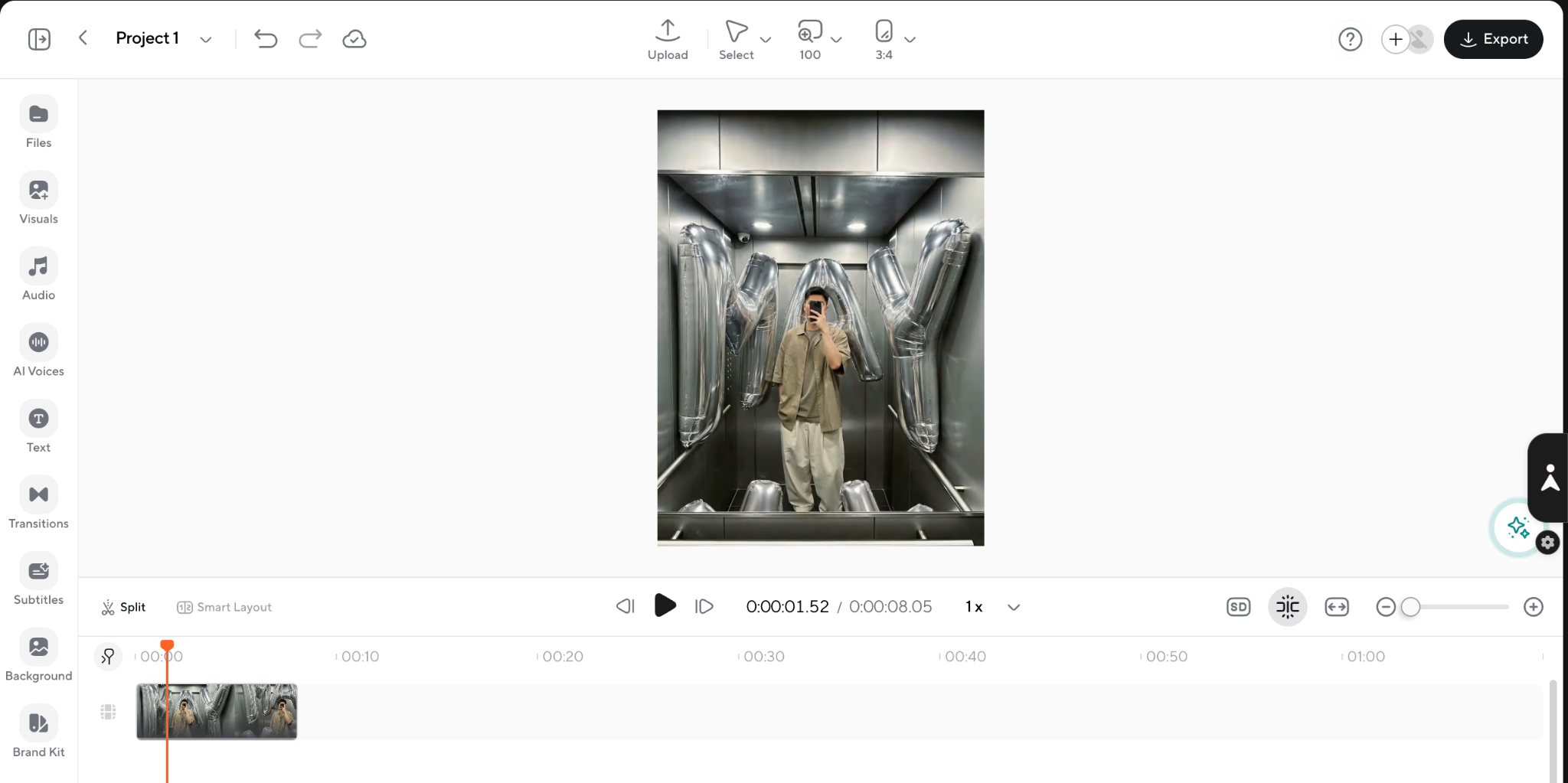
Here's how to add music to a video in Async:
Upload or create your short-form video
Start by importing your footage or creating/generating your video directly in Async. Once your clips are on the timeline, you can begin editing it with quick AI tools.
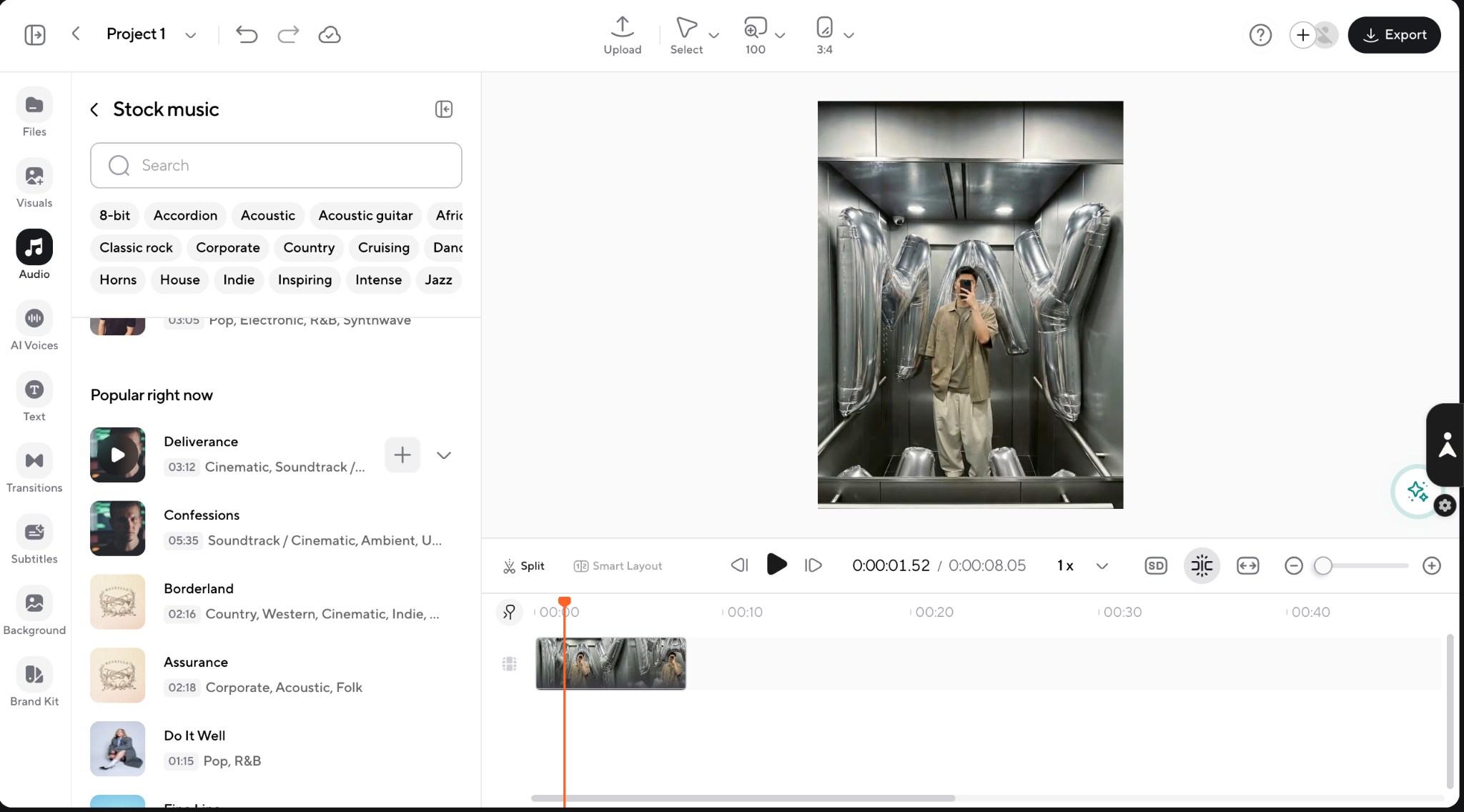
Add background music
Choose a track that fits the mood and energy of your video. Whether you need something upbeat for a quick tutorial or something more practical for a voiceover-led video, the right music helps set the tone from the first second.
Adjust the music volume
Great background music supports your message, it doesn't compete with it. Lower the music level so your narration stays clear and viewers can focus on what you're saying.
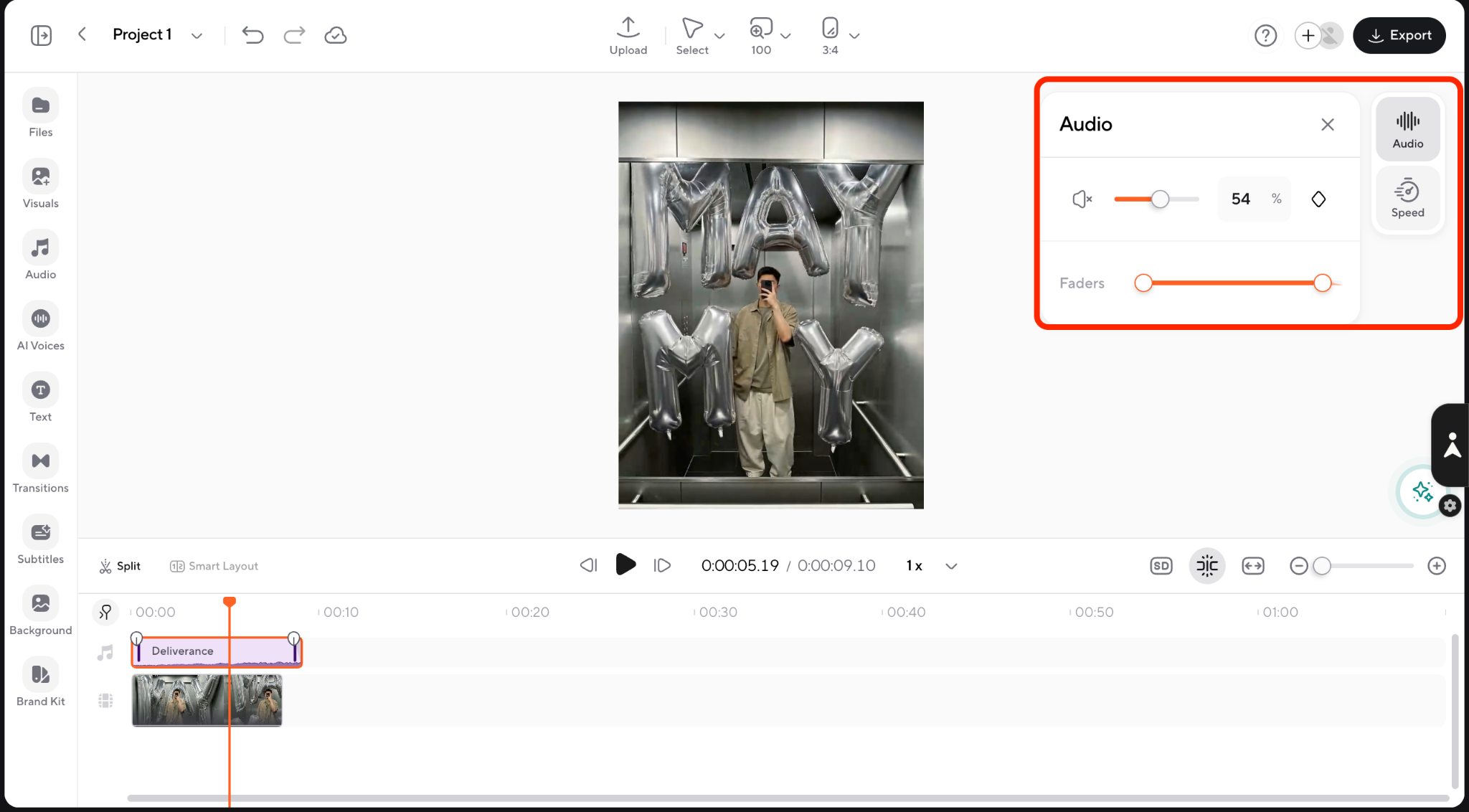
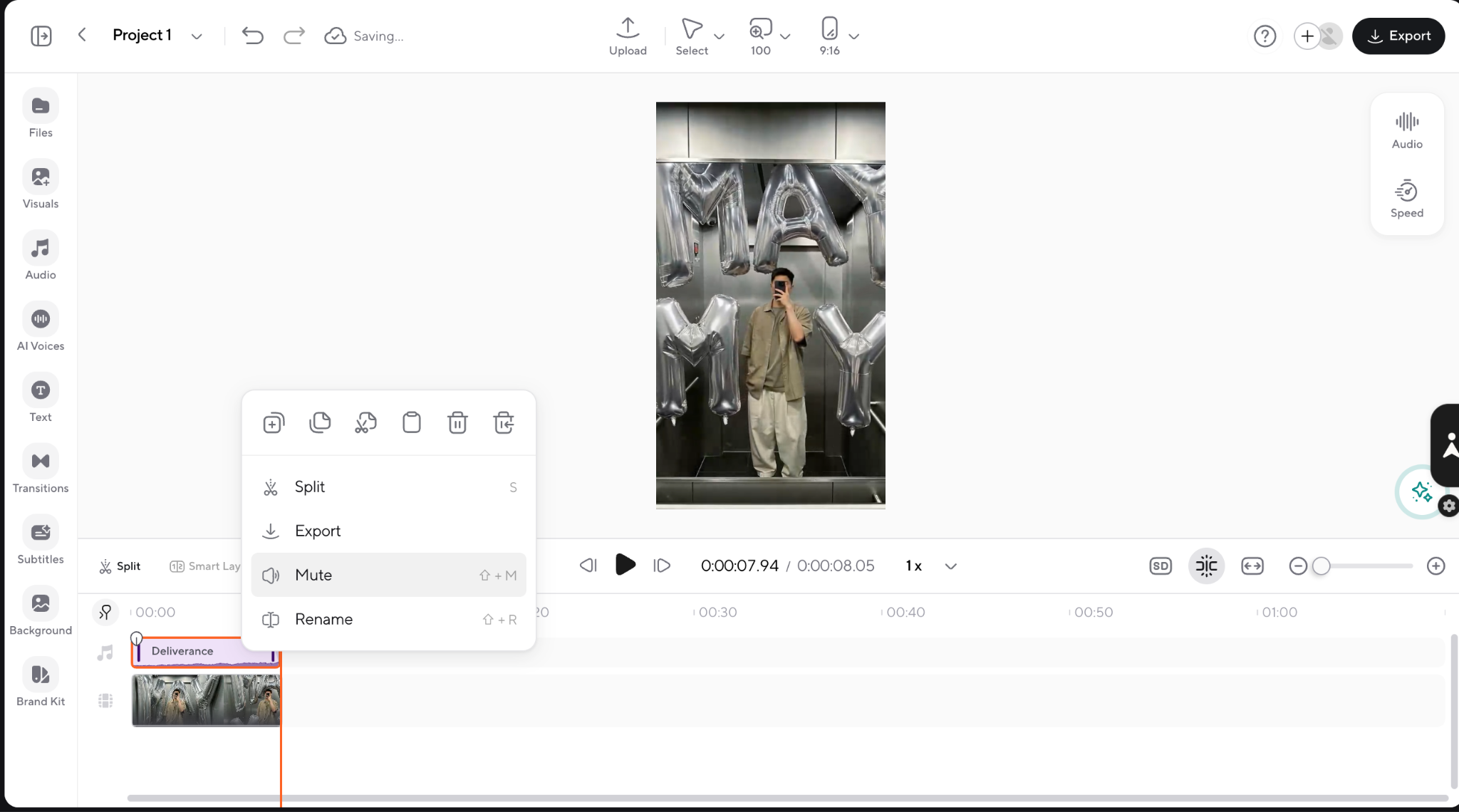
Trim the track to match your video
You don't need to force your video to fit a song. Cut the music to highlight the best moments, match the pacing of your edit, and make important scenes land at the right time.
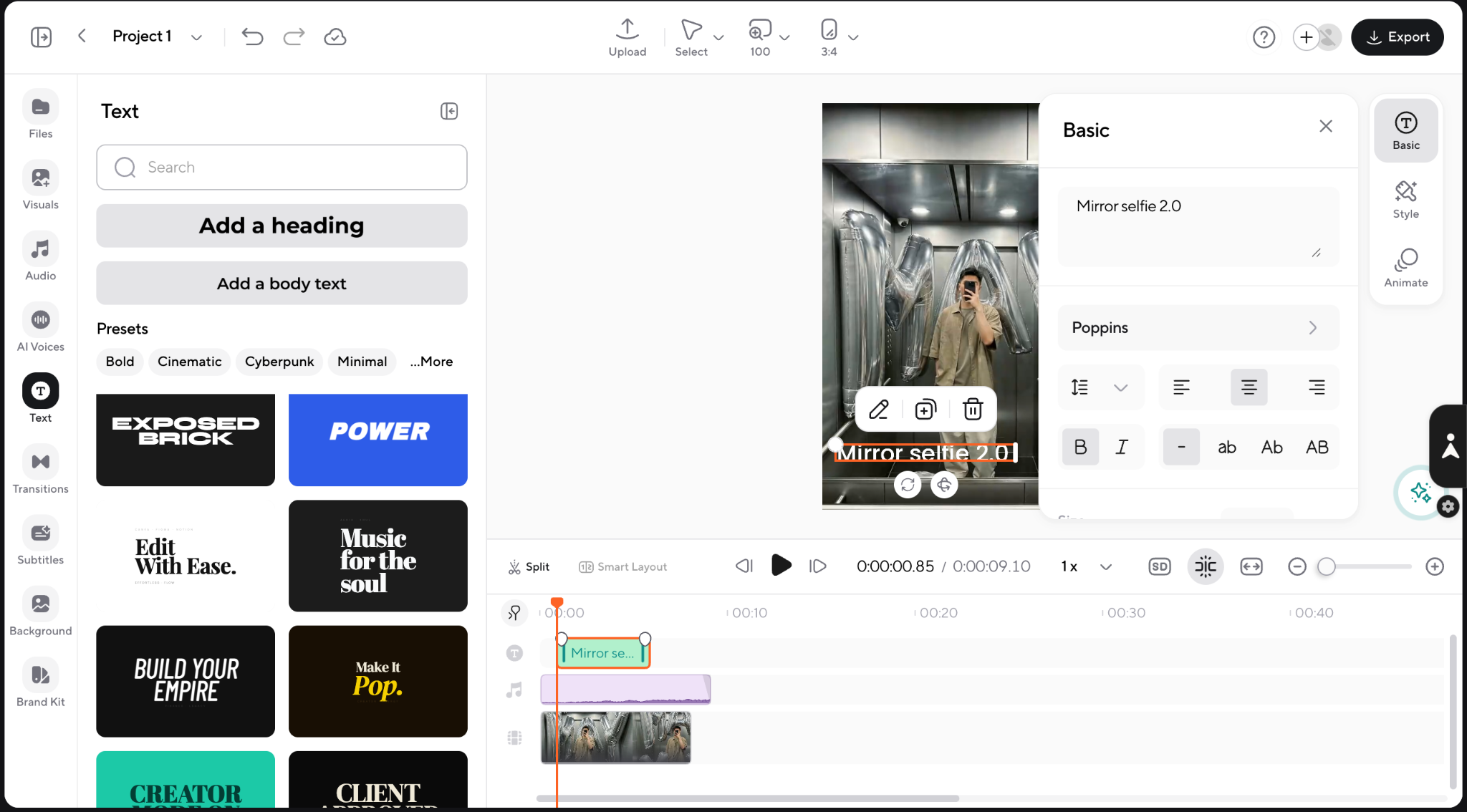
Add captions and polish your edit
Captions are essential for short-form content, since many people watch videos without sound. Add captions, adjust timing, and make sure every element works together.
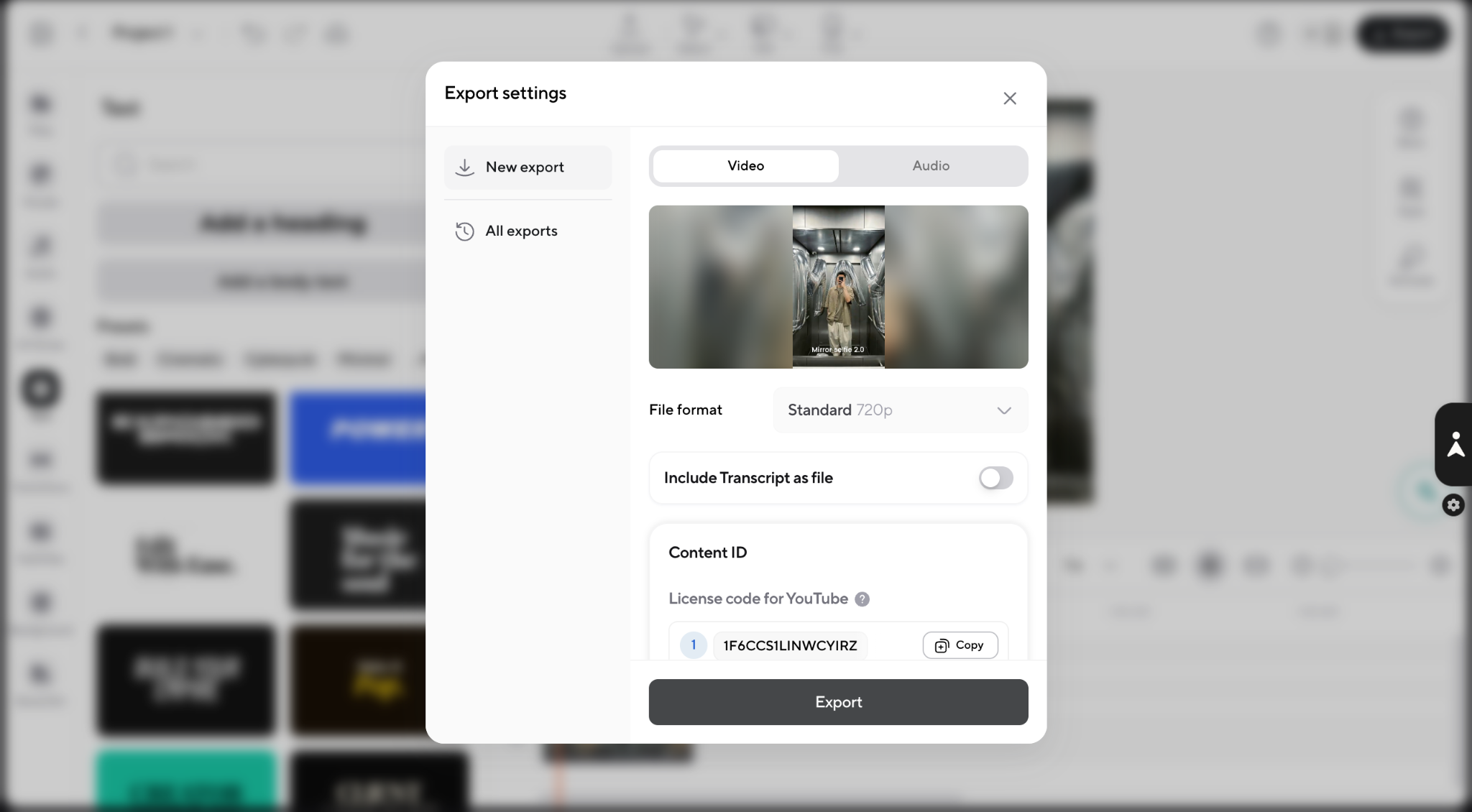
Resize and export for YouTube Shorts, Reels, or TikTok
Once your video is ready, export it in the right format for your platform. Resize your polished edit and share it wherever your audience watches.
Mistakes to avoid when adding music to Shorts
Adding music to a Shorts might seem like the easiest part of editing. Pick a song, drop it onto the timeline, adjust the volume, and you're done. Except... that's usually where things go south.
Small audio mistakes can completely change how professional your video feels. A great clip with poor music choices can lose viewers just as quickly as a bad hook.
Here are some common mistakes creators make when adding music to Shorts, and how to avoid making them.
1. Making the music too loud
Music should support your video, not overpower it. If viewers struggle to hear your voiceover, lower the volume and let your message lead.
2. Choosing a song that doesn't match the pace
A high-energy track won't fit every video. Match the music to your content: upbeat for fast edits, softer tracks for tutorials, and emotional sounds for storytelling.
3. Forgetting to check copyright
Always make sure you have permission to use a song. Copyright issues may lead to muted audio or claims, so use licensed or royalty-free music when needed.
4. Placing the beat drop too late
Save the strongest part of the song for your biggest moment, a reveal, transformation, or key message.
5. Making captions difficult to read
Music, visuals, and captions already compete for attention. Keep captions clear, readable, and easy to follow.
6. Exporting in the wrong format
For Shorts, Reels, and TikTok videos, use a vertical 9:16 format with a 1080 × 1920 resolution for the best viewing experience.
7. Relying only on trending audio
Trending sounds can help, but they won't replace good storytelling. Choose music that fits your content, not just what's popular.
Why music matters more than you think
Think about the last travel montage, cooking tutorial, or product review you enjoyed watching. Now imagine the exact same video without any music, or a terrible one that doesn’t even match the beats. It would probably feel slower, less polished, and a lot more awkward. In short: unwatchable.
Research in psychology and marketing has consistently shown that music influences emotions, attention, and memory, making it a powerful storytelling tool in video content.
Here's what good background music can do:
- Create emotion: Music sets the mood before a single word is spoken. A cinematic soundtrack builds anticipation, while upbeat music creates excitement and energy.
- Improve pacing: Matching cuts and transitions to the rhythm of a song makes videos feel smoother and more engaging.
- Increase viewer retention: Dynamic audio keeps content from feeling static, persuading viewers to stay until the end.
- Strengthen your brand: Consistently using a particular style of music helps make your content recognizable over time.
- Support your message: Good music improves your story without distracting from it.
That said, louder isn't always better. One of the most common mistakes creators make is choosing music that competes with the message instead of supporting it. If viewers struggle to hear your voiceover or focus on captions because the music is too dominant, it's doing more harm than good.
The best background music often goes unnoticed because it feels like a natural part of the story.
Don’t just add music to video, create an experience
The right music can turn a good video into one people remember. It sets the mood, guides attention, and makes every cut feel more natural, but the best soundtrack isn't always the loudest or most trending one. It's the one that supports your story without taking over. So before adding a song, ask yourself: does this audio make my video better, or is it just filling the silence? Because sometimes the smallest sound choices create the biggest impact.
FAQ
Can you add music to YouTube Shorts after uploading?
Yes, you can add music to YouTube Shorts after uploading using YouTube's built-in editing options. However, if you want more control over your audio, it’s usually better to add music before uploading. Editing first allows you to adjust timing, volume, captions, and sync the music with your clips.
Can you use copyrighted music on YouTube Shorts?
Sure, you can use some copyrighted songs through YouTube's licensed music library. To add music to Shorts, use YouTube's built-in Add Sound feature or select tracks from approved libraries. Avoid uploading copyrighted music manually unless you have permission, as this can lead to copyright claims or muted audio.
How do you add music to YouTube Shorts on PC?
To add music to YouTube Shorts on PC, use a video editor to add audio before uploading. Import your Short, add your chosen track, adjust the music volume, sync the audio with your cuts, add captions, and export the final video in vertical 9:16 format. Editing on a desktop gives you more control over your audio.
How do you add trending music to YouTube Shorts on PC?
To add trending music to YouTube Shorts on PC, most creators edit their video first, then add available trending sounds through YouTube's music library when uploading. If you need full editing control, you can add music to a video before uploading using licensed tracks that match the style and pacing of your Short.
Can you add your own music to YouTube Shorts?
Yes, you can add your own music if you own the rights or have permission to use it. Adding original music can help you establish a recognizable style, and you can combine your track with captions, effects, and visuals before publishing.
What music can I use for YouTube Shorts?
You can use music from YouTube's Shorts music library, YouTube Audio Library, or properly licensed royalty-free music. The best songs for YouTube Shorts match your video's mood and message, whether you're creating a tutorial, product demo, or entertainment content.
How loud should background music be in a Short?
Background music should be soft enough for viewers to clearly hear your voiceover or dialogue. When adding music to a video, keep the soundtrack supportive rather than distracting. Your narration, captions, or main message should always be more noticeable than the background track.
How to add music to Instagram Reels?
To add music to Instagram Reels, upload your video in the Instagram app, tap the music icon, choose a song from Instagram's library, and adjust which part of the track plays. If you edit outside Instagram, you can add audio to your video first and upload a finished Reel with your own soundtrack.
How to add music to TikTok video?
To add music to a TikTok video, upload your clip, tap Add Sound, choose a song or trending audio, and adjust the section you want to use. You can also add music to a video before uploading if you want more control over timing, volume, captions, and transitions.