icon

Unblur Video

If you want to quickly and easily enhance the quality of your videos then apply Async’s AI Video Enhancer to improve clarity.

How to unblur videos

You’ve got the perfect video to use on your channel, share with a friend or include in a project for work or school, but it’s just too blurry to use. What can you do? First thing you can try is Async’s AI Video Enhancer, with one click it can enhance the quality of all kinds of videos. Uploading your video is simple and applying the enhancement only takes one click.

If a video has been deliberately blurred to conceal content, it’s probably unlikely that you can unblur this fully, however if you have a recording that came out blurry, AI enhancement can help.

icon

How to unblur videos with Async

card 1 img
card 2 img
card 3 img
benefit img 1

Improve video quality

There’s nothing worse than sharing a video with quality that’s not up to scratch, that’s why our AI Video Enhancer helps make your videos clearer and more professional. Apply it with one click and see the difference.
benefit img 2

Easy video editing

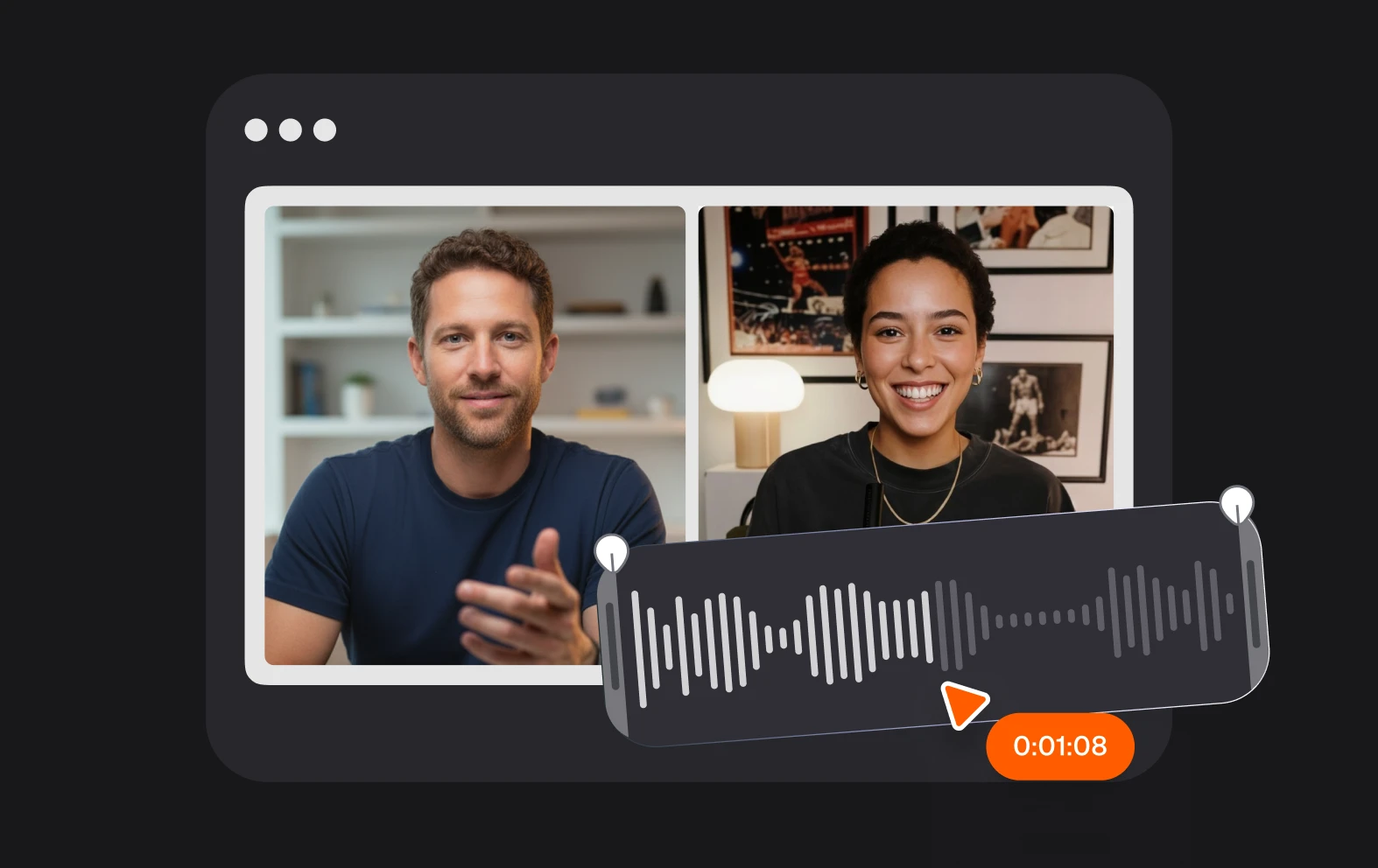
Our multi-track video editor is so easy to use you’ll actually enjoy editing videos! It’s a simple, uncluttered drag-and-drop editing suite that lets you quickly upload videos, apply effects and make changes.
benefit img 3

Background blurring

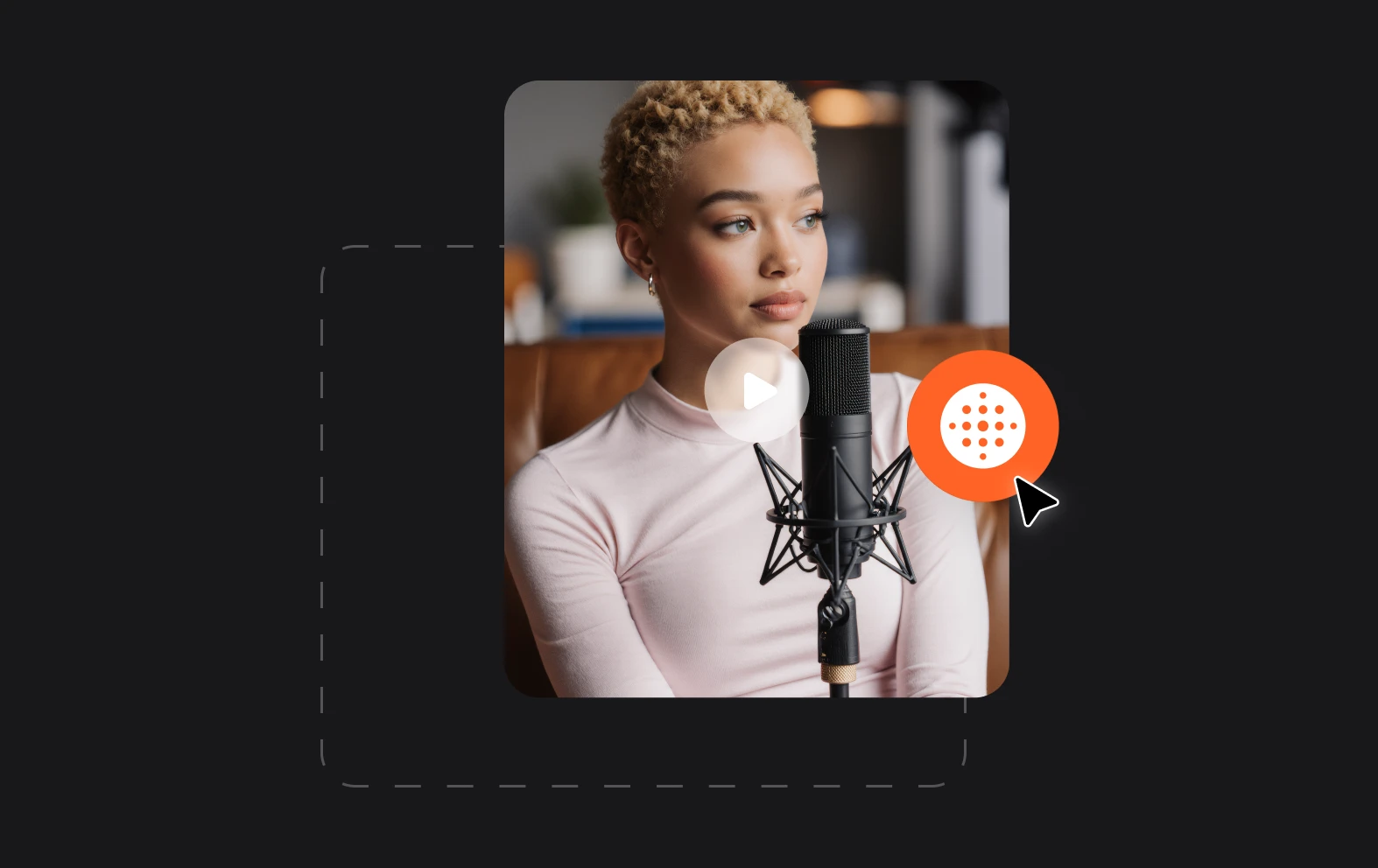
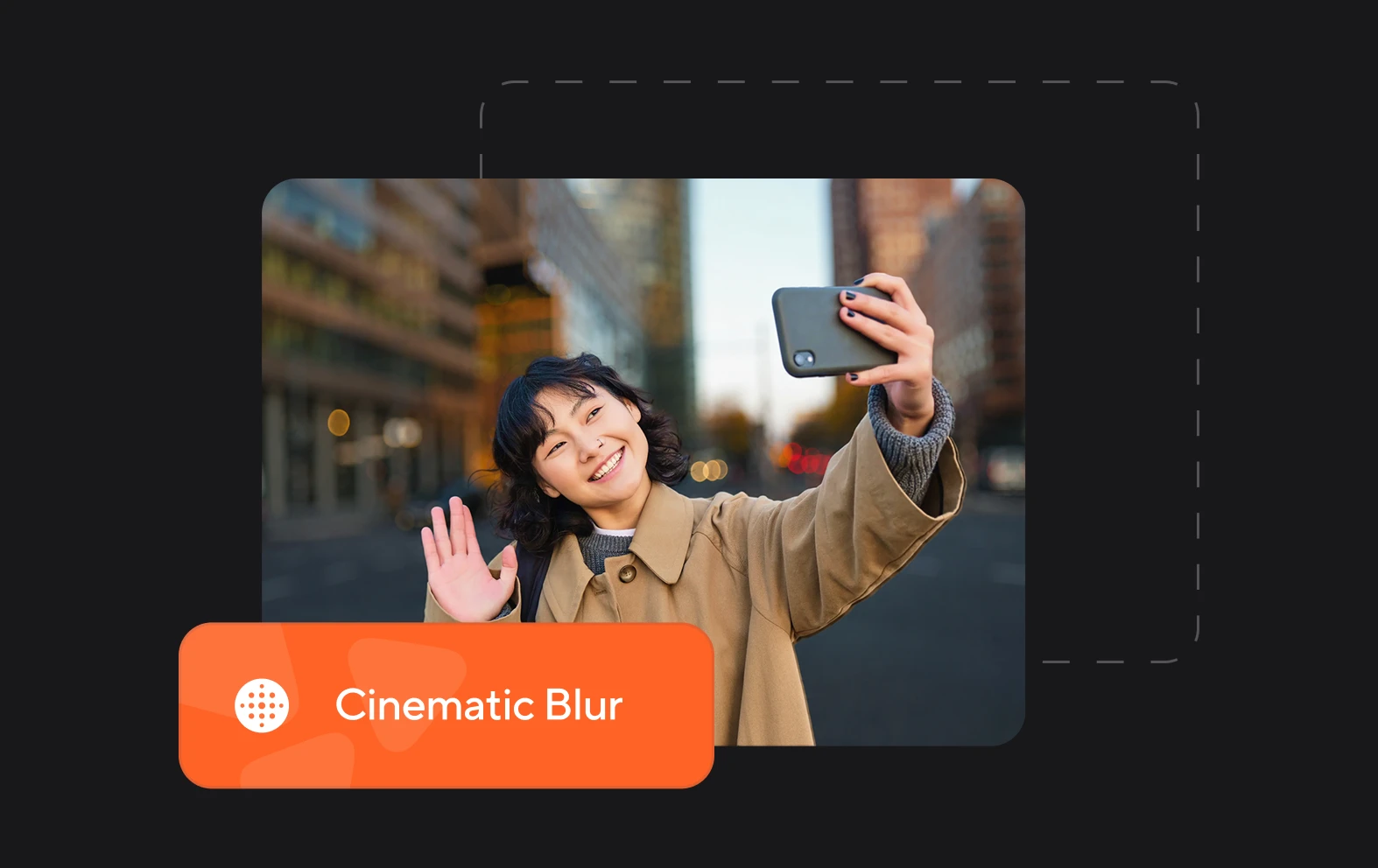
Speaking of blurring, you can also blur videos with Async! Our Cinematic Blur feature blurs the background of your video, not only hiding things you might not want viewers to focus on, but adding a premium feel to the video.

Discover more

Add Audio to Video OnlineAdd Music to VideosAdd Subtitles to VideoAdd Text to VideoAI Audio AssistantAI Audio EnhancerAI Content ToolsAI Noise ReducerAI Podcast Clip GeneratorAI Subtitle GeneratorAI Video AssistantAI Video EditorAI Video EnhancerAI Video UnblurAnimation VoiceoversAudio JoinerAudio LooperAudio PodcastAudio ProductionAudio RecorderAudio to TextAudio TranslatorAudiobook Recording StudioAutomatic Video EditorBirthday Video MakerBlur Video BackgroundsCar Sound EffectsChange Video Aspect RatioClip MakerCloud Video EditingCompress MP4Compress VideoCreate a PodcastCreate Marketing VideosCreate Training VideosCreate Video OnlineCrop VideoDigital Marketing VideosE-Learning VoiceoversEasiest Video Editing AppEdit MOV FilesEdit WebM FilesExplainer Video MakerExplainer Video VoiceoverExtract AudioEye Contact FixerFemale Voice ChangerFiller Word DetectionFlip VideoFunny Sound EffectsFunny Video MakerHappy Stock MusicInterview TranscriptionJazz Stock MusicLightweight Video EditorLong Video to Short VideoLoop VideoLyric Video MakerMerge Audio FilesMerge VideoMontage Video MakerMP3 Audio CutterMP3 EditorMp3 to TextMP3 to WAV ConverterMP3 TrimmerMP3 Volume IncreaserMP4 to MP3 ConverterMp4 to TextMP4 TrimmerMP4 Video CutterMP4 Video EditorMusic Video MakerMute VideoOnline Audio ConverterOnline Movie MakerOnline Video ConverterOnline Video CutterOnline Video MakerOnline Video RecorderOnline Video TrimmerPhoto to Video MakerPodcast Editing SoftwarePodcast MakerPodcast RecordingPodcast StudioPodcast TeleprompterPodcast TranscriptionPodcast Video EditorPromo Video MakerRain Sound EffectsRecord Audio on iPhoneRemote Interview RecordingRemove Background Noise from AudioRemove Background Noise from VideoRemove Music from VideoResize VideoRotate VideoSilence RemovalSocial Media Marketing VideosSocial Media Video EditorSound Effects LibrarySpeech to Text SoftwareStart PodcastingText Video MakerText-Based EditingTrailer MakerTravel Video MakerTutorial Video MakerVideo Ad MakerVideo Background RemovalVideo ClearerVideo Collage OnlineVideo Compilation MakerVideo CreatorVideo Game VoiceoversVideo Interview SoftwareVideo JoinerVideo MakerVideo MergerVideo PodcastVideo Quality EnhancerVideo Recording SoftwareVideo ResizerVideo Size ReducerVideo SplitterVideo Subtitle GeneratorVideo to AudioVideo to TextVideo TranscriptionVideo TrimmerVideo Tutorial SoftwareVideo Voice OverVoice Over RecordingVoice Over StudioVoice RecorderVoice to TextVoiceovers for PresentationsWAV EditorWAV to MP3 ConverterWebinar Recording SoftwareWedding Video MakerYouTube Sound EffectsYouTube to MP4 TrimYouTube Video CreatorYouTube Video CutterYouTube Video EditorYouTube Video MakerYouTube Video TrimmerYouTube Video Voiceovers
More tools

Frequently Asked Questions

How to unblur a video someone sent you?

A lightweight video editor is a video editing software designed to use minimal system resources, while still offering essential editing tools. These editors are typically smaller in size, quicker to install or browser-based and easier to operate compared to more robust, feature-heavy software like Adobe Premiere Pro. They are ideal for users who need basic editing capabilities, such as trimming, cutting, adding transitions, or simple effects, without requiring high-performance hardware or extensive technical knowledge. Lightweight video editors are often preferred for casual editing tasks.

How can I unblur a video with downloading software?

To unblur a video without downloading software, you can use online tools like Async, which is a browser-based platform for enhancing video quality. Async uses AI algorithms to reduce blur, sharpen details, and improve overall clarity. Simply upload your video directly to the platform, select the enhancement options, and let the AI process it. This approach is convenient because it doesn’t require any installation, and the results are fast and effective for mildly blurred videos. However, severely blurred videos may still have limitations in recovery.

How do I add background blurring to a video?

To add background blurring to a video, you can use tools like Async, which offers AI-powered video editing features. Async allows you to apply background blurring by detecting the subject of the video and isolating it from the background using advanced AI algorithms. Simply upload your video and select the background blur option. This effect is great for drawing attention to the subject or creating a professional, cinematic look. Async makes it easy to achieve this without requiring complex manual editing.

How to unblur a TikTok video?

To unblur a TikTok video, you can use tools like Async, an AI-powered platform designed to enhance video quality. Async can improve clarity by reducing blur, sharpening details, and enhancing resolution through its advanced AI algorithms. Simply upload the blurred TikTok video to Async, apply the enhancement features, and let the platform process the video. While Async can significantly improve mildly blurred videos, it may not fully restore heavily blurred or low-quality content, especially if the original video lacks sufficient detail.

Can you unblur a video that’s been intentionally blurred?

Unblurring a video that has been intentionally blurred is challenging and often impossible to fully reverse. When a video is intentionally blurred, the original details are usually replaced with averaged or obscured pixels, meaning the original information is lost. AI tools and video enhancement software, like Async, can attempt to sharpen and enhance the video by predicting and reconstructing details, but they cannot recover the exact original content. Success depends on the intensity of the blur and whether any underlying details remain, but heavily blurred or censored videos are unlikely to be fully restored.
Your video, made by chat.
Just tell Async what you want.

From raw footage and AI-generated scenes to finished videos in one AI workflow.

Start creating for free