icon

YouTube Video Voiceovers

Whatever kind of voiceover you need to create for your YouTube video, you can do it with Async, record, use AI voices and edit your content.

Create amazing voiceovers for YouTube

Creating an explainer video? A review of a video game? Maybe you’re a theme park obsessive and want to make a 4 hour video about Disney’s new Star Wars attraction. However you want to use your voice you can do it with Async. Our unlimited audio recording allows you to record whatever you want or you can use our AI voices to simply type in your script and create a voiceover in a matter of seconds.

Try it out for free and get a taste of how easy it is to create professional-sounding voiceovers for your YouTube content.

icon

How to create YouTube voiceovers

card 1 img
card 2 img
card 3 img
benefit img 1

Free voiceover recorder

Our basic plan includes unlimited audio recording, so you can try it out for free. You can also upgrade to access AI-powered audio enhancements.
benefit img 2

Secure file storage

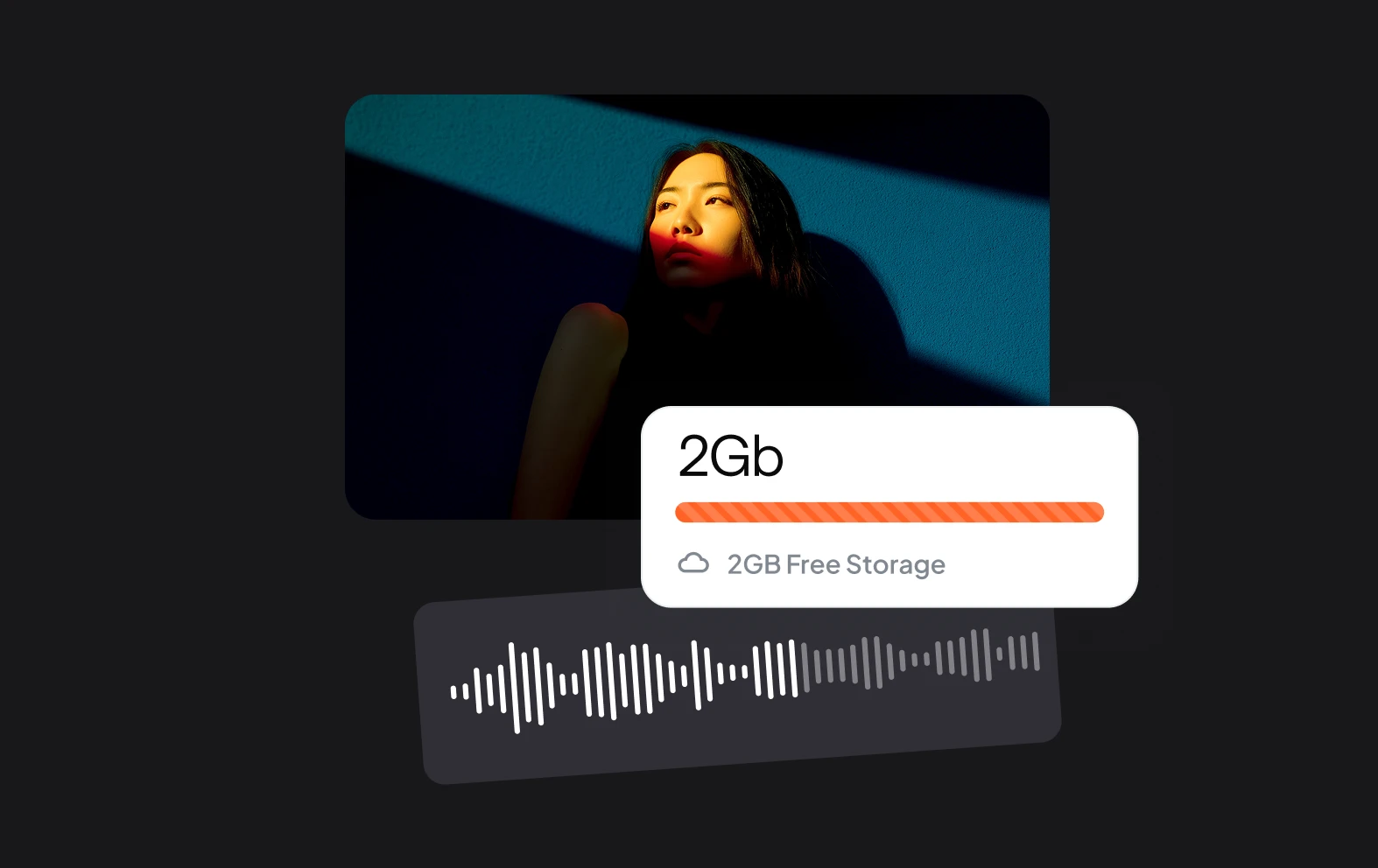
You get 2GB in the basic plan and unlimited storage in paid plans, so your files will be kept safe and secure while you work on your projects.
benefit img 3

Effects and music

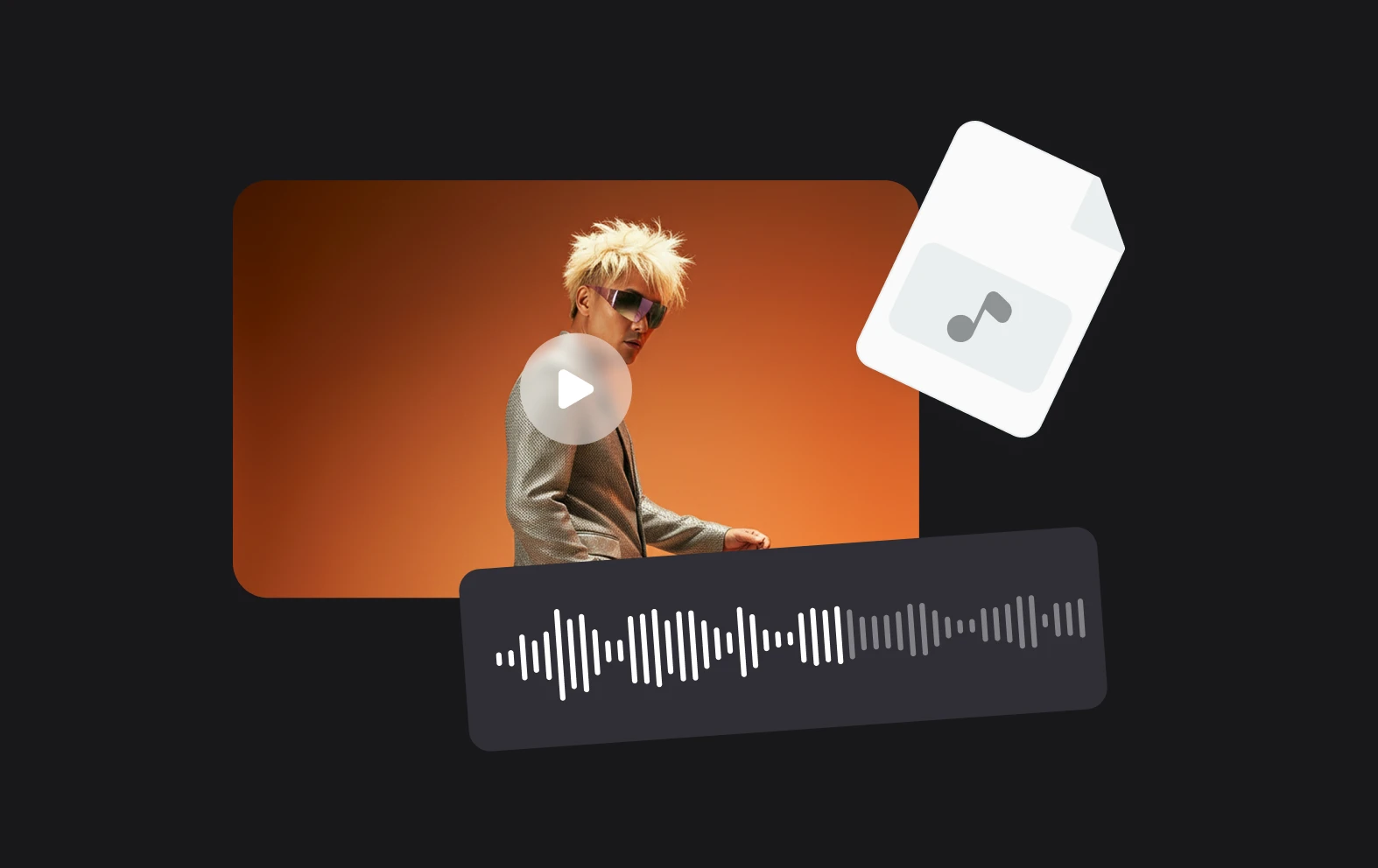
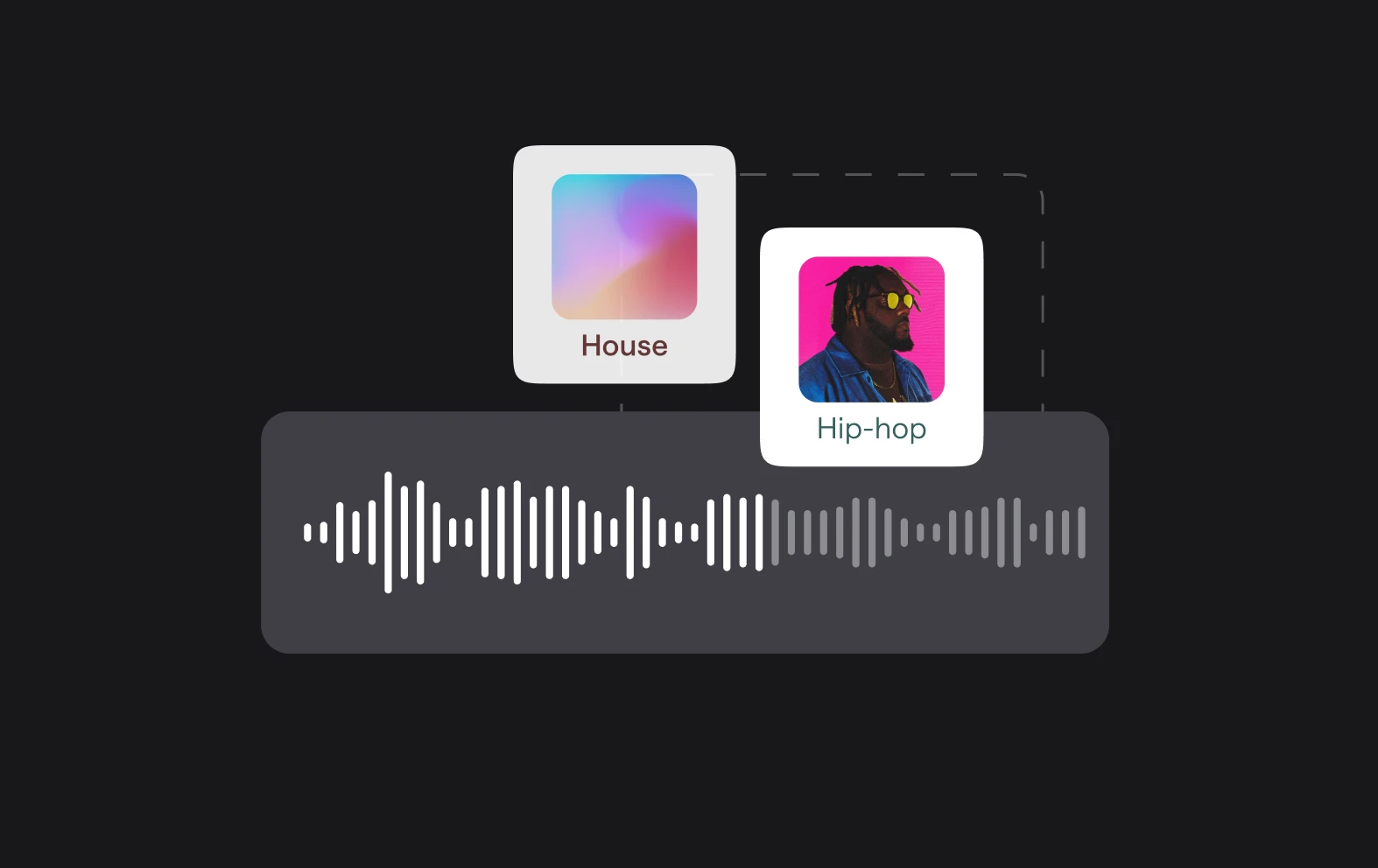
Barking dogs, rain clouds, funky jazz, we’ve got it all! Add an extra layer to your video voiceover by picking the right sounds and background music.

Discover more

Add Audio to Video OnlineAdd Music to VideosAdd Subtitles to VideoAdd Text to VideoAI Audio AssistantAI Audio EnhancerAI Content ToolsAI Noise ReducerAI Podcast Clip GeneratorAI Subtitle GeneratorAI Video AssistantAI Video EditorAI Video EnhancerAI Video UnblurAnimation VoiceoversAudio JoinerAudio LooperAudio PodcastAudio ProductionAudio RecorderAudio to TextAudio TranslatorAudiobook Recording StudioAutomatic Video EditorBirthday Video MakerBlur Video BackgroundsCar Sound EffectsChange Video Aspect RatioClip MakerCloud Video EditingCompress MP4Compress VideoCreate a PodcastCreate Marketing VideosCreate Training VideosCreate Video OnlineCrop VideoDigital Marketing VideosE-Learning VoiceoversEasiest Video Editing AppEdit MOV FilesEdit WebM FilesExplainer Video MakerExplainer Video VoiceoverExtract AudioEye Contact FixerFemale Voice ChangerFiller Word DetectionFlip VideoFunny Sound EffectsFunny Video MakerHappy Stock MusicInterview TranscriptionJazz Stock MusicLightweight Video EditorLong Video to Short VideoLoop VideoLyric Video MakerMerge Audio FilesMerge VideoMontage Video MakerMP3 Audio CutterMP3 EditorMp3 to TextMP3 to WAV ConverterMP3 TrimmerMP3 Volume IncreaserMP4 to MP3 ConverterMp4 to TextMP4 TrimmerMP4 Video CutterMP4 Video EditorMusic Video MakerMute VideoOnline Audio ConverterOnline Movie MakerOnline Video ConverterOnline Video CutterOnline Video MakerOnline Video RecorderOnline Video TrimmerPhoto to Video MakerPodcast Editing SoftwarePodcast MakerPodcast RecordingPodcast StudioPodcast TeleprompterPodcast TranscriptionPodcast Video EditorPromo Video MakerRain Sound EffectsRecord Audio on iPhoneRemote Interview RecordingRemove Background Noise from AudioRemove Background Noise from VideoRemove Music from VideoResize VideoRotate VideoSilence RemovalSocial Media Marketing VideosSocial Media Video EditorSound Effects LibrarySpeech to Text SoftwareStart PodcastingText Video MakerText-Based EditingTrailer MakerTravel Video MakerTutorial Video MakerVideo Ad MakerVideo Background RemovalVideo ClearerVideo Collage OnlineVideo Compilation MakerVideo CreatorVideo Game VoiceoversVideo Interview SoftwareVideo JoinerVideo MakerVideo MergerVideo PodcastVideo Quality EnhancerVideo Recording SoftwareVideo ResizerVideo Size ReducerVideo SplitterVideo Subtitle GeneratorVideo to AudioVideo to TextVideo TranscriptionVideo TrimmerVideo Tutorial SoftwareVideo Voice OverVoice Over RecordingVoice Over StudioVoice RecorderVoice to TextVoiceovers for PresentationsWAV EditorWAV to MP3 ConverterWebinar Recording SoftwareWedding Video MakerYouTube Sound EffectsYouTube to MP4 TrimYouTube Video CreatorYouTube Video CutterYouTube Video EditorYouTube Video MakerYouTube Video TrimmerYouTube Video Voiceovers
More tools

Frequently Asked Questions

How to add voiceover to a YouTube video?

To add a voiceover to a YouTube video, follow these steps: Record your voiceover using a quality microphone, import the audio file into your video editing software, sync it with your video content on the timeline, and adjust audio levels as needed. You can enhance the video by adding background music or other effects. Once everything is in place, export the final video with the combined voiceover.

How do you write a voiceover script?

Writing a captivating voiceover script is a combination of art and science. Firstly define your purpose: persuading, entertaining, or inspiring? Keep this purpose in mind throughout the writing process. Write for the ear, remember that voiceovers are heard, not read. Use natural language, short sentences, and avoid jargon.

How do you make a voiceover sound exciting?

To make a voiceover sound exciting, focus on varying your pitch, pace, and tone to match the energy and emotion of the content. Use inflection to emphasize key points, and don't be afraid to show enthusiasm in your voice. Smiling while speaking can naturally make your voice sound more engaging and positive. Incorporate pauses strategically to create anticipation and let important information sink in.

How long should a YouTube video be?

The optimal length of a YouTube video depends on the content and audience, but generally, videos that are between 7 to 15 minutes tend to perform well. This duration is long enough to provide valuable information, tell a compelling story, or entertain while keeping viewers engaged. However, if the content demands it, shorter videos (around 3-5 minutes) can also be effective, especially for quick tips, updates, or highly focused topics.

How to perfectly sync voiceover with video?

To perfectly sync a voiceover with video, start by meticulously planning and scripting your voiceover to match the timing and pacing of your visuals. Use a video editing software that allows precise control over both audio and video tracks. Import your voiceover and video files into the editor and align them on the timeline. Use visual cues in the video, such as changes in scenes or actions, to guide where to place key points in your voiceover. Adjust the timing of the voiceover clips and video segments as needed, ensuring that transitions are smooth and natural. Fine-tune the synchronization by zooming in on the timeline for precise adjustments, and play through the video multiple times to check for perfect alignment between the voiceover narration and the corresponding visuals.
Your video, made by chat.
Just tell Async what you want.

From raw footage and AI-generated scenes to finished videos in one AI workflow.

Start creating for free