icon

Video Aspect Ratio Changer

Want to change the aspect ratio of your video? It’s super easy with Async, simply upload your video, select the new aspect ratio and export!

Change video aspect ratios

If you want to share a video across different channels you have to consider what formats and aspect ratios work the best for different platforms. For example, YouTube works better with horizontal/landscape videos, whereas social media platforms like Instagram and TikTok prefer vertical/portrait videos that are watched on a smartphone.

Changing the aspect ratio of a video is pretty easy and can be done using Async’s video editor with a single click into 16:9, 2:1, 1:1, 4:3 and other ratios.

icon

How to change the aspect ratio of a video
card 1 img
card 2 img
card 3 img
benefit img 1

Online video editor

Our multi-track video editor is so easy to use you’ll actually enjoy editing videos! It works directly in your browser, meaning wherever you are you can access the tools and your files in our cloud-based platform.

benefit img 2

AI video tools

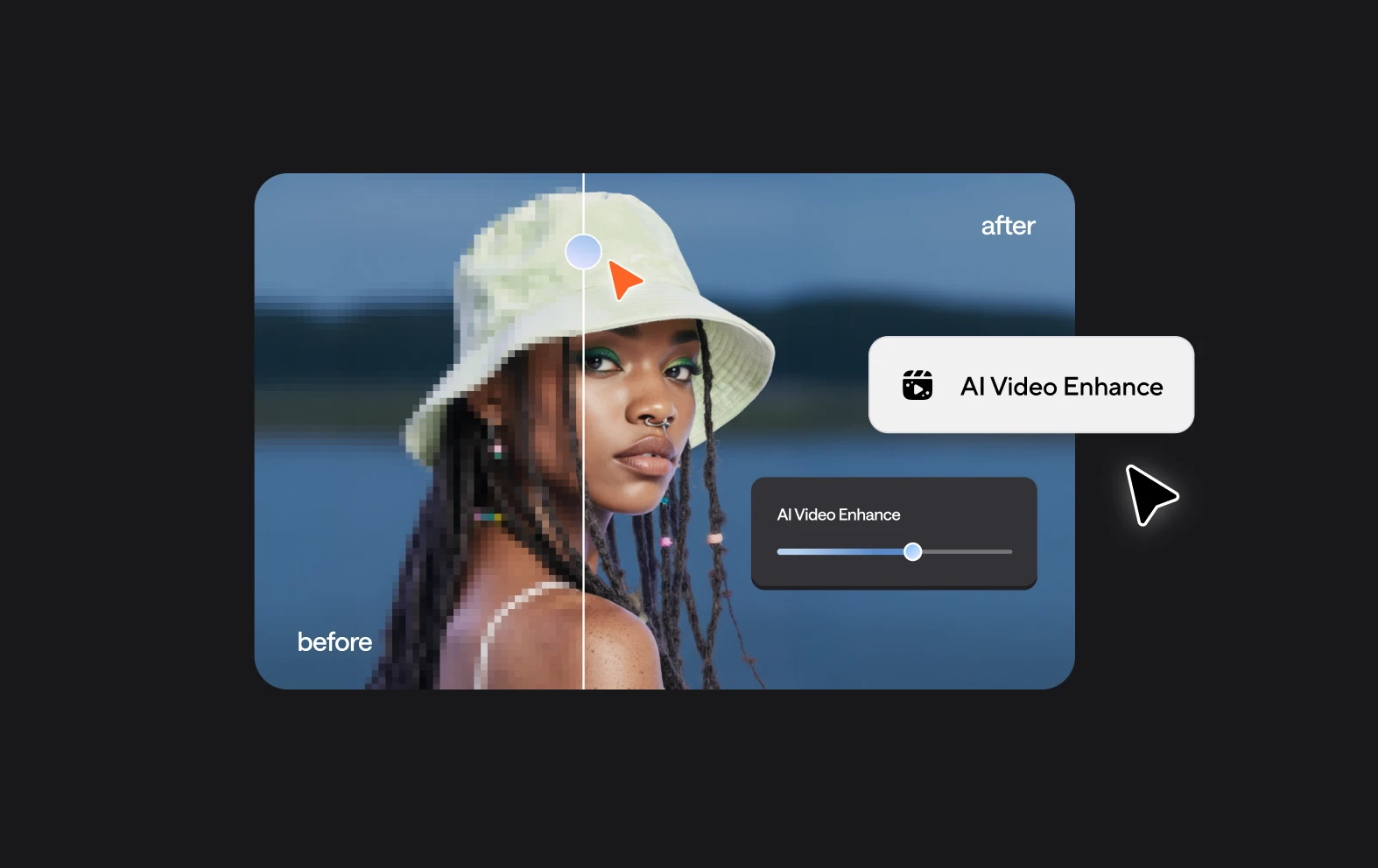
As well as basic editing like changing the aspect ratio, we also offer transformative AI tools like Cinematic Blur to blur backgrounds, Eye Contact Fixer and audio enhancement like auto-leveling and noise reduction.

benefit img 3

Drag and drop editing

Async is very simple to use with a clean, uncluttered interface that makes it easy to quickly edit both long and short videos. Even if you have limited experience making videos, it’s easy to get started.

Discover more

Add Audio to Video OnlineAdd Music to VideosAdd Subtitles to VideoAdd Text to VideoAI Audio AssistantAI Audio EnhancerAI Content ToolsAI Noise ReducerAI Podcast Clip GeneratorAI Subtitle GeneratorAI Video AssistantAI Video EditorAI Video EnhancerAI Video UnblurAnimation VoiceoversAudio JoinerAudio LooperAudio PodcastAudio ProductionAudio RecorderAudio to TextAudio TranslatorAudiobook Recording StudioAutomatic Video EditorBirthday Video MakerBlur Video BackgroundsCar Sound EffectsChange Video Aspect RatioClip MakerCloud Video EditingCompress MP4Compress VideoCreate a PodcastCreate Marketing VideosCreate Training VideosCreate Video OnlineCrop VideoDigital Marketing VideosE-Learning VoiceoversEasiest Video Editing AppEdit MOV FilesEdit WebM FilesExplainer Video MakerExplainer Video VoiceoverExtract AudioEye Contact FixerFemale Voice ChangerFiller Word DetectionFlip VideoFunny Sound EffectsFunny Video MakerHappy Stock MusicInterview TranscriptionJazz Stock MusicLightweight Video EditorLong Video to Short VideoLoop VideoLyric Video MakerMerge Audio FilesMerge VideoMontage Video MakerMP3 Audio CutterMP3 EditorMp3 to TextMP3 to WAV ConverterMP3 TrimmerMP3 Volume IncreaserMP4 to MP3 ConverterMp4 to TextMP4 TrimmerMP4 Video CutterMP4 Video EditorMusic Video MakerMute VideoOnline Audio ConverterOnline Movie MakerOnline Video ConverterOnline Video CutterOnline Video MakerOnline Video RecorderOnline Video TrimmerPhoto to Video MakerPodcast Editing SoftwarePodcast MakerPodcast RecordingPodcast StudioPodcast TeleprompterPodcast TranscriptionPodcast Video EditorPromo Video MakerRain Sound EffectsRecord Audio on iPhoneRemote Interview RecordingRemove Background Noise from AudioRemove Background Noise from VideoRemove Music from VideoResize VideoRotate VideoSilence RemovalSocial Media Marketing VideosSocial Media Video EditorSound Effects LibrarySpeech to Text SoftwareStart PodcastingText Video MakerText-Based EditingTrailer MakerTravel Video MakerTutorial Video MakerVideo Ad MakerVideo Background RemovalVideo ClearerVideo Collage OnlineVideo Compilation MakerVideo CreatorVideo Game VoiceoversVideo Interview SoftwareVideo JoinerVideo MakerVideo MergerVideo PodcastVideo Quality EnhancerVideo Recording SoftwareVideo ResizerVideo Size ReducerVideo SplitterVideo Subtitle GeneratorVideo to AudioVideo to TextVideo TranscriptionVideo TrimmerVideo Tutorial SoftwareVideo Voice OverVoice Over RecordingVoice Over StudioVoice RecorderVoice to TextVoiceovers for PresentationsWAV EditorWAV to MP3 ConverterWebinar Recording SoftwareWedding Video MakerYouTube Sound EffectsYouTube to MP4 TrimYouTube Video CreatorYouTube Video CutterYouTube Video EditorYouTube Video MakerYouTube Video TrimmerYouTube Video Voiceovers
More tools

Frequently Asked Questions

How to change the aspect ratio of a video without cropping?
To change the aspect ratio of a video without cropping, you can use software or online tools that add letterboxing or pillarboxing, which adjust the video’s frame to fit the desired aspect ratio without cutting out any part of the content. For instance, you can add black bars to the sides (pillarboxing) or top and bottom (letterboxing) of the video to change its dimensions. Tools like Async allow you to modify the aspect ratio by resizing the video canvas while maintaining the full content. This way, the video remains intact, and the aspect ratio is adjusted to fit various screen formats.

How to change the aspect ratio of a video without losing quality?
To change the aspect ratio of a video without losing quality, you can use software that resizes the video canvas while preserving the original resolution and content. One effective method is to add letterboxing (black bars at the top and bottom) or pillar boxing (black bars on the sides) to adjust the aspect ratio without cropping or stretching the video. Tools like Async allow you to change the aspect ratio by adjusting the output settings while keeping the video resolution intact. Make sure to export the video in a high-quality format to prevent any loss in visual clarity during the conversion process.
What are the most common aspect ratios?

The most common aspect ratios for video include 16:9, the standard for HD and 4K videos, widely used on platforms like YouTube, TVs, and computers, offering a widescreen view. 4:3 was once the standard for older televisions and monitors but is now mainly used for specific content like classic films. 1:1 is popular on social media platforms like Instagram for square posts, ideal for mobile viewing. 9:16 is the standard vertical aspect ratio used on platforms like TikTok, Instagram Stories, and Snapchat, optimized for mobile devices in portrait mode. Each aspect ratio is chosen based on the platform and how the video is intended to be viewed.

Can I change the aspect ratio of my video for free?

Yes, you can change the aspect ratio of your video for free using tools like Async. The platform offers a free tier that allows you to modify the aspect ratio of your video by adjusting the canvas size, adding letterboxing or pillar boxing, and more. However, there are some limitations to the free tier, such as the availability of certain advanced features and export options. For more comprehensive editing or higher-quality exports, you may need to upgrade to a paid plan, but the free version still provides basic functionality for aspect ratio adjustments.

How do you calculate the aspect ratio of a video?

To calculate the aspect ratio of a video, divide the width of the video by its height. For example, if the video has a resolution of 1920x1080 pixels, divide 1920 by 1080 to get the aspect ratio 16:9. The result will give you the aspect ratio in the form of width:height. If the numbers are not already in the simplest form, you can simplify them by finding the greatest common divisor (GCD) of both dimensions.
Your video, made by chat.
Just tell Async what you want.

From raw footage and AI-generated scenes to finished videos in one AI workflow.

Start creating for free