icon

Rotate Videos

Rotating a video is quick and simple with Async. You can rotate videos as well as making other edits in our editing studio.

Online video rotator

Async’s video editor is designed to make simple video editing tasks like rotation as simple as possible. All you need to do is upload the video you wish to change, select which direction you would like to rotate the video and then with a click of a button your changes will be implemented!

You can then pick how you want to export and download the file, including adjusting the quality and size. Your file will also be stored securely in your workspace should you want to come back and download it again.

icon

How to rotate videos with Async?

card 1 img
card 2 img
card 3 img
benefit img 1

Easy video editing

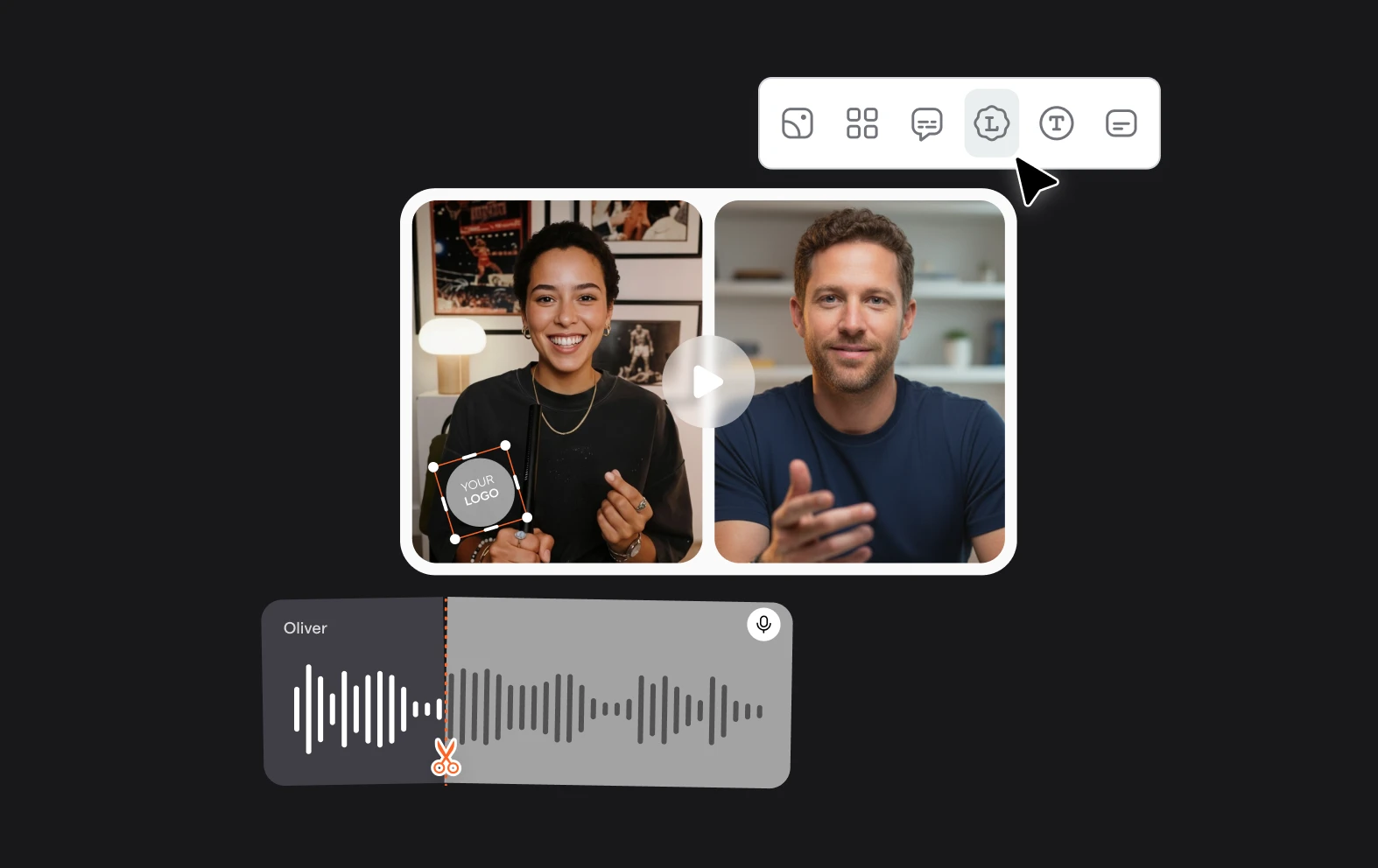
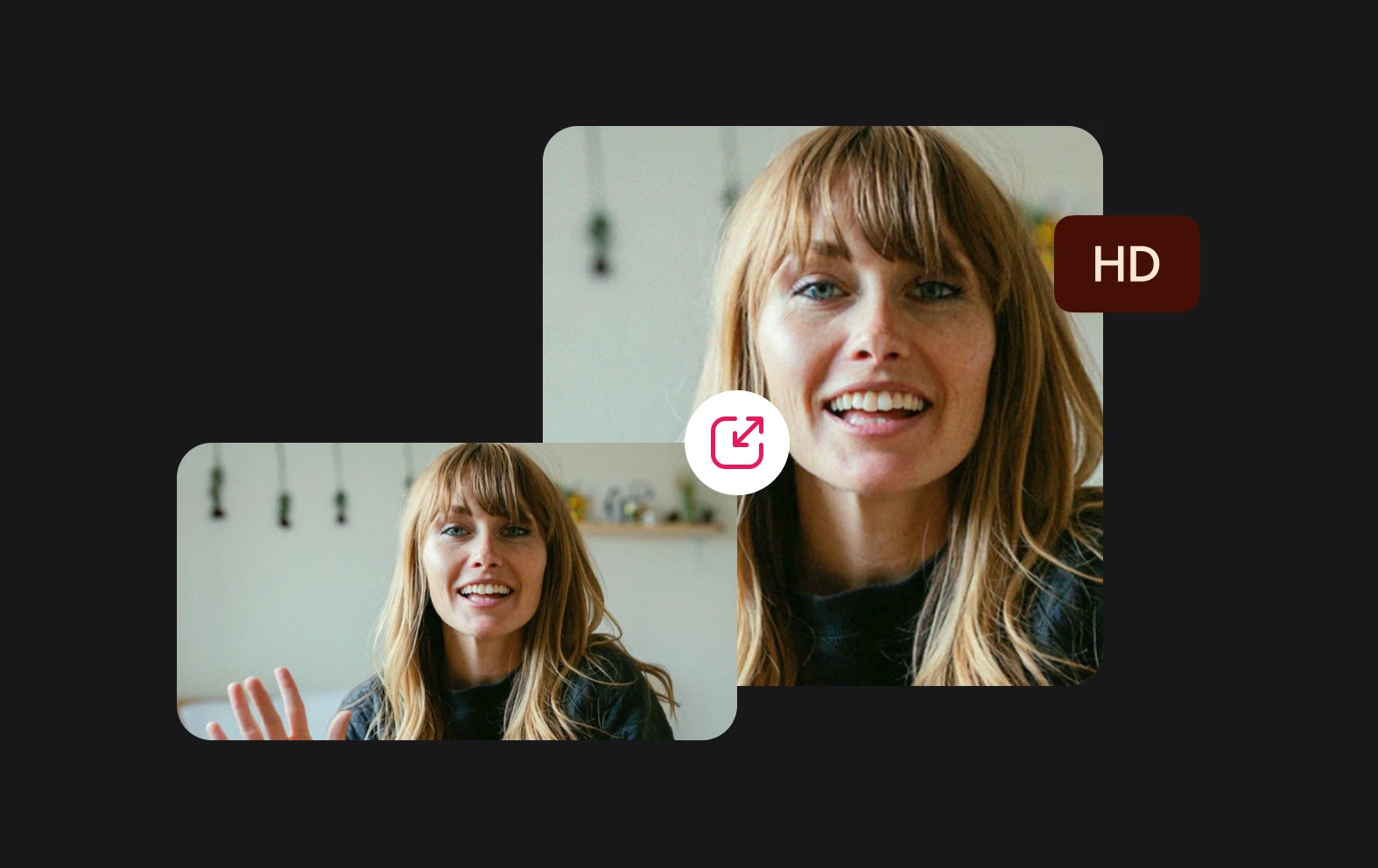
Video editing doesn’t have to be hard, especially if you’re only doing basic editing. Ditch the nonsense, cut through the noise and get a video editor that lets you do the simple things quickly and easily. Async offers the easiest way to edit videos online, including rotating videos.
benefit img 2

Store your files

Any files you upload to Async will be stored securely in the cloud so you can access, change or delete them at any time. If you need to come back and finish a task later, your files will be there waiting for you. You can also easily combine multiple files together into a single video.
benefit img 3

AI-powered tools

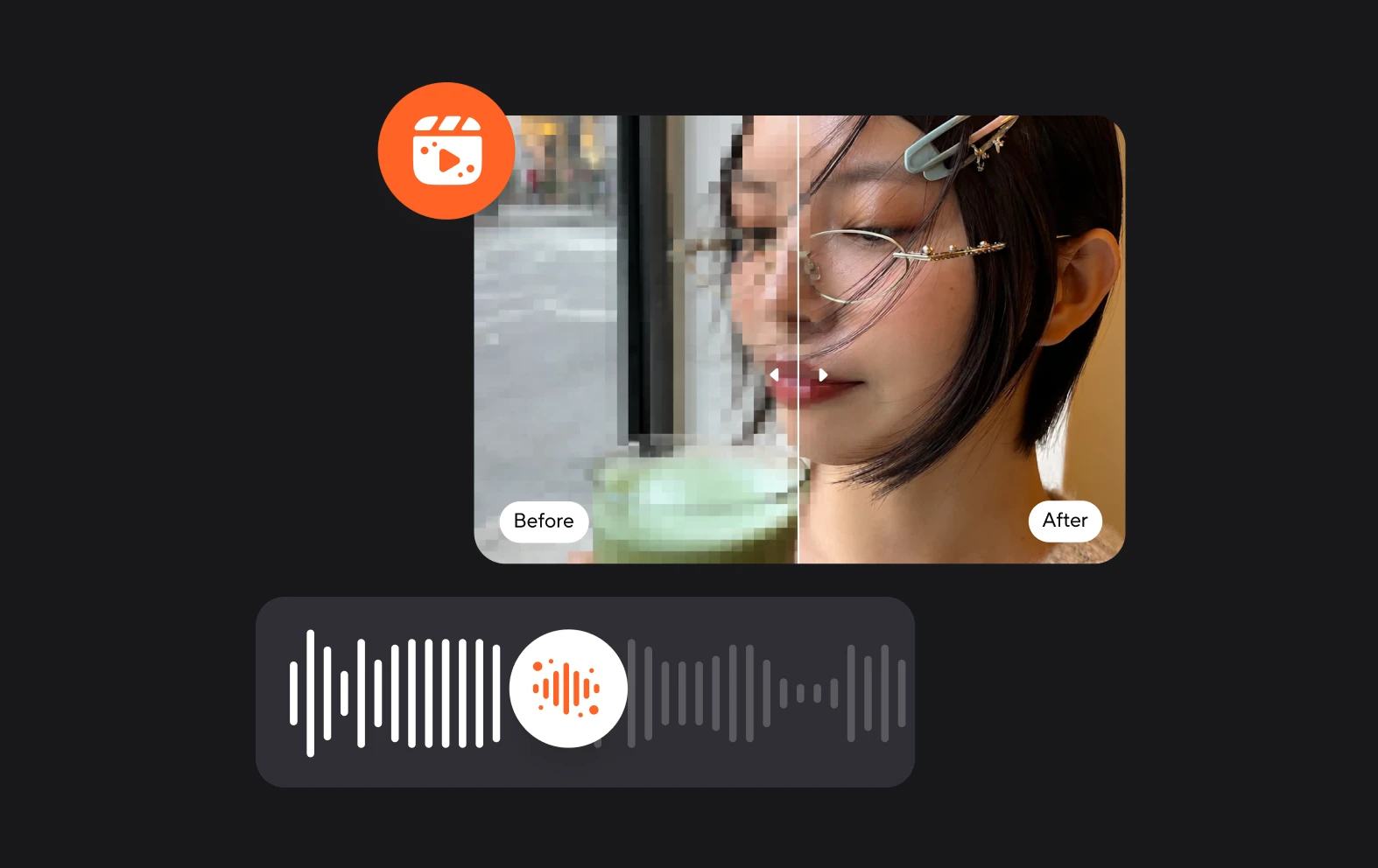
As well as a recording and video editing Async also offers AI tools that quickly enhance the quality of your video and make editing a breeze. Background blurring, eye contact fixer, AI Enhancer as well as audio cleaners help speed up the process of content creation, giving you more time to be creative.

Discover more

Add Audio to Video OnlineAdd Music to VideosAdd Subtitles to VideoAdd Text to VideoAI Audio AssistantAI Audio EnhancerAI Content ToolsAI Noise ReducerAI Podcast Clip GeneratorAI Subtitle GeneratorAI Video AssistantAI Video EditorAI Video EnhancerAI Video UnblurAnimation VoiceoversAudio JoinerAudio LooperAudio PodcastAudio ProductionAudio RecorderAudio to TextAudio TranslatorAudiobook Recording StudioAutomatic Video EditorBirthday Video MakerBlur Video BackgroundsCar Sound EffectsChange Video Aspect RatioClip MakerCloud Video EditingCompress MP4Compress VideoCreate a PodcastCreate Marketing VideosCreate Training VideosCreate Video OnlineCrop VideoDigital Marketing VideosE-Learning VoiceoversEasiest Video Editing AppEdit MOV FilesEdit WebM FilesExplainer Video MakerExplainer Video VoiceoverExtract AudioEye Contact FixerFemale Voice ChangerFiller Word DetectionFlip VideoFunny Sound EffectsFunny Video MakerHappy Stock MusicInterview TranscriptionJazz Stock MusicLightweight Video EditorLong Video to Short VideoLoop VideoLyric Video MakerMerge Audio FilesMerge VideoMontage Video MakerMP3 Audio CutterMP3 EditorMp3 to TextMP3 to WAV ConverterMP3 TrimmerMP3 Volume IncreaserMP4 to MP3 ConverterMp4 to TextMP4 TrimmerMP4 Video CutterMP4 Video EditorMusic Video MakerMute VideoOnline Audio ConverterOnline Movie MakerOnline Video ConverterOnline Video CutterOnline Video MakerOnline Video RecorderOnline Video TrimmerPhoto to Video MakerPodcast Editing SoftwarePodcast MakerPodcast RecordingPodcast StudioPodcast TeleprompterPodcast TranscriptionPodcast Video EditorPromo Video MakerRain Sound EffectsRecord Audio on iPhoneRemote Interview RecordingRemove Background Noise from AudioRemove Background Noise from VideoRemove Music from VideoResize VideoRotate VideoSilence RemovalSocial Media Marketing VideosSocial Media Video EditorSound Effects LibrarySpeech to Text SoftwareStart PodcastingText Video MakerText-Based EditingTrailer MakerTravel Video MakerTutorial Video MakerVideo Ad MakerVideo Background RemovalVideo ClearerVideo Collage OnlineVideo Compilation MakerVideo CreatorVideo Game VoiceoversVideo Interview SoftwareVideo JoinerVideo MakerVideo MergerVideo PodcastVideo Quality EnhancerVideo Recording SoftwareVideo ResizerVideo Size ReducerVideo SplitterVideo Subtitle GeneratorVideo to AudioVideo to TextVideo TranscriptionVideo TrimmerVideo Tutorial SoftwareVideo Voice OverVoice Over RecordingVoice Over StudioVoice RecorderVoice to TextVoiceovers for PresentationsWAV EditorWAV to MP3 ConverterWebinar Recording SoftwareWedding Video MakerYouTube Sound EffectsYouTube to MP4 TrimYouTube Video CreatorYouTube Video CutterYouTube Video EditorYouTube Video MakerYouTube Video TrimmerYouTube Video Voiceovers
More tools

Frequently Asked Questions

How to rotate videos on Windows?

To rotate videos on Windows, you can use various tools, including Async, a user-friendly online editor. With Async, you can simply upload your video file, and then rotate it to your preferred orientation in the editor. After uploading, use the rotation tool to adjust the angle (90°, 180°, or 270°) as needed. Once rotated, you can preview the changes and export the video in its new orientation. Async is especially convenient because it’s browser-based, so you don’t need to download software.

How to rotate a video on a MAC?

On a Mac, rotating videos is straightforward using both built-in tools and online editors like Async. With Async, you can open the platform in your browser, upload your video, and use its editing interface to rotate the video by 90°, 180°, or 270° as needed. Once you’ve rotated it to the desired orientation, preview and then export the video in the new format. Async’s web-based editing makes it easy to access without any additional software.

What’s the best software to rotate a video online?

The best software to rotate a video online is Async due to its ease of use, accessibility, and powerful editing capabilities directly in the browser. Unlike desktop apps, Async requires no installation and works on any operating system, making it ideal for quick, straightforward video rotations. While tools like CapCut offer useful editing features and iMovie (for Mac) and Adobe Premiere Pro provide robust desktop-based editing, Async’s simplicity and specialized online environment make it the top choice for quick rotations. It allows you to easily upload, rotate, and export videos with minimal hassle, making it perfect for users who need reliable, high-quality results without complex software.

How to rotate a video in Premiere Pro?

Select the video clip, then go to the Effect Controls panel at the top of the screen. Under Motion, find the Rotation option, which allows you to input a specific angle—positive values rotate the video clockwise, while negative values rotate it counterclockwise. You can enter 90°, 180°, or any custom angle as needed. Once you’re satisfied with the orientation, preview the rotated video in the Program monitor, and when ready, export the project to save your changes. This method allows precise control over the rotation and is ideal for professional-quality editing.

What’s the difference between landscape and portrait?

The difference between landscape and portrait primarily relates to orientation. Landscape orientation is wider than it is tall, with a horizontal layout. It’s often used to capture wide scenes, such as landscapes, and is ideal for showing more of the environment, fitting well with computer screens, TVs, and cinemas. Portrait orientation, on the other hand, is taller than it is wide, with a vertical layout. It’s commonly used for individual or close-up shots, especially on smartphones, where it aligns naturally with the device's vertical screen. Landscape orientation is commonly chosen for traditional video, photography, and print, while portrait orientation is popular in mobile photography, social media (like Instagram Stories and TikTok), and for content focused on a single subject.
Your video, made by chat.
Just tell Async what you want.

From raw footage and AI-generated scenes to finished videos in one AI workflow.

Start creating for free