
Reverse video
Make the action run backwards. Turn an ordinary clip into a rewind effect, then shape the rest of your video in Async.
Video reverser for creative rewind effects
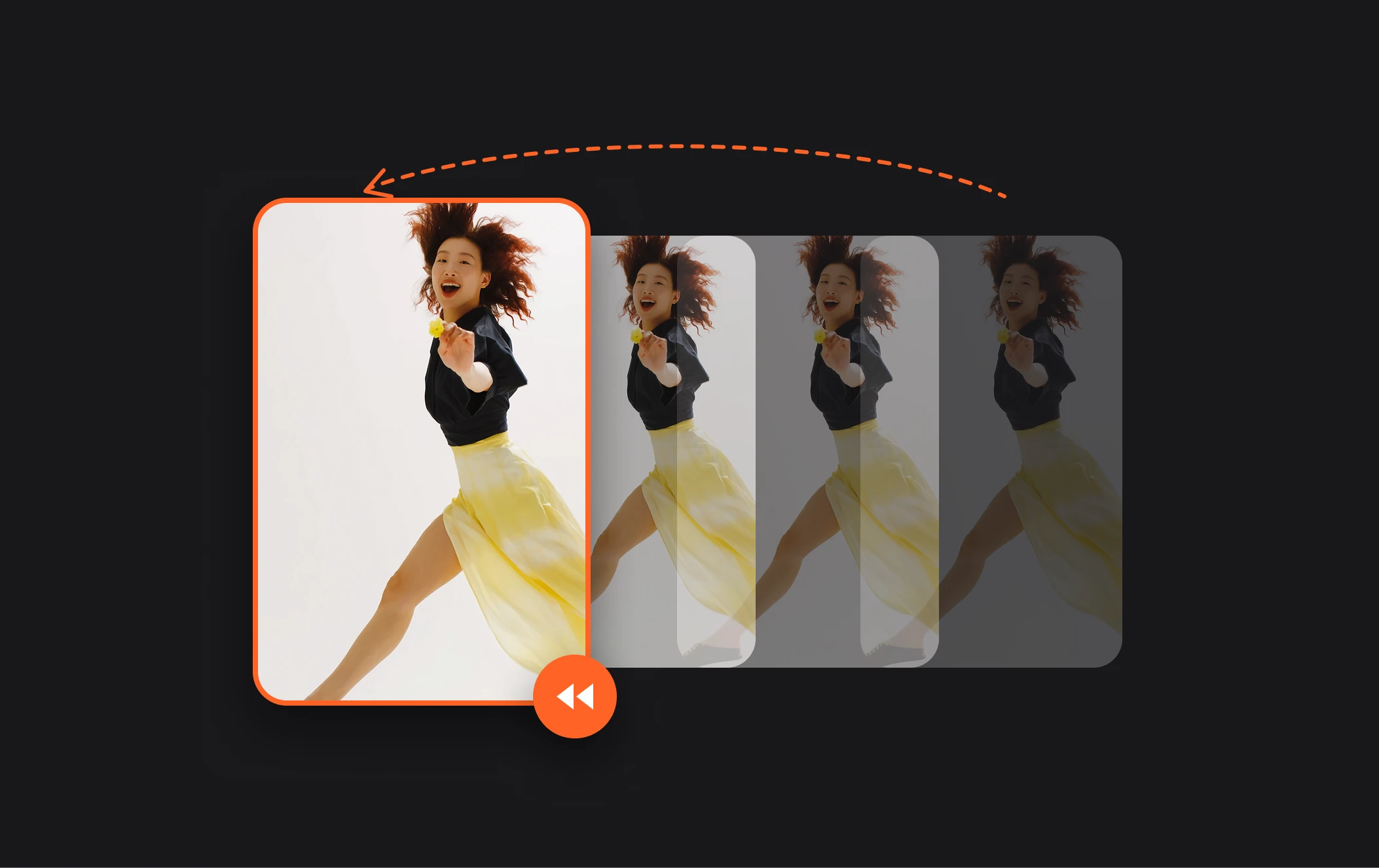
Some moments are more interesting in reverse: a spilled drink jumps back into its glass, a jump lands at its starting point, or a product unboxes itself. Use Async as a video reverser to play video backwards and add that moment to a larger edit. Describe the shot you want to rewind, review how it fits, and keep directing the video from there.

How to reverse video online
Play video backwards for a new perspective
A simple change in direction can make familiar footage feel unexpected. Reverse a splash, a jump, or a falling object to give viewers a second look at the action. Use the effect where it earns attention instead of making every clip run backwards.
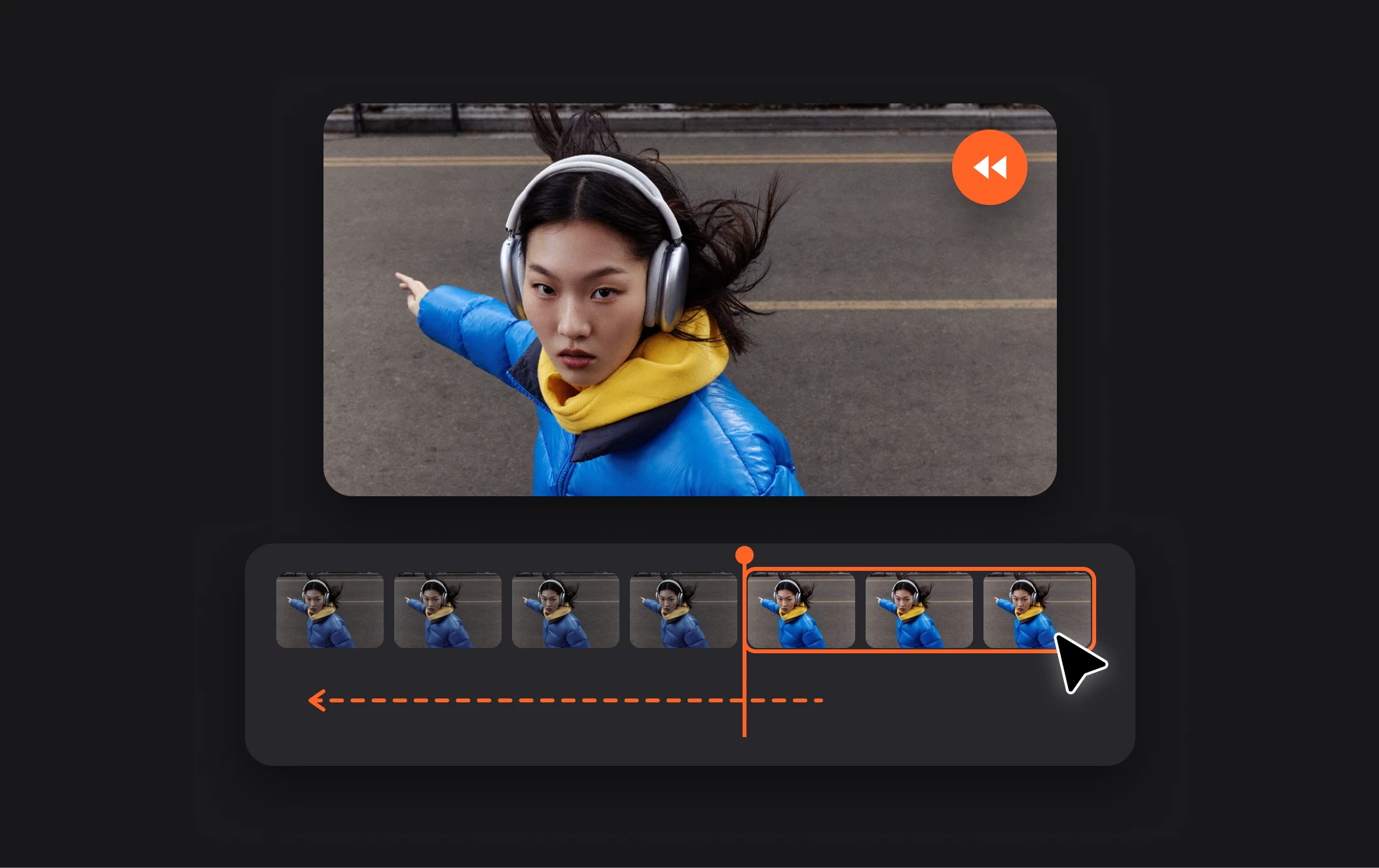
Build a rewind around the moment that matters
A rewind works best when there's a clear before and after. Start with the outcome, move backward to reveal how it happened, or bring the action back to its opening position. Keep the surrounding edit focused so the reverse moment feels intentional.
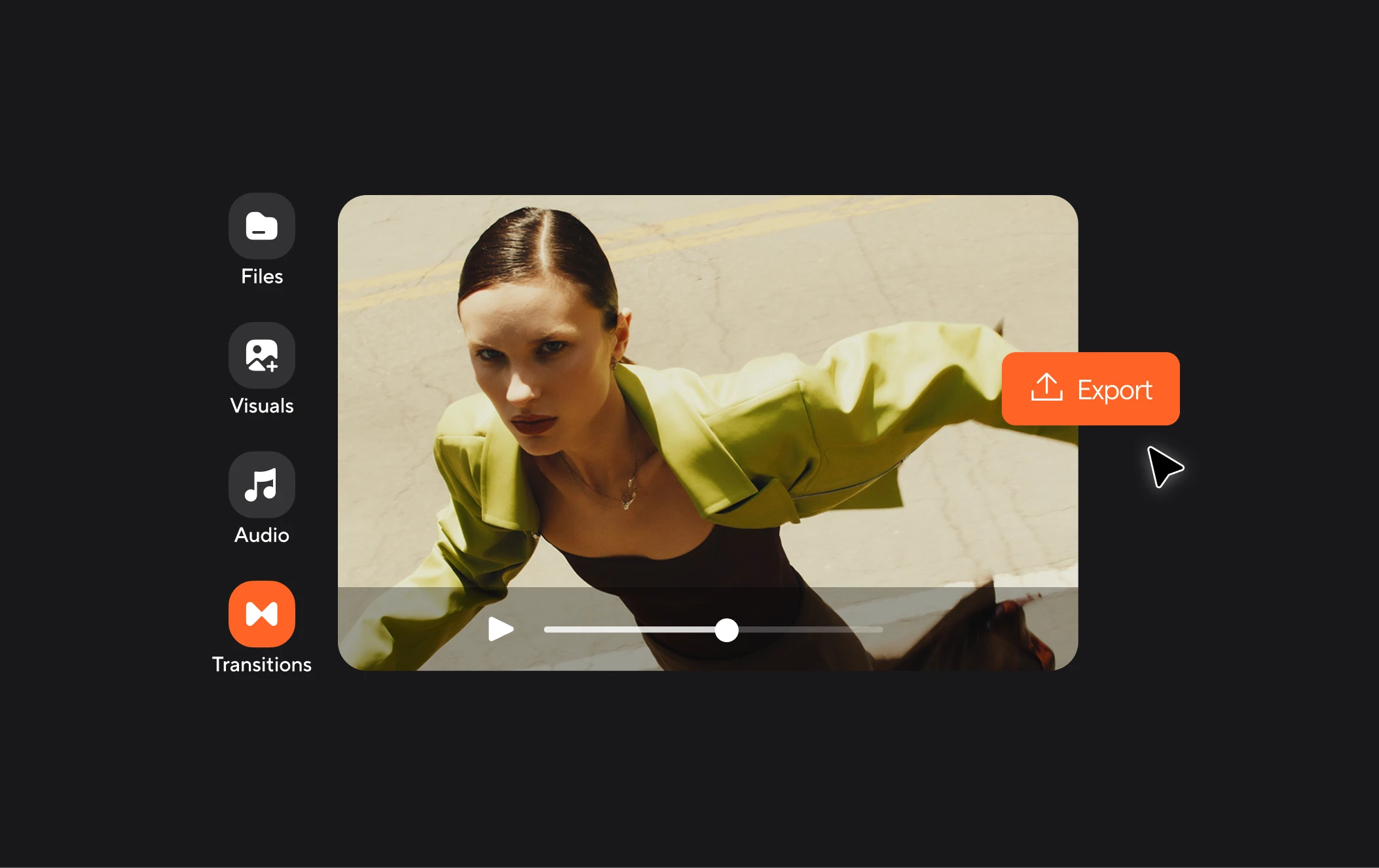
Keep editing after the reverse effect
A video reverser is only one part of the story. In Async, you can continue working on pacing, add captions or music, and create supporting visuals without starting a separate project. Direct the whole video rather than stopping after one effect.
Built for every kind of video workflow
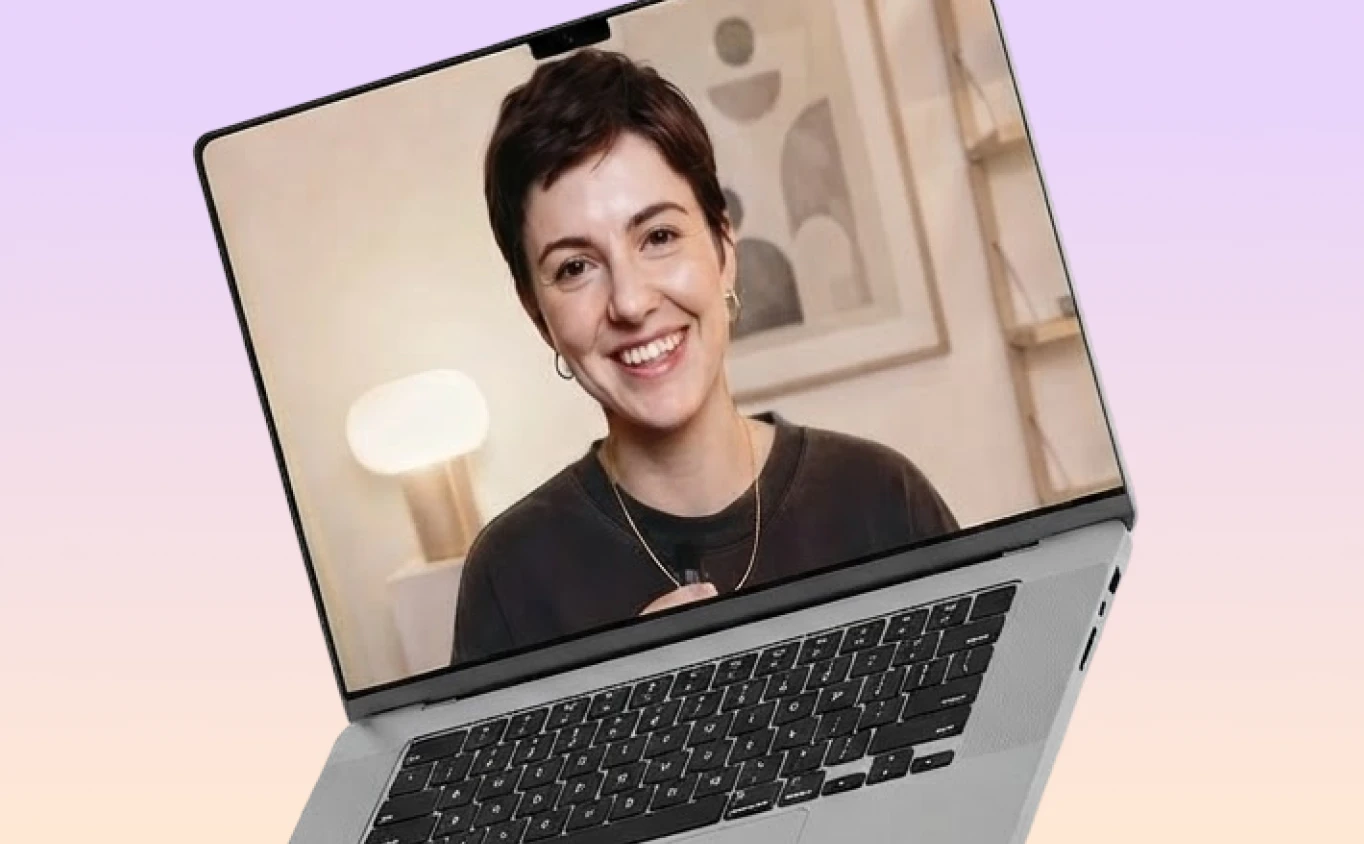
Show packaging closing itself or scattered items returning to place for a playful product shot.
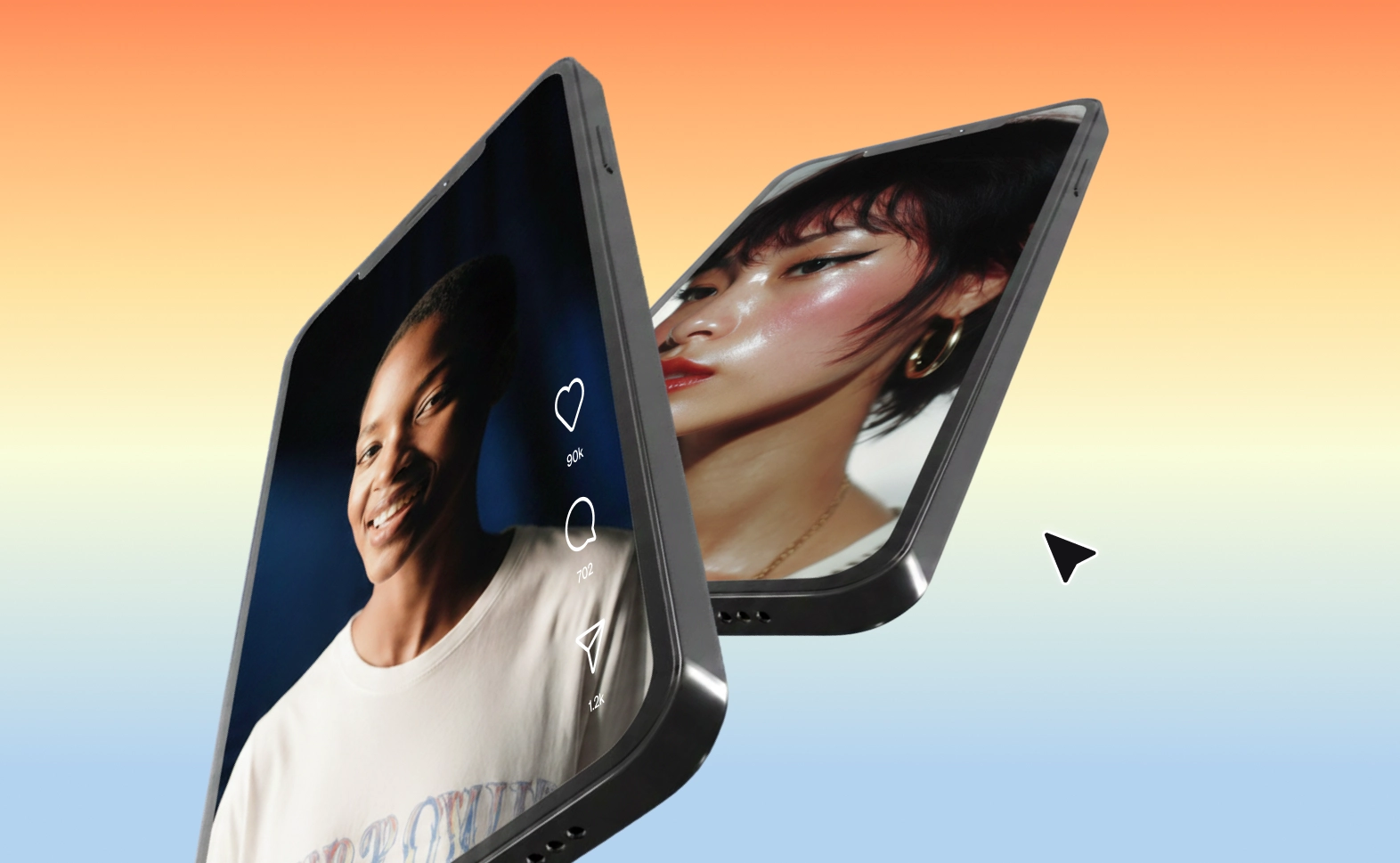
Use a quick backward movement between two scenes to make a Reels or Shorts transition more memorable.

Rewind a dance move, skate trick, or sports moment to emphasize the motion before the next cut.
Why use Async to reverse video?
We love seeing you bring your vision to life. Most tools stop after simple video editing, but Async stays with you for the whole process. Keep editing, generate new videos, and chat with our AI editor until your work looks exactly how you imagined it.